Organisations often find that some information on their applications is situated, updated or available in spreadsheets. Rather than creating the applications one by one as applications in an EA Tool, QualiWare can take this existing information from spreadsheets and import it.
There are several ways to import content to QualiWare, outlined below.
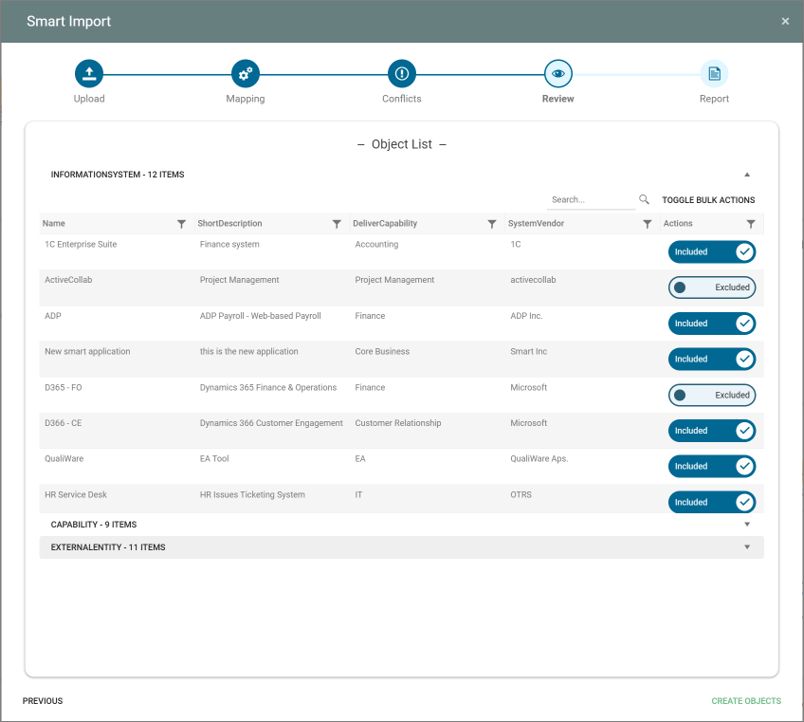
Using the Smart Importer – from the Getting Started Tile on a Deskop
The easiest way to import content is by using the Smart Importer included in all Gettings Started Tiles as a part of the Desktops introduced in QualiWare 10.10
The smart importer guides you through the import of your data from cvs files to QualiWare.
Read more about the Smart Importer.
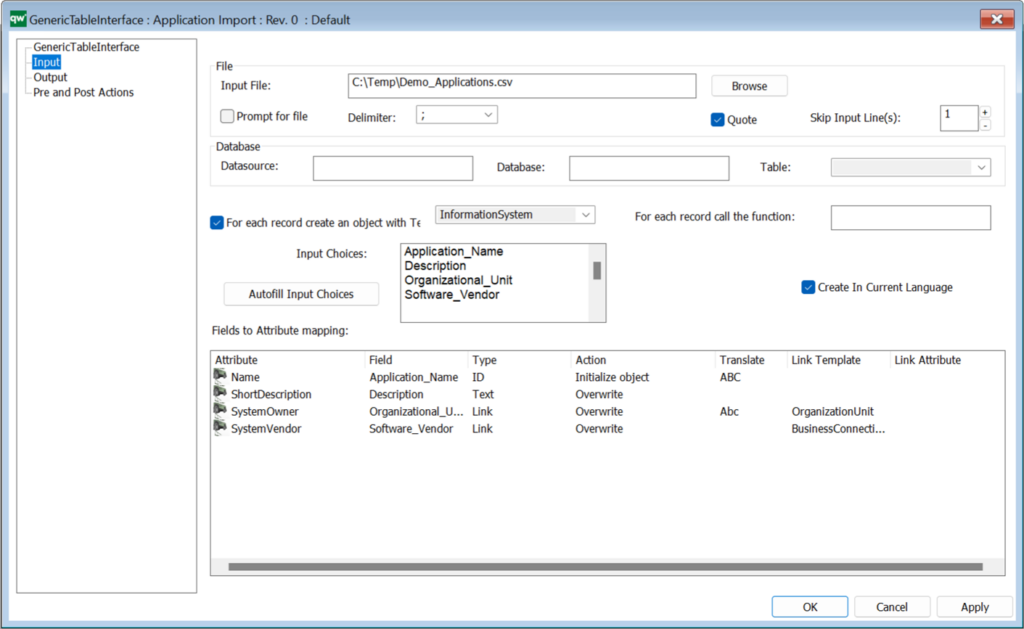
Import through the QualiWare Windows client QLM – Using the GenericTableInterface object
This “translates” the data from a CSV file into objects, properties, and relationships between objects in QualiWare. The data is then automatically linked to existing or new objects in the tool – saving time by manually ensuring you do not have to link the data for each application.
Read more about Generic Table Interface.
Import through the Web by using spreadsheets (Qualiware 10.4 to QualiWare 10.9)
QualiWare 10.4 introduced the Spreadsheet-to-model feature, which made it possible to import csv data into a spreadsheet and convert it into a model (diagram).
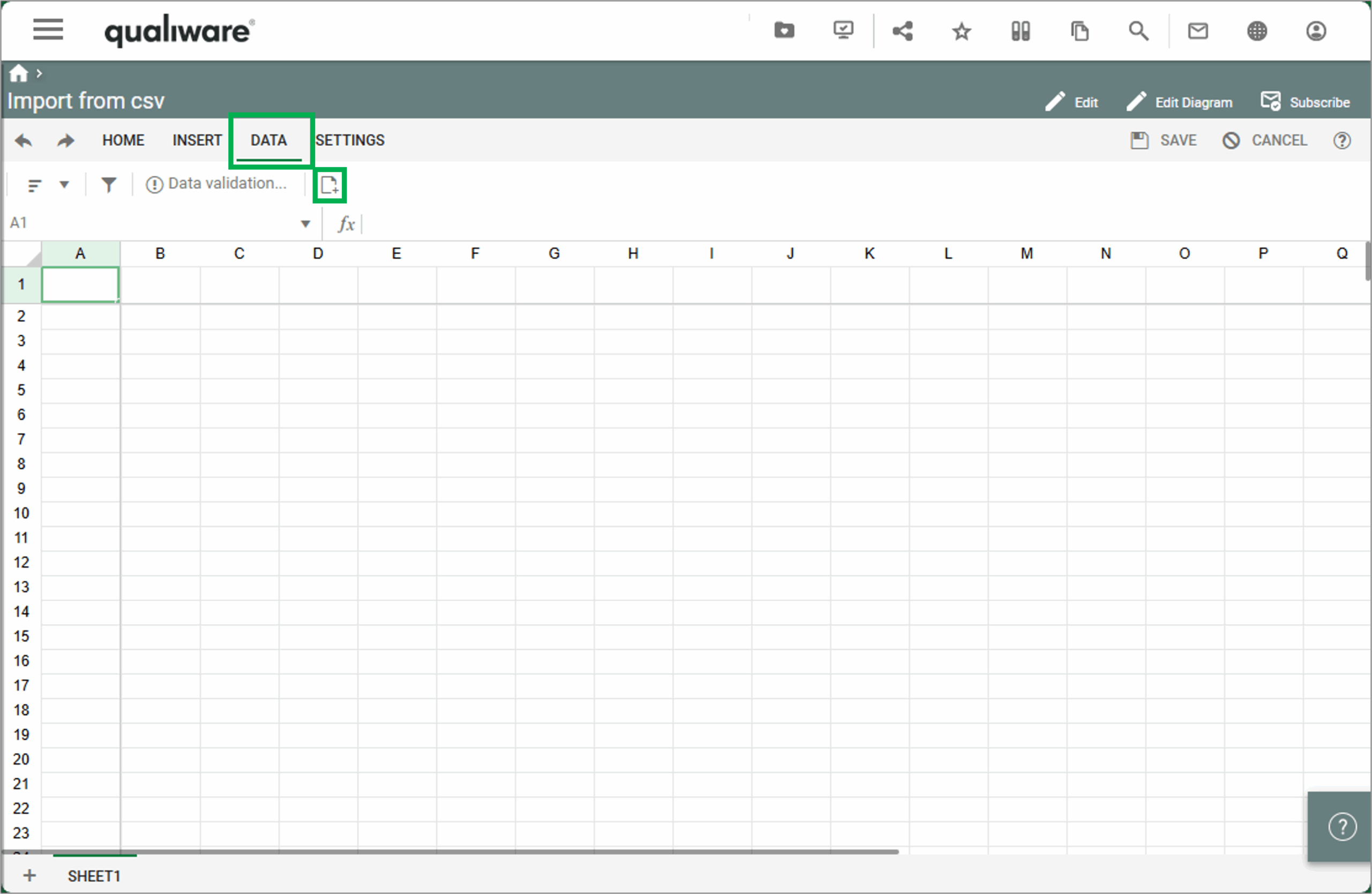
From a spreadsheet you can load data csv into the spreadsheet from the Data tab, and clicking the “Load File content into Spreadsheet” (Note this feature was removed in QualiWare 10.10 after the introduction of the Smart Importer).
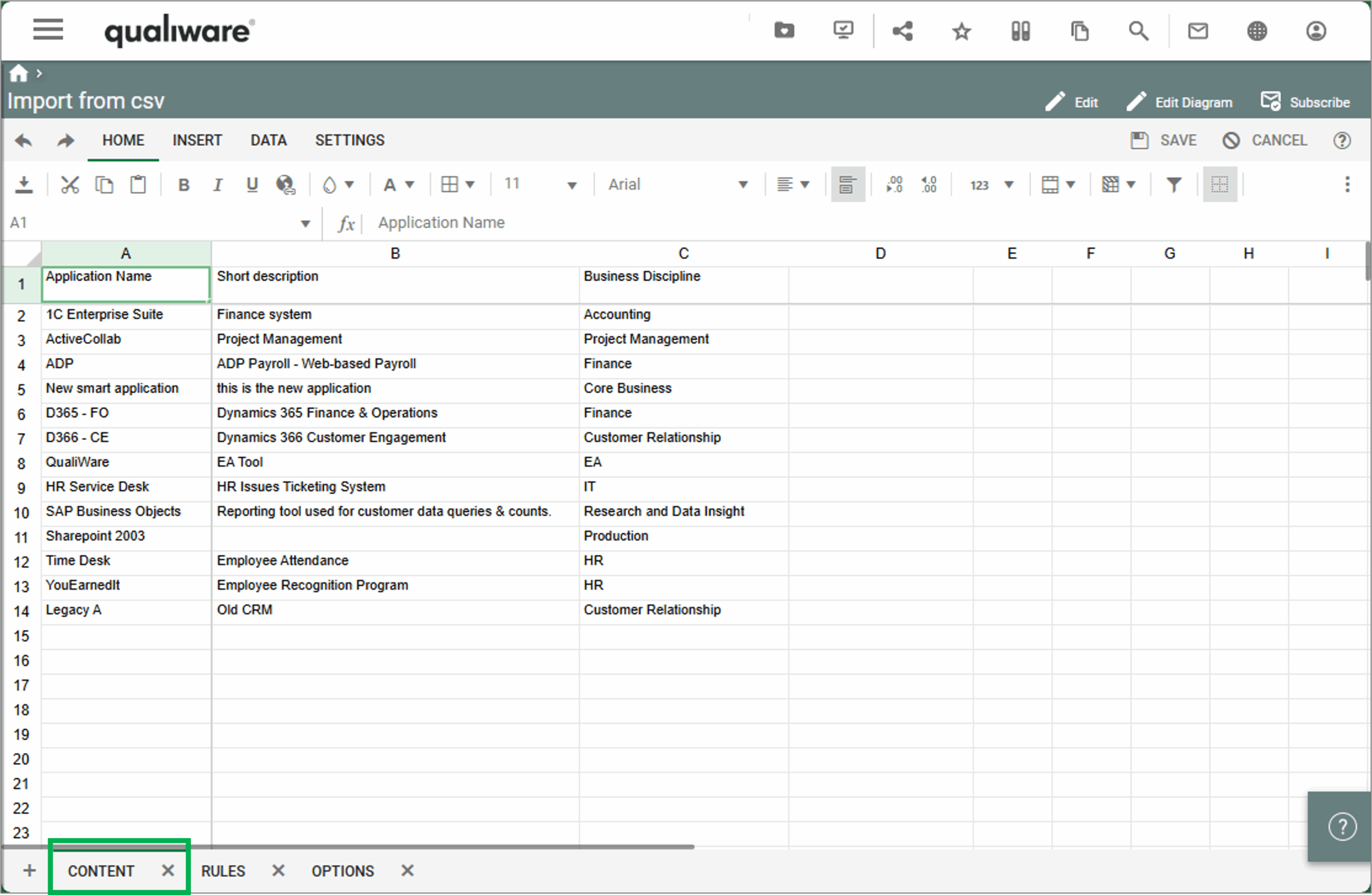
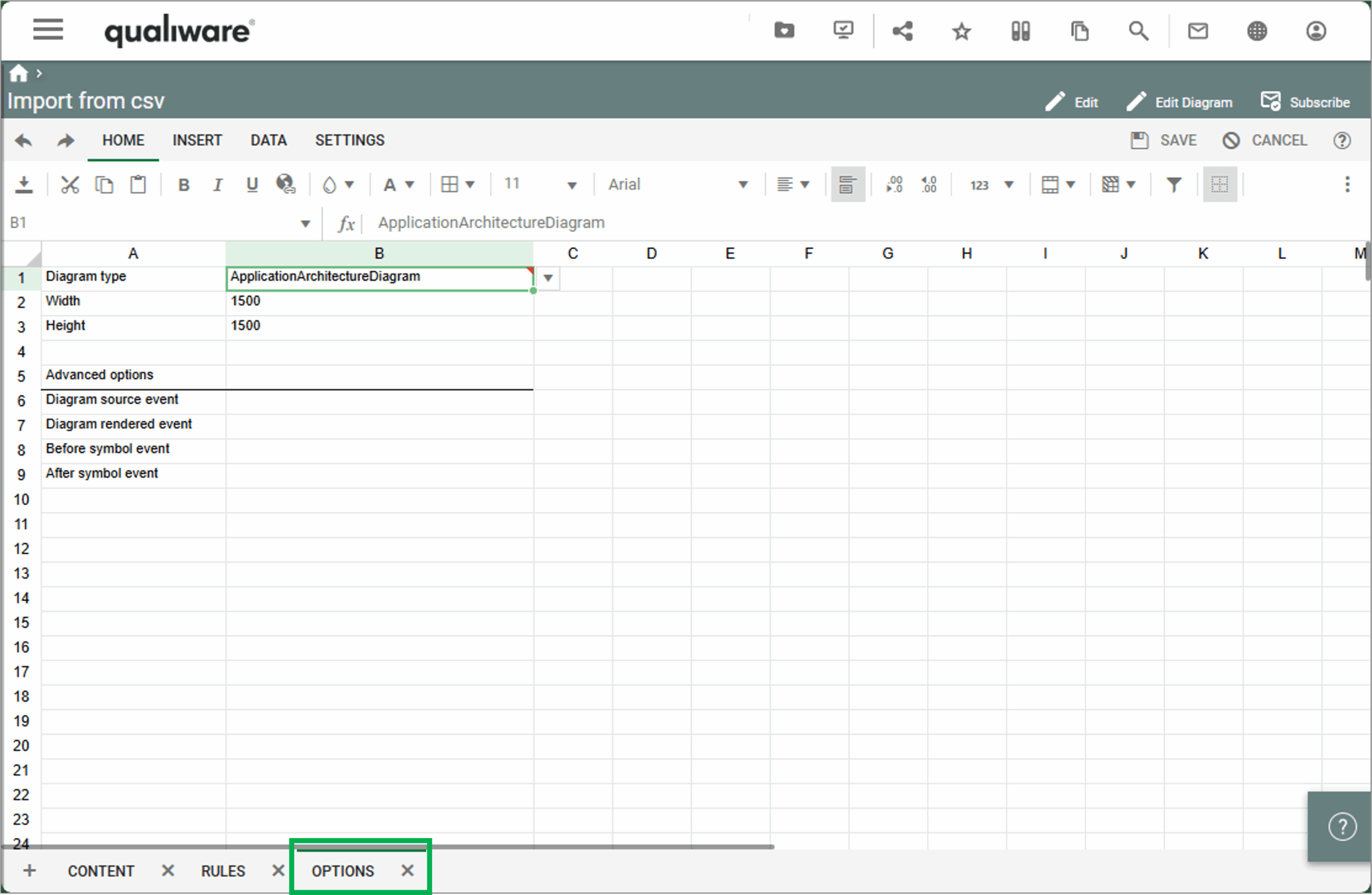
Once the data is loaded, the spreadsheet contains 3 tab. The data from the cvs-file appears on the “Content” tab.
On the “Options” tab you can insert the Diagram type for the target diagram.
On the “Rules” tab you specify how each row in the content should be imported.
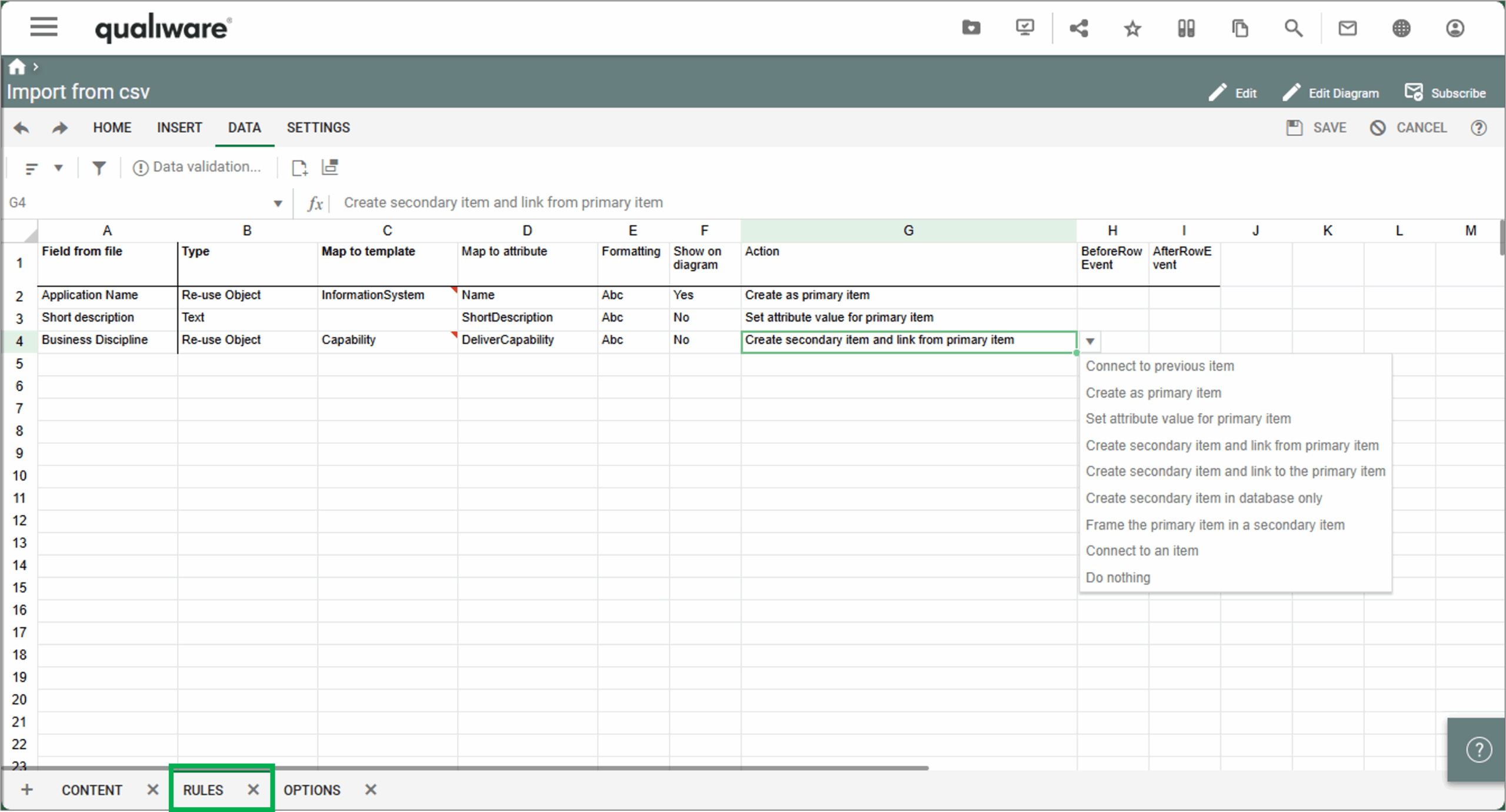
Type:
- Re-use Object (an unique item representation of the item. This will mean that if two items have the same name only one will be created. The type does not allow for duplicate items to be created (this option will check if object with the same name exists in database and use the first retrived object. if no object with the same name exists new object will be created)).
- Link (no re-use, this type allows duplicate items to exist)
- Text (This will create the item as a text. The type is allowing duplicate items to exist (this options will always create new object)
Map to template: which template the data should be mapped to
Map to attribute: what attribute on the template the data should be mapped to
Show on diagram: wether the item should be shown on the diagram or not (the inserted diagram type under “Options” determines what can be “show on diagram”).
Action: here you specify what should be done with the item
Once you have Saved the spreadsheet, you can import the content by clicking “Convert to Model”
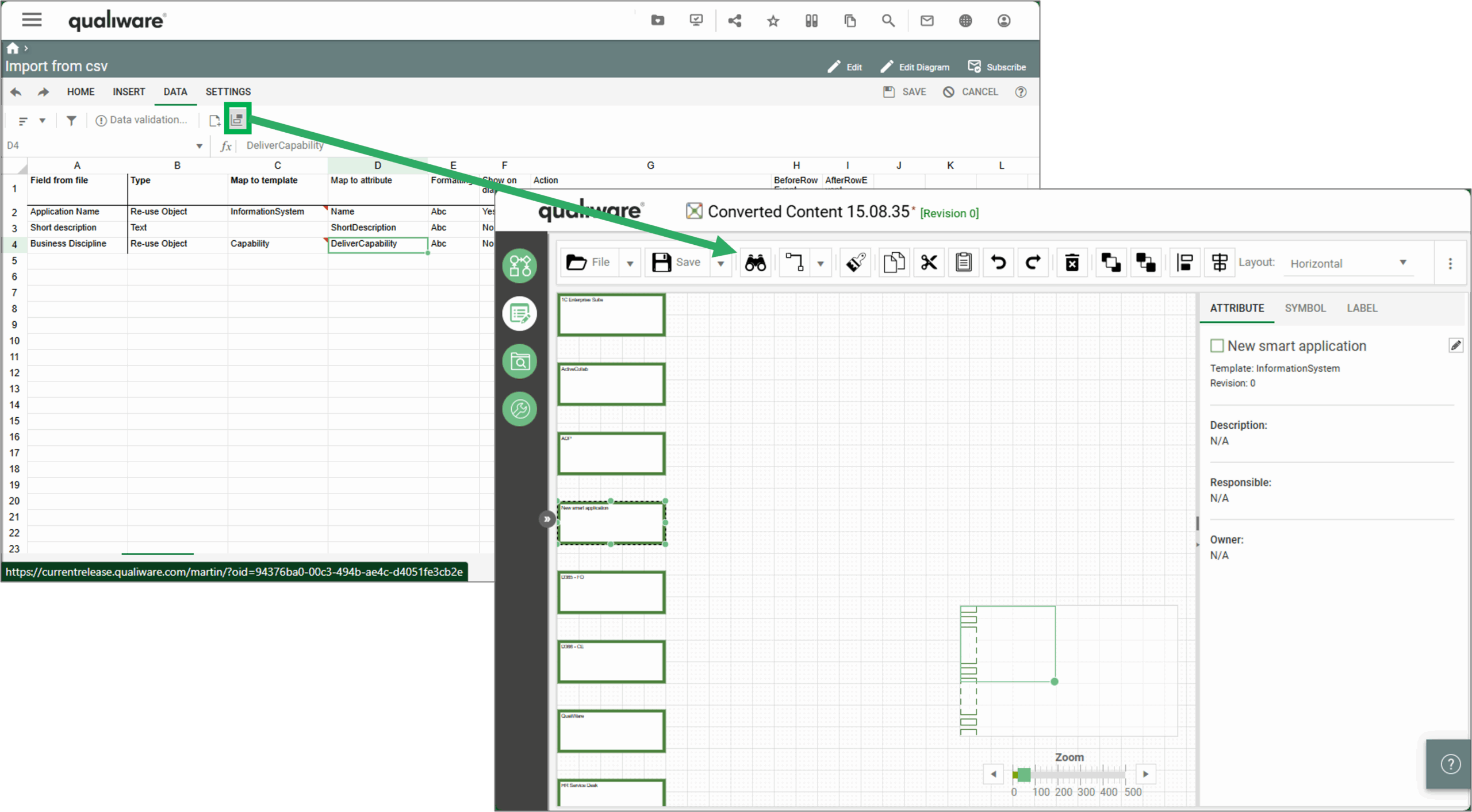
NOTE: this feature was removed after the introduction of the new and improved Smart Importer in QualiWare 10.10
Key QualiWare features for establishing a baseline
All the abovementioned methods are imperative to establish a baseline in the Application Portfolio. QualiWare enables this process by:
- Providing easy-to-use import of existing applications and their available information
- Utilizing the Governance Workflow to delegate responsibility. Creating ownership of applications is a crucial step in this process. But rather than the Architect locating and finding all information through surveys and endless meetings, QualiWare allows the organisation to collaborate in architecting the business!
QualiWare enables collaboration by automating content sharing throughout its entire lifecycle and notifying relevant stakeholders whenever their attention is required.
When you use the built-in governance workflow engine in QualiWare, you can set up a governance flow that controls who in your organisation should get notified when and also which actions they can perform.
An example of this could be that only application owners have permission to create and change their own applications or application diagrams. Other users can subscribe to the diagrams and only add comments and suggest improvements.