Menu Layout

Purpose: The Purpose of the Menu Layout template is to provide the menu structure for the system developed in the Dialog Model.

Core concerns: The Menu Layout template enables you to model Menu Items which can be connected by containing each other – as is the case with the HTML Mega Menu template.

Relation to other templates: The Menu Layout is a QualiWare system template and is related to the Dialog Model, Dialog Layout, Report Layout and Help Model.

Properties and metadata: The Menu Layout template ­­­­can for example retain the following information:

  • A description of the diagram
  • Audits (auto generated information regarding its current state and access rights)
  • Associated documents, diagrams and other objects
  • Inherent Risk detailing risk considerations
  • Governance information detailing information about the published diagram and who has been involved in the approval of the Menu Layout
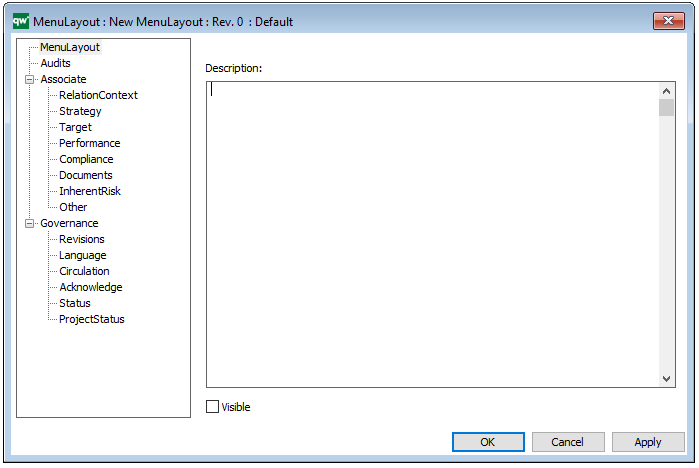
The above picture shows the properties dialogue window for the Menu Layout template, where you can view and edit the template’s properties in QualiWare Lifecycle Manager.
Query Design

Purpose: The purpose of the Query Design template is to enable easy design of Generic Queries.

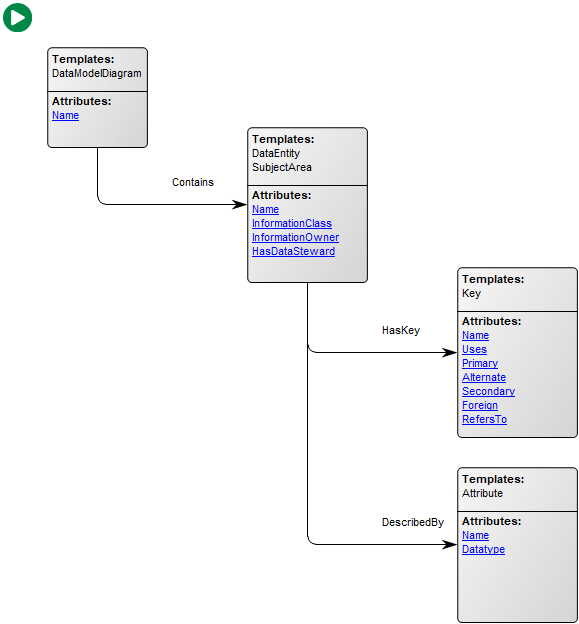
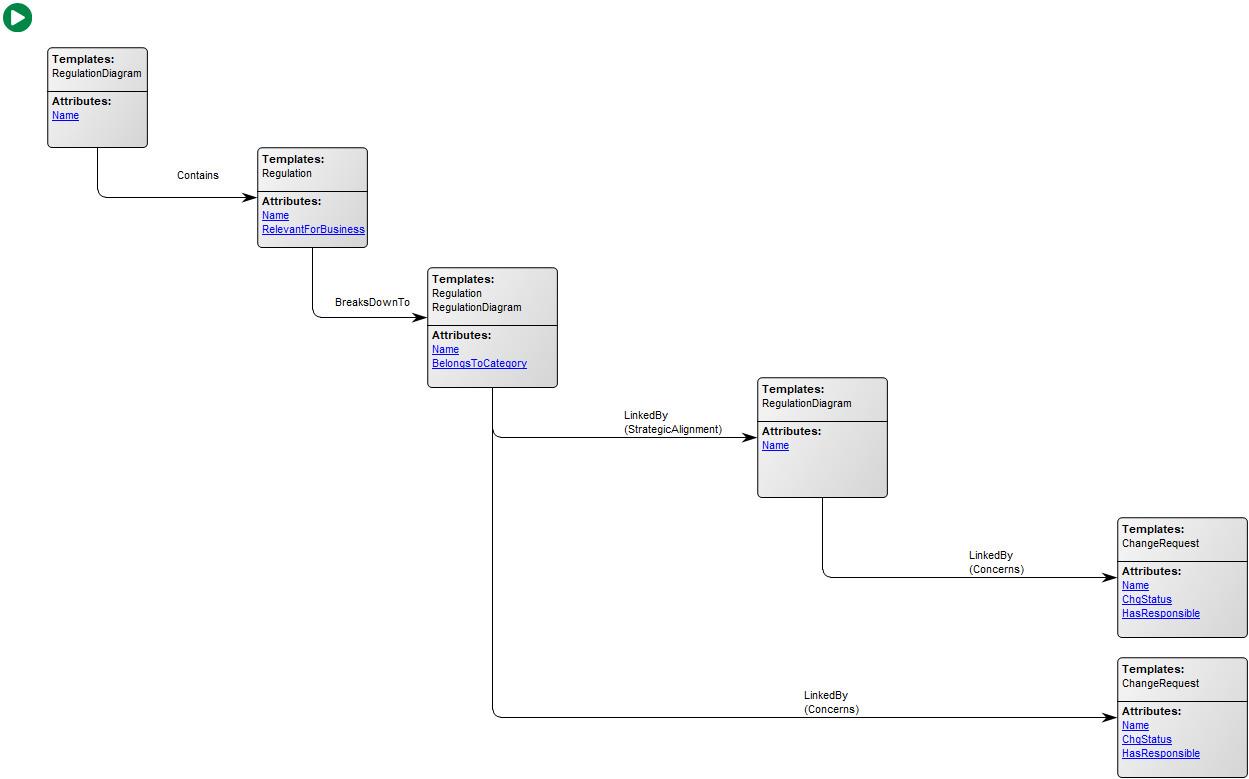
Core concerns: The Query Design template enables you to model Object Queries and Relation Queries into Generic Queries. When creating a Query Design, a Generic Query will be generated automatically and appear graphically on the diagram as a white triangle in a green circle – see the model below:

Relation to other templates: The Query Design template is used to generate Generic Query templates which can be used in creating Report Definitions, Spreadsheets and HTMLQueryResultViews.

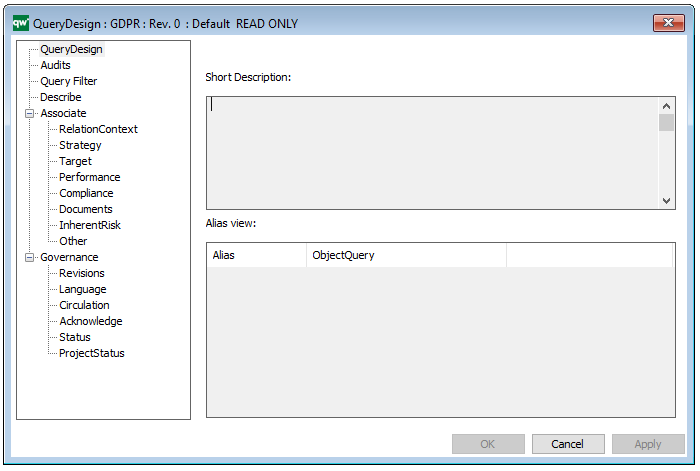
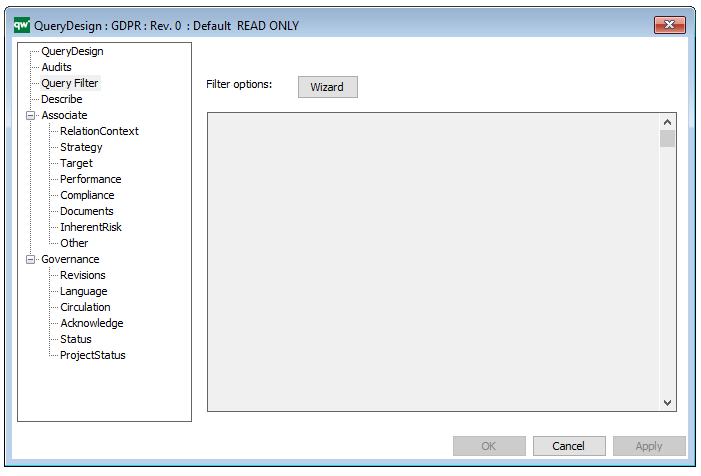
Properties and Metadata: The Query Design Template can for example rentain the following information:

  • A description
  • Audits (auto generated information regarding its current state and access rights)
  • Query filter (with wizard for filter options)

The above pictures show the properties dialogue window for the Query Design Template where you can view and edit the diagram’s properties in QualiWare Lifecycle Manager

You can see an example of a Query Design in the QualiTube sections, where there is a video on Composity Query Design.

Read more about Query Design and GenericQuery here.

Report Layout

Purpose: The purpose of the Report Layout is to provide the layout of a report for the system developed in the Dialog Model.

Core concerns: The Report Layout template enables you to model Report Pages and Report Fields which can be related by connections.

Relation to other templates: The Report Layout is a QualiWare system template and is related to the Dialog Model, Dialog Layout, Menu Layout and Help Model.

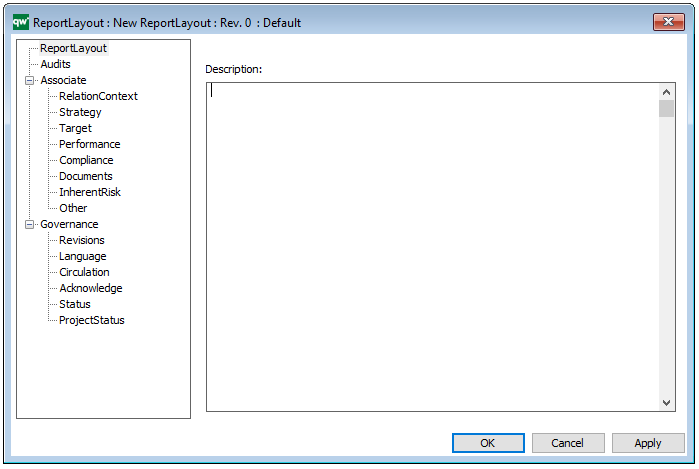
Properties and metadata: The Report Layout template ­­­­can for example retain the following information:

  • A description of the diagram
  • Audits (auto generated information regarding its current state and access rights)
  • Associated documents, diagrams and other objects
  • Inherent Risk detailing risk considerations
  • Governance information detailing information about the published diagram and who has been involved in the approval of the Report Layout template

The above picture shows the properties dialogue window for the Report Layout template where you can view and edit its properties in QualiWare Lifecycle Manager.
Repository Desktop

Purpose: The primary purpose of The Repository Desktop template is to design toolbars in QLM.

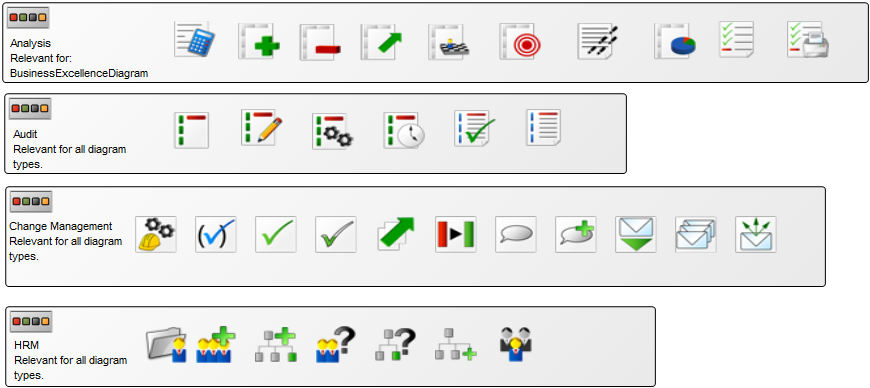
Core concerns: The Repository Desktop enables you to use Button Panels and Icons to design additional toolbars that can be added to the desired diagram template types in the actions tab in QLM. The toolbars can, when assigned to a template type, be used to analyze the data shown in diagrams.

Below, you can see some examples of different toolbars:

RepositoryDesktop_2

RepositoryDesktop_1

The repository has several toolbars available when installed that you, through the repository template can assign to the desired template types.

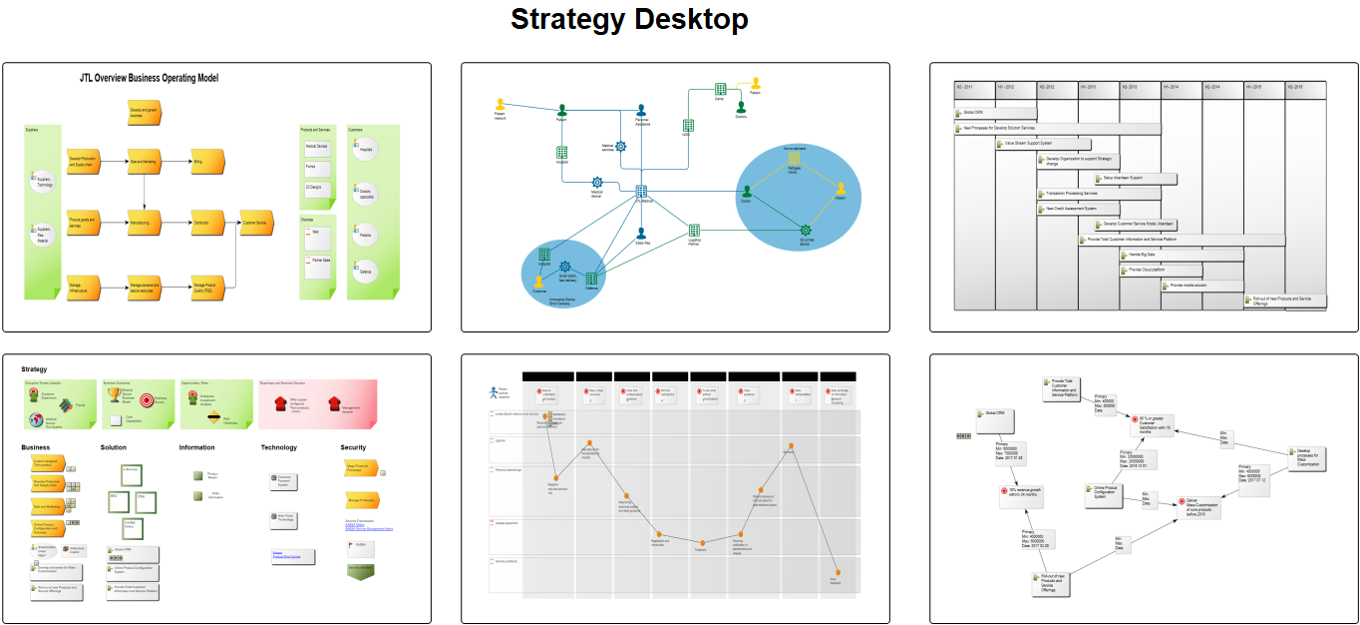
Other functionalities: The Repository Desktop template can also be used as an overview page that links out to other diagrams relevant for certain stakeholders. Below, you can see an example of a strategy desktop where each icon links to the model illustrated:

Relation to other templates: The Repository Desktop is, like the Matrix template, an auxiliary diagram. As such it is not directly connected to other templates but can be used to enable certain analytical functions in all types of diagrams.

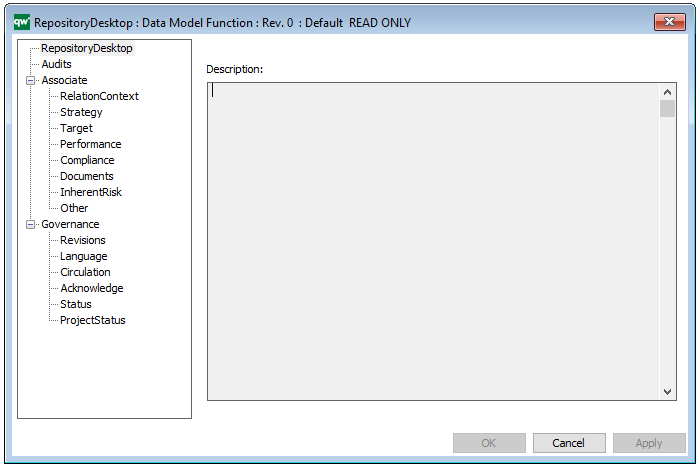
Properties and metadata: The Repository Desktop template can, for example, retain the following information:

  • A description of the template
  • Audits (auto generated information regarding its current state and access rights)
  • Associated documents, diagrams and other objects
  • Inherent Risk detailing risk considerations
  • Governance information detailing information about the published diagram and who has been involved in the approval of the diagram

The above picture shows the properties dialogue window for the Repository Desktop template where you can view and edit the diagram’s properties in QualiWare Lifecycle Manager.
Configuration Diagram

Purpose: The purpose of the Configuration Diagram template is to document a well-defined combination of documents and files to enable an explorer functionality.

Core concerns: The Configuration Diagram template enables you to model Document Categories, External Documents, and Document Revisions (which store references to files containing a revision of an External Document).

The Configuration Diagram should be used to link external documents like CAD-files, word processor documents, spreadsheets etc. including the applications that must be used to view or modify the documents, to the repository.

Other functionalities: Controlling paper documents and their distribution is also possible with this diagram type.

The diagram contains embedded revision control of the external documents. This functionality is based on the following placement of the repository related documents:

Directory structure example:
c:\qwc\
. db\…
. demos\…
. guides\…
. models\…
. Projects\
. . repdb1\…
. . repdb2\…
. . …
. . repdbx\
. . . in\…
. . . out\…
. . . Docs\< here are all related documents placed >

Relation to other templates: The Configuration Diagram can be contained in a Workflow Diagram, be linked as ‘Relevant Documentation’ for a Project Activity and be a decomposition of a Business Scope.

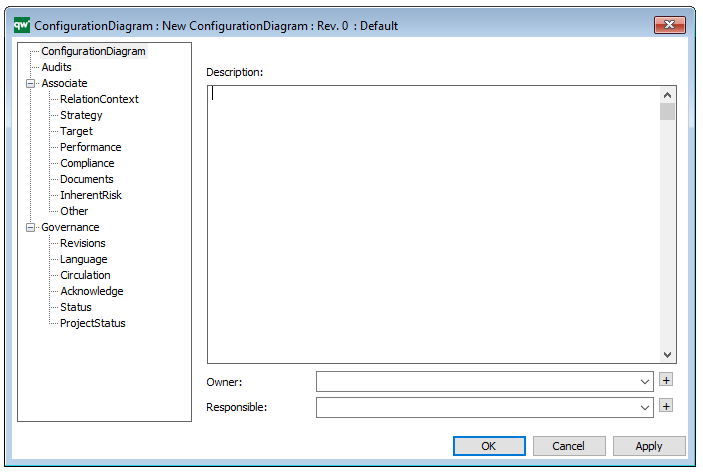
Properties and metadata: The Configuration Diagram template ­­­­can for example retain the following information:

  • A description of the diagram
  • Link to the owner of the diagram
  • Link to the one responsible for the diagram
  • Audits (auto generated information regarding its current state and access rights)
  • Associated documents, diagrams and other objects
  • Inherent Risk detailing risk considerations
  • Governance information detailing information about the published diagram and who has been involved in the approval of the diagram

The above picture shows the properties dialogue window for the Configuration Diagram template where you can view and edit the diagram’s properties in QualiWare Lifecycle Manager.

 

Browser Diagram

Purpose: The purpose of the Browser Diagram template is to build a structure for reports in QualiWare.

Core concerns: The Browser Diagram template allows you to build a graphical representation of a reports structure, from which it will then generate a code for the system to execute. The symbols available in the Browser Diagram template are: Browser Filter, Browser Action, Browser All and Browser Source. They can be connected by Browser Relation, Browser Back Relations and Browser Graphic Relations.

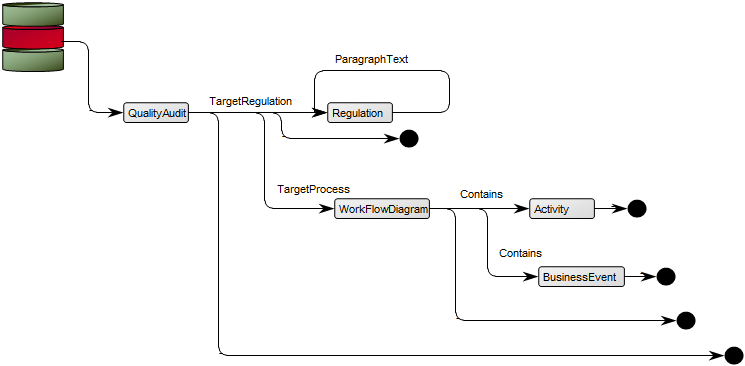
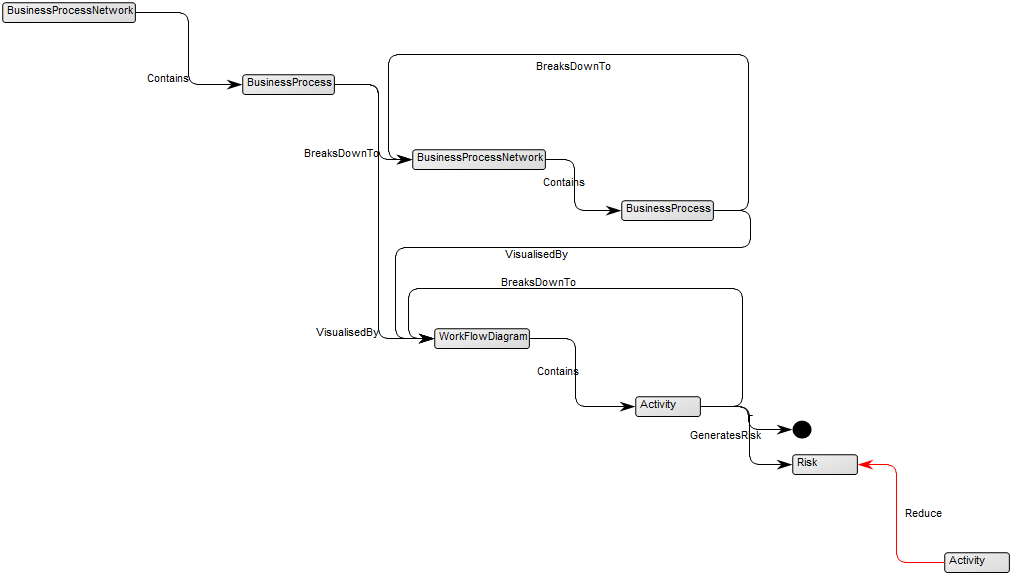
Several Browser Diagrams are included in the installation of QualiWare. Below, you can see an example of a Browser Diagram for a Business Process Network:

The Following is a Browser Diagram for Audit Planning:

BrowserDiagram_1

Relation to other templates: The Browser Diagram template is used for QualiWare platform customization and is as such related to templates such as the Generic Query, Query Design.

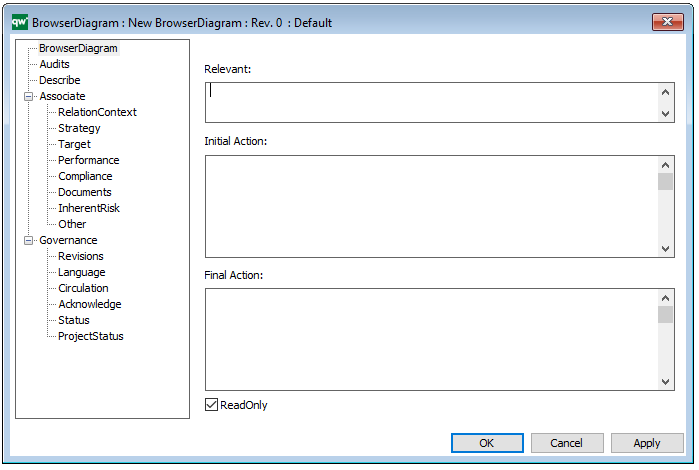
Properties and metadata: The Browser Diagram template ­­­­can for example retain the following information:

  • A description of the diagram
  • Audits (auto generated information regarding its current state and access rights)
  • Associated documents, diagrams and other objects
  • Inherent Risk detailing risk considerations
  • Governance information detailing information about the published diagram and who has been involved in the approval of the diagram

The above picture shows the properties dialogue window for the Browser Diagram template, where you can view and edit the diagram’s properties in QualiWare Lifecycle Manager.