Concept Model

Purpose: The purpose of a Concept Model is to organize an enterprise’s vocabulary to support cPonsistent and unambiguous communication about specific problem domains across business units.

Core concerns: The Concept Model template enables you to model Concepts, Specialization Aspects and Subject Areas. They can be linked by Concept Associations, Concept Aggregations, Concept Generalizations, Type Relationships, and Relationship Constraints.

You are also able to link the diagram to its area of usage through the model’s property dialogue. This area of usage can by default be set to be either an Organization Unit, Role, Actor or External Entity.

Below you can see some examples of Concept Models from a healthcare domain:

The model above shows the concepts related to the healthcare activity ‘knee arthroplasty’. The model below shows the concepts related to a signature in the healthcare domain:

ConceptModel_1

The model above shows the concepts related to the healthcare activity ‘knee arthroplasty’.

The model below shows the concepts related to a signature in the healthcare domain:

ConceptModel_2

Relation to other templates: A Concept Model should enable the identification of the right terms to use in communications where high precision is needed. This is useful when creating large sets of business rules or processes that need to fit together without ambiguity and when creating complex Data Models. As such, it could be advantageous to link to a concept model from the affected Business Process Networks, Workflow Diagrams, Requirements Models and Regulation Diagrams.

Properties and metadata: The Concept Model can for example retain the following information:

  • A description of the diagram
  • Link to the owner of the model
  • Link to the one responsible for the model
  • Link to view of area of usage
  • Audits (auto generated information regarding its current state and access rights)
  • Associated documents, diagrams and other objects
  • Inherent Risk detailing risk considerations
  • Governance information detailing information about the published diagram and who has been involved in the approval of the diagram

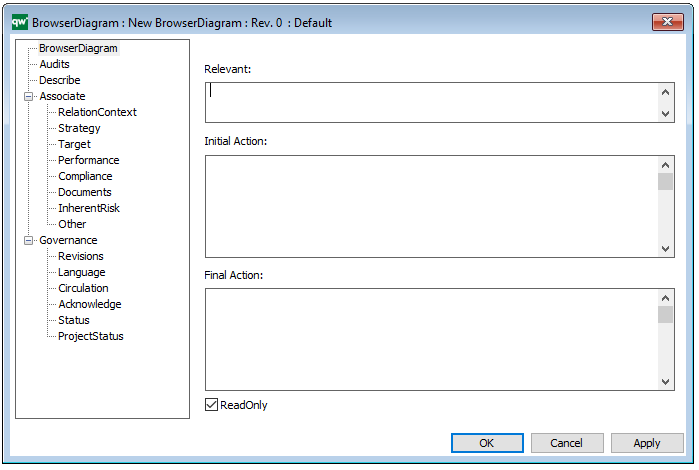
The above picture shows the properties dialogue window for the Concept Model, where you can view and edit the diagram’s properties in QualiWare Lifecycle Manager.

For more information: to learn more about Concept Models, you can read the following article:

Ronald G. Ross , “What Is a Concept Model?” Business Rules Journal Vol. 15, No. 10, (Oct. 2014). URL: http://www.brcommunity.com/a2014/b779.html

Composite Structure Diagram

Purpose: The purpose of the Composite Structure Diagram template is to document the internal structure of a class, Class interactions with the environment and behavior of collaborations. The Composite Structure Diagram is part of the UML version 2.5.

Core concerns: The Composite Structure Diagram enables you to model Collaborations, Collaboration Use, Properties, Classes, Interfaces and Ports. These elements can be connected by Connectors, Dependencies, Interface Realizations and Usage.

Below, you can see an example of a Composite Structure Diagram for a car safety inspection:  

The Diagram shows internal structure of the Car-safety inspection class as well as the behavior of collaborations and the different classes’ interactions.

Relation to other templates: The Composite Structure Diagram is part of the UML templates QualiWare supports along with the Activity Diagram, Communication Diagram, Deployment Diagram, Class Diagram, State Diagram, Package Diagram, Component Diagram, Sequence Diagram, Use case diagram and Timing Diagram.

The Composite Structure Diagram can be defined as the components content along with the Component Diagrams, Class Diagrams, Classes, and Interfaces. The Component Object is a representation of a physical part from the system specification.

Properties and metadata: The Composite Structure Diagram ­­­­can for example retain the following information:

  • A description of the diagram
  • Link to the owner of the diagram
  • Link to the one responsible for the diagram
  • Extensions (Stereotypes, constraints and tagged values)
  • Audits (auto generated information regarding its current state and access rights)
  • Associated documents, diagrams and other objects
  • Inherent Risk detailing risk considerations
  • Governance information detailing information about the published diagram and who has been involved in the approval of the diagram

The above picture shows the properties dialogue window for the Composite Structure Diagram where you can view and edit the diagram’s properties in QualiWare Lifecycle Manager.

For more information: about the UML, please visit the Object Management Group’s Website, where you can find the complete specification.

Component Diagram

Purpose: The purpose of the Component Diagram is to specify the structure of and dependencies among the different components that make up a system.

Core concerns: The Component Diagram template enables you to model a system’s Components, Classes, Interfaces, Packages, Artifacts and Ports. They can be connected by Dependency, Interface Realization, Component Realization, Usage, Generalization or a generic Connector. Below, you can see an example of a simple Component Diagram consisting of Components connected by Dependencies.

ComponentDiagram

Using the properties dialogue, you can identify extensions such as Stereotype, Constraints and Tagged values:

Relation to other templates: The Component Diagram is part of the Application domain and shows how a system is structured. To model how users interact with a system you should use a Use Case Diagram, to model how interactions with the system through processes you should use the Sequence Diagram template. To model the structure of an application landscape you should use the Application Architecture Diagram.

Properties and metadata: The Component Diagram can for example retain the following information:

  • A description of the diagram
  • Link to the owner of the diagram
  • Link to the one responsible for the diagram
  • Audits (auto generated information regarding its current state and access rights)
  • Associated documents, diagrams and other objects
  • Inherent Risk detailing risk considerations
  • Governance information detailing information about the published diagram and who has been involved in the approval of the diagram

The above picture shows the properties dialogue window for the Component Diagram where you can view and edit the diagram’s properties in QualiWare Lifecycle Manager.

Communication Diagram

Purpose: The purpose of the Communication Diagram template is to document interactions between objects or parts, focusing on sequenced messages.

Core concerns: The Communication Diagram template is a simplified UML 2.0 alternative to the UML Collaboration Diagram. It enables you to model Lifelines and Annotation, which can be connected by messages.

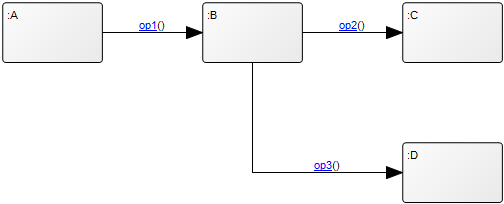
Below you can see a simple example of a Communication Diagram:

CommunicationDiagram_1

Relation to other templates: Usually, Communication Diagrams would be modeled using information from Class Diagram, Sequence Diagram, and Use case diagram. It is related to the other UML interaction diagrams: Sequence Diagram, Interaction overview diagram and Timing Diagram.

While the Communication Diagram show much of the same information a Sequence Diagram does, the Communication Diagram conveys which elements each one interacts with better, while sequence diagrams show the order in which the interactions take place more clearly.

Other UML diagrams that QualiWare support include: Activity Diagram, Communication Diagram, Deployment Diagram, , Composite Structure Diagram, State Diagram, Package Diagram, Component Diagram, Composite structure Diagram, and Object Diagram.

Properties and metadata: The Communication Diagram ­­­­can for example retain the following information:

  • A description of the diagrams
  • Link to related sequence diagram
  • Extensions (Stereotype, Constraints and Tagged values)
  • Audits (auto generated information regarding its current state and access rights)
  • Associated documents, diagrams and other objects
  • Inherent Risk detailing risk considerations
  • Governance information detailing information about the published diagram and who has been involved in the approval of the diagram
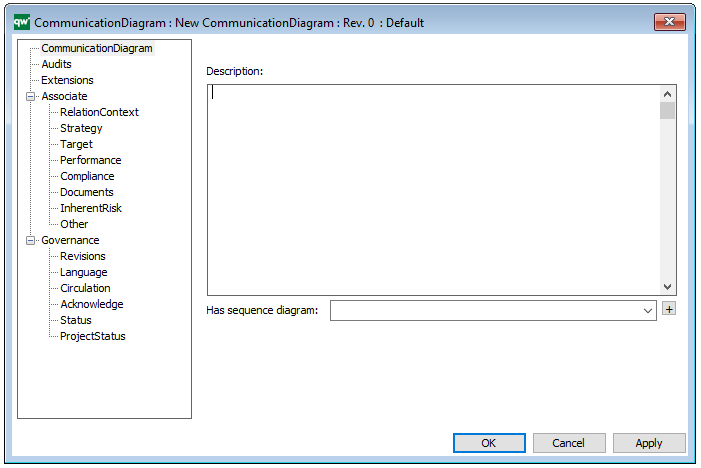
The above picture shows the properties dialogue window for the Communication diagram, where you can view and edit the diagram’s properties in QualiWare Lifecycle Manager.

For more information: about the UML, please visit the Object Management Group’s Website, where you can find the complete specification.
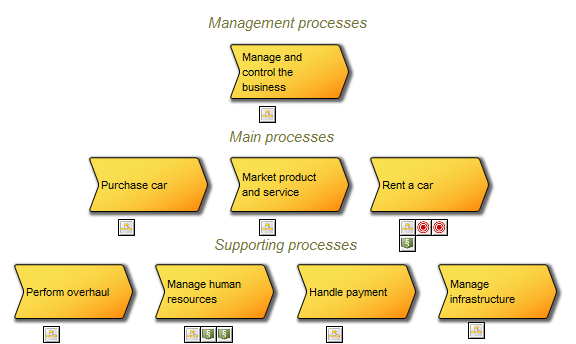
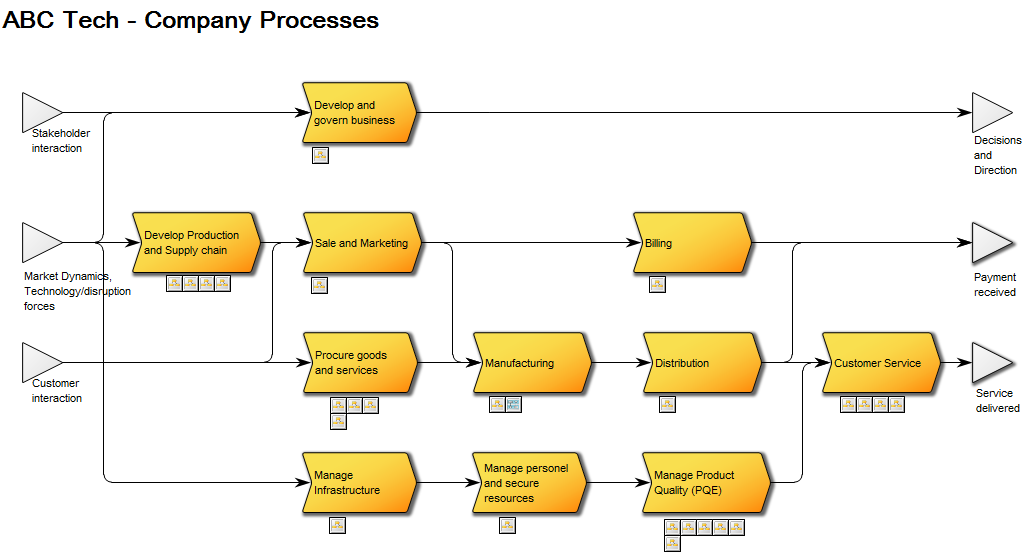
Business Process Network

Purpose: The purpose of the Business Process Network is to at document a mid- to high-level view of Business Processes and their interrelationships.

Core concerns: The Business Process Network template enables the documentation of top to mid-level processes. The core objects available to model with are Business Processes, Business Events, Business Objects, Business Scope, Information Systems, and different types of connections. Below you can see two examples of a Business Process Network modelled in different styles.

High level process view without business events or connections between processes:

BusinessProcessNetwork_2

High-level process view where business events and connections indicate a flow between processes, stakeholders and customers:

BusinessProcessNetwork_1

Relation to other templates: The top-level processes would typically be broken down to one or more levels of mid-level processes. The last level of Business Process Networks can then be broken down to several Workflow Diagrams or Business Process Diagrams detailing the activities contained within the business process

Properties and metadata: The Business Process Network can for example retain the following information:

  • Description of the diagram
  • Link to the owner of the diagram
  • Link to the one responsible for executing the processes in the diagram
  • Audits (auto generated information regarding its current state and access rights)
  • Associated documents, diagrams and other objects
  • Inherent Risk detailing risk considerations
  • Governance information detailing information about the published diagram and who has been involved in the approval of the diagram

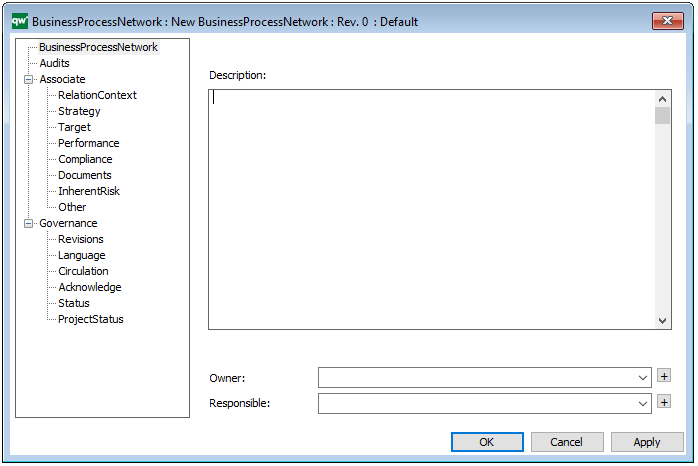
In the picture below you can see the Business Process Network’s properties dialogue window, where the diagrams properties can be viewed and edited:

Business Process Diagram

Purpose: The purpose of the Business Process Diagram template is to enable workflow modelling using the industry standard BPMN (Business Process Modeling Notation).

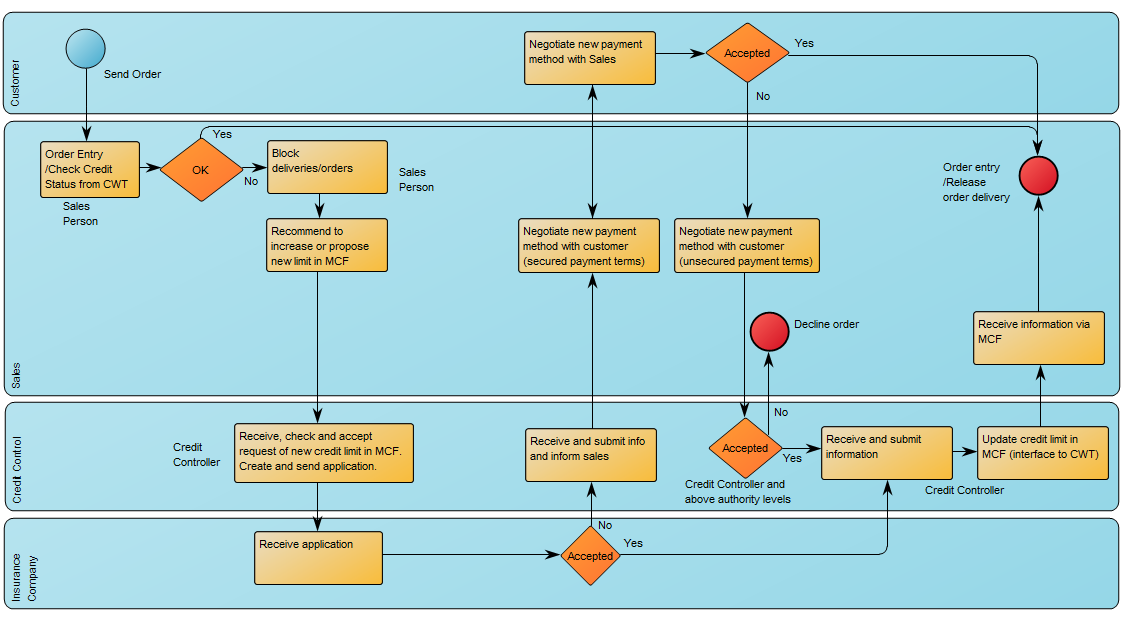
Core concerns: The Business Process Diagram template supply you with the BPMN icons that enable you to draw a workflow diagram. These icons include different types of events, activities, gateways, connectors, as well as pools, lanes and artifacts such as data objects and messages. The Business Process Diagram is typically used to illustrate business processes and software processes used in requirement documentation. Below is an example of a classic BPMN diagram with swimlanes:

BusinessProcessDiagram_1

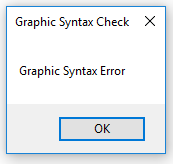
To ensure the right BPMN syntax, the Business Process Diagram template will continuously perform Graphic Syntax Checks while you model. When a graphic syntax error occurs, you will be met with an error message like the one shown below:

Other functionalities: The Business Process Diagram can enable the execution and automation of a process when the diagram is converted into XML type files.

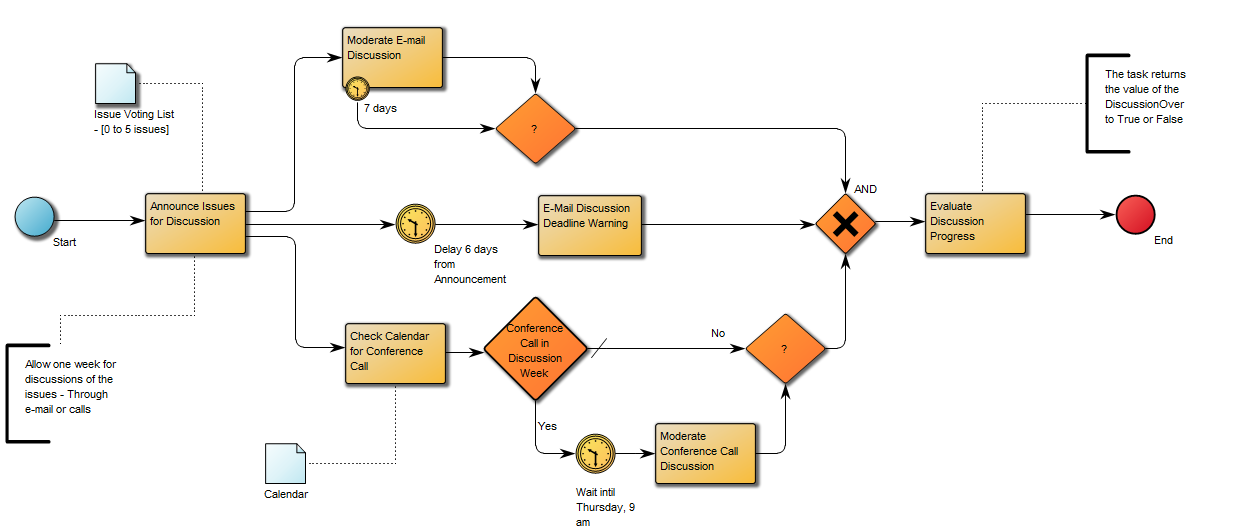
If you don’t wish to have a visible pool in your diagram, you can choose to have a ‘default pool’ that doesn’t have to be graphically represented. You can see an example of a diagram without pool and lanes below:

BusinessProcessDiagram_2

Relation to other templates: The Business Process Diagram template is exclusively aimed at modeling using the BPMN standard. If the BPMN is not chosen as a mandatory standard, the WorkFlow Diagram template, which has fewer syntax limitations, can be used instead.

The Business Process Diagram is typically linked as a decomposition of a Business Process contained in a Business Process Network template.

Properties and metadata: The Business Process Diagram can for example retain the following information:

  • Description of the diagram
  • Expression and query language
  • Link to the owner of the process
  • Link to the one responsible for executing the process
  • Audits (auto generated information regarding its current state and access rights)
  • Associated documents, diagrams and other objects
  • Inherent Risk detailing risk considerations
  • Governance information detailing information about the published diagram and who has been involved in the approval of the diagram

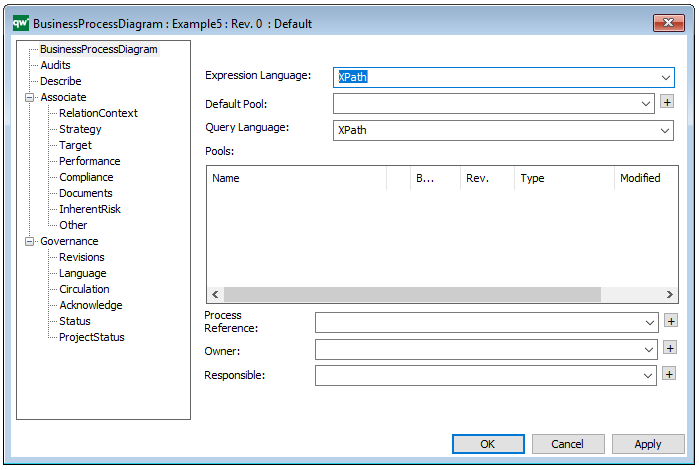
In the picture above you can see the Business Process Diagram’s properties dialogue window, where the diagram’s properties can be viewed and edited:

For more information: about the BPMN standard please visit OMG’s dedicated website.

Business Excellence Diagram

Purpose: The purpose of the Business Excellence Diagram template is to describe a measuring tool based on The European Foundation for Quality Management Excellence Model (EFQM).

Core concerns: The Business Excellence Diagram enables you to model Business Scopes, Criterion and Sub Criterion. These aspects can then be connected by Criterion Influencers.

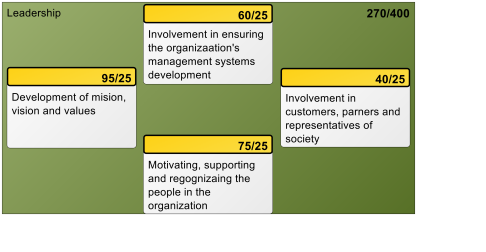
Below, you can see an example of a Business Excellence Diagram for the Leadership of an organization. The diagram is structured according to the EFQM and shows the overall scores for the leaderships performance:

Other areas covered in the EFQM are Policy & Strategy, People, Partnerships & Resources, Processes, Customer Results, People Results, Society Results and Key Performance Indicators.

Relation to other templates: The Business Excellence Diagram is a strategic template that is complimentary to the Business Capability Model, Stakeholder Model, Business Canvas, and Strategy Model

Properties and metadata: The Business Excellence Diagram ­­­­can for example retain the following information:

  • A description of the diagram
  • Link to the owner of the diagram
  • Link to the one responsible for the diagram
  • Audits (auto generated information regarding its current state and access rights)
  • Associated documents, diagrams and other objects
  • Inherent Risk detailing risk considerations
  • Governance information detailing information about the published diagram and who has been involved in the approval of the diagram

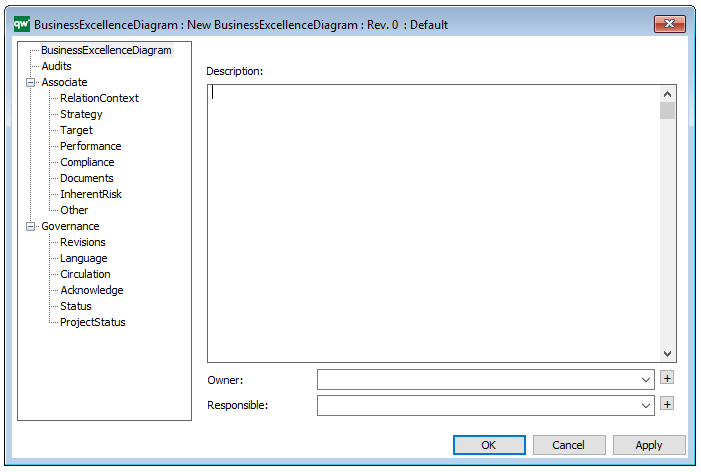
The above picture shows the properties dialogue window for the Business Excellence Diagram template, where you can view and edit the diagram’s properties in QualiWare Lifecycle Manager.

For more information: To learn more about the EFQM, please visit their website, where you can also find an overview of the EFQM Excellence Model.

Business Ecosystem

Purpose: The purpose of the Business Ecosystem template is to enable an organization to understand itself from an outside-out perspective by modelling the environment in which the organization is embedded.

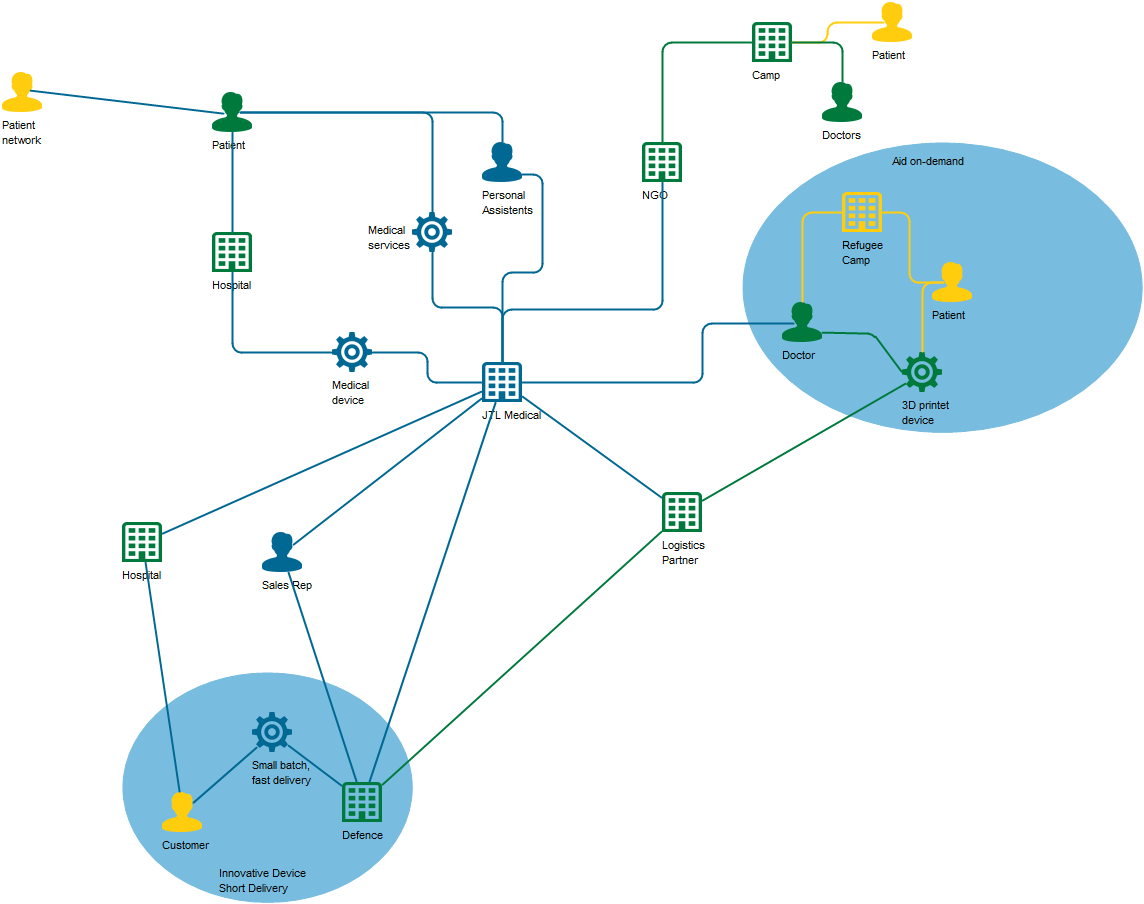
Core concerns: The Business Ecosystem supplies five elements to model with: Business, People, Things, Business Interaction and Business Moment. The Business Ecosystem template should primarily be used for modeling entities outside the enterprise to identify new business opportunities in the form of Business Moments.

BusinessEcoSystem

Above you can see a model of a Business Ecosystem. The blue areas are Business Moments, where the interactions between People, Businesses and Things create business opportunities for your enterprise.

Relation to other templates: The Business Ecosystem model is based on the Enterprise Design theories and is as such in the same family as the Customer journey map.

The Business Ecosystem is a strategic model and can be used to document a strategic possibility or track along with for example Business Capability Models, Strategy Models, and Work Models.

Properties and metadata: The Business Ecosystem can for example retain the following information:

  • A description of the diagram
  • Link to the owner of the application architecture
  • Link to the one responsible for the application architecture
  • Audits (auto generated information regarding its current state and access rights)
  • Associated documents, diagrams and other objects
  • Inherent Risk detailing risk considerations
  • Governance information detailing information about the published diagram and who has been involved in the approval of the diagram
  • Project status: information about budgeted and actual man-hours spent, percentage completed and the latest milestone, result and quality control of a change process.

For more information: If you want to learn more about Enterprise Design, we have a four-part webinar by Milan Guenther available for viewing. You can also visit Milan’s website, where you can learn more about the Enterprise Design framework.

Business Diagram

Purpose: The purpose of a Business Diagram is to show the functional structure and relationships of the whole or part of an organization.

Core concerns: The Business Diagram template enables you to model Business Functions, Information Systems, Inventory, Business Scope, Lines of Business, Information Flow and Logistical Flow. The diagram’s syntax can be extended to also include strategic elements such as Goals, Objectives, Stakeholders and Performance Indicators.

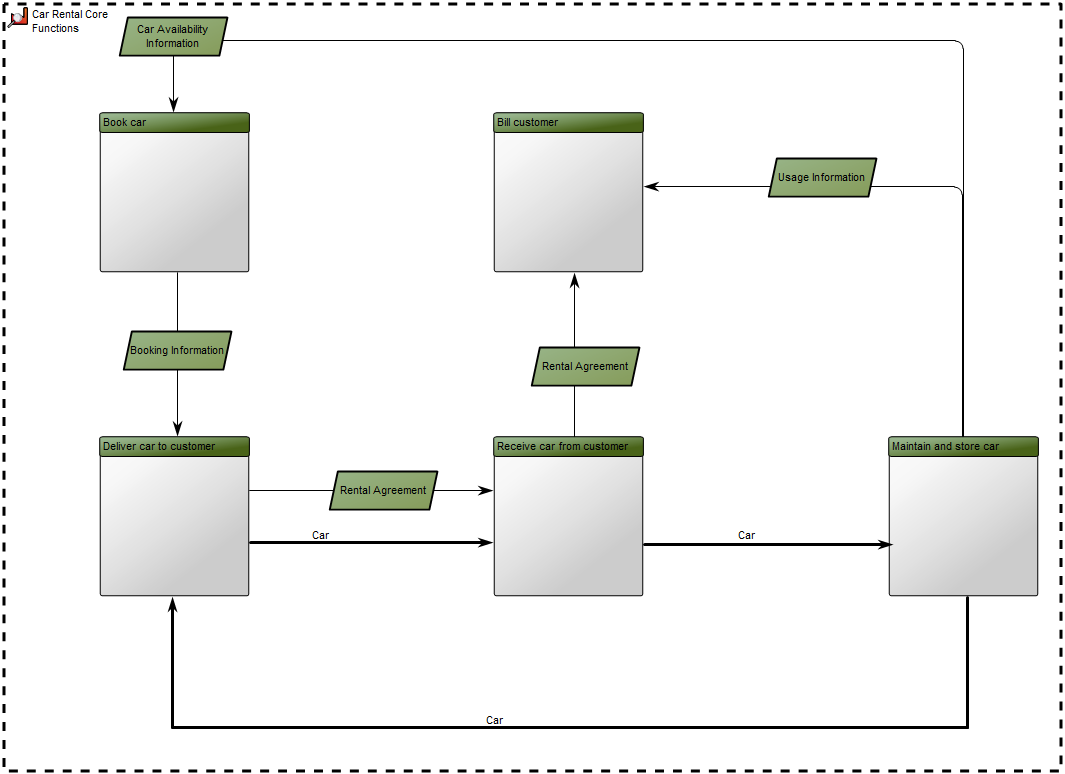
The Business Diagram should be broken down into several levels of recurring Business Diagram templates. In the model below, you can see an example of a high-level Business Diagram showing Business Functions and their Information Flows and Logistical Flows –  describing the flow of products and services – in this case for a car rental service.

The Business Functions are placed with the operational functions in the bottom together with the Logistical Flow and with management control at the top of the Business Diagram.

On lower levels (decompositions) of Business Diagrams, Information Systems are placed close to the Business Functions that are responsible for or own the Information Systems.

Relation to other templates: The Business Diagram can be used as an addition to a Business Process Network and Strategy Models, giving a practical view of how the organizations functions fit together, illuminating interdependencies.

Properties and metadata: The Business Diagram can for example retain the following information:

  • A description of the diagram
  • Link to the owner of the Diagram
  • Link to the one responsible for the Diagram
  • Indication of the diagram portrays an as-is situation or a to-be situation
  • The Perspective can be defined as either: Holistic, Sub-functional, Process, or IT Focused.
  • Audits (auto generated information regarding its current state and access rights)
  • Associated documents, diagrams and other objects
  • Inherent Risk detailing risk considerations
  • Governance information detailing information about the published diagram and who has been involved in the approval of the diagram

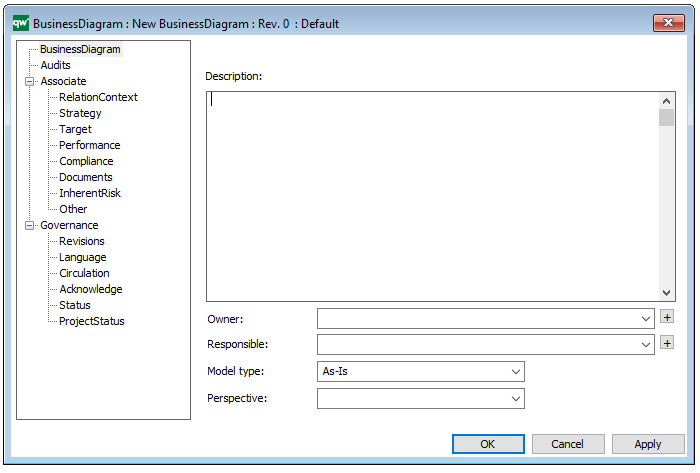
The above picture shows the properties dialogue window for the Business Diagram where you can view and edit the diagram’s properties in QualiWare Lifecycle Manager.

Business Chart

For a quick introduction to BusinessCharts please see the video below as it explains how to create a BusinessChart based on Pie charts.
The video contains:

  • How to use the QML to create charts
  • How to customize the charts
  • An introduction to the versatility of using charts in QualiWare

Purpose: The purpose of the Business Chart template is to create different graphs and charts using information from other diagrams and templates. The Business charts can then either be published on a Dashboard and/or stored.

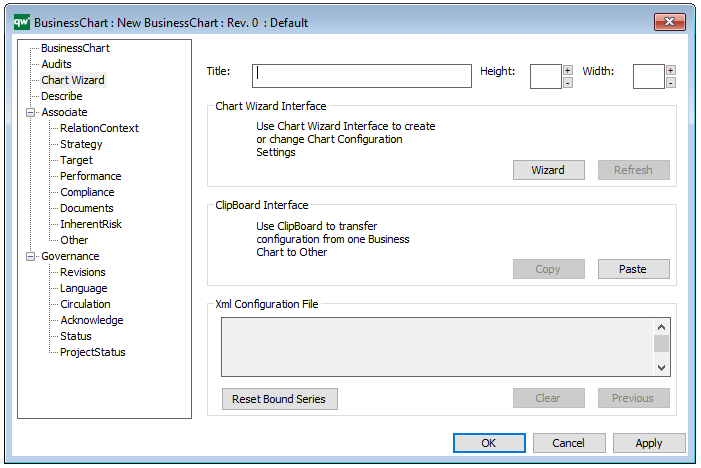
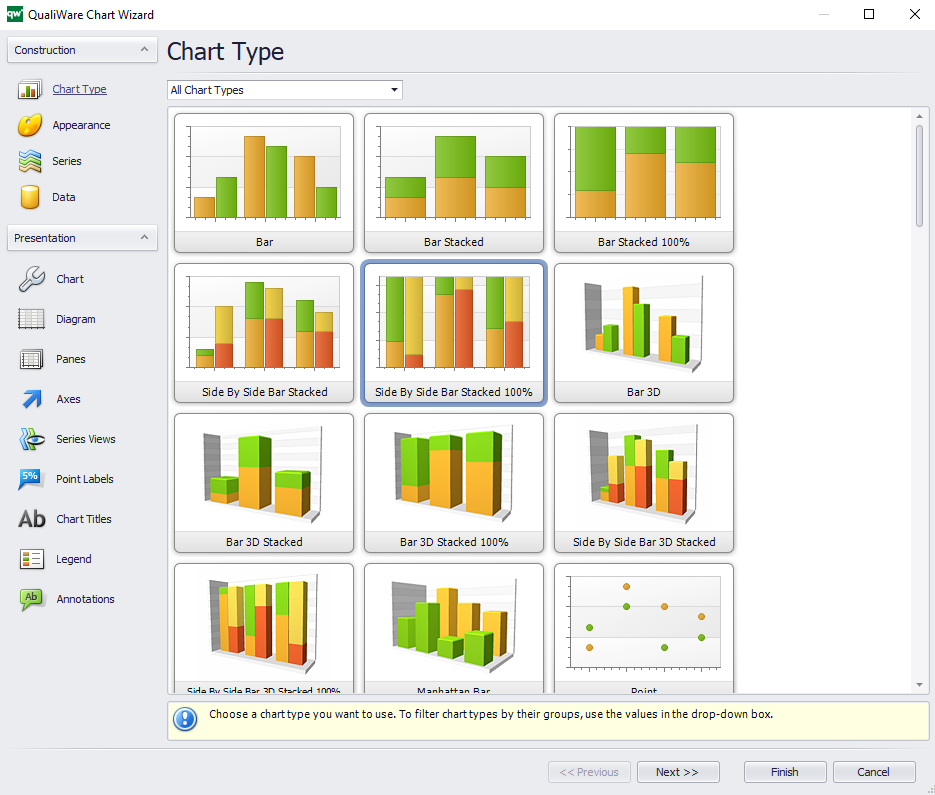
Core concerns: The Business Chart template is concerned with analyzing other templates and models. Therefore, it is not modelled like a typical template, but created using the Chart Wizard found in the template’s property window:

Below, you can see the Chart Wizard that helps you create your Business Chart:

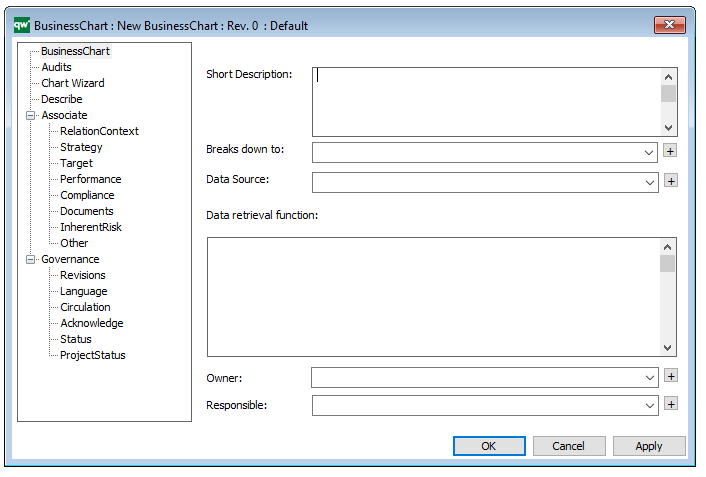
The Business Chart template can for example be used to generate a chart over how the capabilities or Key Performance Indicators of an enterprise are performing over time or compared to desired values. Additionally, Business Charts can be used to analyze static data entered in a Matrix model. You choose the input to your Business Chart as a ‘Data Source’ in the templates metadata (see figure under Metadata).

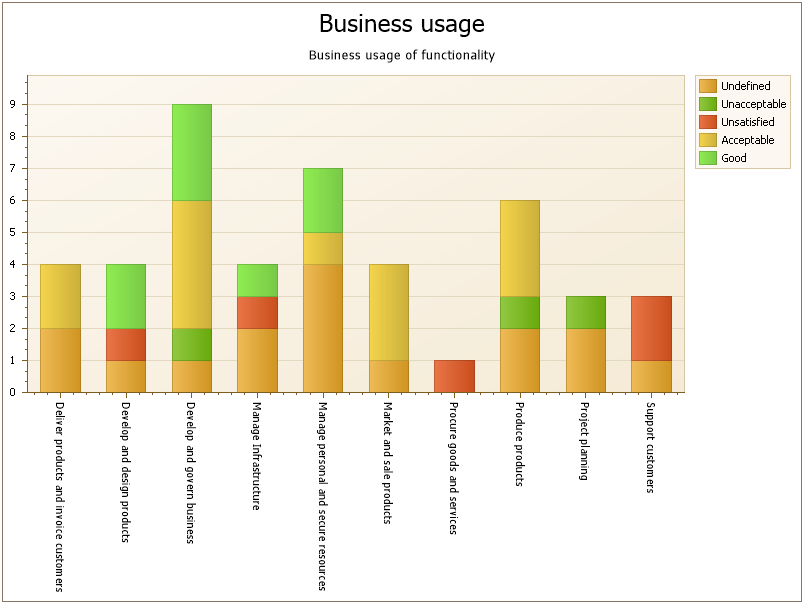
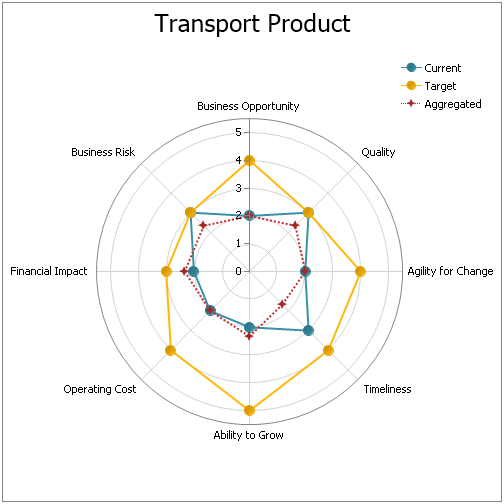
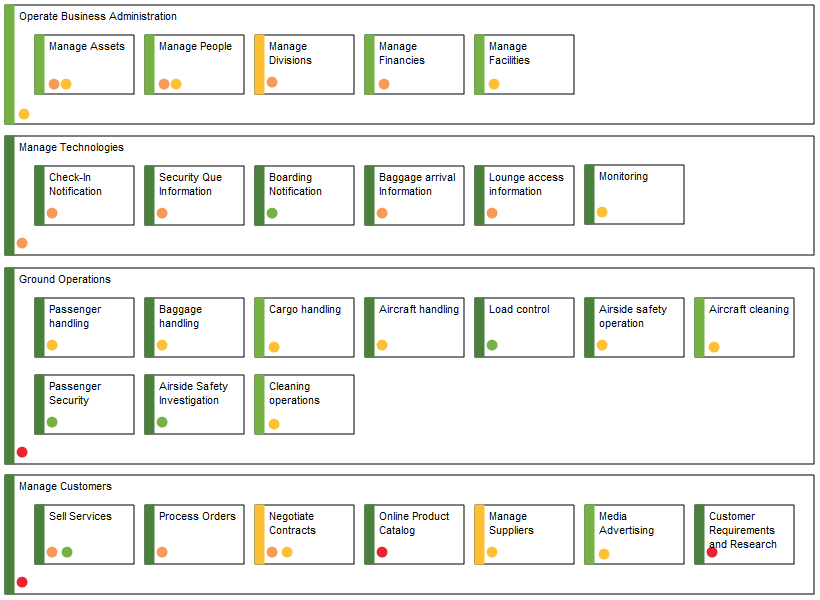
Below, you can see two very different examples of business charts:

BusinessChart_2


BusinessChart_1

Relation to other templates: The Business Charts are published using the Dashboard template.

 Properties and metadata: The Business Chart template can for example retain the following information:

  • A description of the diagram
  • Link to the owner of the business chart
  • Link to the one responsible for the business chart
  • Link to data source
  • Audits (auto generated information regarding its current state and access rights)
  • Associated documents, diagrams and other objects
  • Inherent Risk detailing risk considerations
  • Governance information detailing information about the published diagram and who has been involved in the approval of the diagram

The above picture shows the properties dialogue window for the Business Chart Template where you can view and edit the diagram’s properties in QualiWare Lifecycle Manager.