Governance Workflow

Purpose: The purpose of the Governance Workflow template is to enable tailored governance solutions for the objects in your repository.

Core concerns: The Governance Workflow template enables you to model Governance Roles and Governance States. The Governance States are placed inside a Governance Role (just like a workflow diagram) and are connected by Governance Transitions, Governance Conditional Messages, and Governance Event Messages.

Below, you can see an example of a Governance Workflow:

The green arrows symbolize a Governance Transition towards the approval of an object while the red arrows symbolize a Governance Transition towards the development state of an object. The blue arrows are Governance Conditional Messages. While the broad, dark green arrows are the preferred Governance Transition, the lighter green colored arrows are alternate routes to the approved state.

Relation to other templates: The Governance Workflow template is a template that can be applied to any of the published objects or diagrams in the repository.

Properties and metadata: The Governance Workflow template can for example retain the following information:

  • A description of the workflow
  • Link to the owner of the Governance Master Role (the master role gives “governance-access” to all objects in scope for the governance flow)

  • Further details can be added under the different tabs such as email settings (needs to be set up i the QEF console in order to available)

  • Under “Detail” you select the templates that should be governed by the flow (highlighted below):

  • Once you have made any changes to a flow, you need to execute maintenance to make the changes take effect to existing objects in the repository, and update participants

  • Click the 3 buttons one at a time to synchronize

Help Model

Purpose: The purpose of the Help Model is to provide the structure of a help system for the system developed in the Dialog Model.

Core concerns: The Help Model template enables you to model Help Items and attach them to each other using connections.

Relation to other templates: The Help Model is a QualiWare system template and is related to the Dialog Model, Dialog Layout, Menu Layout and Report Layout.

Properties and metadata: The Help Model template ­­­­can for example retain the following information:

  • A description of the diagram
  • Audits (auto generated information regarding its current state and access rights)
  • Associated documents, diagrams and other objects
  • Inherent Risk detailing risk considerations
  • Governance information detailing information about the published model and who has been involved in the approval of it.

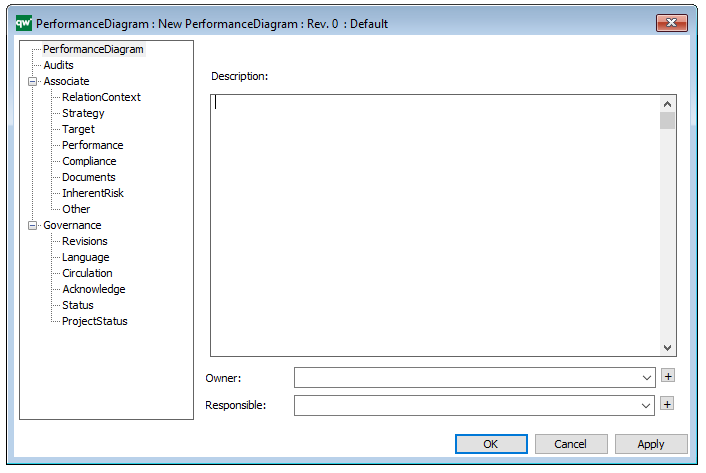
The above picture shows the properties dialogue window for the Help Model template, where you can view and edit the model’s properties in QualiWare Lifecycle Manager.

HTML Dialog Layout

Purpose: The purpose of the HTML Dialog Layout template is to enable the organization to tailor the objects Dialog Layout on the collaboration platform.

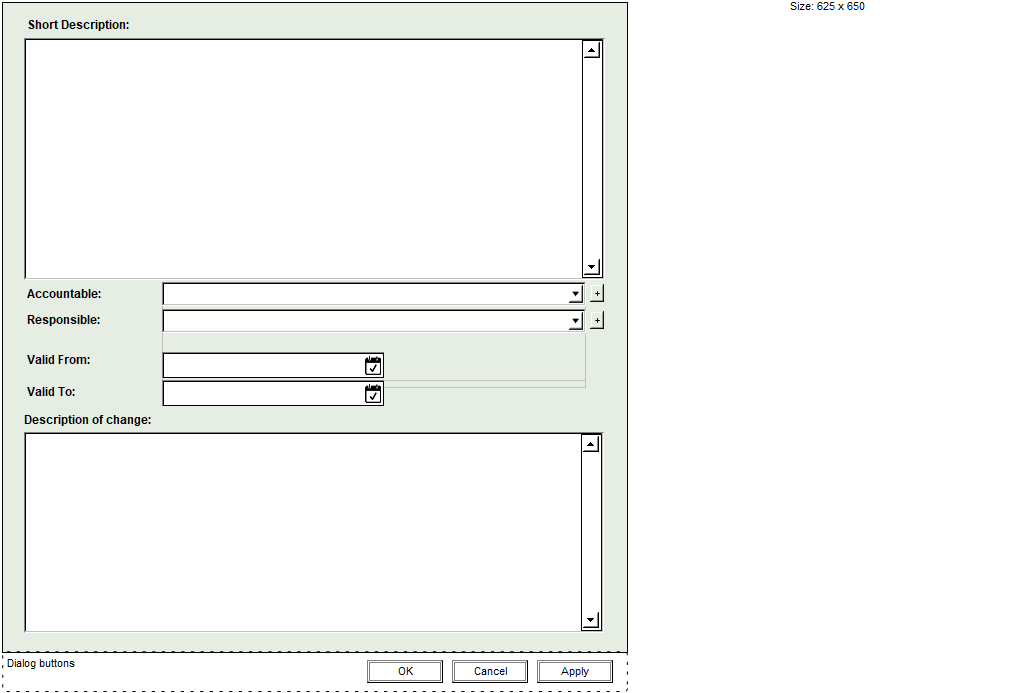
Core concerns: The HTML Dialog Layout template enables you to model HTML Dialog Layout, HTML Dialog Fields, HTML Dialog Groups and HTML Dialog Text. Using these elements, you can design the content of your dialogs. Below you can see an example of a Dialog Layout for a Business Process Network:
Relation to other templates: The HTML Dialog Layout template is, like the other HTML templates, a tool for creating a fully tailored collaboration platform that meet the needs of the specific organization. As such it is related to HTML Mega Menu, Generic Query and Query Design.

Properties and metadata: The HTML Dialog Layout template can for example retain the following information:

  • A description
  • Audits (auto generated information regarding its current state)
  • Access rights (such as linking to roles with read/write rights)
  • Layout (such as dialog title and colors)
  • Sub-dialogs (shown as additional tabs in the dialog)
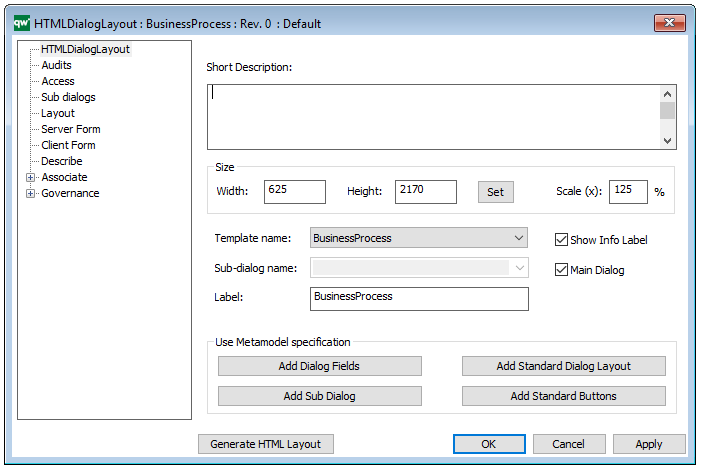
The above picture shows the properties dialogue window for the HTML Dialog Layout template, where you can view and edit the diagram’s properties in QualiWare Lifecycle Manager.
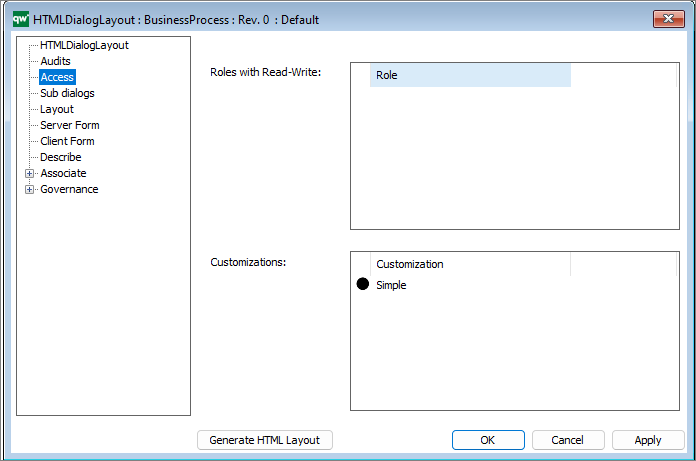
The access tab is used to specify which dialog description to use for any situation.

  • Roles with Read-Write: Role is used in the calculations of which HTMLDialogLayout is used when user triggers an action requiring a webform.
  • Customizations: Customization is used in the calculations of which HTMLDialogLayout is used when user triggers an action requiring a webform.

It is possible to set up multiple customization if needed.

From QualiWare 10.5 it is possible to have two versions of a form to edit objects from the web, a Simple and an Advanced form. If you specify the simple form, the advanced form will automatically be generated. The “advanced” form that has the full metamodel for our object (all tabs and all attributes). (see more details in the release note for QualiWare 10.5).
HTML Explorer Layout

Purpose: The purpose of the HTML Explorer Layout is to contain information of the HTML explorer and its behavior. A new template for this purpose has been created. Please see HTML Mega Menu for information on how to change the setup of your web platform menu layout. To change the setup of the tiles in the menu, you should use the HTML Publisher.

HTML Mega Menu

Purpose: The purpose of the HTML Mega Menu template is to enable the tailoring of the left menu on the collaboration platform.

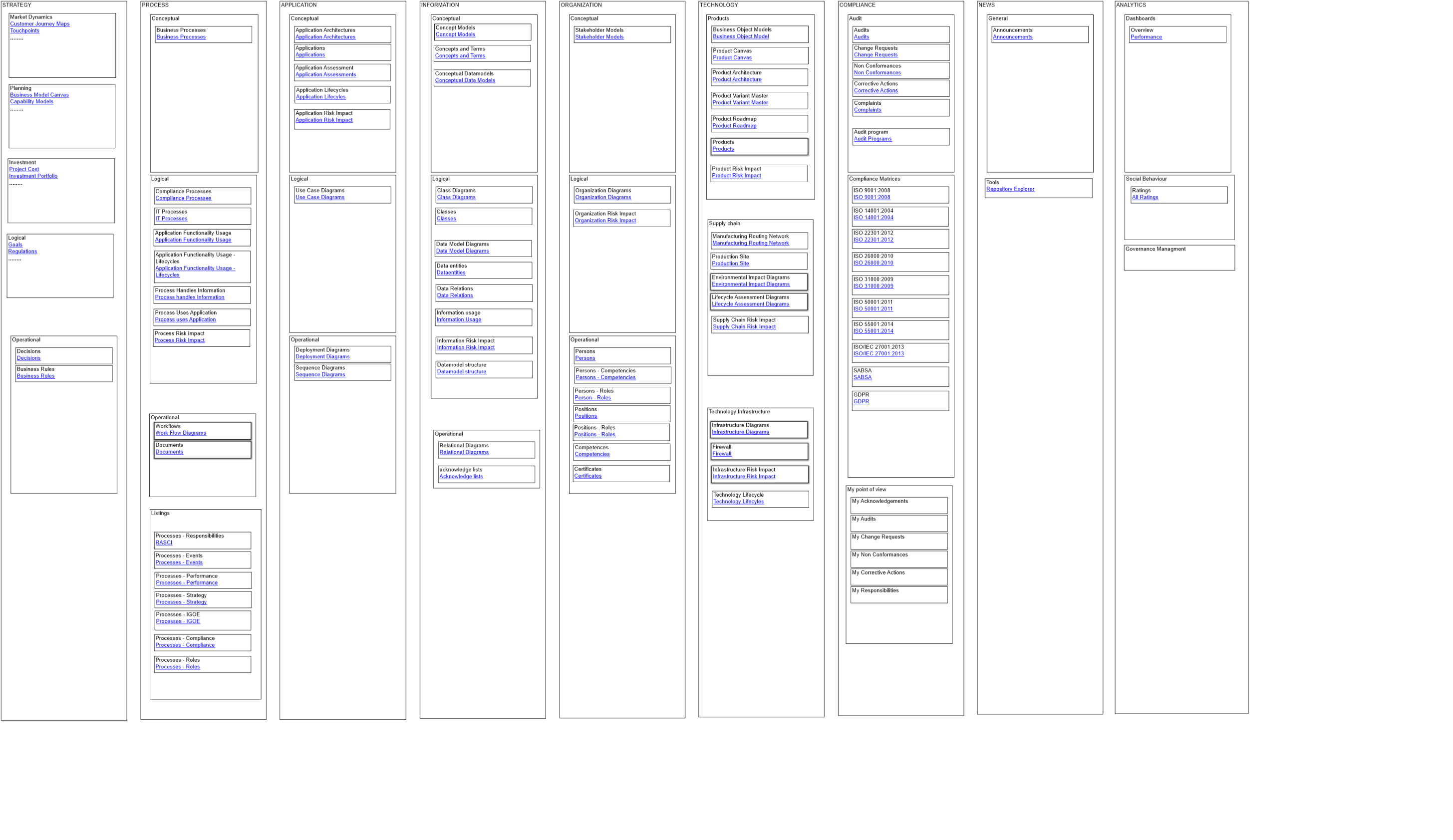
Core concerns: The HTML Mega Menu template enables you to build the left menu using HTML Mega Menu Items, which can be layered. The example below shows how a menu looks in our modelling tool:

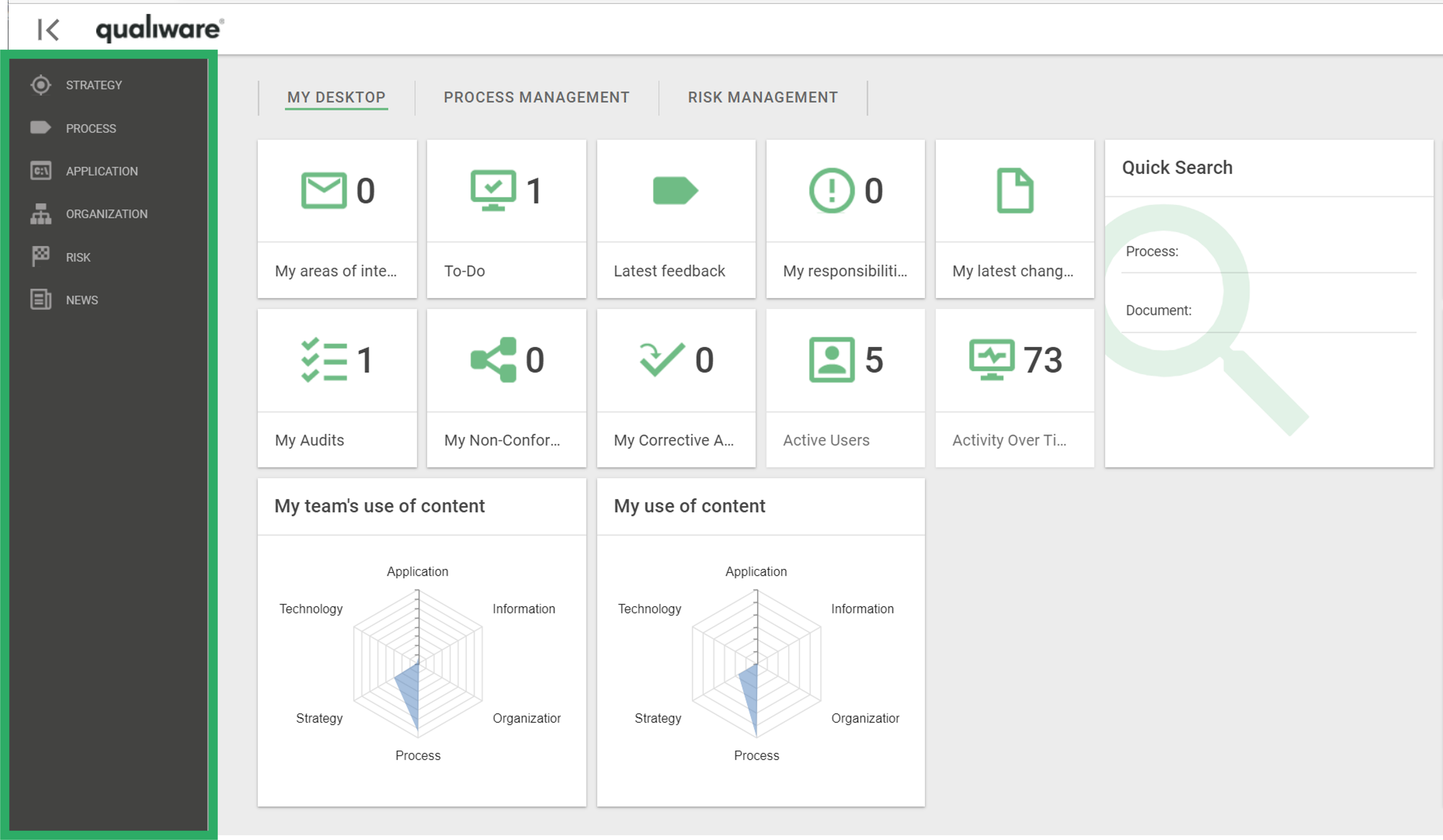
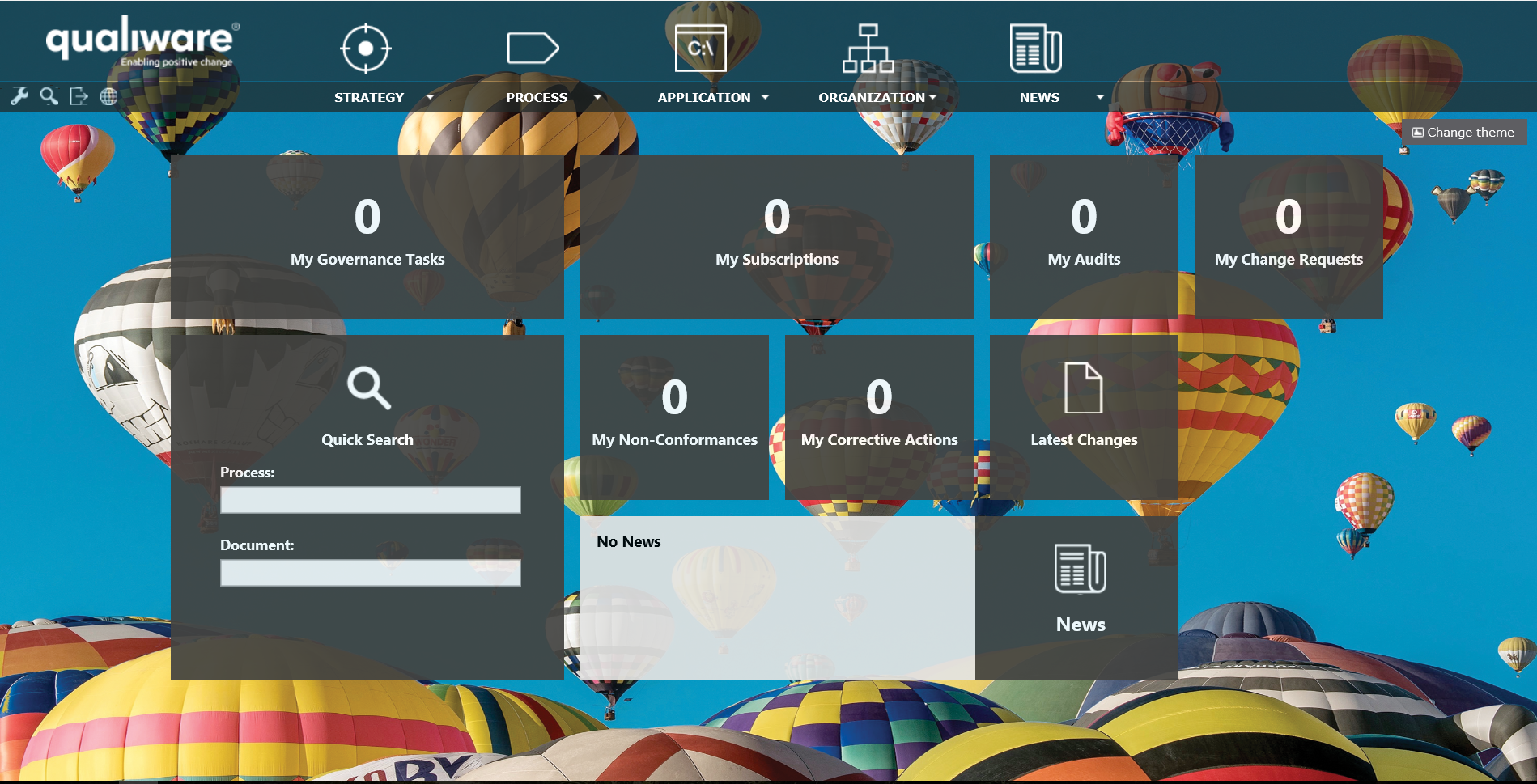
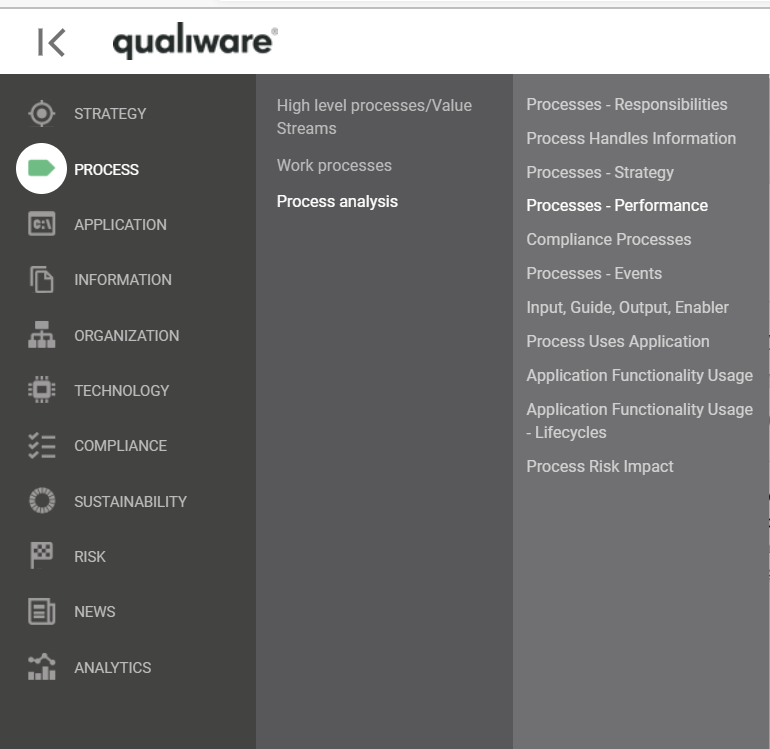
The screenshots below show how a menu can look on the collaboration platform and how the sub-menus are shown:

The left menu can be configured for differently for diffrent roles. The left menu can be modelled in 3 levels:

The HTMLMegaMenu is composed of HTML Mega Menu Items.

The Mega Menu is published to the Web via the HTML Publisher.

Relation to other templates: The HTML Mega Menu is related to the other HTML templates such as Generic Query, HTML Dialog Layout and Query Design.


Properties and metadata: The HTML Mega Menu template can for example retain the following information:

  • A description of the diagram
  • Audits (auto generated information regarding its current state and access rights)
  • Menu settings
  • Text settings

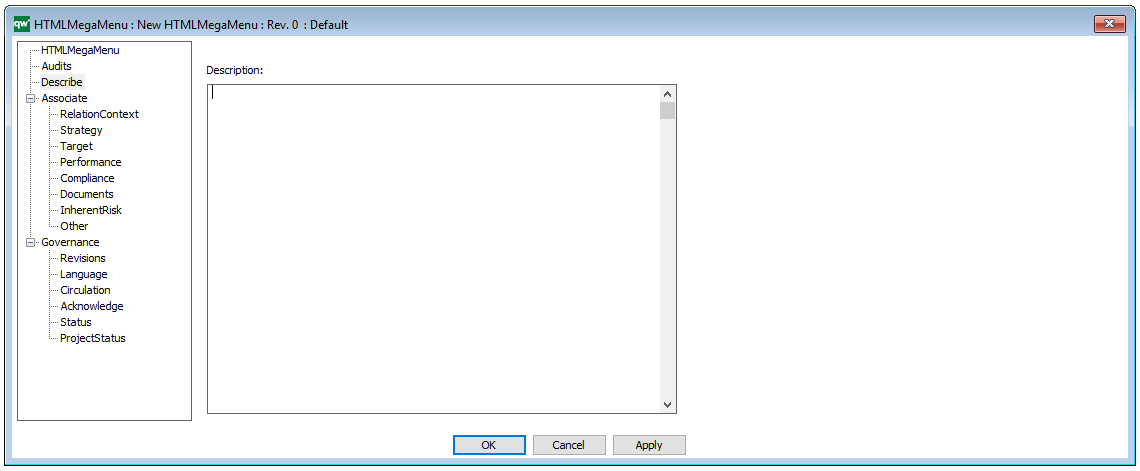
The above picture shows the properties dialogue window for the HTML Mega Menu template, where you can view and edit the diagram’s properties in QualiWare Lifecycle Manager.

HTML Slide Menu

Purpose: The purpose of A HTML Slide Menu is to contain information of the menu in the web platform and the behavior of the menu. A new template for this purpose has been created. Please see HTML Mega Menu for information on how to change the setup of your web platform menu layout.

HTML Popup Menu Layout

Purpose: A HTML Popup Menu Layout contains information of the popup menu and the behavior of the menu on the web. A new template for this purpose has been created. Please see HTML Mega Menu for information on how to change the setup of your web portals menu layout.

HTML Menu Layout

Purpose: The purpose of the HTML Menu Layout is to contain information of the menu and the behavior of the menu on the web. A new template for this purpose has been created. Please see HTML Mega Menu for information on how to change the setup of your web platform menu layout.

Interaction Overview Diagram

Purpose: The purpose of the Interaction Overview Diagram is to visualize a sequence of activities and deconstruct a complex scenario that would otherwise require multiple ‘if-then-else paths’ to be illustrated as a single sequence diagram.

Core concerns: The Interaction Overview Diagram is a Behavioral UML model. The template enables you to model Call Behavior Actions, Decision Nodes, Merge Nodes, Initial Nodes, Activity Final Nodes, Fork Nodes, Join Nodes, Duration Constraints, and Annotations. These elements can then be connected by Control Flows.

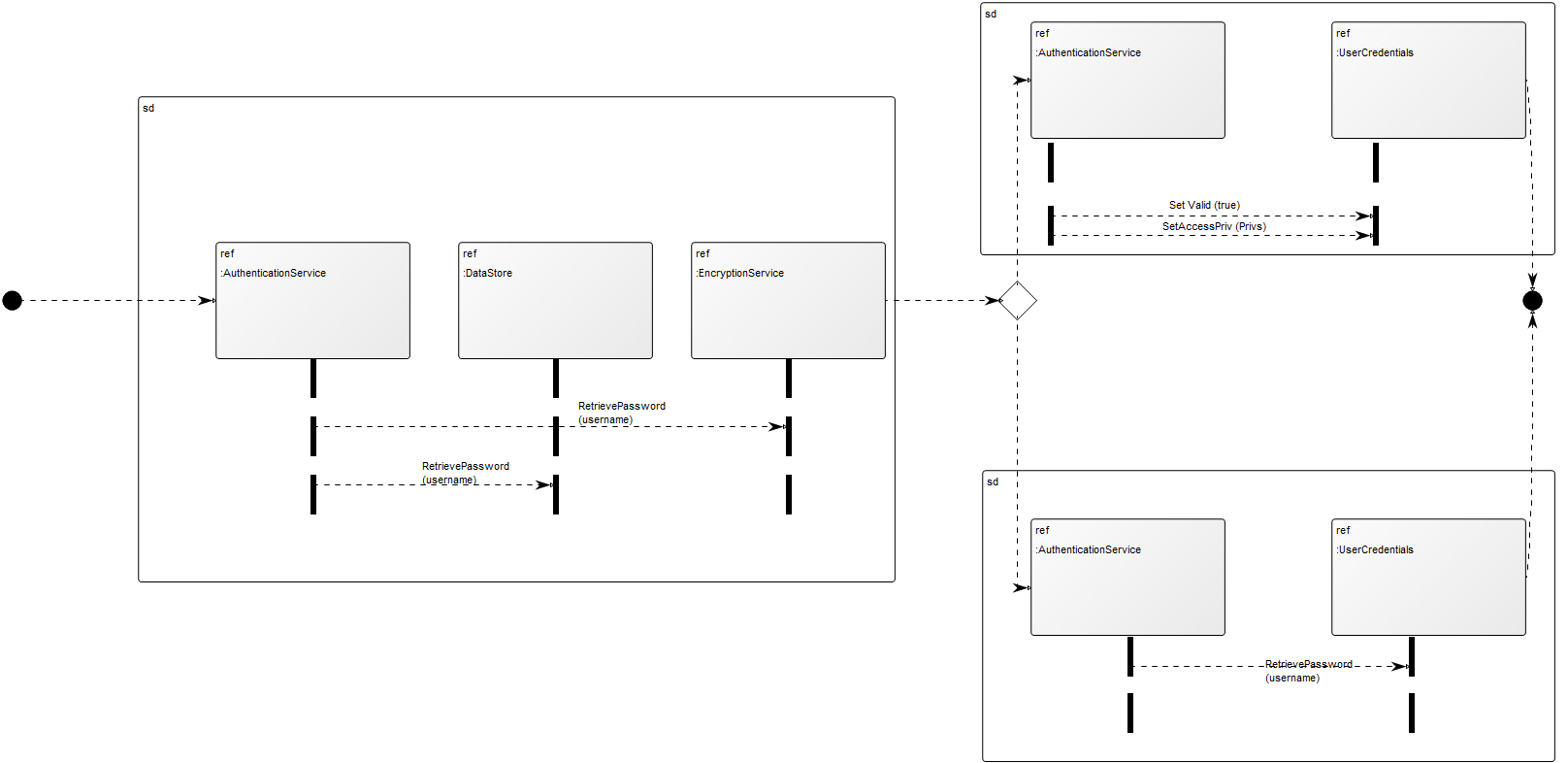
Below, you can see an example of an Interaction Overview Diagram for a sd System Authentication:

Relation to other templates: The Interaction Overview Diagram is part of the UML templates QualiWare supports along with the Activity Diagram, Communication Diagram, Deployment Diagram, Class Diagram, Composite Structure Diagram, State Diagram, Package Diagram, Component Diagram, Sequence Diagram, Use case diagram, Timing Diagram, Composite structure Diagram

Properties and metadata: The Interaction Overview Diagram template ­­­­can for example retain the following information:

  • A description of the diagram
  • Audits (auto generated information regarding its current state and access rights)
  • Extensions (Stereotypes, Constraints and Tagged values)
  • Associated documents, diagrams and other objects
  • Inherent Risk detailing risk considerations
  • Governance information detailing information about the published diagram and who has been involved in the approval of the diagram

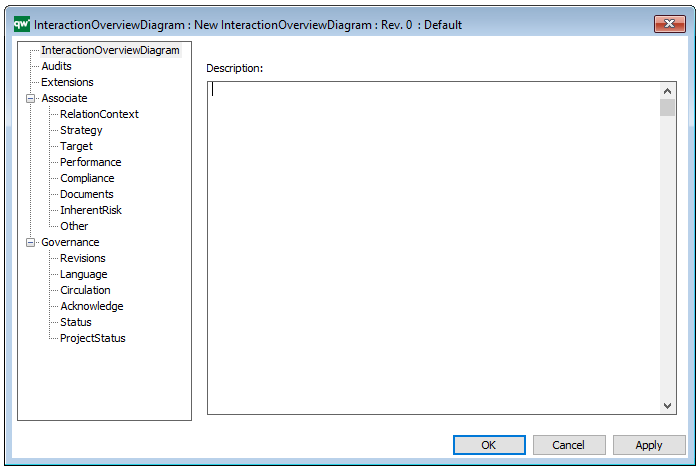
The above picture shows the properties dialogue window for the Interaction Overview Diagram template, where you can view and edit the Diagram’s properties in QualiWare Lifecycle Manager.

For more information: about the UML, please visit the Object Management Group’s Website, where you can find the complete specification.

Menu Layout

Purpose: The Purpose of the Menu Layout template is to provide the menu structure for the system developed in the Dialog Model.

Core concerns: The Menu Layout template enables you to model Menu Items which can be connected by containing each other – as is the case with the HTML Mega Menu template.

Relation to other templates: The Menu Layout is a QualiWare system template and is related to the Dialog Model, Dialog Layout, Report Layout and Help Model.

Properties and metadata: The Menu Layout template ­­­­can for example retain the following information:

  • A description of the diagram
  • Audits (auto generated information regarding its current state and access rights)
  • Associated documents, diagrams and other objects
  • Inherent Risk detailing risk considerations
  • Governance information detailing information about the published diagram and who has been involved in the approval of the Menu Layout

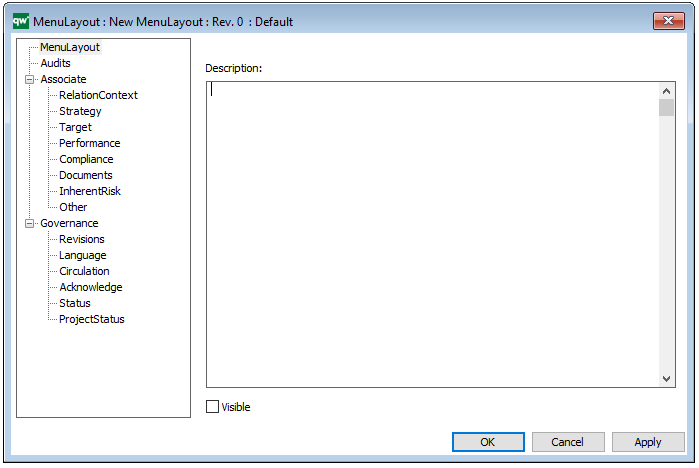
The above picture shows the properties dialogue window for the Menu Layout template, where you can view and edit the template’s properties in QualiWare Lifecycle Manager.