Balanced Scorecard Diagram

Purpose: The purpose of the Balanced Scorecard Diagram is to model Balanced Scorecards, as described by Robert Kaplan and David Norton in 1992.

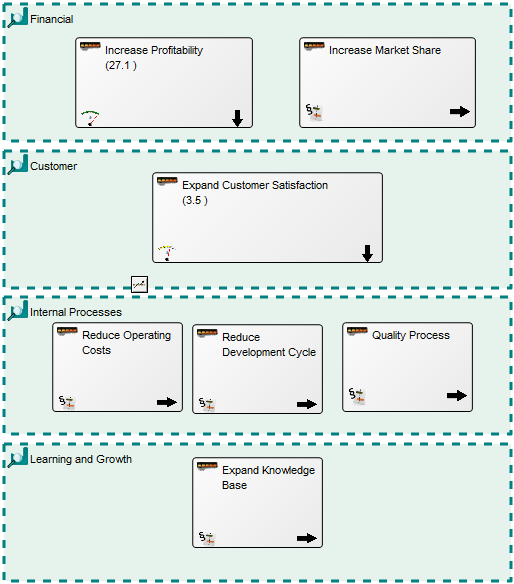
Core concern: Usually, a Balanced Scorecard Diagram template measures the state of the enterprise via Key Performance Indicators that are categorized into four different perspectives using Business Scopes. Aside from this, the template enables you to model general concepts and cause/effect.

Below, you can see an example of a Balanced Scorecard Diagram:

BalancedScoracardDiagram_1

Relation to other templates: The Balanced Scorecard Diagram can be used to create a Performance Evaluation Model or a Strategic Management Diagram the Key Performance Indicators it contains can be broken down into Performance Diagrams offering a detailed view of how the organization performs. If CXO dashboards are to be created, the Strategy Model should be used instead.

Properties and metadata: The Balanced Scorecard Diagram can for example retain the following information:

  • A description of the diagram
  • Link to the owner of the diagram
  • Link to the one responsible for the diagram
  • Audits (auto generated information regarding its current state and access rights)
  • Associated documents, diagrams and other objects
  • Inherent Risk detailing risk considerations
  • Governance information detailing information about the published diagram and who has been involved in the approval of the diagram.
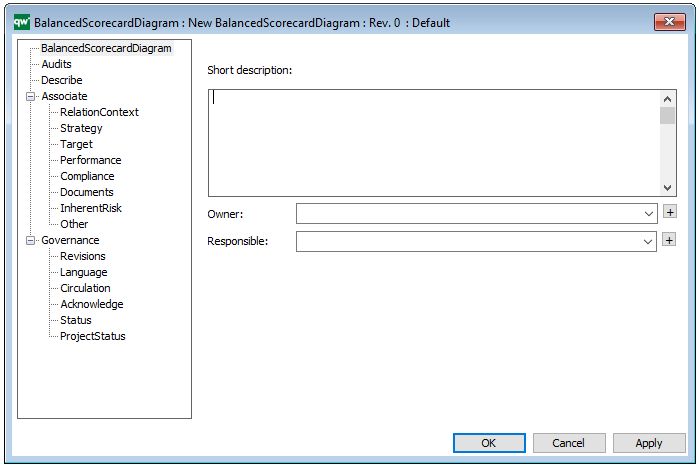
The above picture shows the properties dialogue window for the Balanced Scorecard Diagram, where you can view and edit the diagram’s properties in QualiWare Lifecycle Manager.

Architecture Framework

Purpose: The purpose of the Architecture Framework template, is to provide an overview of the enterprise, and the context for a diagram, showing where in the architecture and repository it belongs. An Architecture Framework shows the overall structure of the architecture and the structure with which it is represented in the repository.

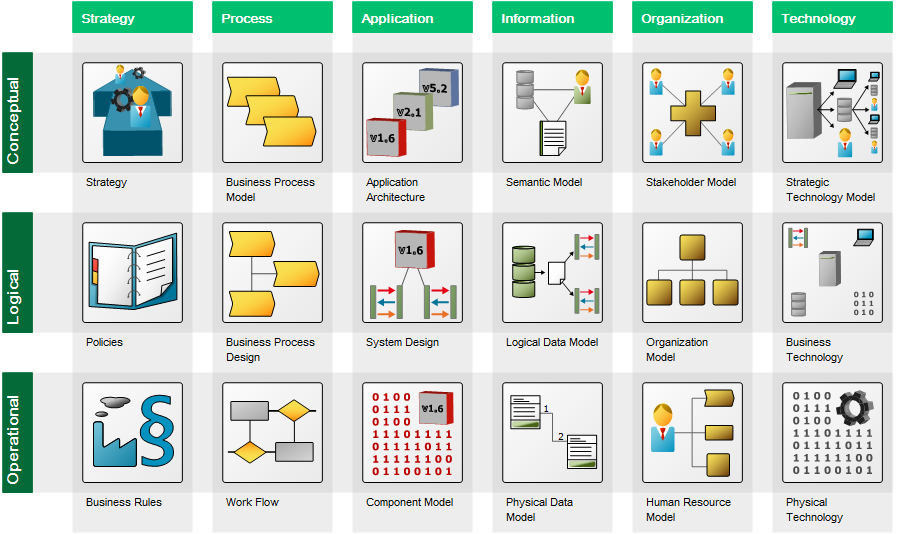
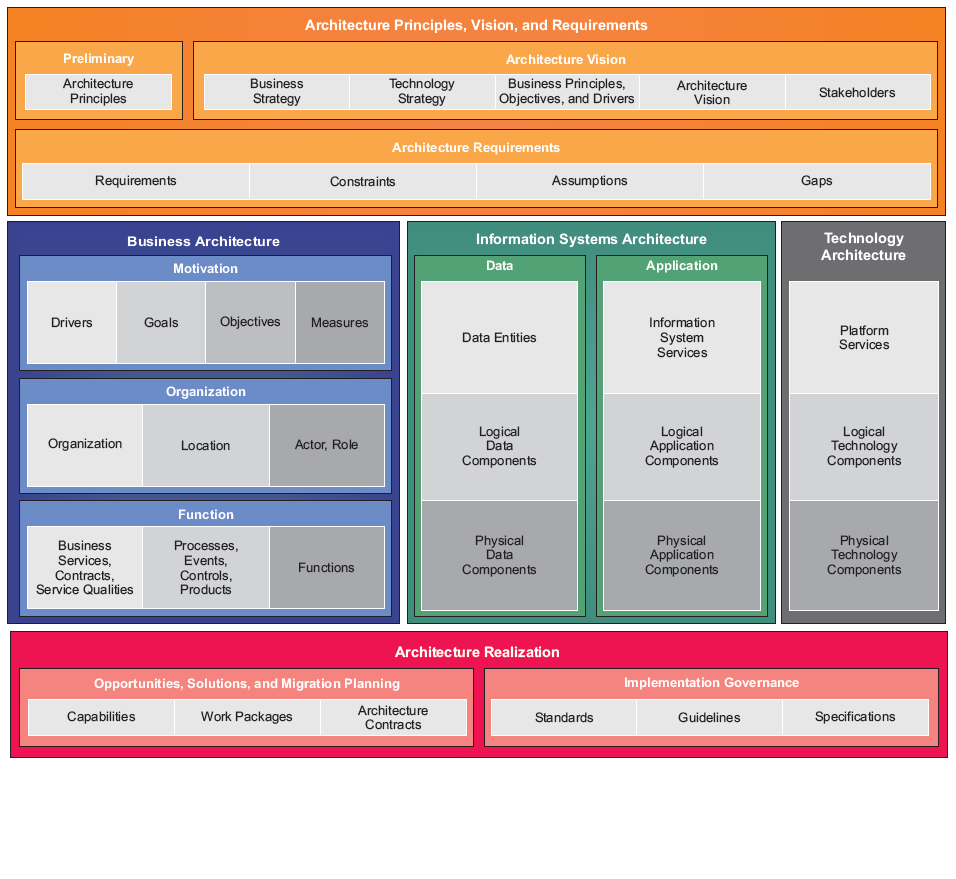
Core concerns: The Architecture Framework template consists of FrameWorkCells, FrameWorkColumns, FrameWorkRows and LineOfBusinesses. You can choose to model the framework to fit the one your organization is using – QualiWare supports a wide range of architecture frameworks out of the box such as Zachman, TOGAF , OIOEA, EA3 Cube, EDGY, QualiWare EA Framework, and many more.

Below, you can see an example of the QualiWare EA Framework:

ArchitectureFramework_1

Below, you can see an example of a TOGAF framework:

ArchitectureFramework_2

Relation to other templates: The Architecture Framework template is used to represent the repository’s architecture in the form of a specific framework. If CXO dashboards are to be created, the Strategy Model should be used instead.

An ArchitectureFramework can be modeled using FrameWorkRows, FrameWorkColumns, and FrameWorkCells

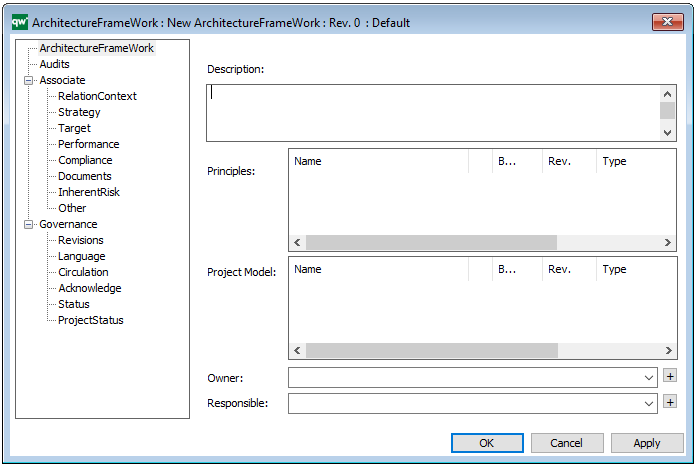
Properties and metadata: The Architecture Framework can for example retain the following information:

  • A description of the diagram
  • Link to Architecture principles and project models
  • Link to the owner of the framework
  • Link to the one responsible for the framework
  • Audits (auto generated information regarding its current state and access rights)
  • Associated documents, diagrams and other objects
  • Inherent Risk detailing risk considerations
  • Governance information detailing information about the published diagram and who has been involved in the approval of the diagram

The above picture shows the properties dialogue window for the Architecture Framework where you can view and edit the diagram’s properties in QualiWare Lifecycle Manager.
Application Functionality Context

Purpose: The purpose of the Application Functionality Context template is to document the in which Activities and/or Business Processes a given Application Functionality is used.

Core concerns: The Application Functionality Context template can be used to create graphical views showing where Application Functionalities are used. The template enables you to model Application Functionalities, Activities and Business Processes. The Business Processes and Activities are connected to Application Functionalities using Functionality Usage.

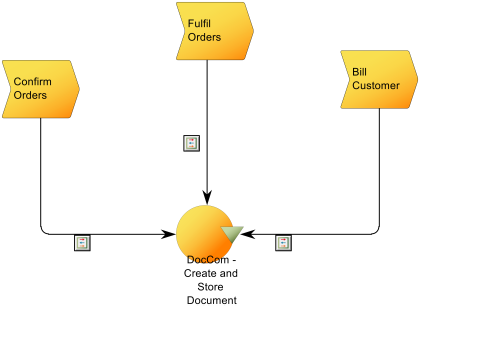
Below, you can see an example of an Application functionality contest diagram, where the context for the DocCom – Create and Store Document functionality is shown:

The diagram shows which Business Processes use the Application Functionality as well as which Information System delivers it.

Relation to other templates: To map applications hardware, the Application Architecture Diagram or Infrastructure Diagram template should be used. The Application Functionality Context template graphically connects functionalities of Information Systems to the Processes and Activities in which they are used. It offers an additional view to Application Architecture Diagrams, Workflow Diagrams, Business Process Diagrams and Business Process Networks.

Properties and metadata: The Application Functionality Context template ­­­­can for example retain the following information:

  • A description of the diagram
  • Audits (auto generated information regarding its current state and access rights)
  • Associated documents, diagrams and other objects
  • Inherent Risk detailing risk considerations
  • Governance information detailing information about the published diagram and who has been involved in the approval of the diagram

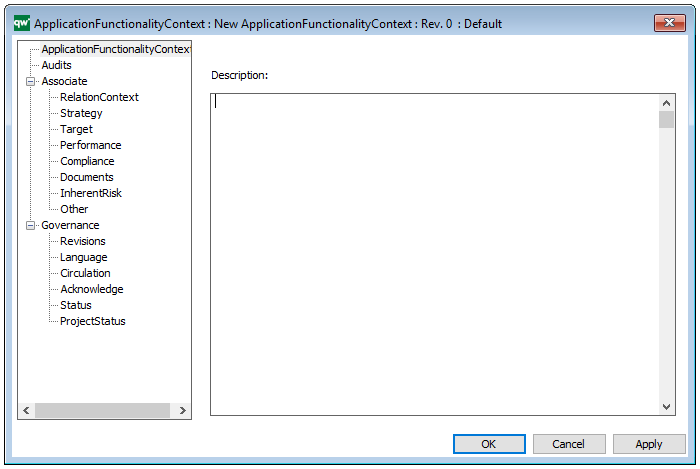
The above picture shows the properties dialogue window for the Application Functionality Context template where you can view and edit the diagram’s properties in QualiWare Lifecycle Manager.
Application Architecture Diagram

Purpose: The purpose of an Application Architecture Diagram is to show the structure of an Information System and its relations to other Information Systems.

Core concerns: The Application Architecture Diagram is used to document the application/systems layer. It can show information flows and system dependencies between Information Systems as well as depict system components and system areas.

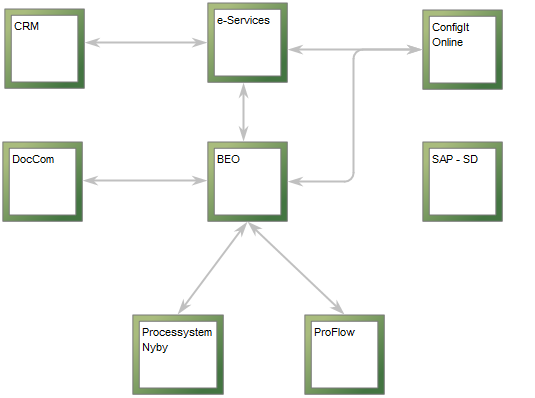
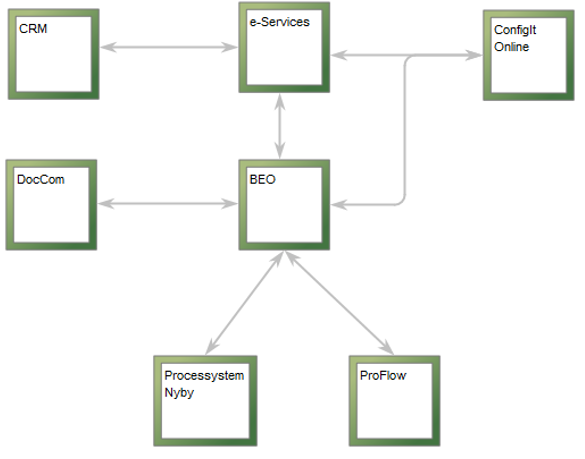
The above picture shows an example of an Application Architecture Diagram depicting an overview of the Information Systems related to BEO. The information systems are connected by arrows that symbolize system dependencies.

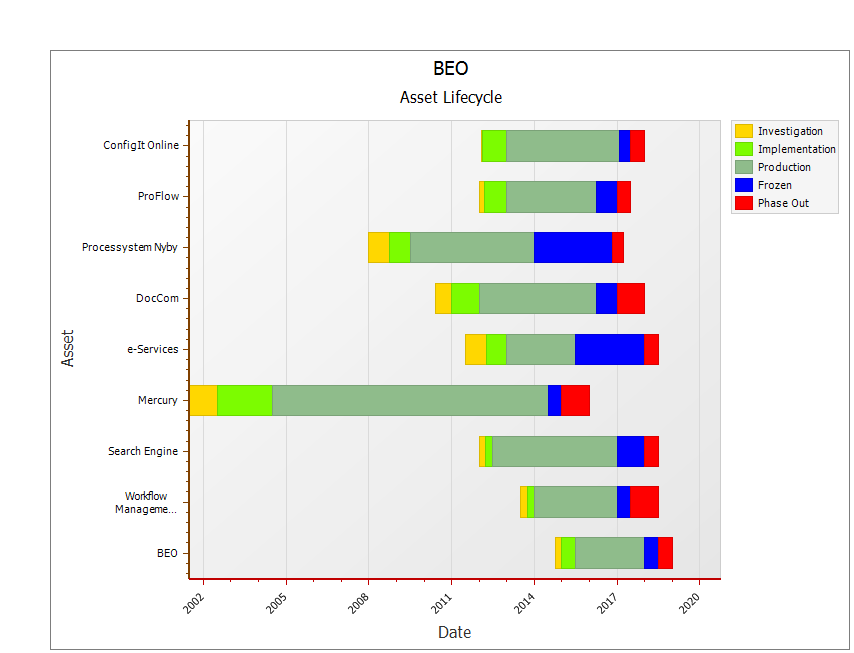
Other functionalities: Application Architecture Diagrams can be analyzed in QualiWare via the toolbar for Application Portfolio Management. The Application Portfolio Management tools offers analysis for redundant functionalities, performance matrix generation, system heat map generation, asset lifecycle view (se below picture), lifecycle dependencies, and capabilities delivered by multiple information systems.

The above picture shows the Asset Lifecycle of the Information System ‘BEO’ and the Information Systems related to it is shown. The information depicted is pulled from the Information Systems’ metadata.

Relation to other templates: The elements depicted in the Application Architecture Diagram can be described in further detail in another Application Architecture Diagram, or in related diagrams such as a Data Flow Diagram.

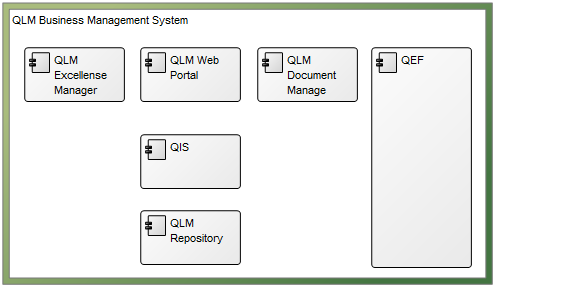
The above picture shows an example of a more detailed view of an information system. In this Application Architecture Diagram the System Components are visible.

For documentation of a physical or hardware layer, the Infrastructure Diagram template can be used.

Properties and metadata: The Application Architecture Diagram can for example retain the following information:

  • A description of the diagram
  • Link to the owner of the application architecture
  • Link to the one responsible for the application architecture
  • Associated documents, diagrams and other objects
  • Inherent Risk detailing risk considerations
  • Governance information detailing information about the published diagram and who has been involved in the approval of the diagram

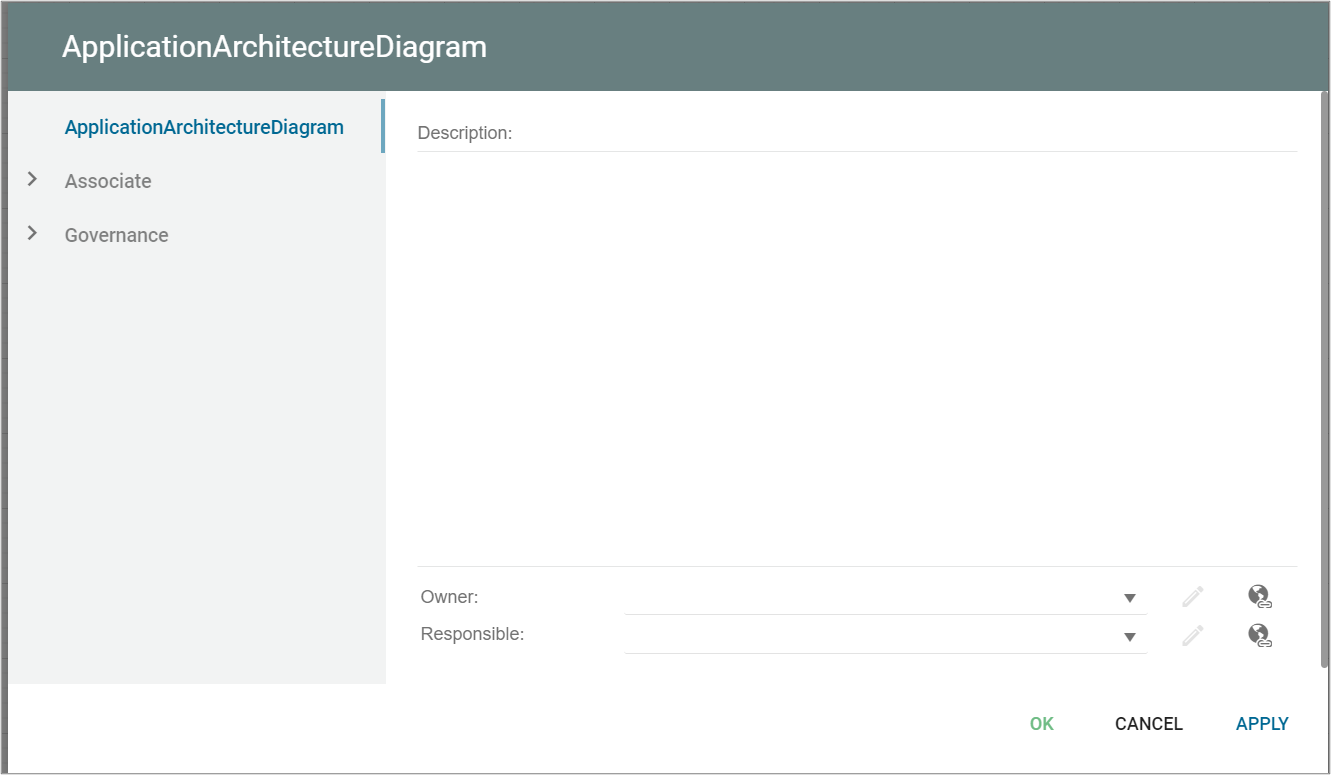
The above picture shows the properties dialogue window for the Application Architecture Diagram where you can view and edit the diagram’s properties.

Account Context Diagram

Purpose: The purpose of the Account Context Diagram is to enable financial risk management by illustrating which processes create transactions on a given account, and which risks are related to this transaction.

Core concerns: The Account Context Diagram enables you to model Accounts, Business Processes and link them with influences.

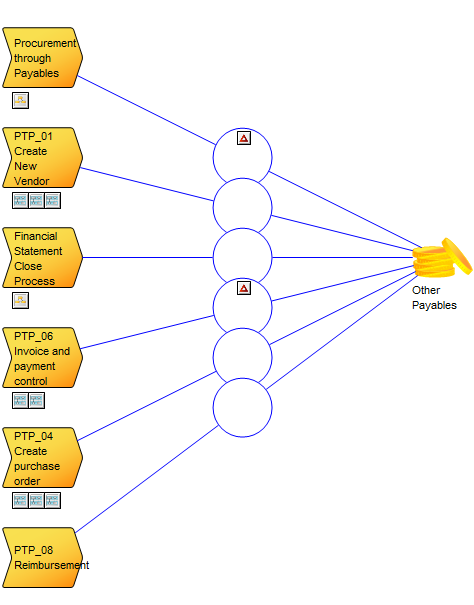
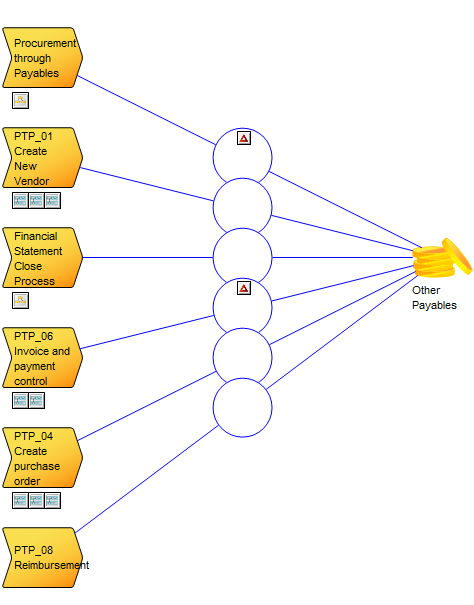
Below, you can see an example of an Account Context Diagram for the account ‘Other Payables’:

The risks are linked to the influencers and shown on the diagram. For example, in the above diagram, both risks are: ‘Goods received not invoiced, not recognized as a liability at period end’.

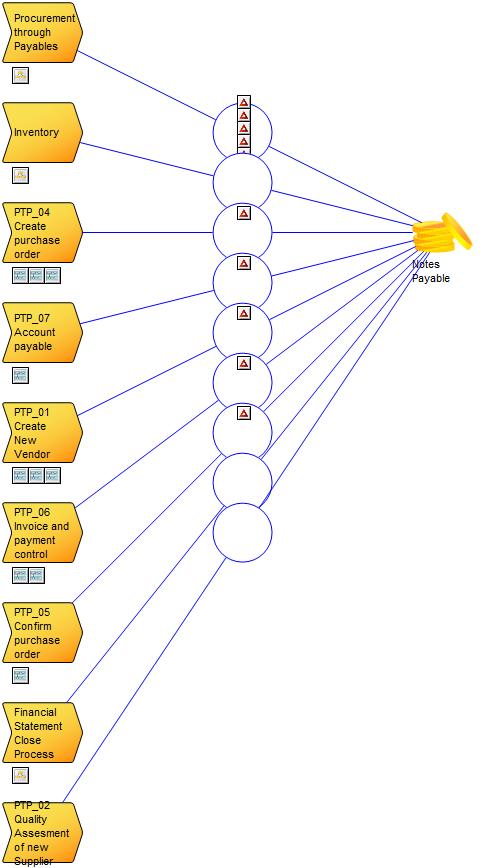
It is possible to link multiple risks to each influence. In the following diagram, you can see a similar Account Context Diagram, where several risks are connected to a single influence:

Relation to other templates: The Account Context diagram is for financial risk management. It is related to the Control Coverage Map and the Heat Map templates, which can be generated based on the information in the Account Context Diagram.

Properties and metadata: The Account Context Diagram ­­­­can for example retain the following information:

  • A description of the diagram
  • Link to the owner of the diagram
  • Link to the one responsible for the diagram
  • Link to the Account shown in the diagram
  • Audits (auto generated information regarding its current state and access rights)
  • Associated documents, diagrams and other objects
  • Inherent Risk detailing risk considerations
  • Governance information detailing information about the published diagram and who has been involved in the approval of the diagram

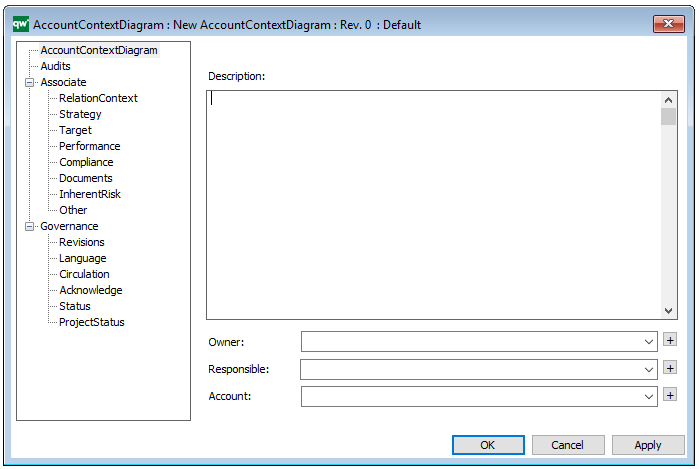
The above picture shows the properties dialogue window for the Account Context Diagram where you can view and edit the diagram’s properties in QualiWare Lifecycle Manager.