Object Diagram

Purpose: The purpose of the Object Diagram is to document an instance of a class diagram accounting for objects and attributes at a specific point in time. An object diagram may be considered a special case of a Class Diagram.

Core concerns: The Object Diagram enables you to model Packages, Classes, Interfaces, Data Types, Enumerations, Primitive Types, Instance Specifications and Annotations. These elements can then be connected by Associations, Generalizations, Dependencies, Interface Realizations and Usage.

The Object Diagram template should be used to document specific objects of interest in a predefined scenario. This makes Object Diagrams especially useful for documenting examples or test cases for Class Diagrams.

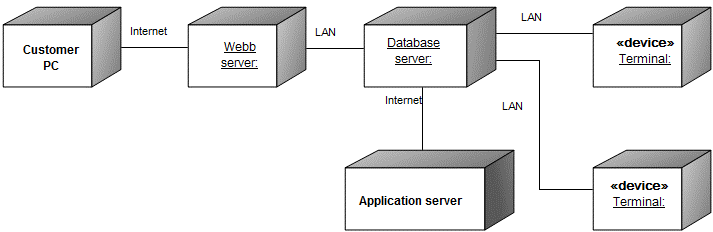
Below, you can see an example of an Object Diagram for a Car Rental Agreement, where specific requirements for the car must be met:

Relation to other templates: The Object Diagram is part of the UML templates QualiWare supports along with the Activity Diagram, Communication Diagram, Deployment Diagram, Class Diagram, Composite Structure Diagram, State Diagram, Package Diagram, Component Diagram, Sequence Diagram, Use case diagram, Timing Diagram, Composite structure Diagram

Properties and metadata: The Object Diagram template ­­­­can for example retain the following information:

  • A description of the diagram
  • Link to the owner of the diagram
  • Link to the one responsible for the diagram
  • Extensions (Stereotypes, Constraints, Tagged values)
  • Audits (auto generated information regarding its current state and access rights)
  • Associated documents, diagrams and other objects
  • Inherent Risk detailing risk considerations
  • Governance information detailing information about the published diagram and who has been involved in the approval of the diagram

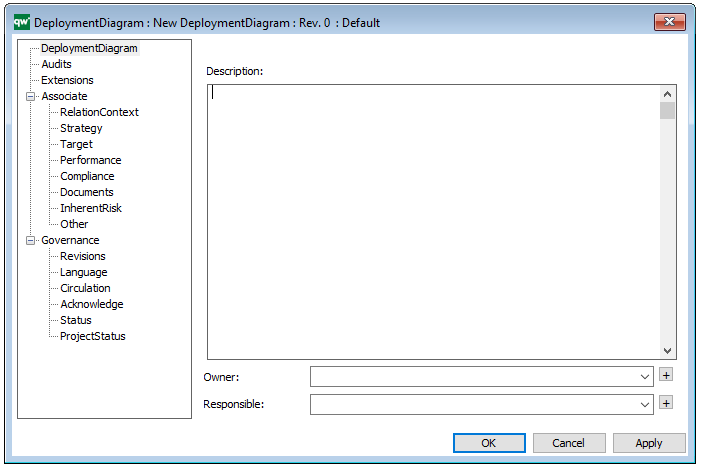
The above picture shows the properties dialogue window for the Object Diagram template, where you can view and edit the diagram’s properties in QualiWare Lifecycle Manager.

For more information: about the UML, please visit the Object Management Group’s Website, where you can find the complete specification. The Object Diagram is described in version 1.4.

Matrix

Purpose: The Matrix template is used as an auxiliary diagram type for other diagrams. It can either show the properties or links of and between existing objects.

Concerns: There can be generated three types of Matrix diagrams: Link Matrices, Property Matrices and Text Matrices.

  • Link Matrices are typically used to summarize the links of two different template types. For example, a Link Matrix can be created using Business Process as the rows and Information Systems as the columns to quickly get an overview over which Information Systems are linked to which Business Processes under IT -Support.
  • Property Matrices can be used to summarize the contents of many objects, for example, of a single template type in a single diagram. For example, a Property Matrix can be created for Information Systems to obtain an overview over the details describing all the relevant Information Systems and identify any gaps in the information. You could also choose to filter the items in the template, so only the Information Systems used in a specified process are shown.
  • Text Matrices function as a regular spreadsheet. This type of matrix can for example be used to store data used for KPIs

Below is an example of a property matrix detailing the risks and control processes related to the process called ‘Inventory’:

Matrix_1

Below is an example of a link matrix detailing the relation between three identified risks and several controls (from the diagram, you can see that only two of three risks are addressed by the control processes):

Matrix_2

Relation to other templates: Where the Matrix can be used as a backend tool, Query Result Views (QRV’s) are created to give an overview of specific objects and their attributes on the collaboration platform.

 Properties and metadata: The Matrix template can for example retain the following information:

  • A description of the diagram
  • Audits (auto generated information regarding its current state and access rights)
  • Associated documents, diagrams and other objects

In the picture below you can see the Matrix template’s properties dialogue window, where the properties can be viewed and edited:

You can also edit the properties of the Matrix in the properties dialogue window by changing the Matrix behavior, Row filter or Column filter.


Work Breakdown Structure

Purpose: The purpose of the Work Breakdown Structure template is to document the systematical structure of a project to define its organization or structural levels and plan resource allocation.

Core concerns: The Work Breakdown Structure diagram consists of Results, Notes, and their connections. It gives a simple overview of the structure of a projects phases and deliverables. In the illustration below, a Work Breakdown Structure for a project that is to define the requirement specifications for a new booking system:

Inside each Result, information about the estimated needed resources.

Relation to other templates: As a Work Breakdown Structure offers a detailed view of a project’s phases and deliverables and is as such, related to the Work Model. To determine the critical path of a project you should use the Critical Path Method Diagram.

Properties and metadata: The Work Breakdown Structure can for example retain the following information:

  • A description of the diagram
  • Link to the owner of the diagram
  • Link to the one responsible for the accuracy of the diagram
  • Audits (auto generated information regarding its current state and access rights)
  • Associated documents, diagrams and other objects
  • Inherent Risk detailing risk considerations
  • Governance information detailing information about the published diagram and who has been involved in the approval of the diagram
  • Project status: information about budgeted and actual man-hours spent, percentage completed and the latest milestone, result and quality control of a change process.

In the picture below you can see the Work Breakdown Structure’s properties dialogue window, where the properties can be viewed and edited:

Integration View

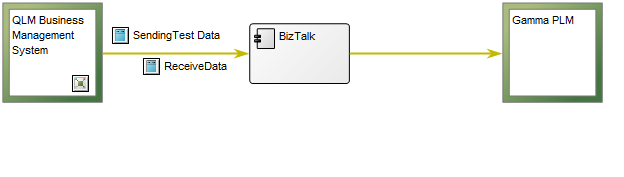
Purpose: The purpose of the Integration View template is to document the routing of integrations between systems.

Core concerns: The Integration View template enables you to model Information Systems, System Components and External Entities (a source to or a receiver of information from a system), and connect them using Integration Flows.

Below is an example of an Integration View concerning the flow of test data:
Relation to other templates: The Integration View belongs to the Application layer of the architecture and is as such related to the Application Architecture Diagram, the Data Flow Diagram and the Component Diagram.

Properties and metadata: The Integration View template can for example retain the following information:

  • A description of the model
  • Audits (auto generated information regarding its current state and access rights)
  • Associated documents, diagrams and other objects
  • Inherent Risk detailing risk considerations
  • Governance information detailing information about the published diagram and who has been involved in the approval of the diagram
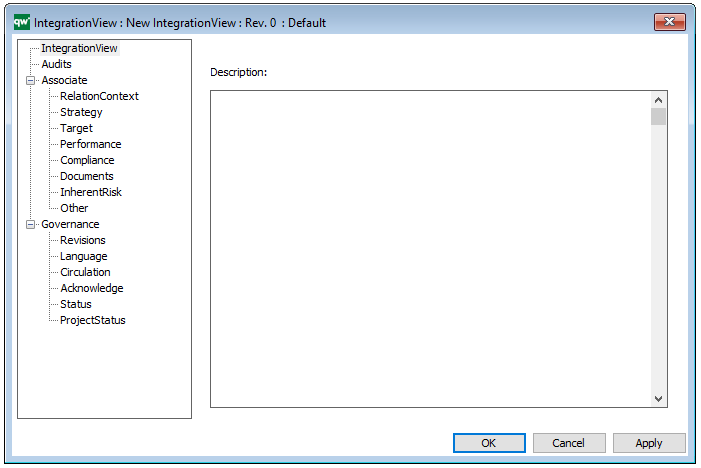
The above picture shows the properties dialogue window for the Integration View template where you can view and edit the diagram’s properties in QualiWare Lifecycle Manager.
 

Innovation Canvas

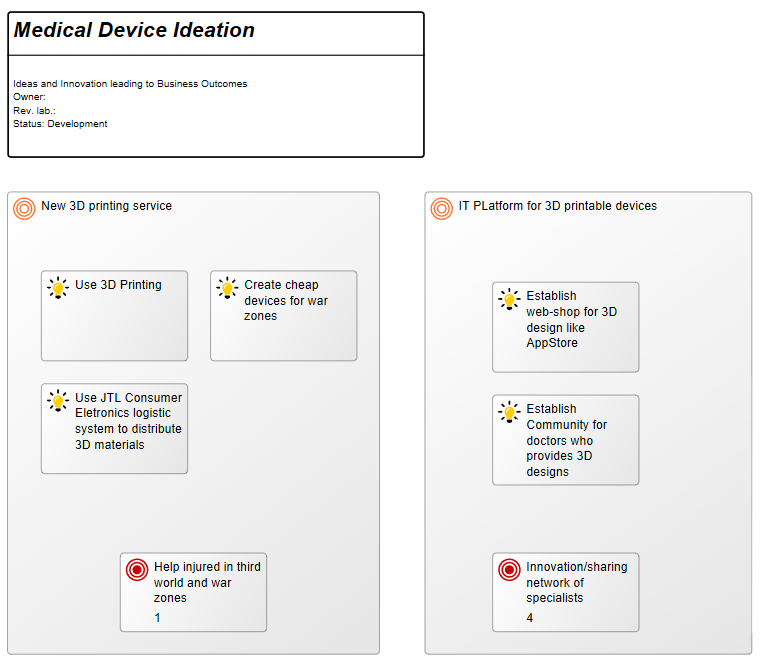
Purpose: The Purpose of the Innovation Canvas is to model ideas for Innovation detailing their goals and ideas for action.

Core concerns: The Innovation Canvas allows you to model an innovation detailing the ideas that exist in relation to it. In the example below, the goals of the innovation have also been defined and attached. Goals, vision, mission and many more strategic objects are available in the default extended syntax for the diagram, enabling you to model your ideas for innovation in as much detail as you prefer.

Relation to other templates: The Innovation Canvas is a strategic template and the elements modelled in it can easily be connected to other strategic templates such as a Strategy Model, Enterprise Investment Portfolio, Business Canvas or Business Capability Model.

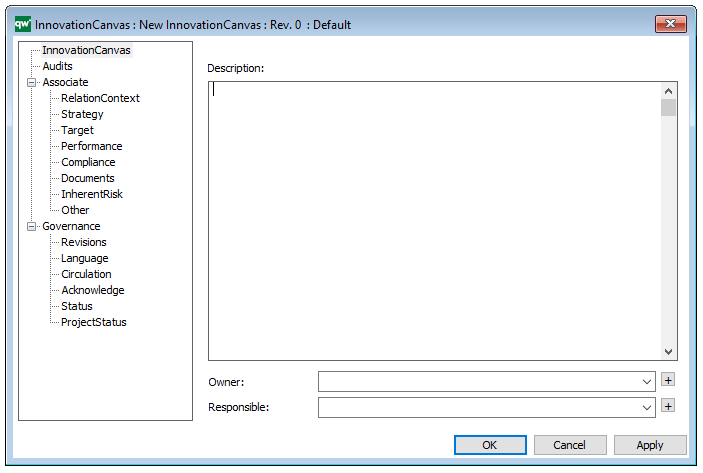
Properties and metadata: The Innovation Canvas can for example retain the following information:

  • A description of the diagram
  • Link to the owner of the diagram
  • Link to the one responsible for the accuracy of the diagram
  • Audits (auto generated information regarding its current state and access rights)
  • Associated documents, diagrams and other objects
  • Inherent Risk detailing risk considerations
  • Governance information detailing information about the published diagram and who has been involved in the approval of the diagram
  • Project status: information about budgeted and actual man-hours spent, percentage completed and the latest milestone, result and quality control of a change process.

In the picture below you can see the Innovation Canvas’ properties dialogue window, where the properties can be viewed and edited:

Hierarchy View

Purpose: The purpose of the Hierarchy View template is to show the hierarchy of objects related to a chosen root object.

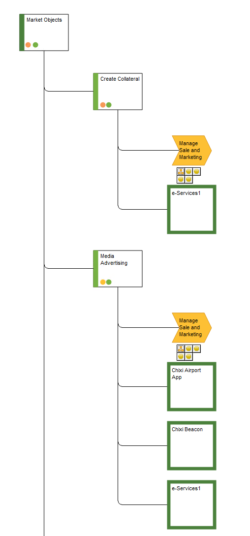
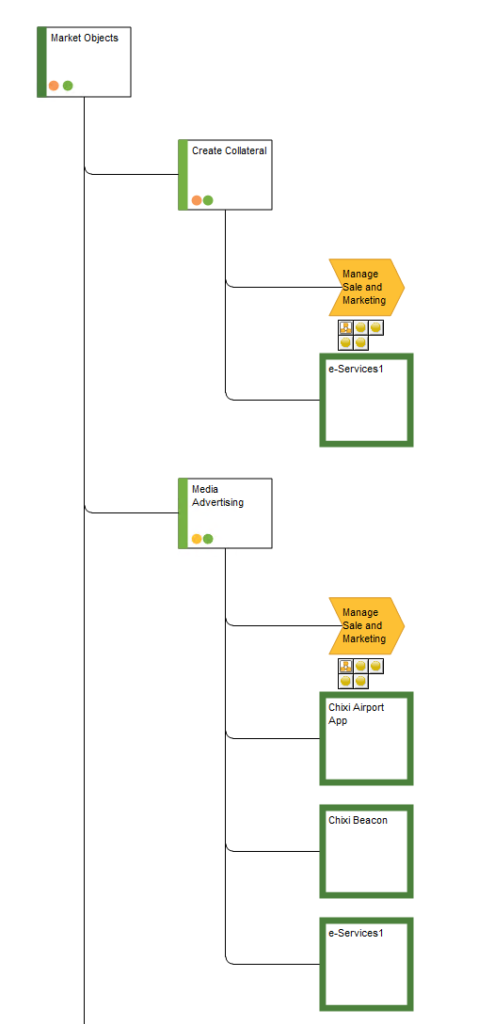
Core concerns: The root object in the hierarchy View can for example be a Capability or a Business Process. The view is not modeled as a diagram, but generated based on information specified in the template’s property dialog, making the scope of the view flexible. Below, you can see an examples of a Hierarchy View for the Capability “Market Objects”:

Relation to other templates: The Hierarchy View is not directly connected to any single template but is not unlike a Context View. The Hierarchy View is, compared to a Context View, usually filtered to only show certain types of relations amongst certain types of objects and not as a default connected to diagram templates:

Properties and metadata: The Hierarchy View template can for example retain the following information:

  • A description of the diagram
  • Link to the owner of the Hierarchy View
  • Link to the one responsible for the Hierarchy View
  • Audits (auto generated information regarding its current state and access rights)
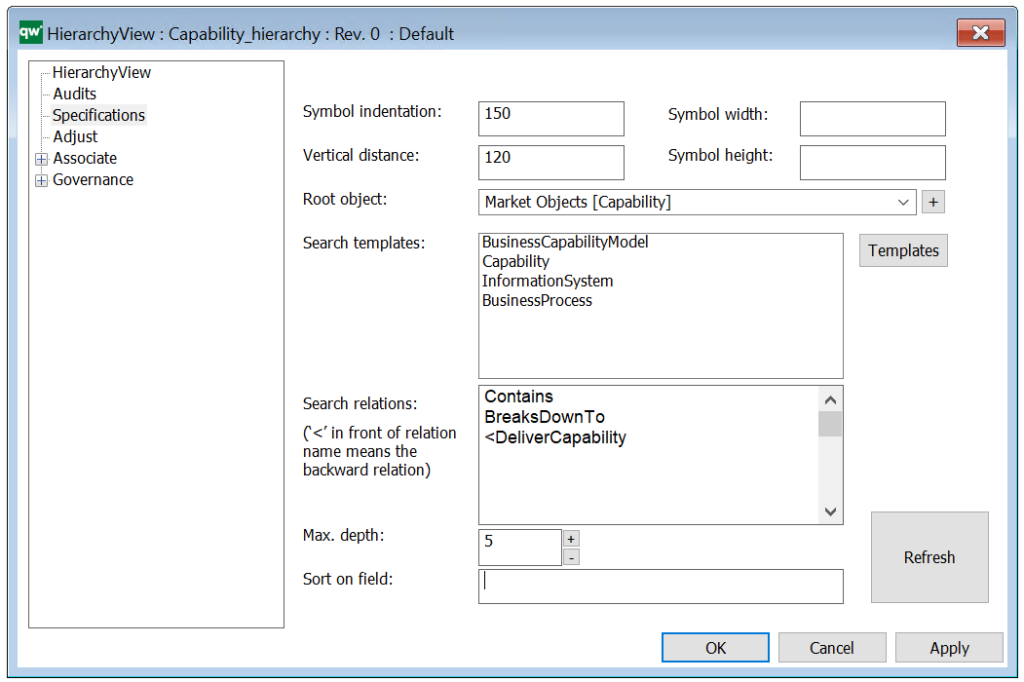
  • Specifications (definition of root object and other inclusion criteria)
  • Adjust (specification of templates that should be removed from the view)
  • Associated documents, diagrams and other objects
  • Inherent Risk detailing risk considerations
  • Governance information detailing information about the published diagram and who has been involved in the approval of the diagram

The above picture shows the properties dialogue window for the Hierarchy View template where you can view and edit the diagram’s properties in QualiWare Lifecycle Manager.
The HierachyView can be used in relation to the Standard Tree View in the HTMLPublisher, to establish a hierarchy for the network of process models in a repository.

Heatmap

Purpose: The purpose of the Heat Map template is to document a representation of values from other QualiWare templates in the form of a Heat Map.

Core concerns: The Heat Map template is created using the Risk Management and Application Portfolio Management toolbars in a diagrams action tab in QLM. It can afterwards be found under the Heat Map template in the repository explorer window.

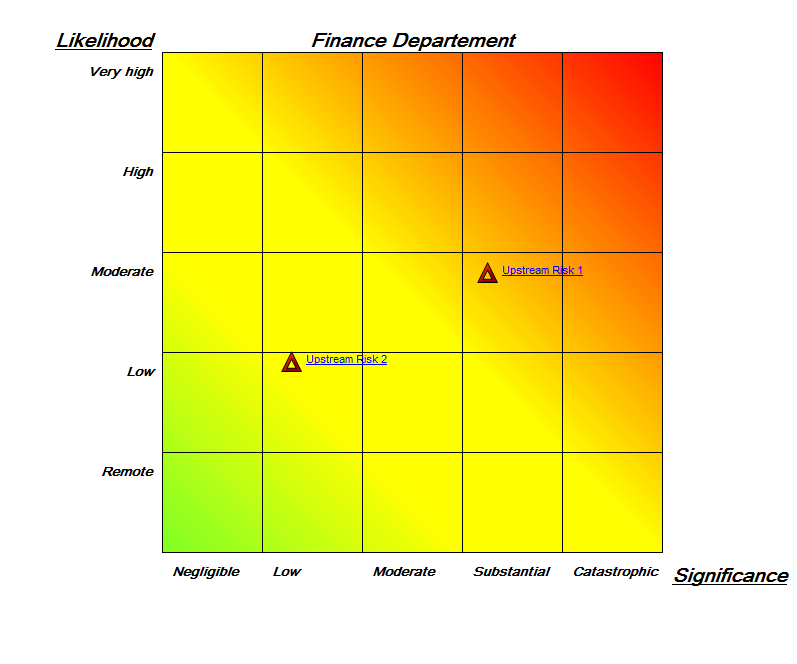
The Heat Map template can, for example be used to document risks, identify the most pressing ones. Additionally, Heat Maps can be used to identify systems that don’t live up to business or technical criteria.

Below, you can see two examples of Heat Maps for risks. The first shows two risks and how they compare to each other with regards to significance and likelihood:

HeatMap_2

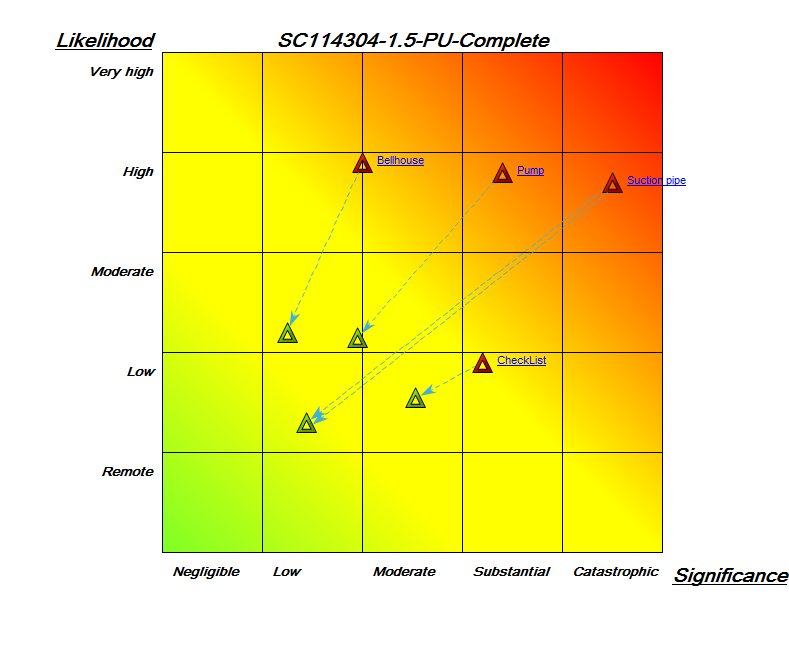
The second Heat Map shows four risks as well as their residual risks, and how they compare to each other regarding likelihood and significance:

HeatMap_1

Relation to other templates: The Heat Map can for example be generated from data gathered from a Business Process Network, Workflow Diagram, Business Process Diagram, Application Architecture Diagram or a Strategy Model.

Properties and metadata: The Heat Map template ­­­­can for example retain the following information:

  • A description of the diagram
  • Link to the owner
  • Link to the responsible
  • Audits (auto generated information regarding its current state and access rights)
  • Associated documents, diagrams and other objects
  • Inherent Risk detailing risk considerations
  • Governance information detailing information about the published diagram and who has been involved in the approval of the model

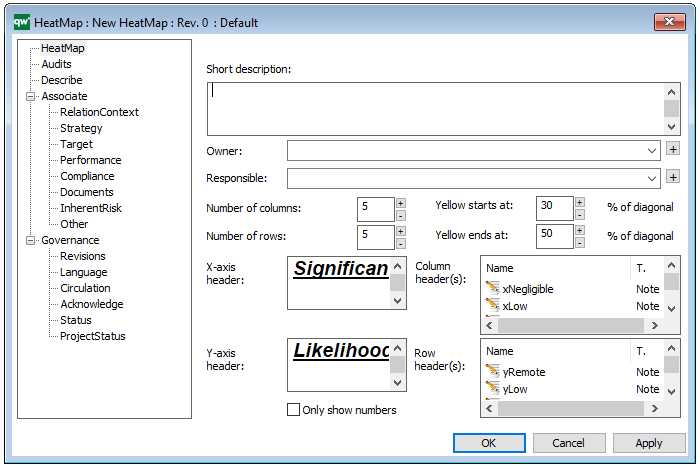
The above picture shows the properties dialogue window for the Heat Map template, where you can view and edit the template’s properties in QualiWare Lifecycle Manager.
To learn how to build Heat Maps in QualiWare click here

Graphical Matrix

Purpose: The purpose of the Graphical Matrix template is to compare the states or scores of objects, such as for example Capabilities or Information Systems.

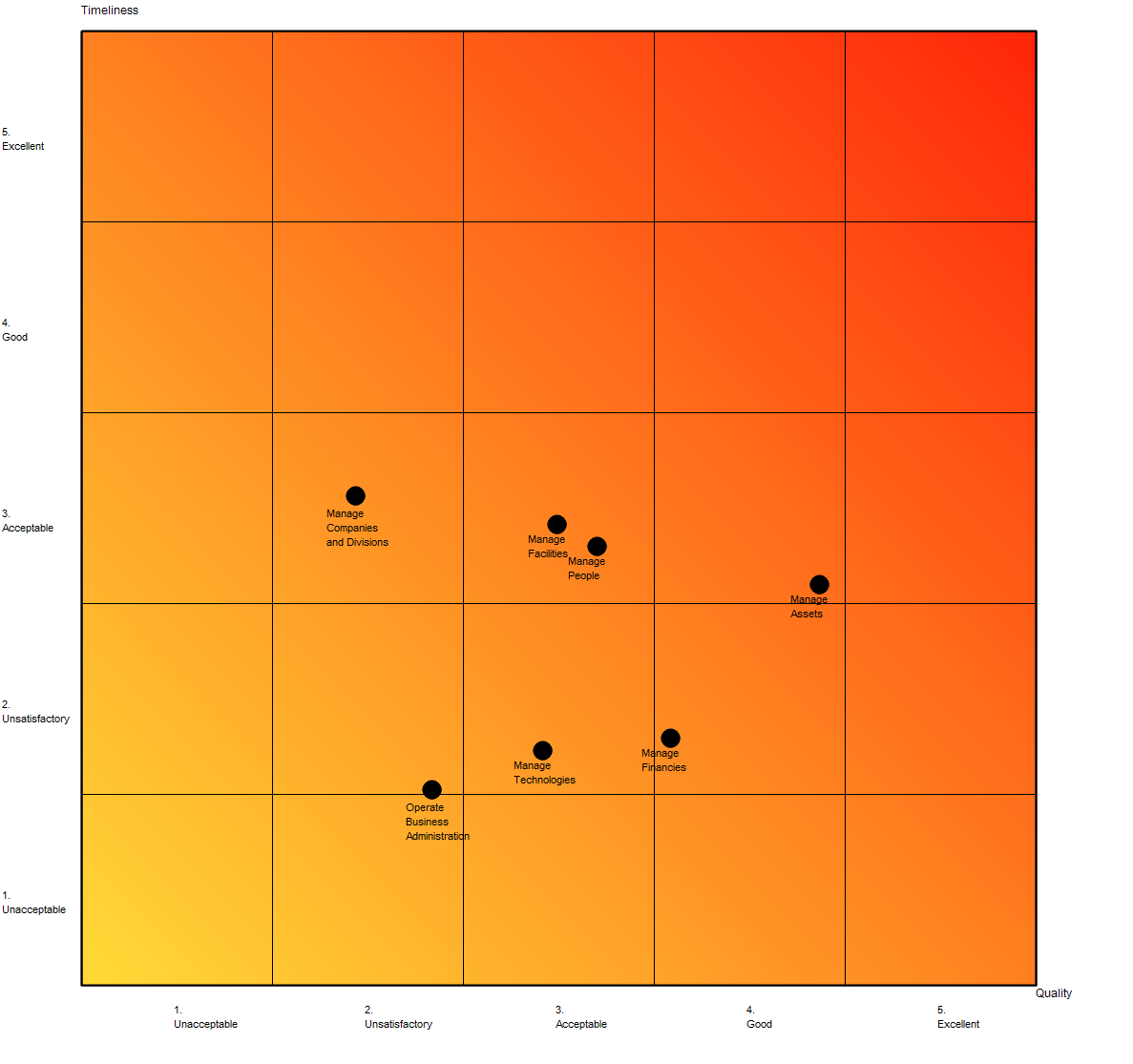
Core concerns: The Graphical Matrix is generated based on information inserted into its property dialog where input, x-axis and y-axis are defined. Below, you can see an example of a Graphical Matrix for capabilities, scoring their quality and timeliness:

GraphicalMatrix_1

Relation to other templates: When scoring risks and visualizing residual risks, you can use a Heatmap.

Properties and metadata: The Graphical Matrix template can for example retain the following information:

  • A description
  • Link to the source of the input
  • Coordinate definitions of the Graphical Matrix
  • Audits (auto generated information regarding its current state and access rights)
  • Associated documents, diagrams and other objects

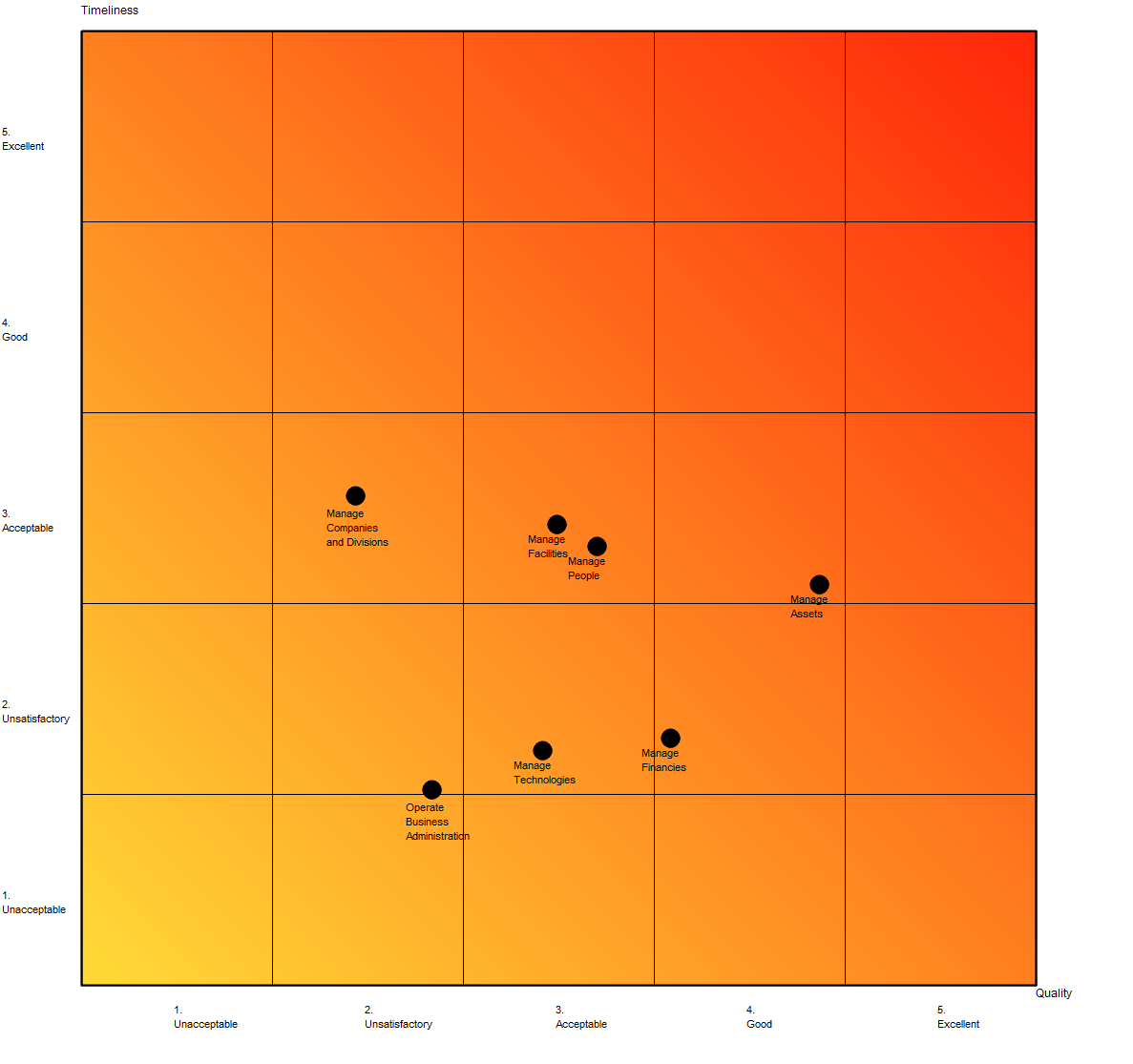
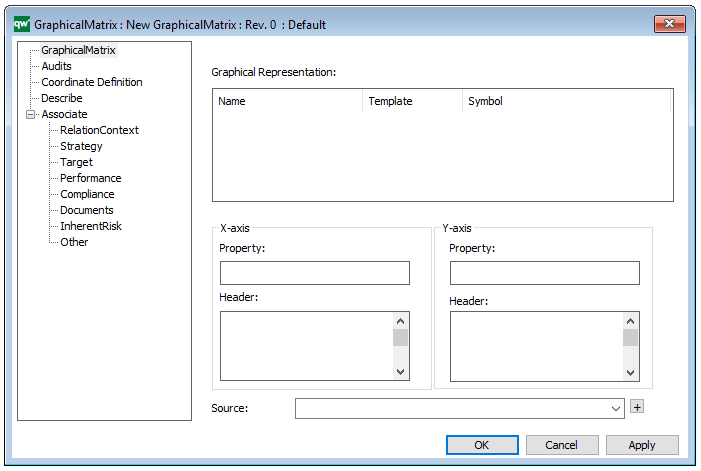
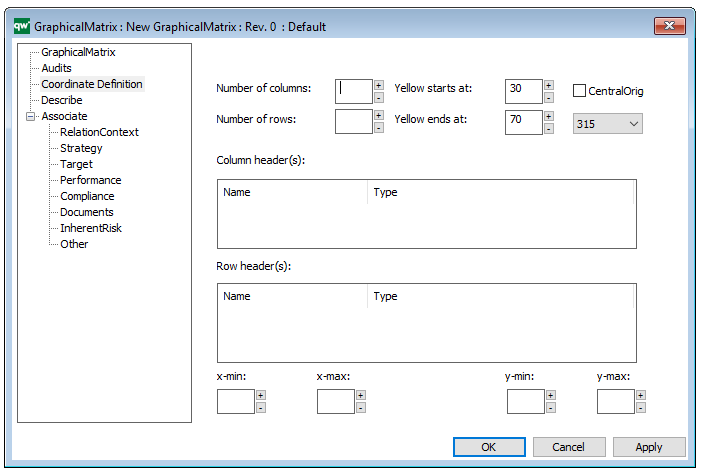
The above picture shows the properties dialogue window for the Graphical Matrix, where you can view and edit the diagram’s properties in QualiWare Lifecycle Manager. Below, you can see the tab for Coordinate Definition:
Generic Query

Purpose: The Purpose of the Generic Query template is to provide datasets for QualiWare System templates.

Core concerns: The Generic Query template is an auxiliary template. The Generic Query can be created using a Query Design template which enables you to easily structure the query for creating reports. When creating a Report for a diagram, the Generic Query created using the Query Design should be used as a Data Set in the Report Definition.

A Generic Query can also be generated using its Property Dialog, where you can link to Data Source and filter the data selection using a wizard – see example of the property dialog below:

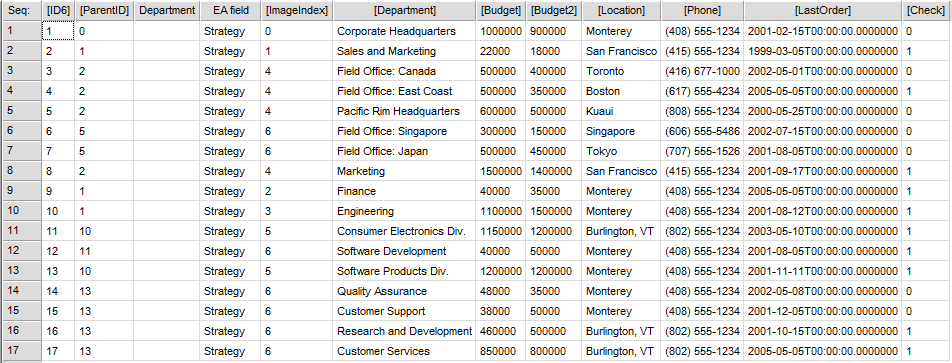
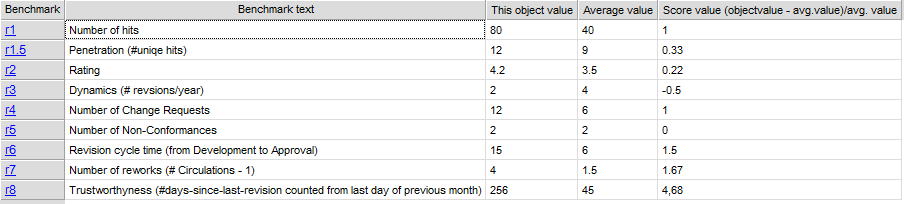
The Generic Query can, for example, take the form of data sheets:

GenericQuery_2

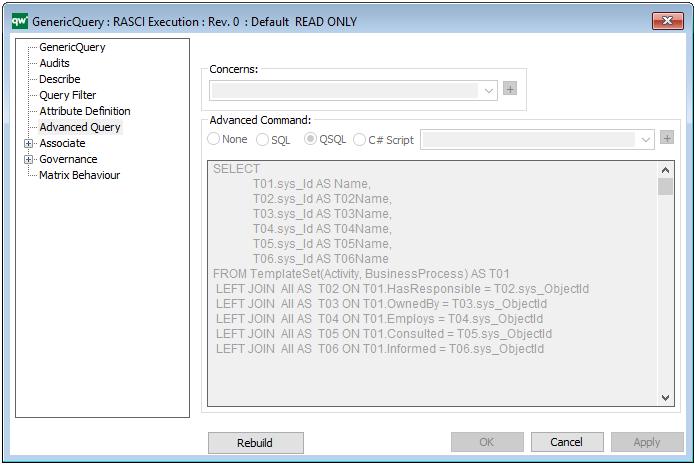
The Generic Query template can also execute a command using the Advanced Query tab:

Relation to other templates: Generic Queries are automatically created when creating a Query Design. Generic Queries are used in the following templates: HTML Template Definitions, HTML Embedded content, HTML Publisher and HTML Content tab.

Properties and Metadata: The Generic Query can for example rentain the following information:

  • A description
  • Audits (auto generated information regarding its current state and access rights)
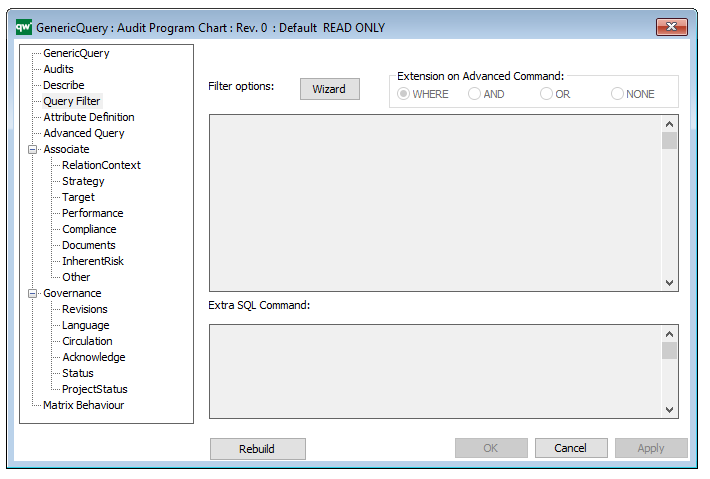
  • Query Filter, including a wizard for filter options
  • Attribute Definition
  • Advanced Query
  • Matrix Behavior

The above picture shows the properties dialogue window for the Generic Query where you can view and edit the diagram’s properties in QualiWare Lifecycle Manager.
Read more about Query Design and GenericQuery here.


Enterprise Investment Portfolio

Purpose: The purpose of the Enterprise Investment Portfolio template is to model enterprise goals and investments.

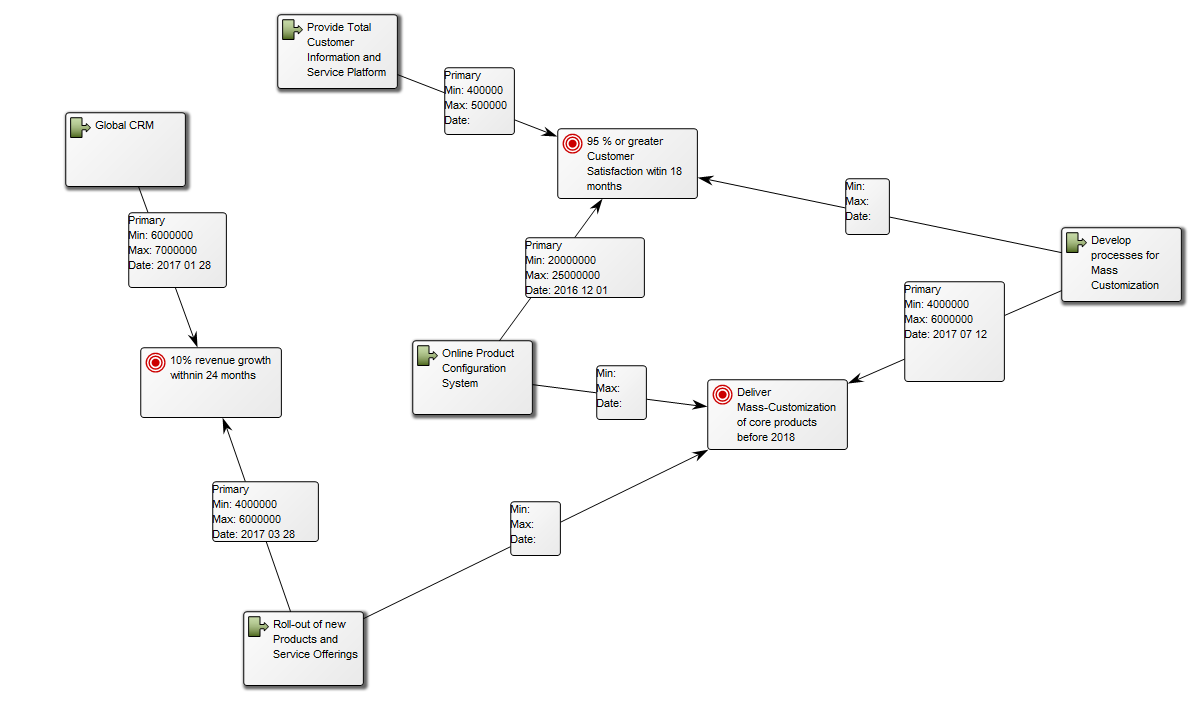
Core concerns: The Enterprise Investment Portfolio template enables you to model Goals, Projects, and Initiatives. The projects and initiatives can be connected to enterprise goals them through Project Contributions, that show the viable minimum and optimistic maximum of the value contribution. Below, you can see an example of an Enterprise Investment Portfolio, where the way goals are realized is visualized:


EnterpriseInvestmentPortfolio_1

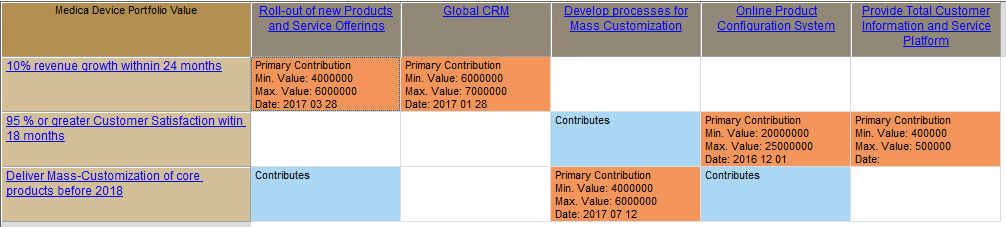
Other Functionalities: By using the Enterprise Investment Actions tab, you can create, for example, a Portfolio Value matrix, which offers another way to view the same data:

Relation to other templates: The Enterprise Investment Portfolio is a strategic template and is as such related to the enterprise’s Strategy Model, Strategic Roadmap, Business Canvas and Innovation Canvas. The projects contained in the initiatives can also be further described in the Work Model template.

Properties and metadata: The Enterprise Investment Portfolio template can for example retain the following information:

  • A description of the diagram
  • Link to the owner of the diagram
  • Link to the one responsible for the diagram
  • Audits (auto generated information regarding its current state and access rights)
  • Associated documents, diagrams and other objects
  • Inherent Risk detailing risk considerations
  • Governance information detailing information about the published diagram and who has been involved in the approval of the diagram

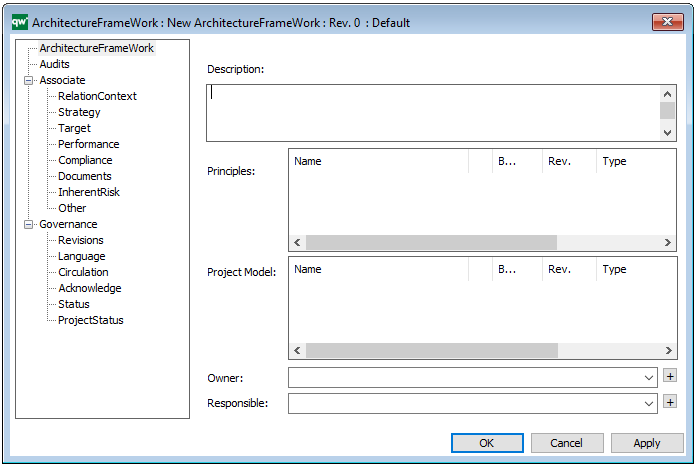
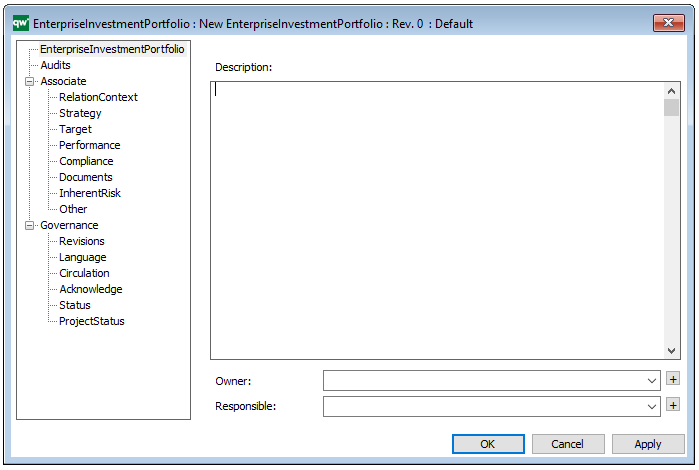
The above picture shows the properties dialogue window for the Enterprise Investment Portfolio template, where you can view and edit the diagram’s Properties in QualiWare Lifecycle Manager.
For more information: This model type is used in the Enterprise Investment Methodology developed by Chris Potts and QualiWare. To learn more about Enterprise Investment, you can about it here:Enterprise Investment.