Risk Management

QualiWare contains a comprehensive set of features and functions to related to all aspects of risk management.

Risk Management in QualiWare

In QualiWare you get a full modern enterprise risk tool, where you can manage all level of risk in the organization.

All stages of a risk can be captured and managed in the system from:

  • Registration of new risk, including categorization and type
  • Assessment on inherent likelihood and probability
  • Setting the risk appetite, targeting desired risk likelihood and significance
  • Mitigation of risk through defining/associating controls, and thereof mitigated likelihood and significance
  • Monitor the risks, through controls, and ongoingly evaluation of sufficiency of controls and/or creating and managing control deficiencies and corrective actions

Risk can be associated to any object in QualiWare and can be:

  • Distributed in the organization, e.g. a processresponsible can create and assess risk associated to her/his processes,
  • Handled on an enterprise level, considering all risks, or all IT-related risk and managing the overall risk portfolio according to the risk appetite and priorities in the organization.

In addition QualiWare also have full support for Business continuity Management, enabling you to etablish and manage:

  • Business Impact Analysis (analyse what can go wrong, in the case of a disruption or disaster)
  • Resilience plan (how can we prevent and prepare for what can go wrong)
  • Recovery plan for what we do if something goes wrong
  • Contingency plan that handles how to prepare, train and test the business in case somethings goes wrong

There is a dedicated Risk Management Desktop and Menu available in the QualiWare tools a long with a set of reports and analysis functionality such as list, highlights and visualizations.

Risks in QualiWare

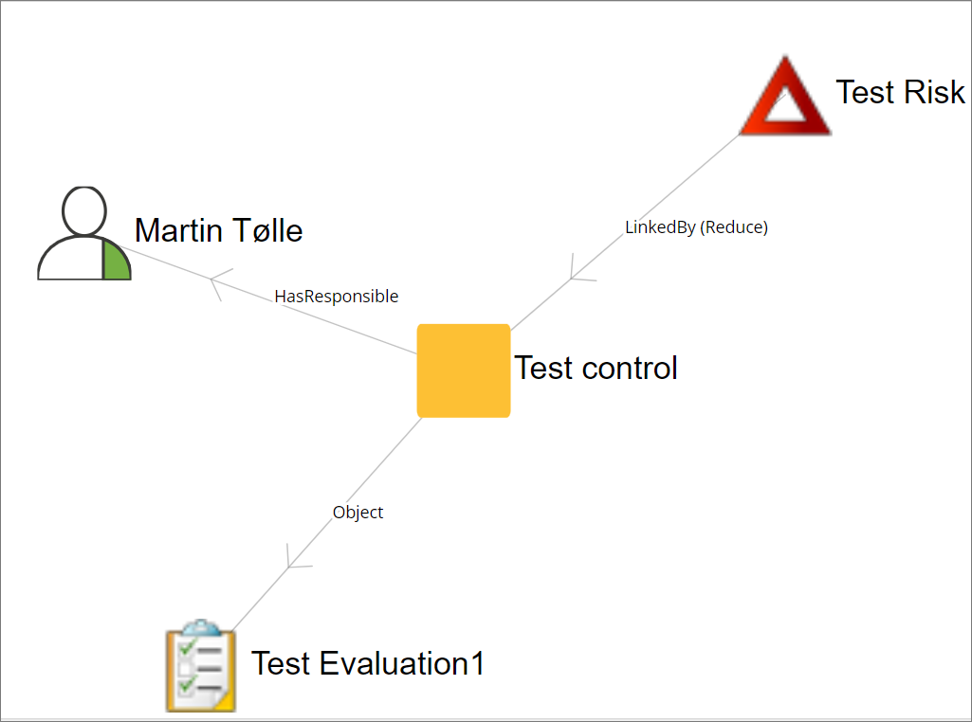
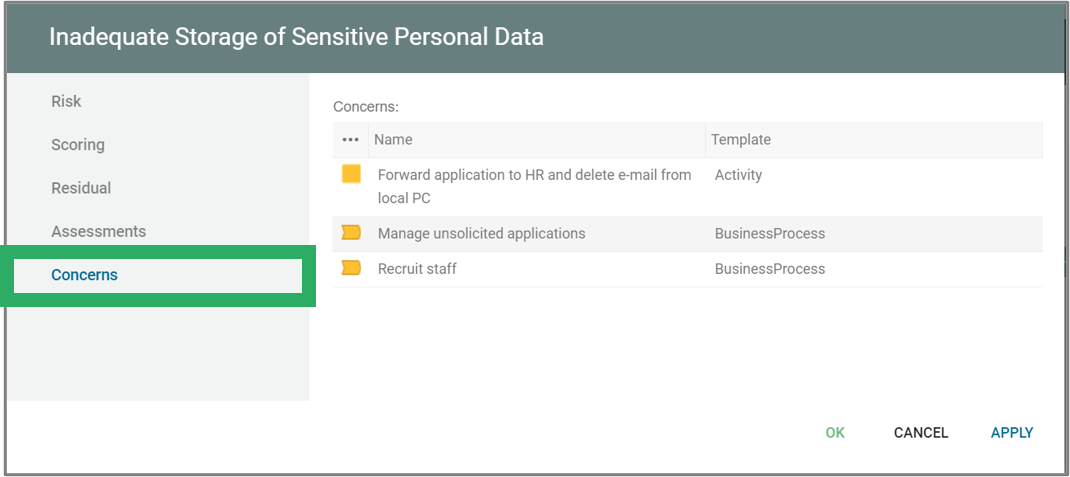
A Risk can be described using the Risk-template, where it can be described, scored and associated to content and controls.

A risk can be associated to any type of object in the repository.

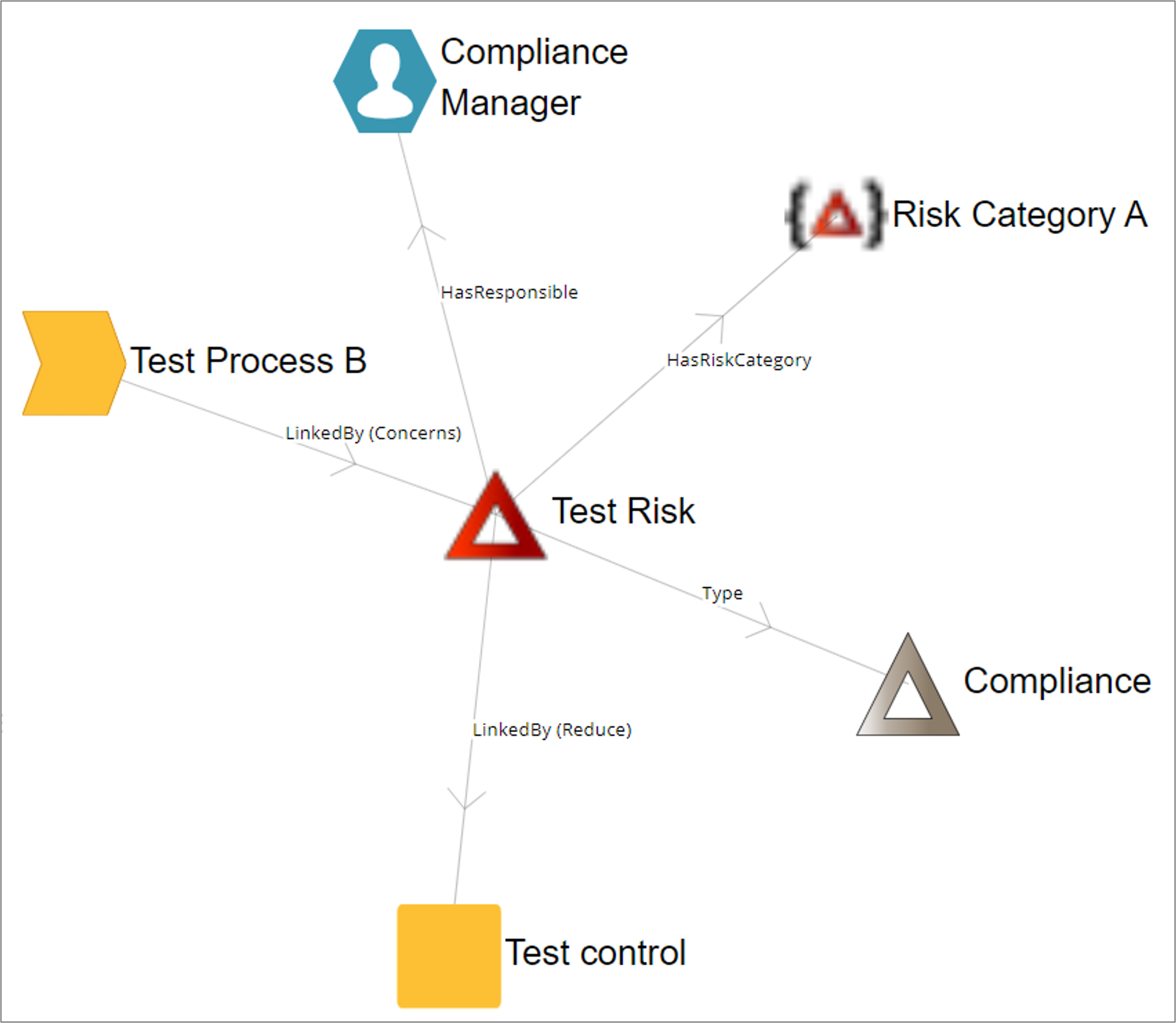
In QualiWare a Risk can be :

  • Associated to one of more objects, e.g a process (concerns)
  • Has a responsible person (HasResponsible)
  • Has a type (Type)
  • Associated to a risk category (HasRiskCategory)
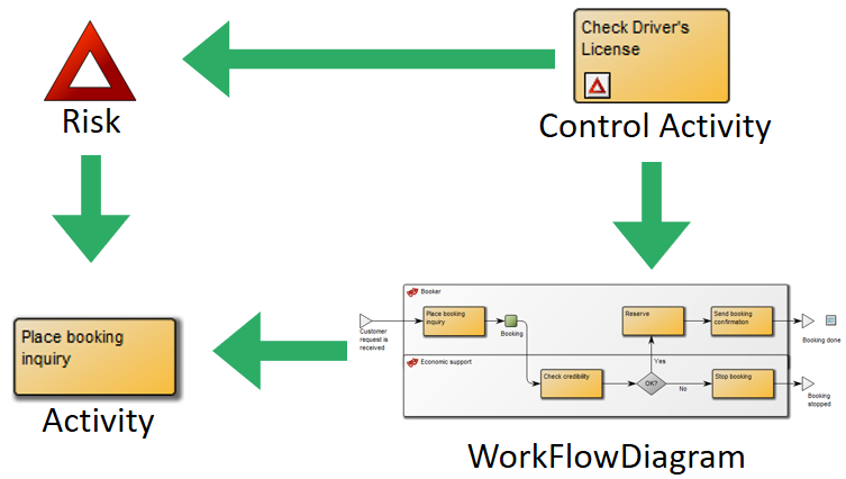
  • Be reduced by a Control (Reduce)

A Control:

  • Is an activity in a process
  • Can be documented in an evaluation

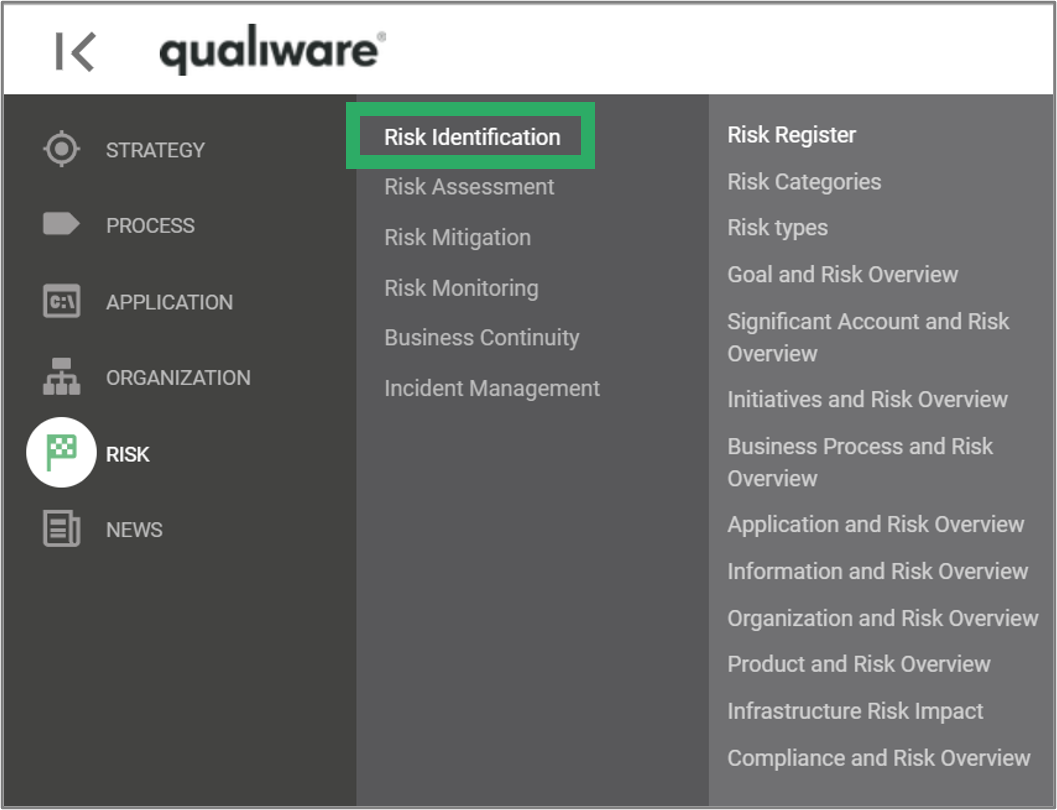
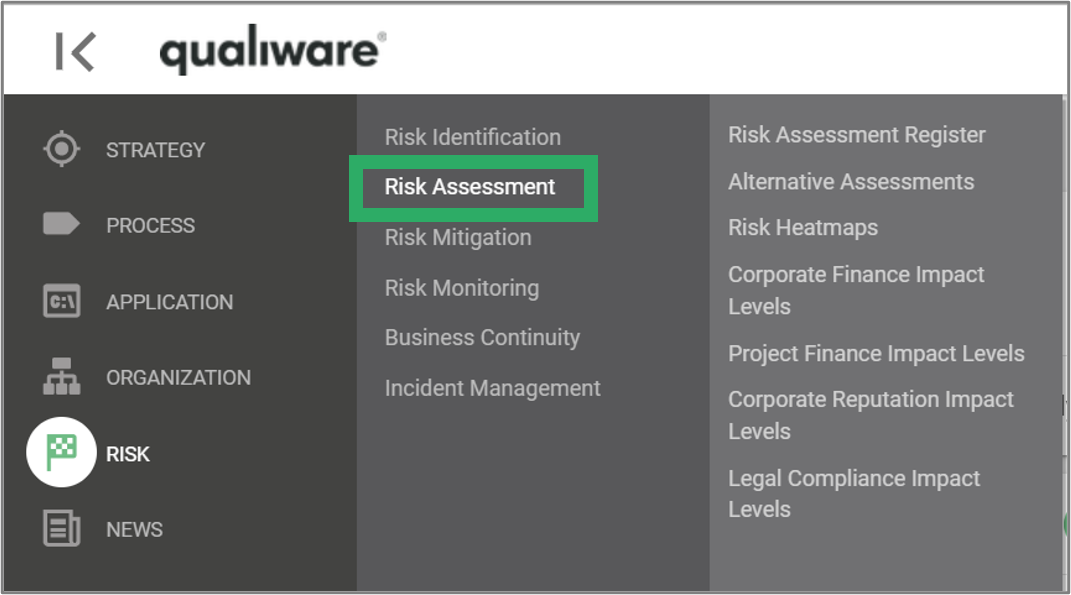
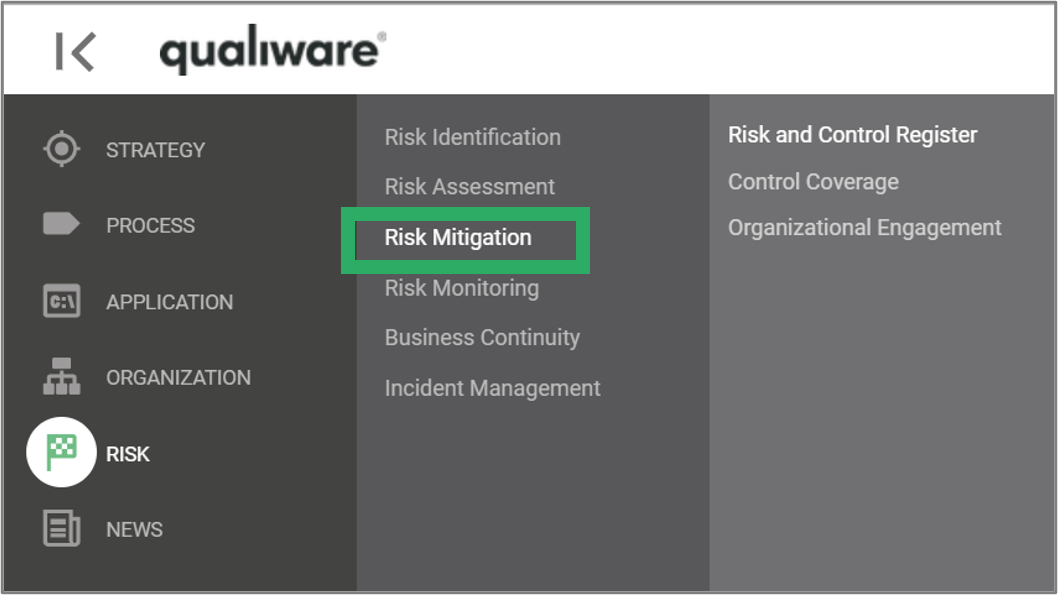
Risk Menu in QualiWare

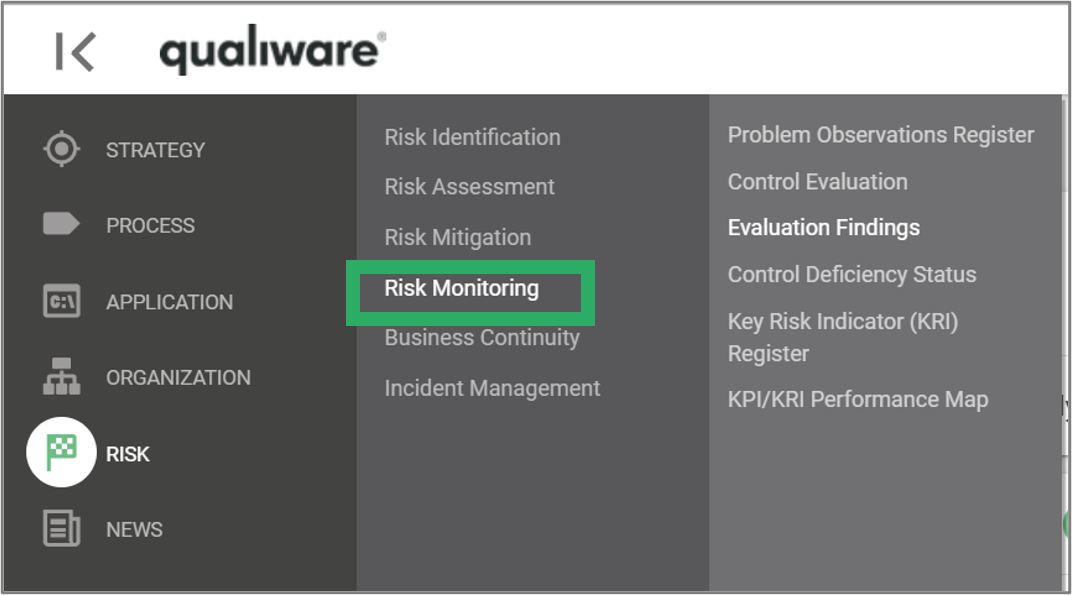
The Risk menu contains a set of lists of overviews, that supports the risks from identification, assessment, mitigation and monitoring.

Risk Management Desktop in QualiWare

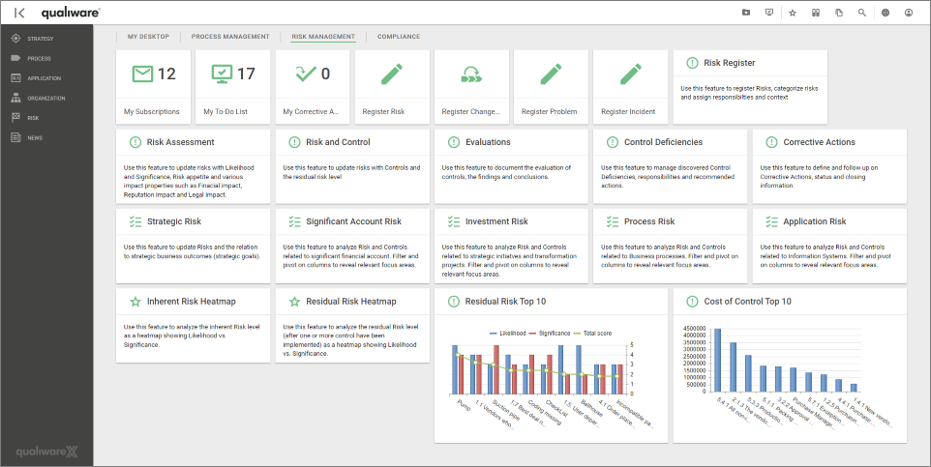
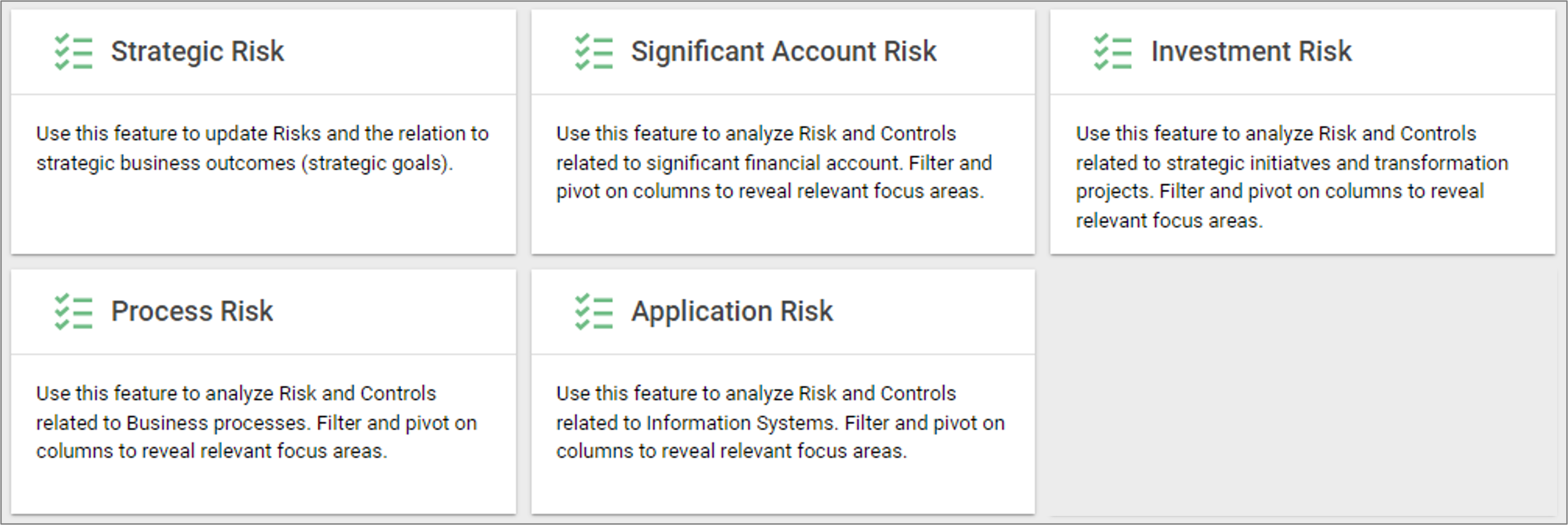
The Risk Management desktop in QualiWare provides the user with fast access to all essential features related to all aspects of risk management.

Read more about the Risk Management Desktop here

Business Continuity Management

QualiWare 10.3 supports the development and implementation of a business continuity management system supporting ISO 22301. The new features are positioned under the Risk menu and contains four major deliverables:

  • Business Impact Analysis
  • Resilience Plan
  • Recovery plan
  • Contingency Plan

– as well as a series of relevant analysis report.

Read more about the Business Continuity here

Video Highlights

This video walkshrough the risk management elements in QualiWare.

This video walkshrough the business continuity management elements in QualiWare.

Risk Management Desktop

Note that this page describes the standard Risk Management Desktop in QualiWare (version 10.9 and earlier).

The Risk Management desktop in QualiWare provides the user with fast access to all essential features related to all aspects of risk management.

The Risk Management desktop support all aspects of a modern integrated risk management system.

This includes:

Furtermore the desktop contains a set of comprehensive lists with all risks in the repository, where the user can explore and update the risks and associated objects:

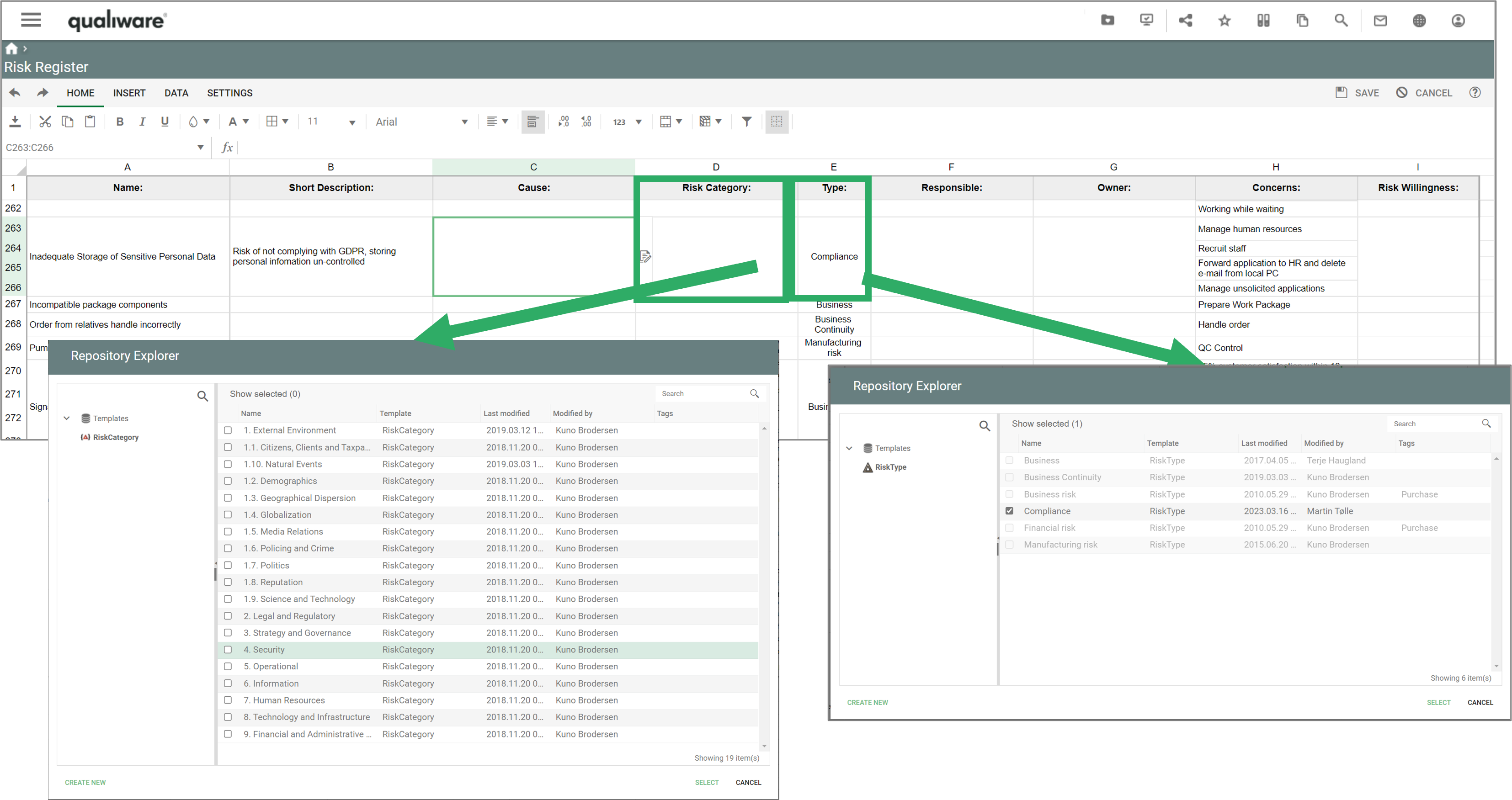
  • Risk Register: Use this feature to register Risks, categorize risks and assign responsibilties and context.
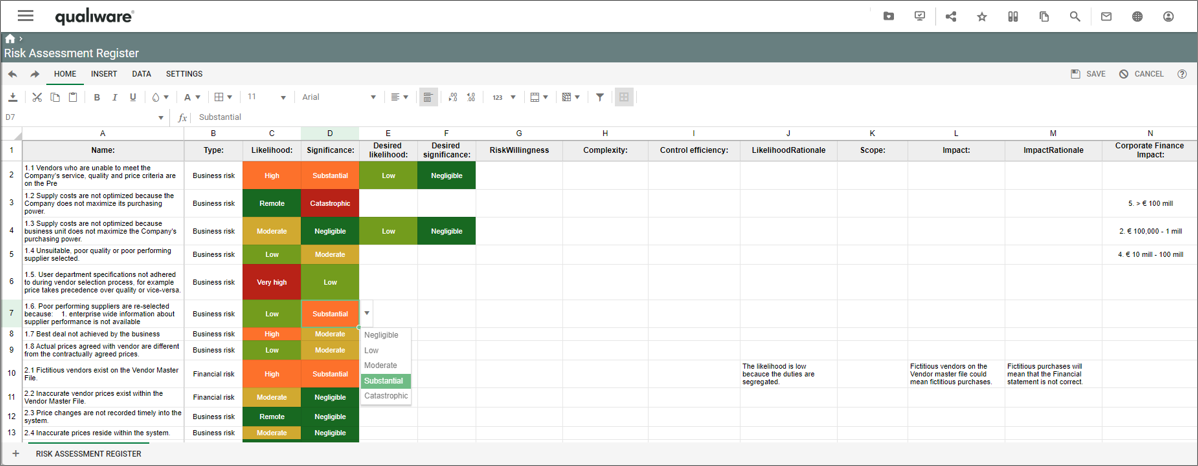
  • Risk Assessment: Use this feature to update risks with Likelihood and Significance, Risk appetite and various impact properties such as Finacial impact, Reputation impact and Legal Impact.
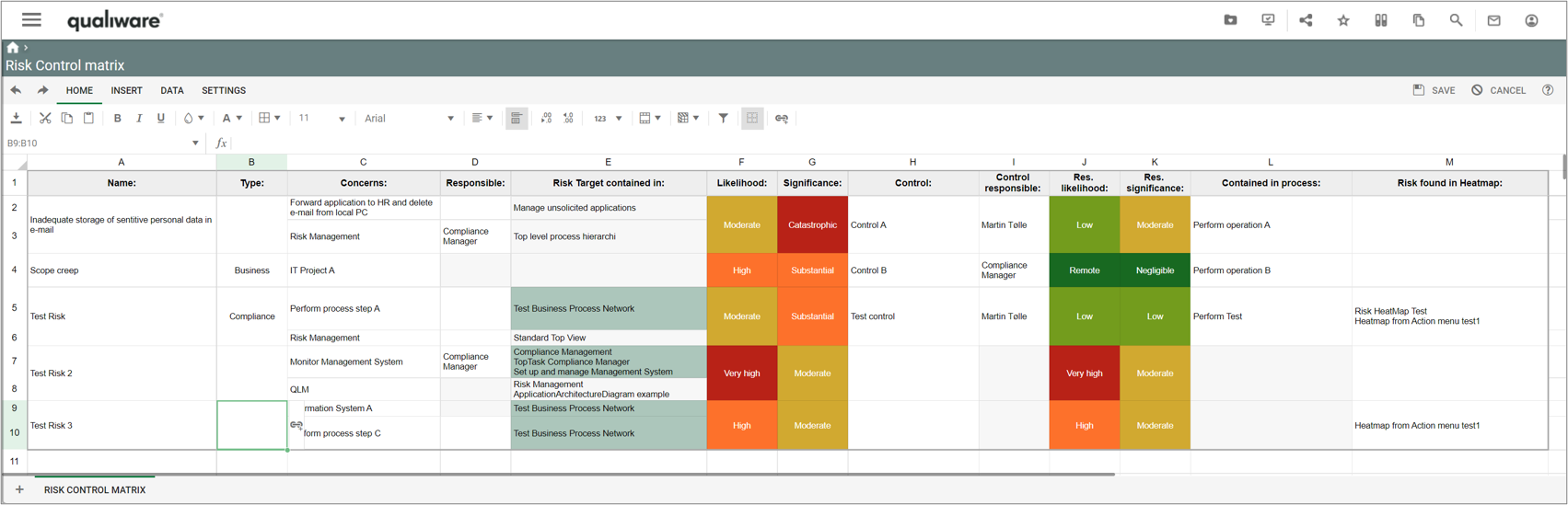
  • Risk and Control: Use this feature to update risks with Controls and the residual risk level.
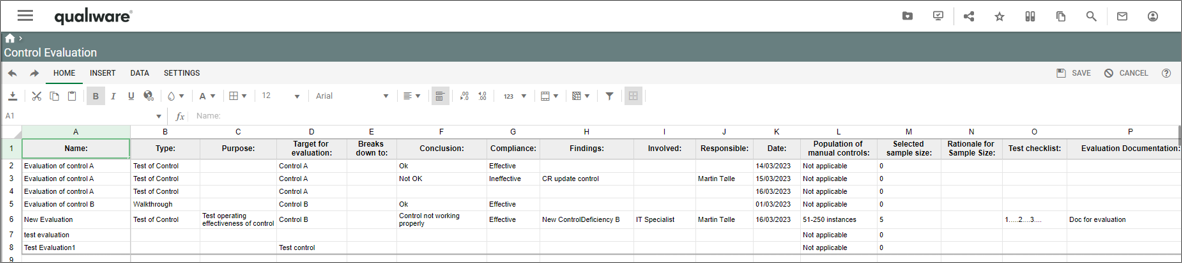
  • Evaluations: Use this feature to document the evaluation of controls, the findings and conclusions.
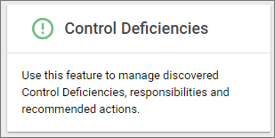
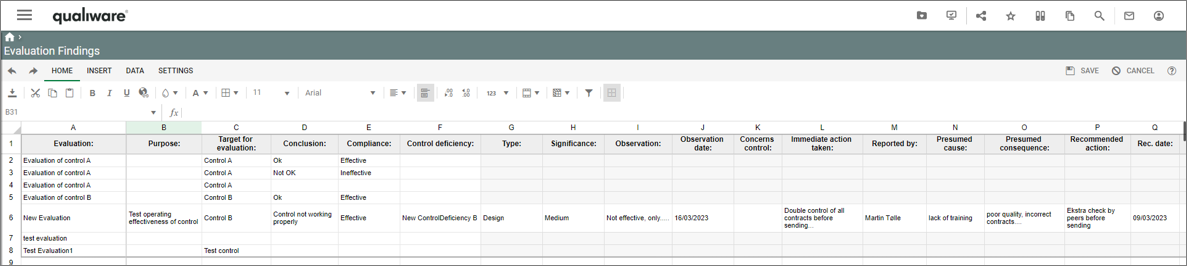
  • Control Deficiencies: Use this feature to manage discovered Control Deficiencies, responsibilities and recommended actions.
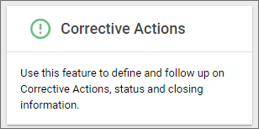
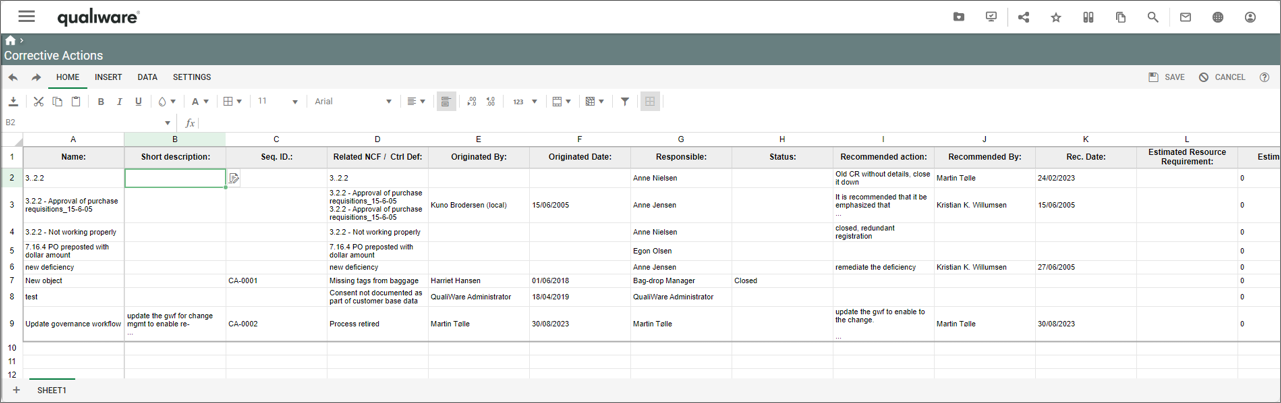
  • Corrective Actions: Use this feature to define and follow up on Corrective Actions, status and closing information.

In addition, there are access to different lists of risks, heatmaps, and graphs.

Go to Video Highlights.

Register Risk

A risk can registered directly from the desktop.

Note that Risks can also be easily created (and/or associated) in relation to specific content from the dashboard edit view.

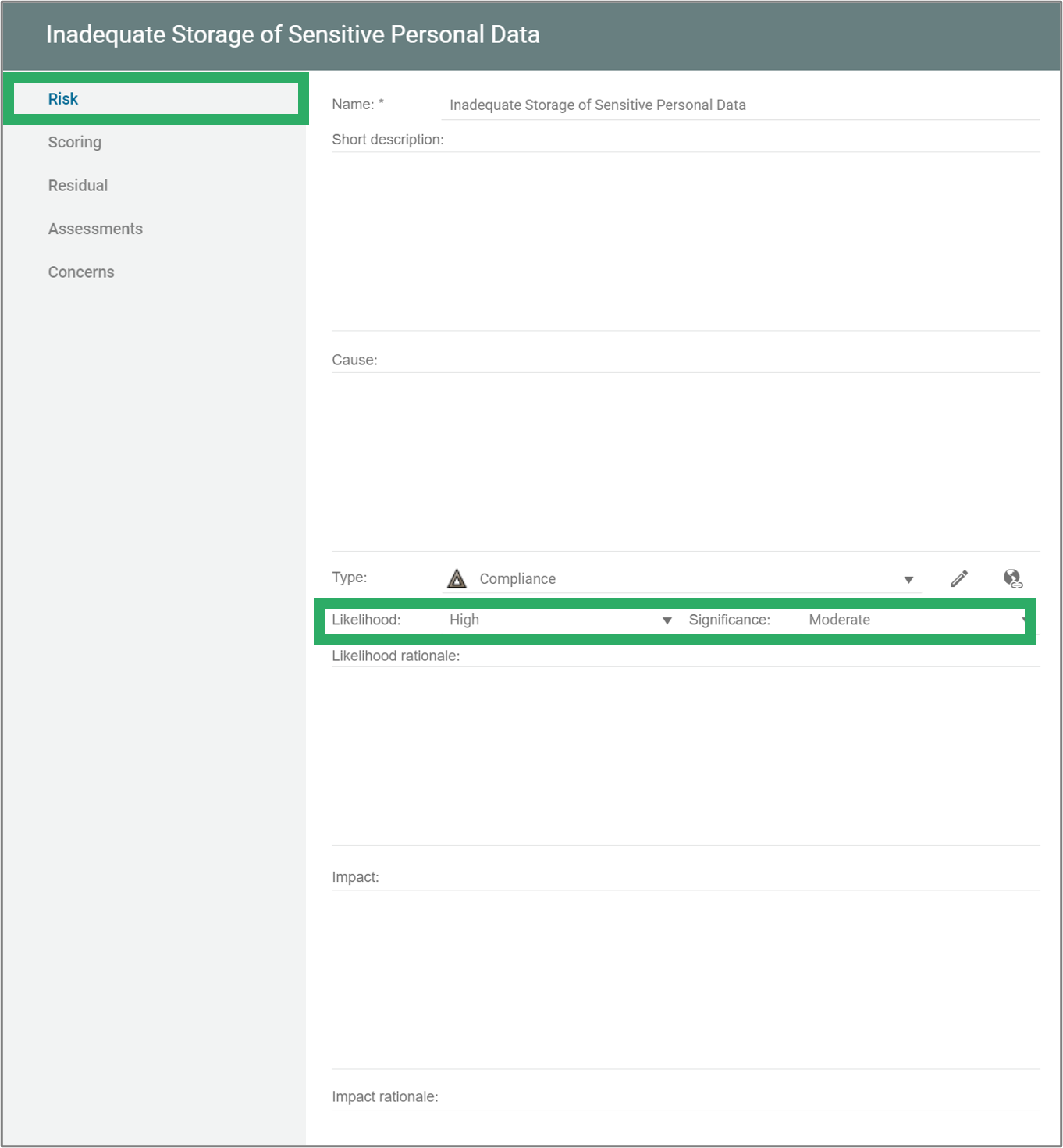
The risk can be described using a set of properties, and the risk can be assessed.

A risk can be associated to one or more object(s) in the repository.

Risk Register

A risk can be described and categorised using a set of parameters, the risk can be bulked edited from the Risk Register.

Risk Assessment

A risk can be assessed using a set of parameters (likelihood and Significance), and can be bulked edited from the Risk Assessment Register.

Risk and Control

  • A risk can be mitigated by a control
  • A control can be associated to one or more risks.
  • After a control the risk has a residual likelihood and significance

Evaluations

A control can be evaluated, and the evaluations can be documented

Control Deficiencies

A control deficiency can be created and associated to an evaluation.

Corrective Actions

Follow up on corretive actions related to Non-Conformancies and control deficiencies

Risk Lists

QualiWare support ERM. You can work with risk on ”all levels”, and you can associate risk to all objects in the repository.

The dekstops contains a set of lists that show risks associated to different types of objects.

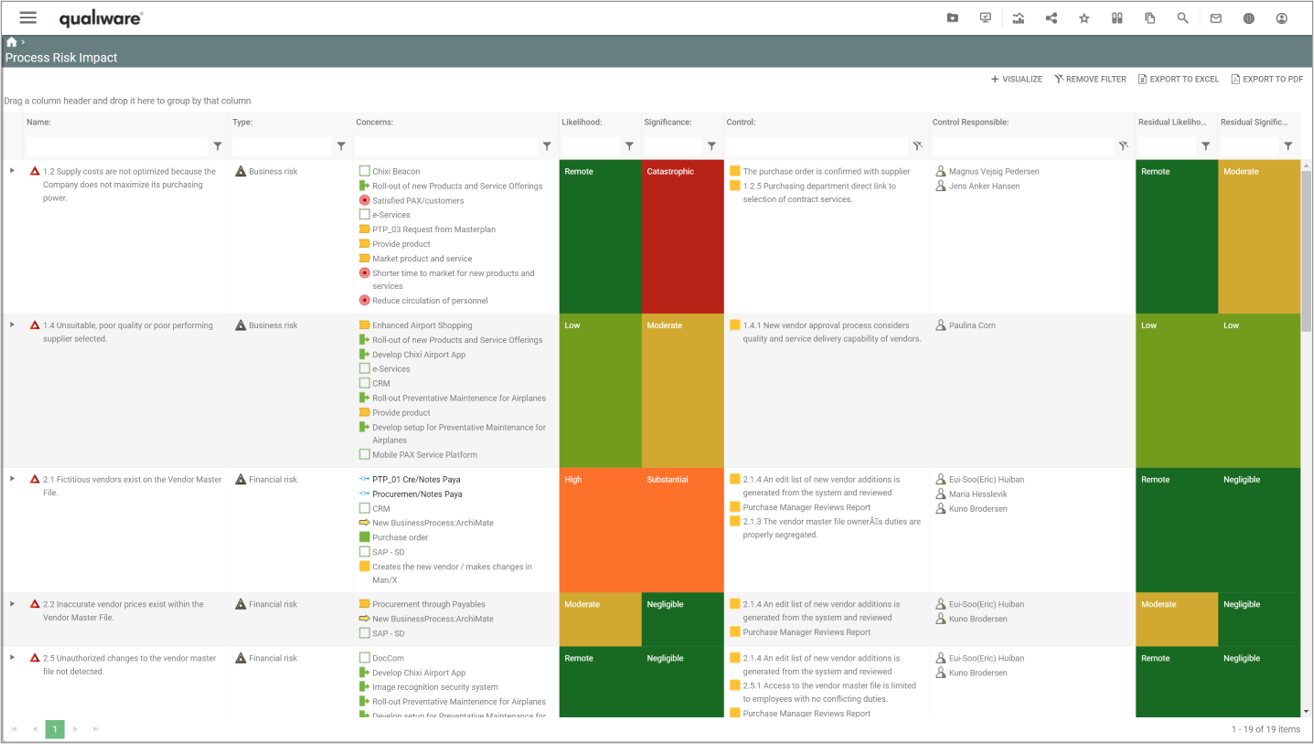
Queries in QualiWare can be sorted and filtered, and it is possible to export lists to excel/pdf.

Below is an example of the list of Process Risks.

Risk Heatmaps

QualiWare support ERM. You can work with risk on ”all levels”, and you can associate risk to all objects in the repository.

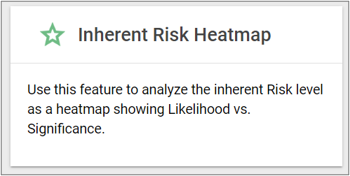
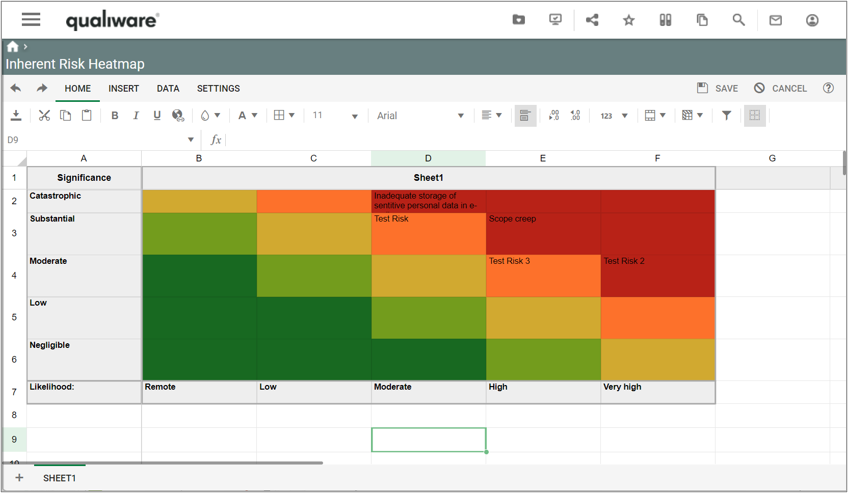
The Inherent Risk Heatmaps shows the risks in a 5 x 5 heatmap based upon the inherent risk levels.

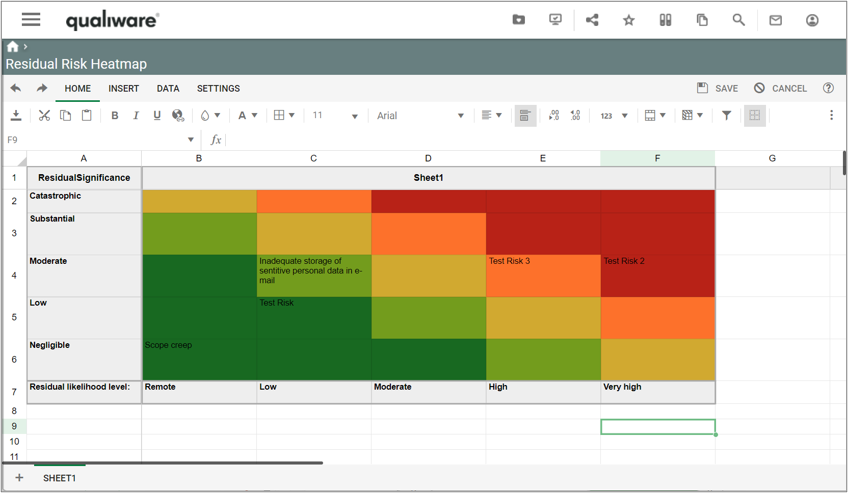
The Residual Risk Heatmaps shows the risks in a 5 x 5 heatmap based upon the residual risk levels (after one or more controls have been implemented).

Video Highlights

This video introduces Risk Management in QualiWare

Compliance Charts

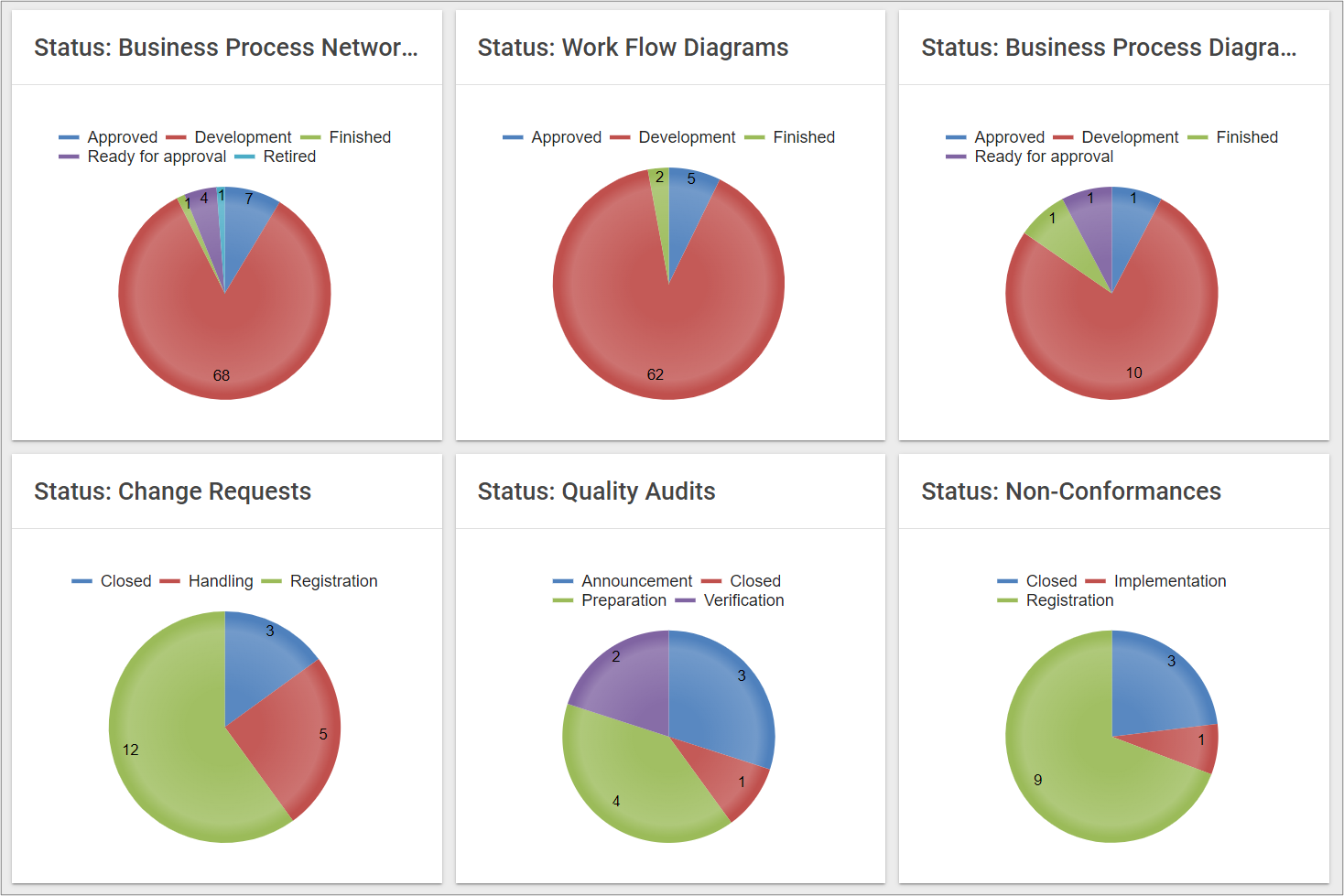
Charts give a fast overview of the amount and distribution of different types of content according to their status.

A set of statistics chars are available from on the Compliance Desktop showing the distribution of the different types of process diagrams (BusinessProcessNetworks, WorkflowDiagram, BusinessProcessDiagrams), audit, non-conformancies, and change requests according to their governance status.

The charts group the different types of objects and displays the number of objects in each of the governance stages. The governance stages are defined as part of the governance workflow for the different types of objects.

Process Completion Level

To help facilitate a consistent and an aligned level of process documentation, a set of completeness score are available in the tool.

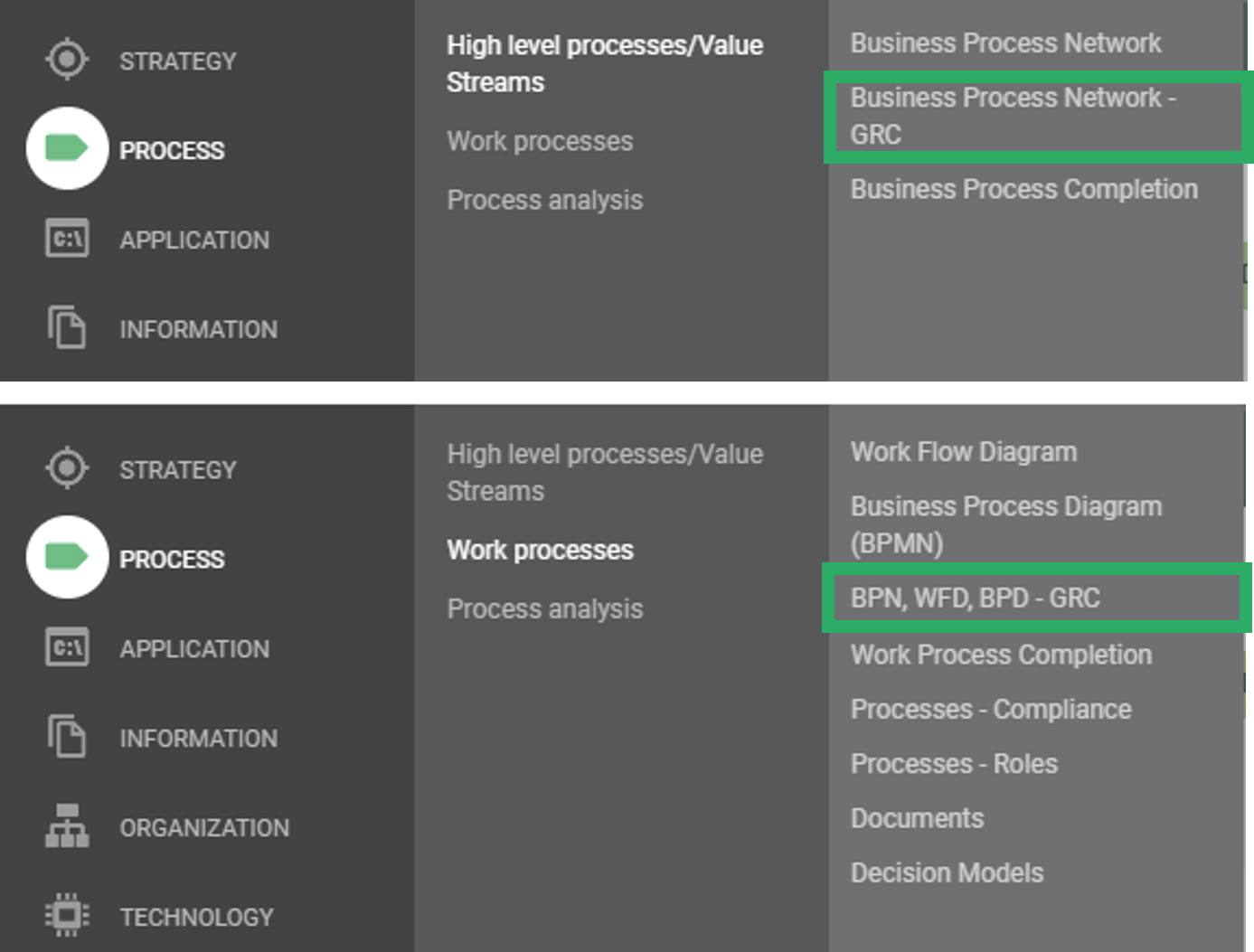
Two process completion lists are available from the standard Process menu. The lists are structured in a similar way, but differ in the scope. The first list contains all the business process networks in the repository, the 2nd list includes all workflow diagrams and Business Process Diagrams.


Business Process Completion” lists all the Business Process Networks and their Business Processes and calculates a completeness score for the diagram as well as each business process.
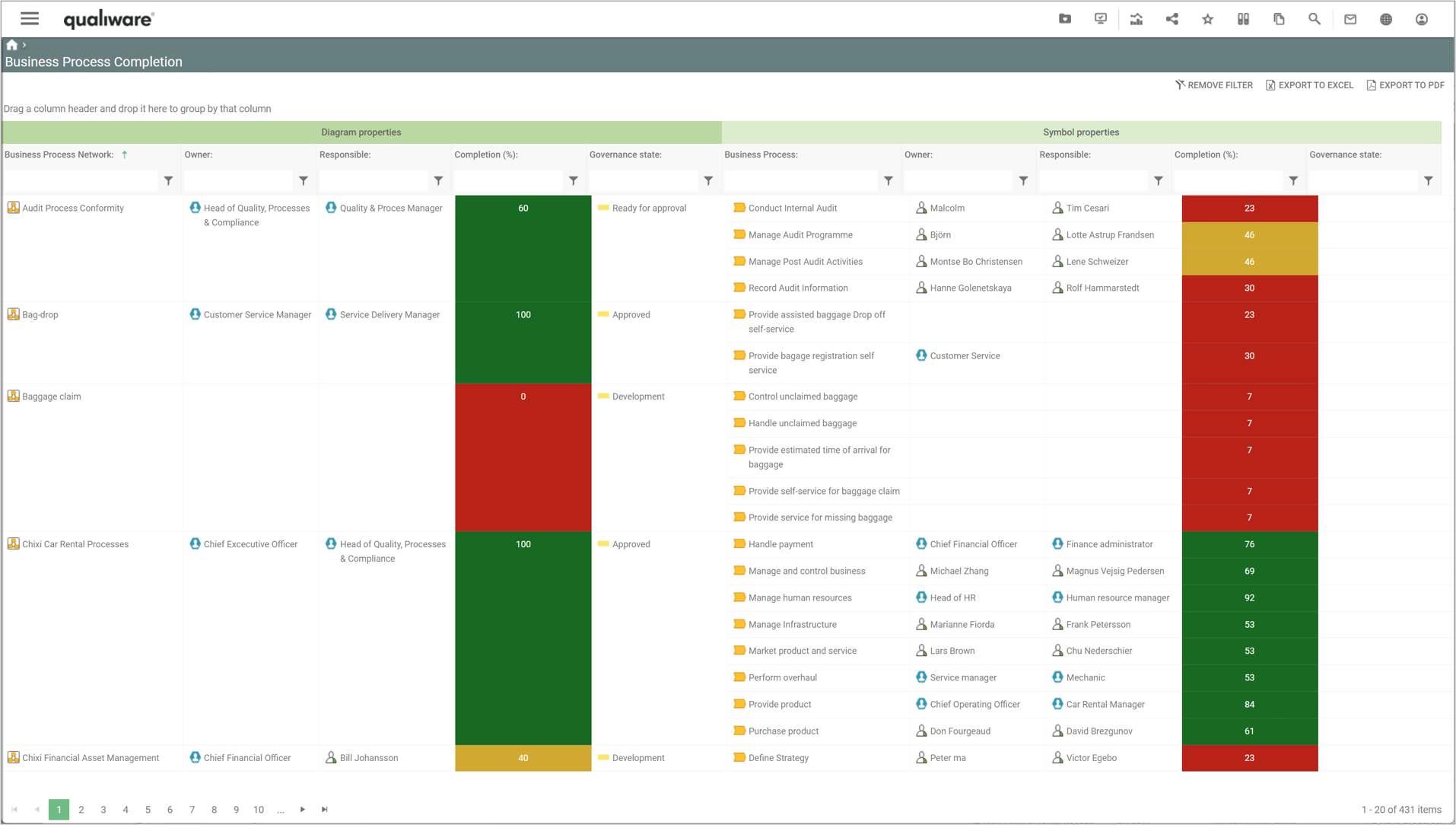
The completeness score of the diagram is a calculated based upon how many of the following fields have been filled out:

  1. Owner (OwnedBy),
  2. Responsible (HasResponsible),
  3. Description (Description),
  4. Valid from (RevisionValidFrom),
  5. Valid to (RevisionValidTo)

The completeness score of the business process is a calculated based upon how many of the following fields have been filled out:

  1. Owner (OwnedBy),
  2. Responsible (HasResponsible),
  3. ShortDescription (ShortDescription),
  4. Description (Description),
  5. Purpose (Purpose),
  6. Resources (Employs),
  7. UsesInformation (UsesInformation),
  8. IT Support (HasITSupport),
  9. Deliver Capability (DeliverCapability),
  10. Compliance With (ComplianceWith),
  11. Associated Document (AssociatedDocument),
  12. Valid from (RevisionValidFrom),
  13. Valid to (RevisionValidTo)


The fields in the calculation corresponds to the fields in the standard “Business Properties” spreadsheet available in the diagram view on the dashboard layout or on the tab in the classic view. In addition to the 11 fields in the spreadsheet, the completeness score includes the two validation dates (Valid from and Valid to).
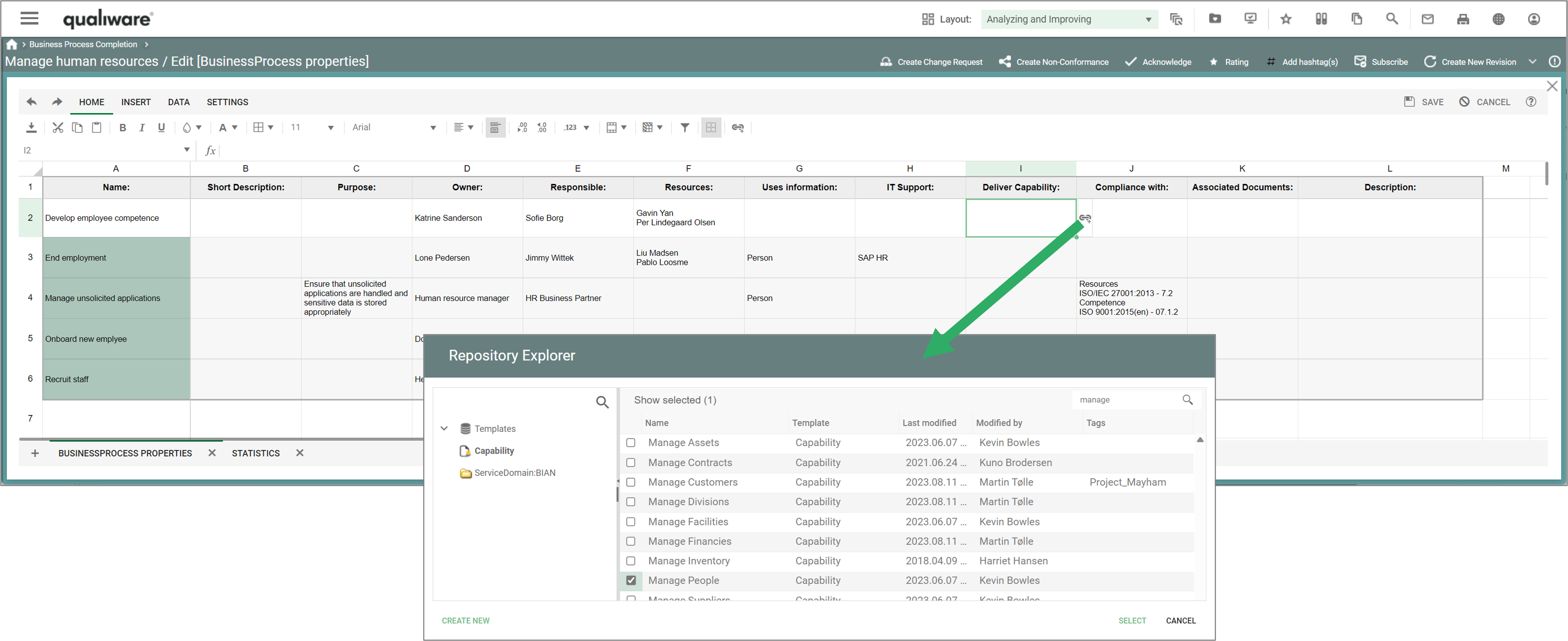


It is possible to configure the scope of the completeness score, selecting the appropriate fields in the underlying query.

Work Process Completion”  lists all WorkFlowDiagrams and BusinessProcessDiagrams and their Activities, and calculates their completeness score for the diagram and each of the activities.
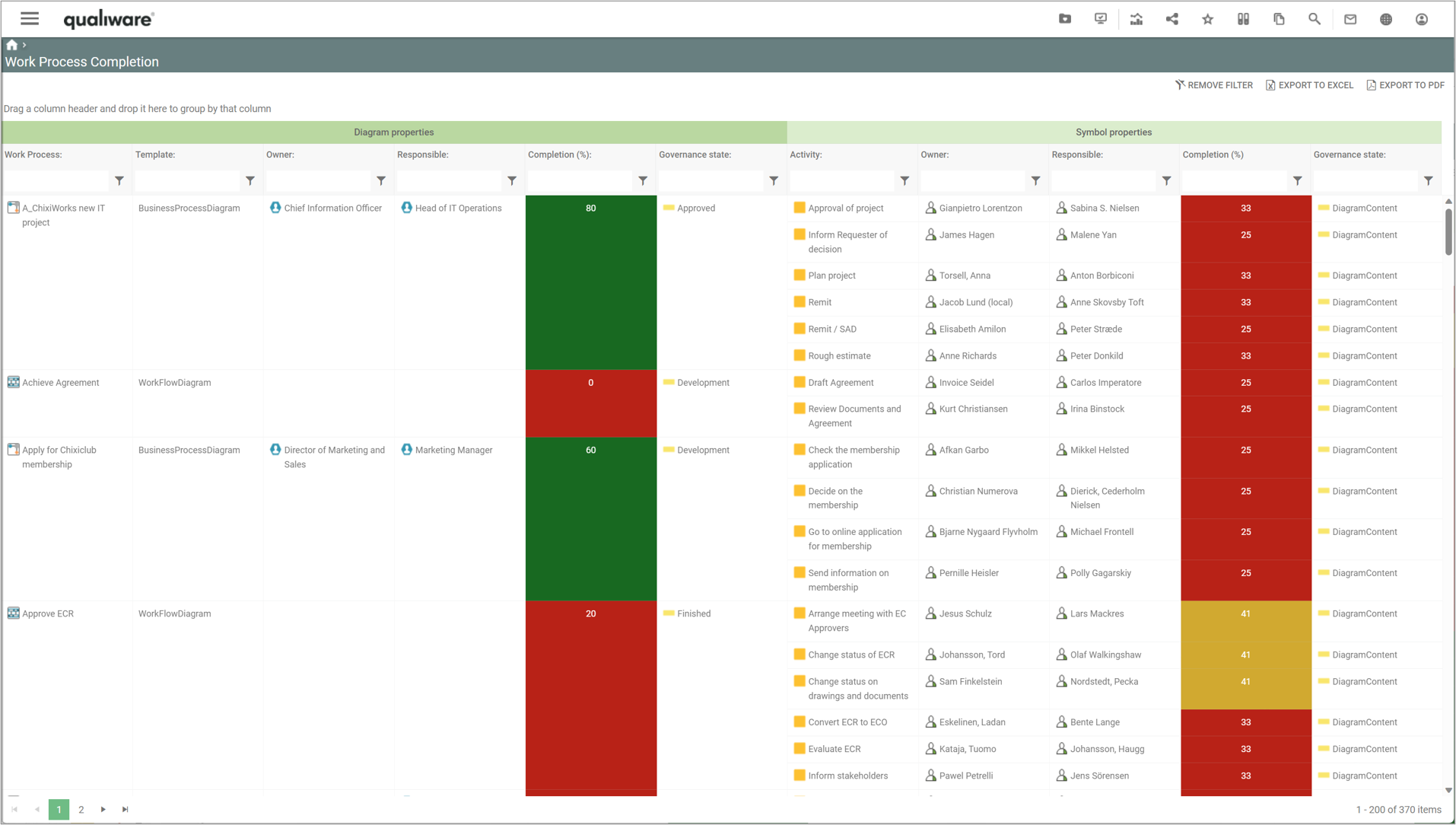
The calculation is similar to the one above for the Business Process Network. The only exception is that the activity completion is calculated based upon 12 fields, since “Purpose” is not part of an activity-object.

Diagram level completion

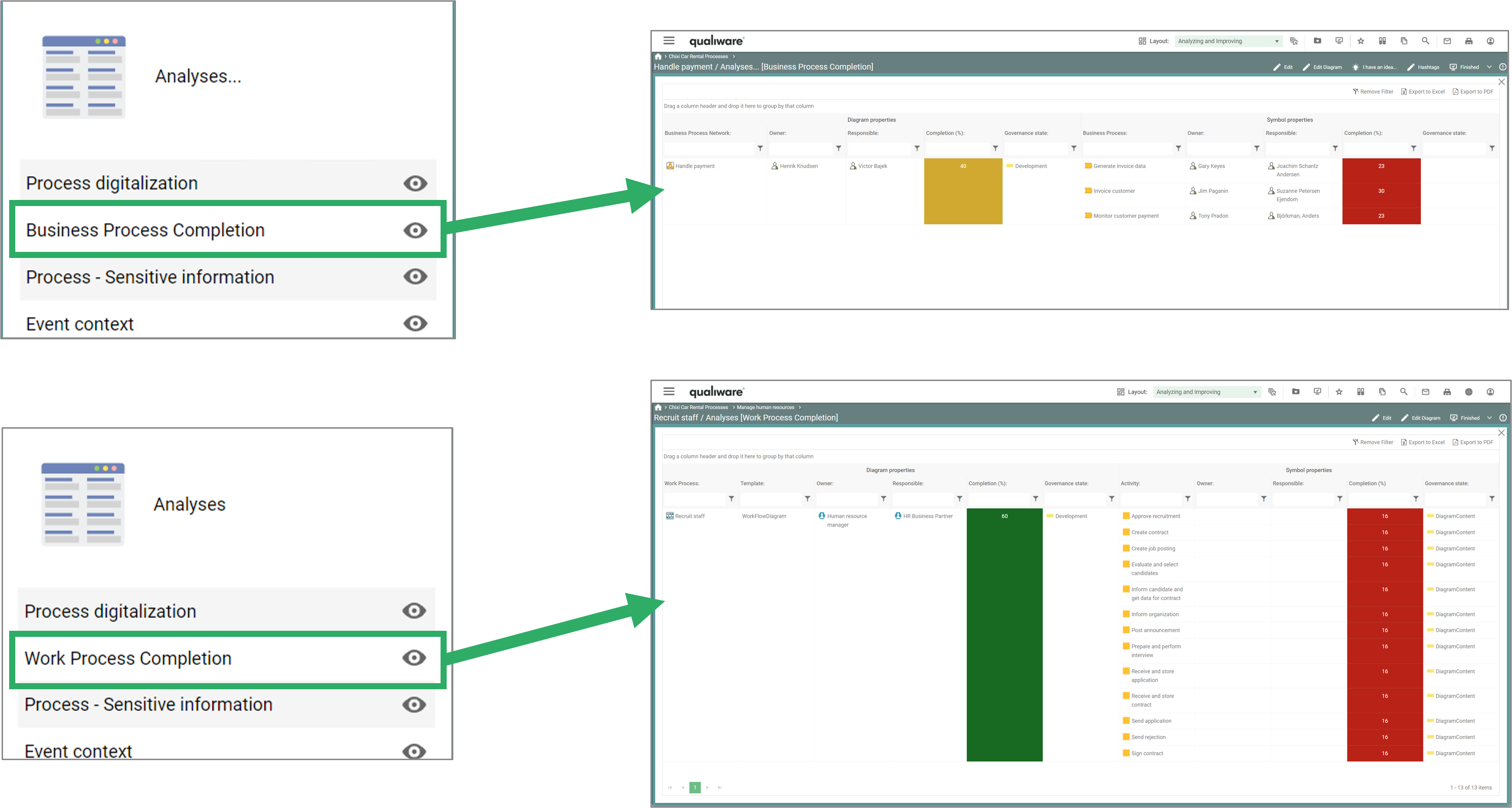
The two lists in the left menu, shows the completion level for all process-diagrams in the repository.

The completion level for a specific diagram is also available from the diagram-dashboards, under the “Analyses” tiles.
Process GRC Overview

As a compliance manager overseeing a management system, it’s crucial to maintain an overview of its content. This includes understanding which processes are available, approved, and validated, as well as knowing who is responsible for each process.

Two lists of processes are available from the standard Process menu. The lists are structured in a similar way, but differs in the scope.

  • The first list contains all the business process networks in the repository,


  • the 2nd list includes all process related diagrams, i.e. includes all workflow diagrams and Business Process Diagrams as well.


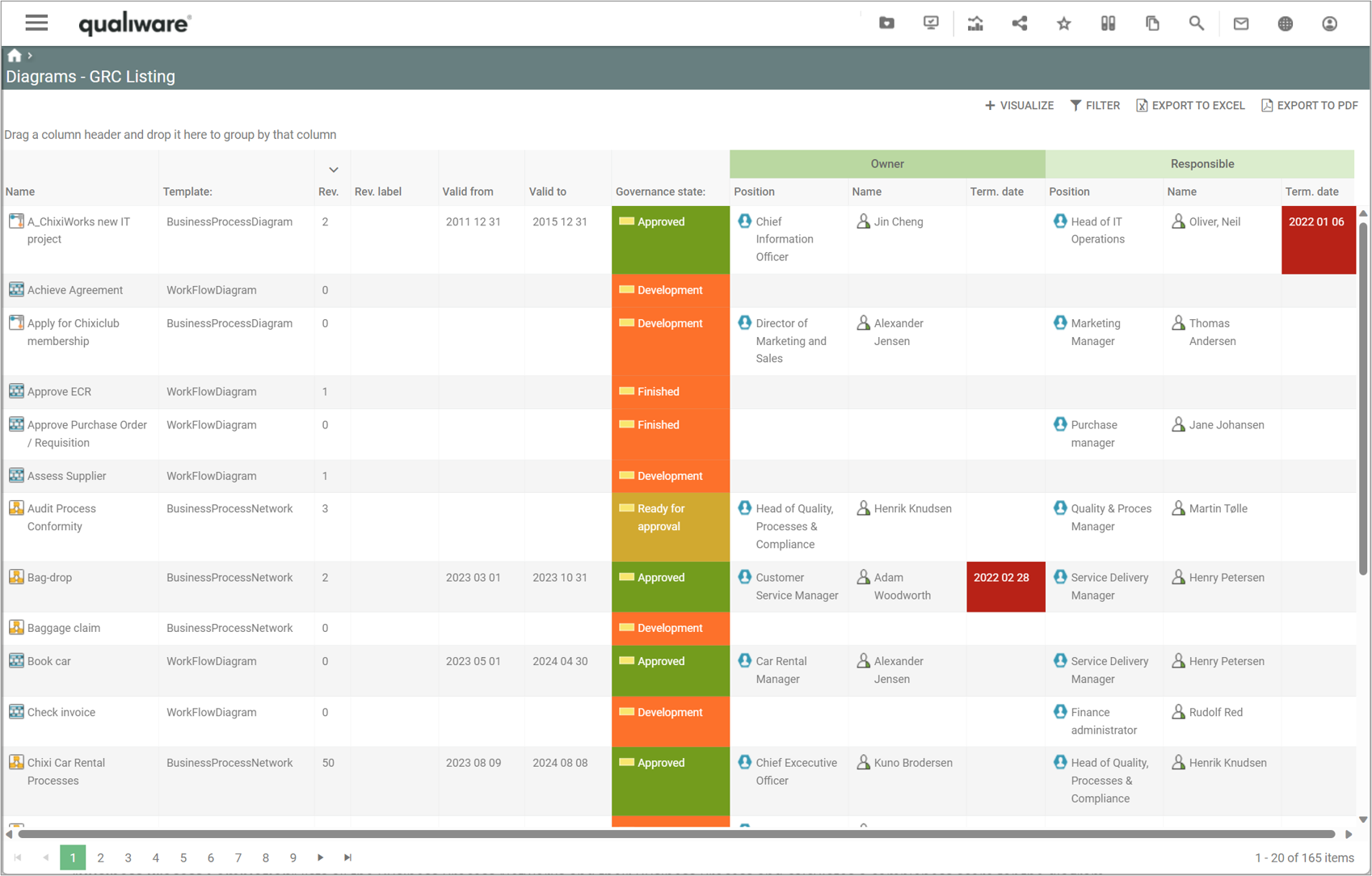
The lists displays “Positions” as process owner and responsible, and shows the person holding the position, as well as Termination Date (if available) of the person.

The overviews provide a comprehensive status of all the processes and can be used to monitor their statuses:

  • What governance state is the process in (it is approved or under development)?
  • is the process still valid?
  • does the process have an assigned position as process owner and process responsible.
  • does the position have a position holder.
  • and is the person still employed, or will he/she leave the company soon?

If the termination date has passed the cell will be colored red.


Manage Corrective Actions

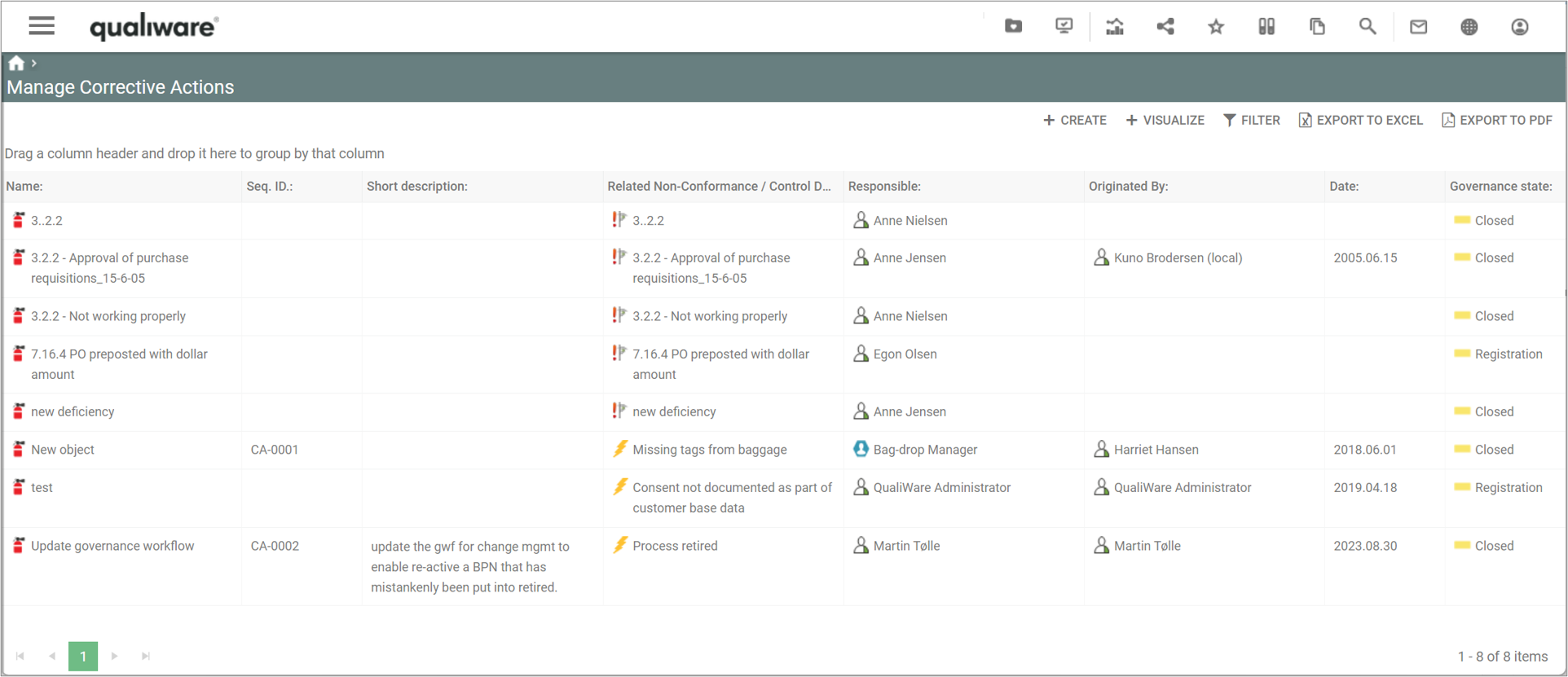
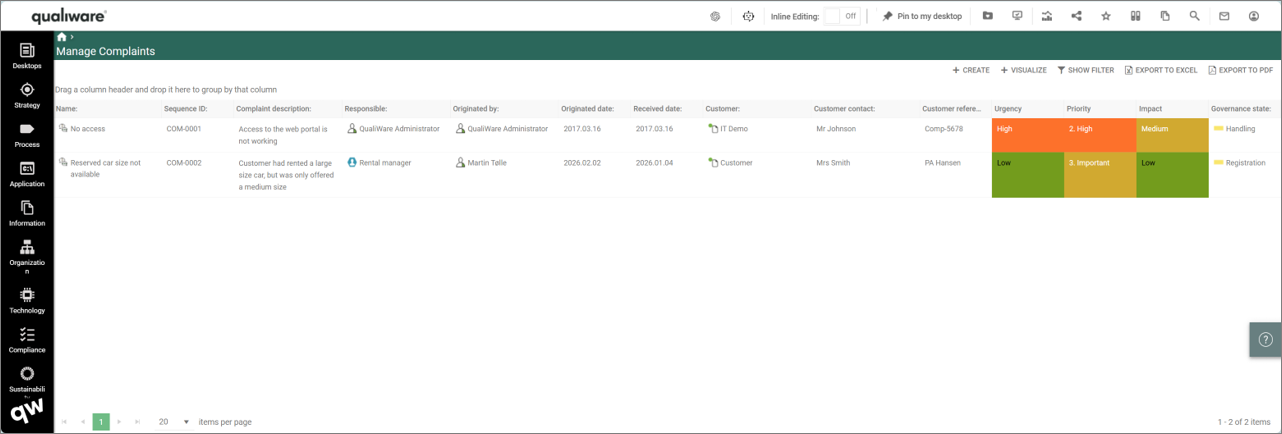
This list shows the Corrective Actions in the repository, including their key properties. A Corrective Action can be created in relation to a Non-Conformance or Control Deficiency.  From the list below a new Corrective Actions can be created and existing ones can be analysed.


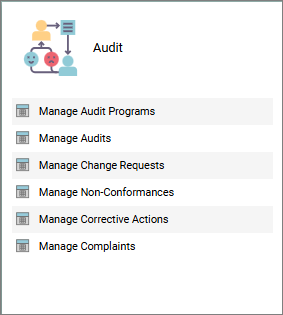
The Manage Corrective Actions list is available from the tile on the Compliance Desktop.


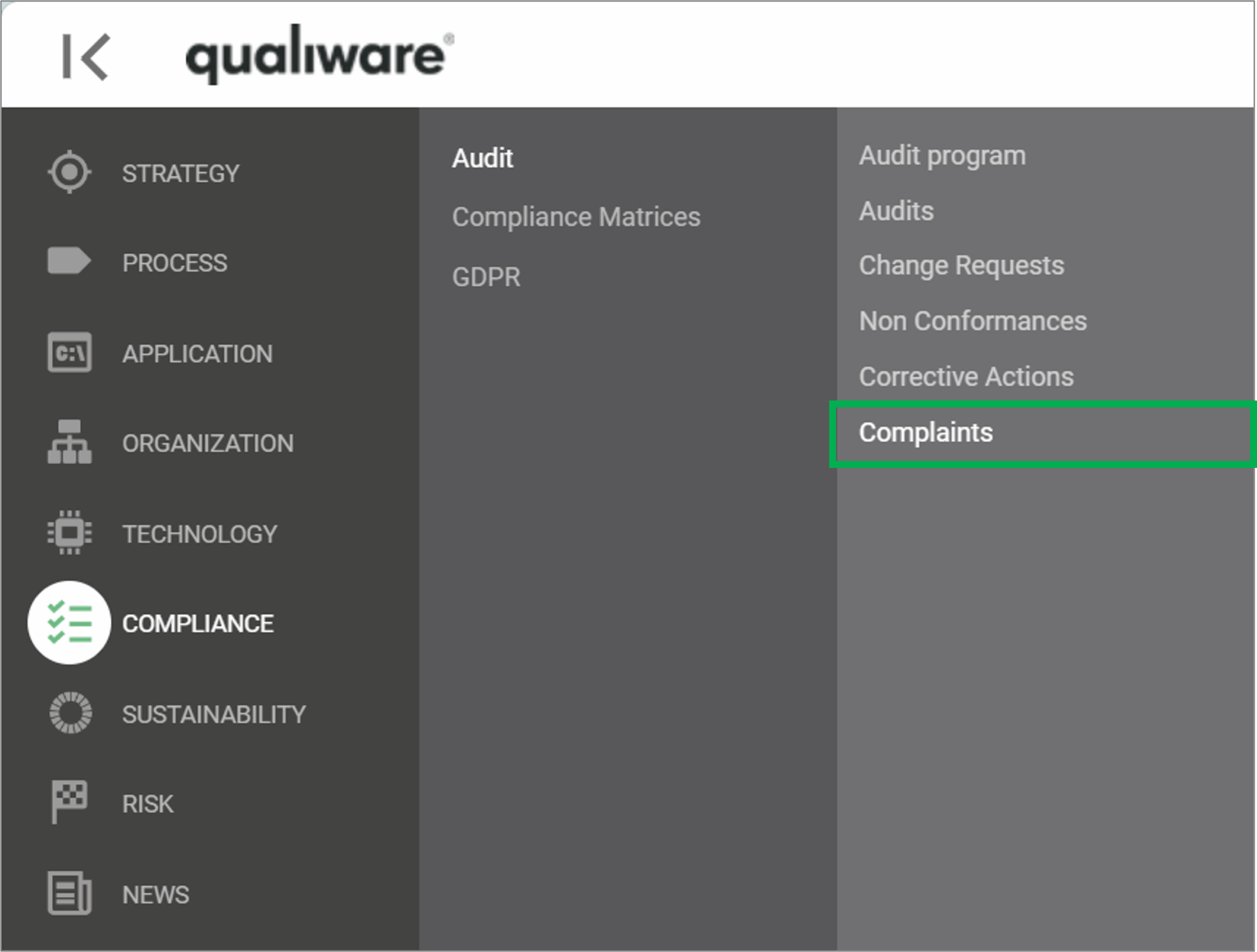
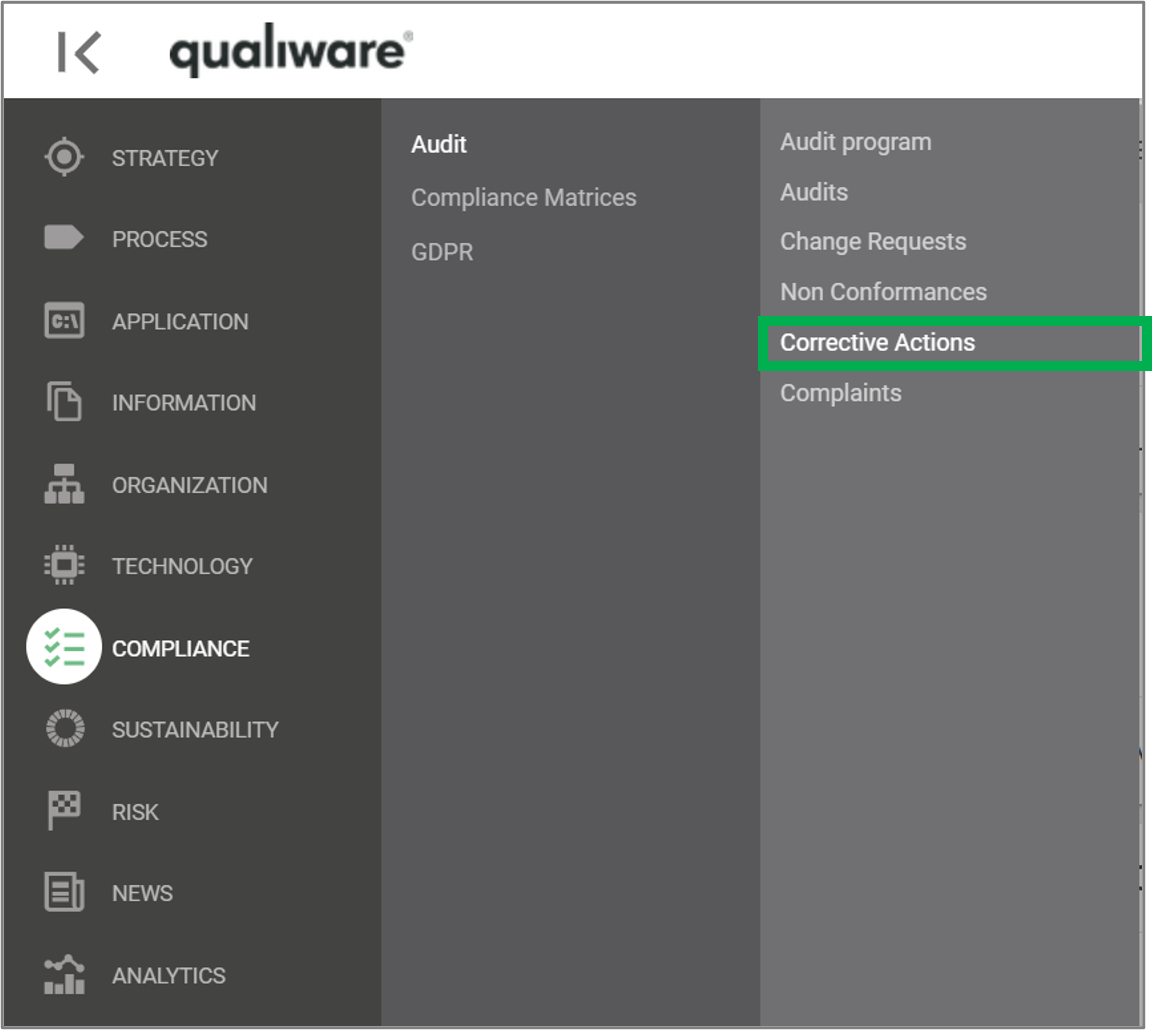
The list can also be accessed from the left-menu under Compliance.


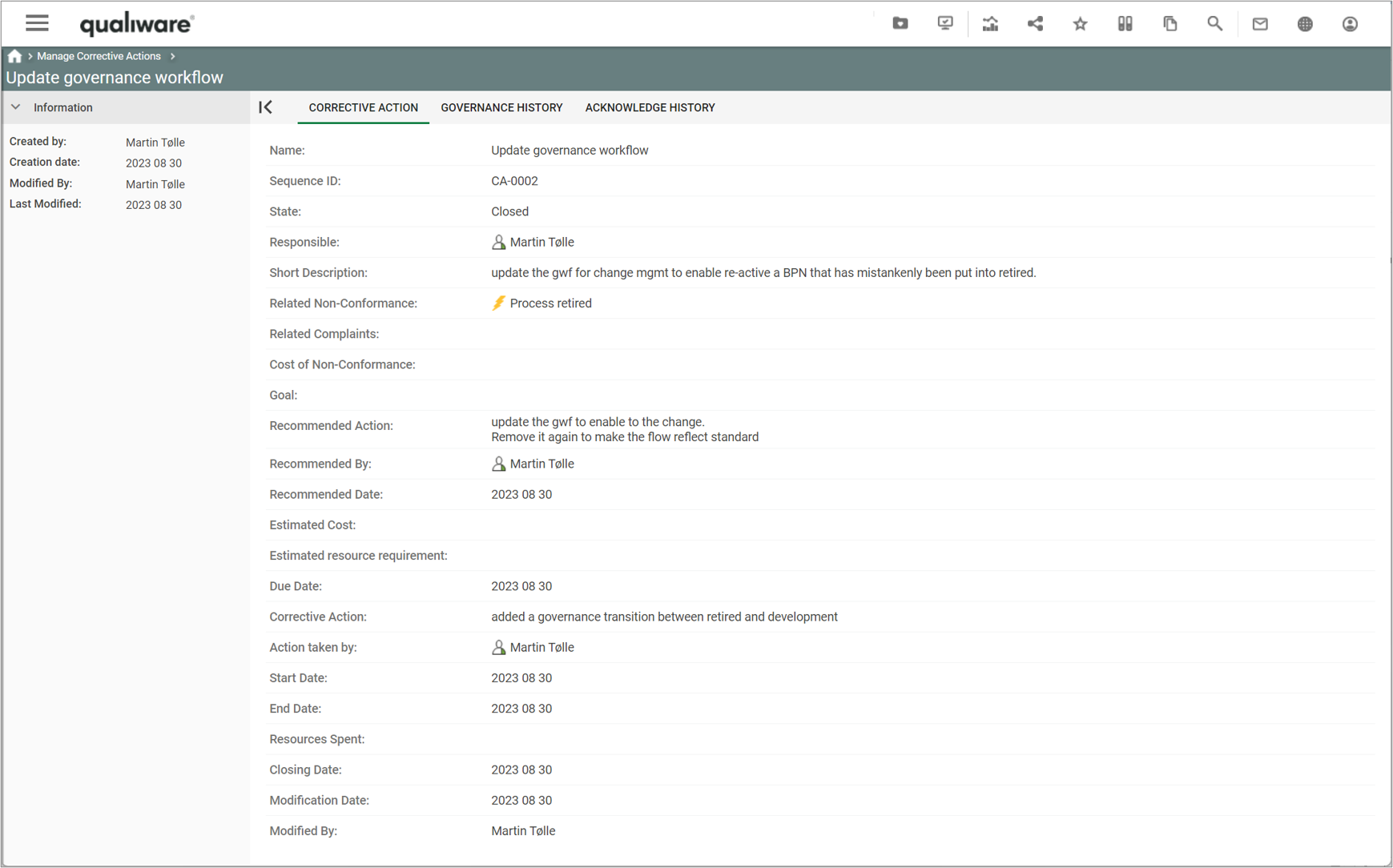
If you click a Corrective Action you get a more detailed view, based upon the CorrectiveAction-Template.

From this dialog the responsible can edit the corrective action and progress it through the governance phases.
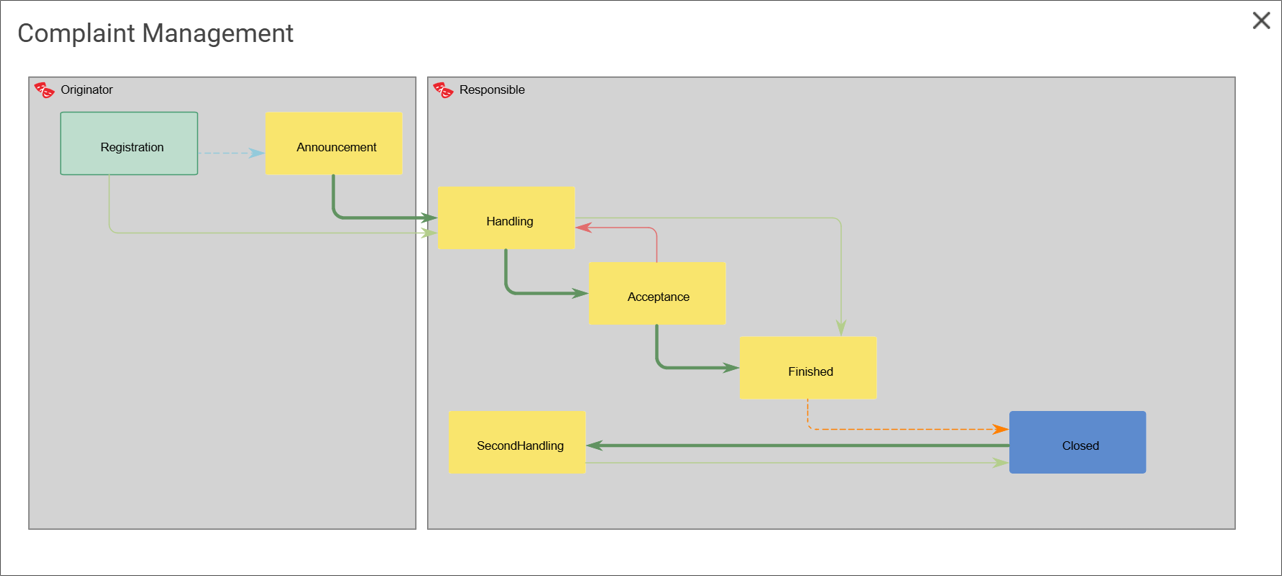
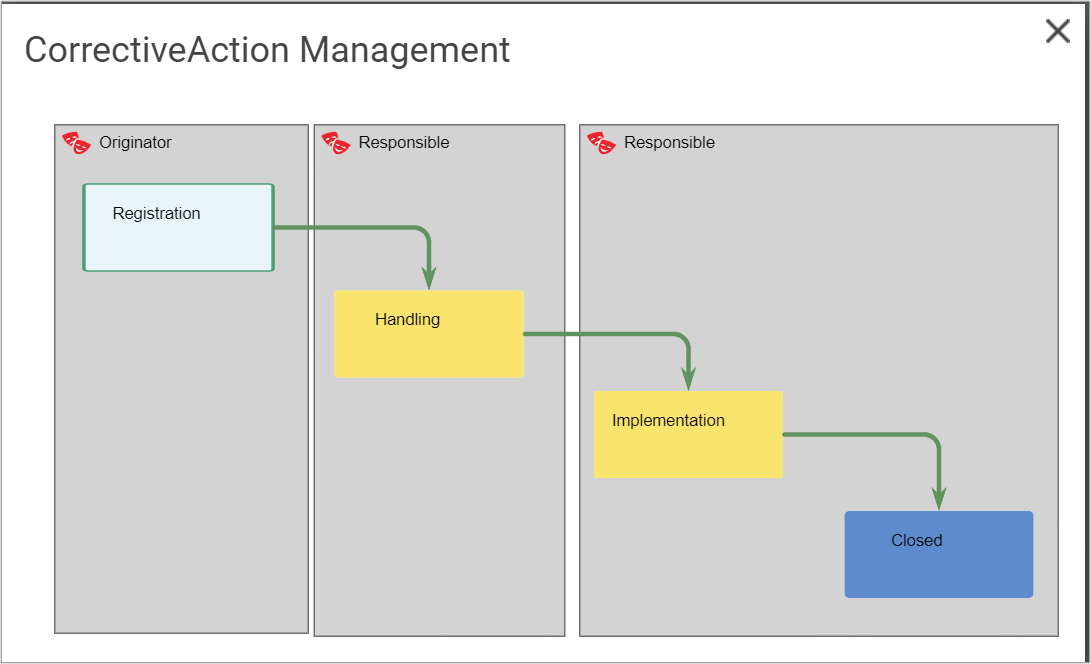
Below is the standard GovernanceWorkflow for Corrective Management shown, this flow can be adjusted if needed, see the GovernanceWorkflow for more details.
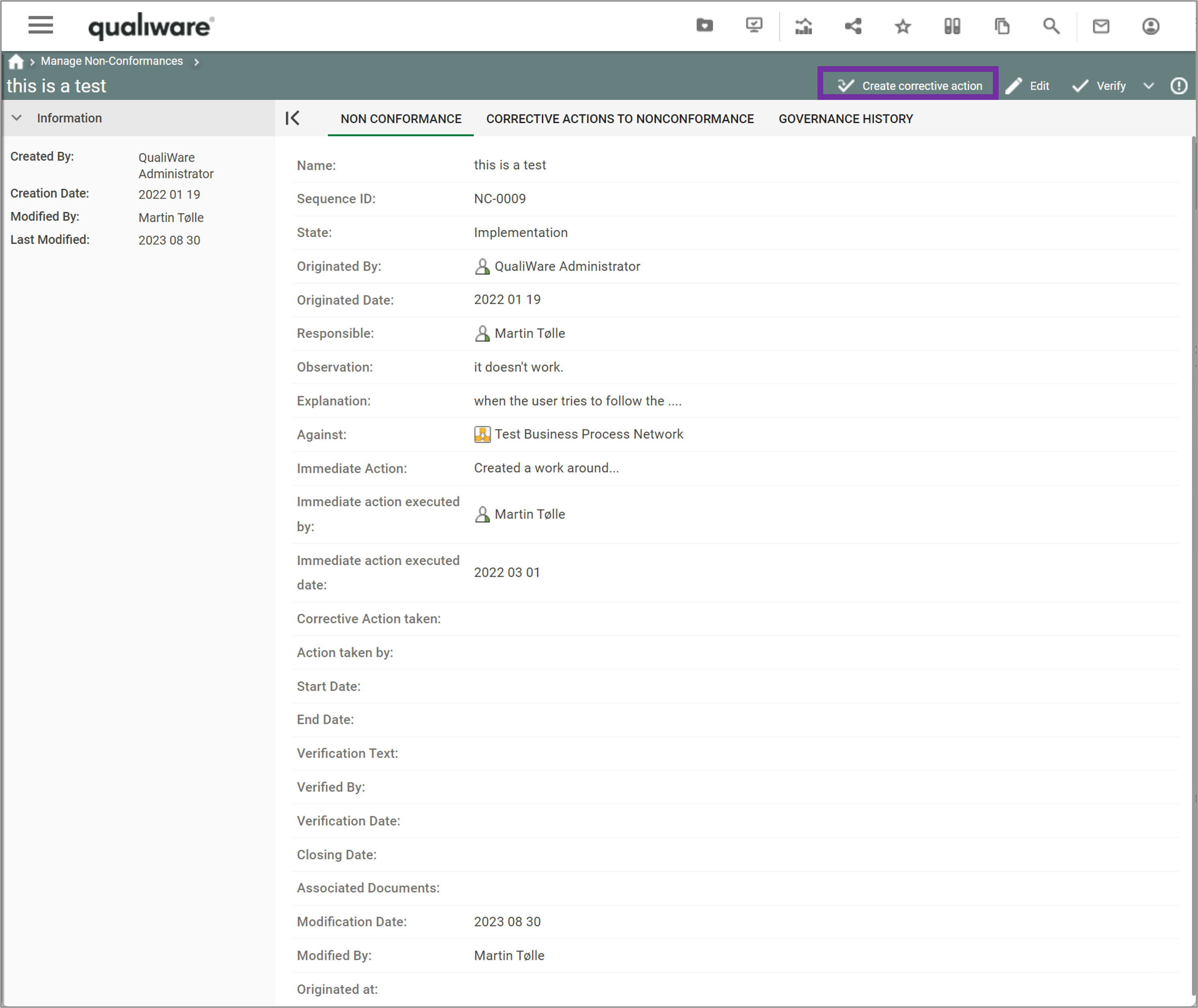
As part of the standard Non-Conformance Governance Workflow, you can add a Corrective Action to a Non-conformance.

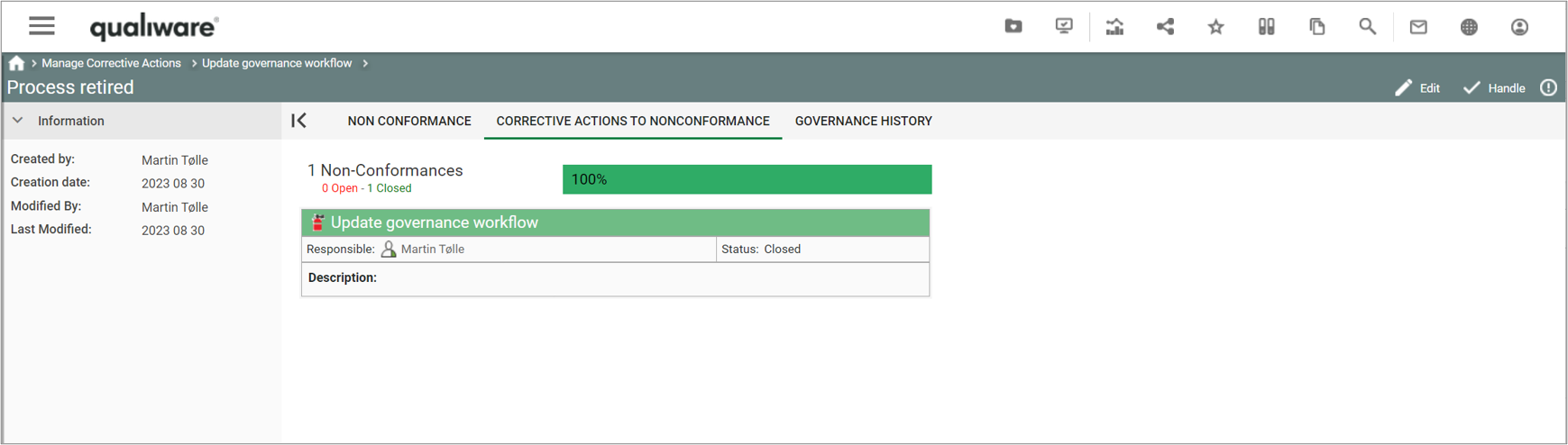
And associated Corrective Action(s) can be seen on a dedicated tab on a Non-Conformance.

Compliance Matrices

An essential aspect of compliance is documenting the link between a set of regulations (for example, an ISO standard when pursuing certification) and the corresponding objects in the management systems that fulfill these regulations or requirements.

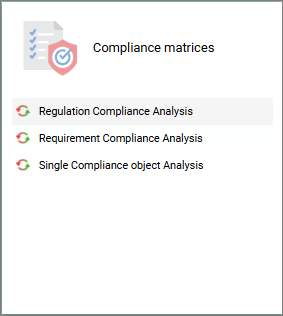
The Compliance Matrices are available from the standard tiles on the Compliance Desktop. One tile for regulatory compliance and another for requirements,

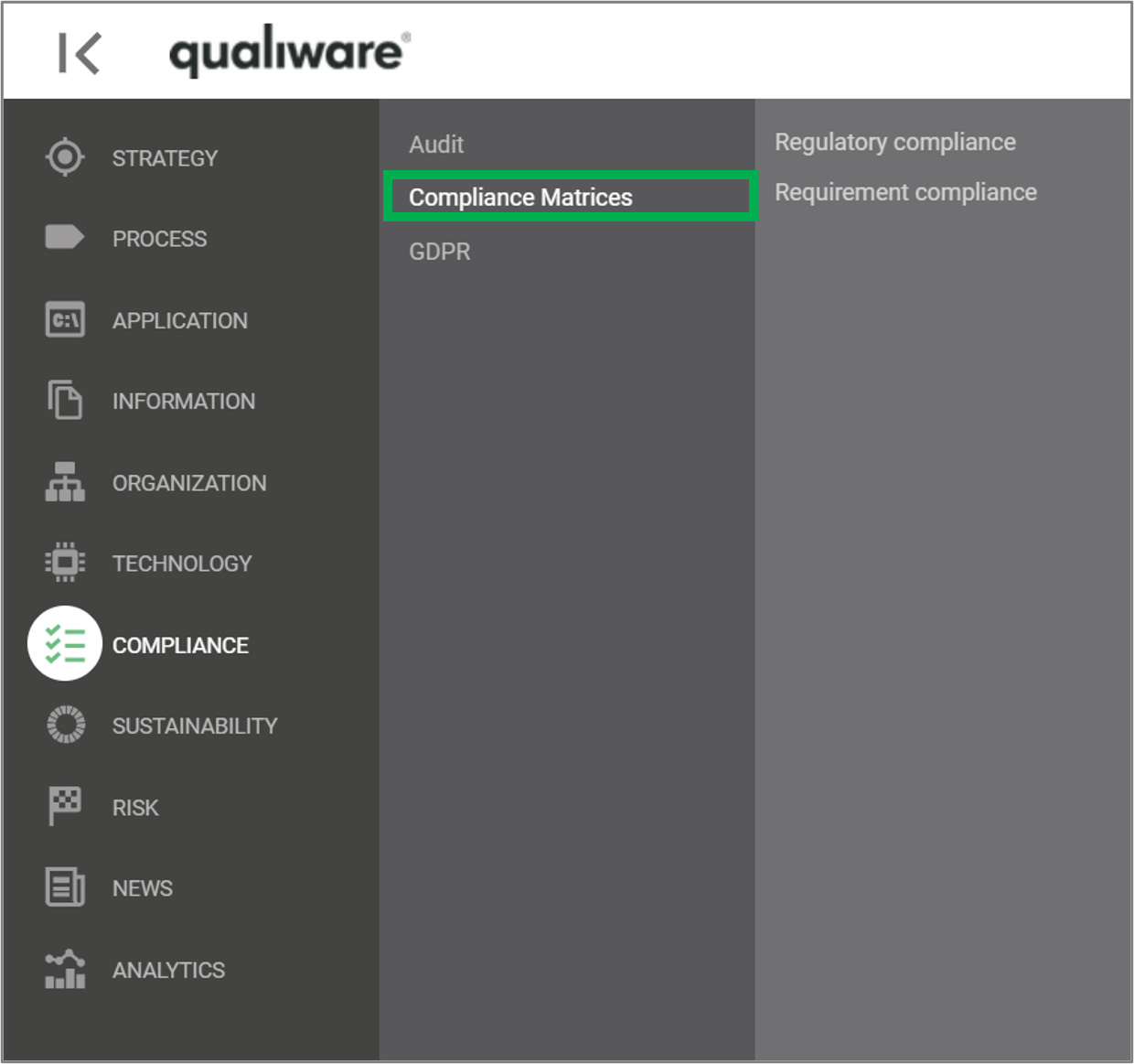
The Compliance Matrices can also be access from the left-menu under Compliance.


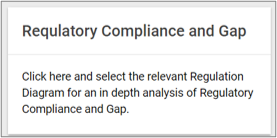
The tile “Compliance and Gap Analysis” and the menupoint “Regulatory compliance” provides access to the list of Regulation Diagrams in the repository. The Regulation Diagram allows the user to create a diagram containing the relevant regulation for a specific purpose. This may be the entire set of clauses in an ISO standard, or it may be a selected set of regulations that the business needs to document compliance towards.

Note, you need to add a regulation diagram / requirement diagram to the repository, to get content in the compliance matrix. Click here to learn how to create a compliance matrix.

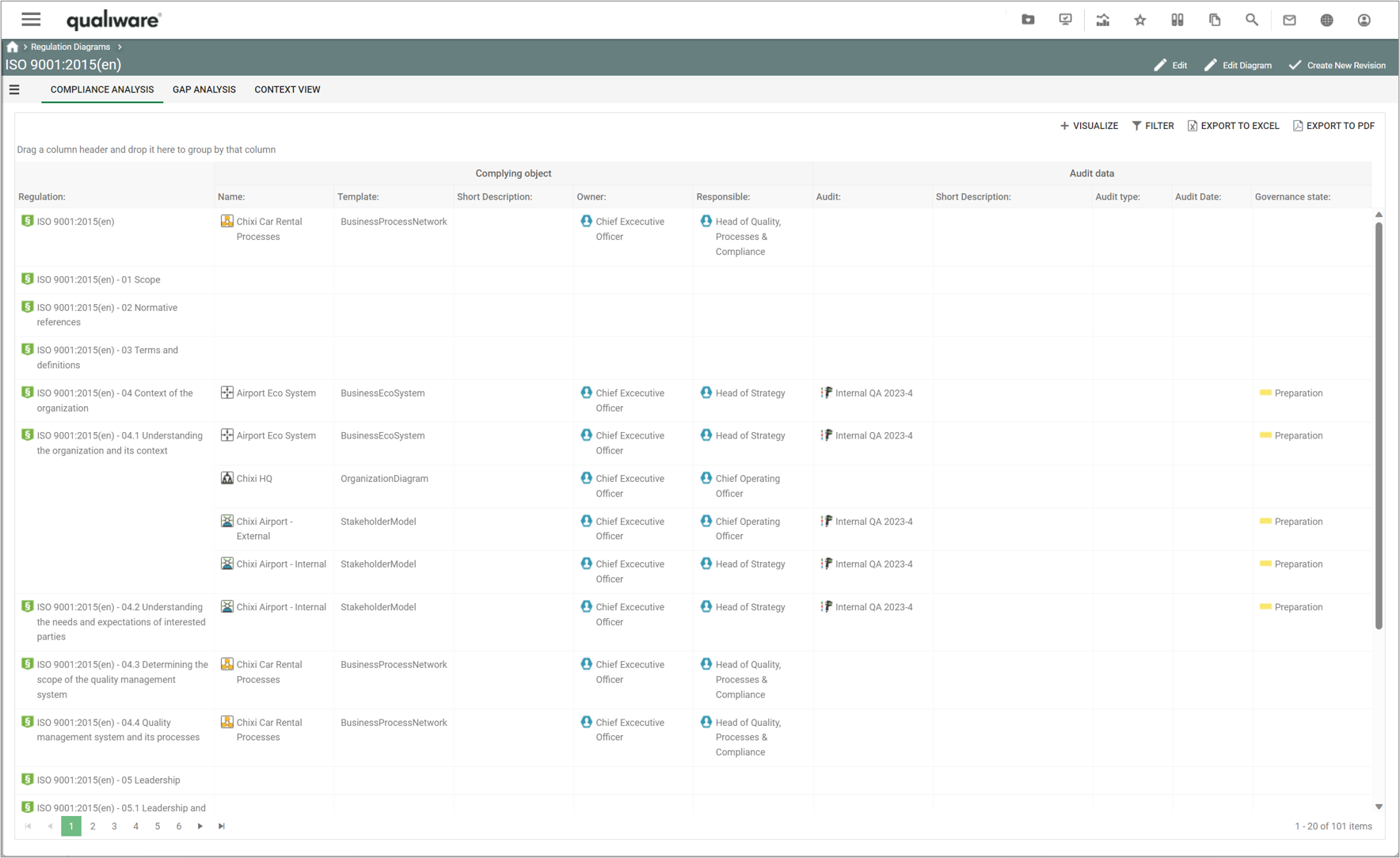
When a Regulation Diagram is selected in the list, the tool does not show a diagram. Instead, two analysis tabs with compliance analysis and gap analysis are available. The Compliance Analysis looks like this:

The left part of the compliance analysis lists the objects complying with a regulation. If compliance is missing, the Complying object part of that row will be empty (see section below for how to add content to the complying object). The right part of the analysis details the audits that have been executed with focus on the complying objects. This way, the auditor can easily find the validation of a compliance, and identify needs for target to upcomming audits.

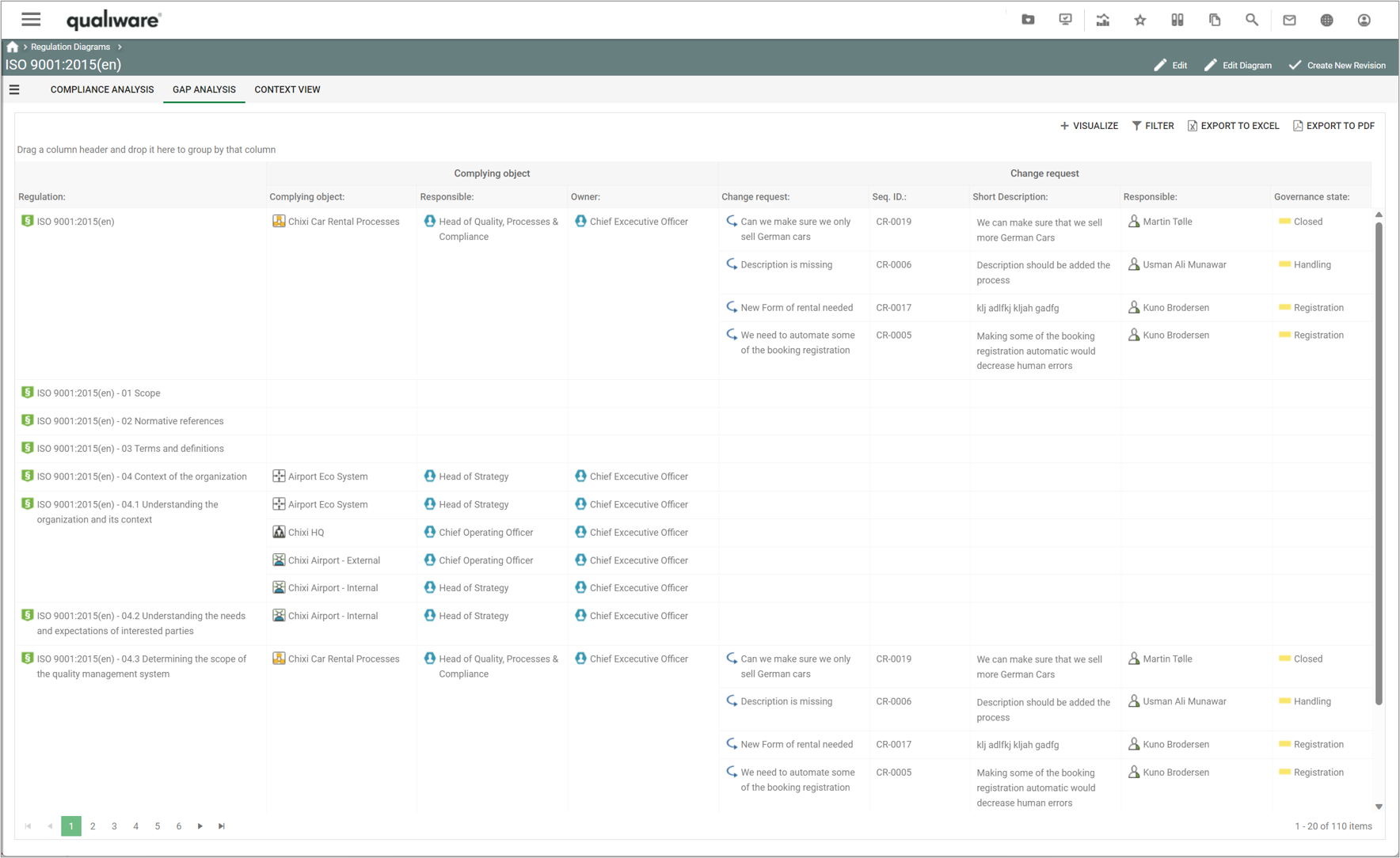
The gap analysis includes the same left part as the compliance analysis, but the right part shows a list of Change Requests defined for the complying objects:

With this analysis, it is easy to see which changes are required to reach the desired level of compliance.

Similar tabs and compliance matrices are associated to the requirement models.

Create a Compliance Matrix

  1. To create a compliance matrix, you need to create a regulation diagram or a requirement model that contains the relevant regulations or requirements in scope for your organisation.
  2. Once you have created the regulations/requirements in the repository, you can associate the relevant complying objects in the repository to each of the relevant regulations/requirements
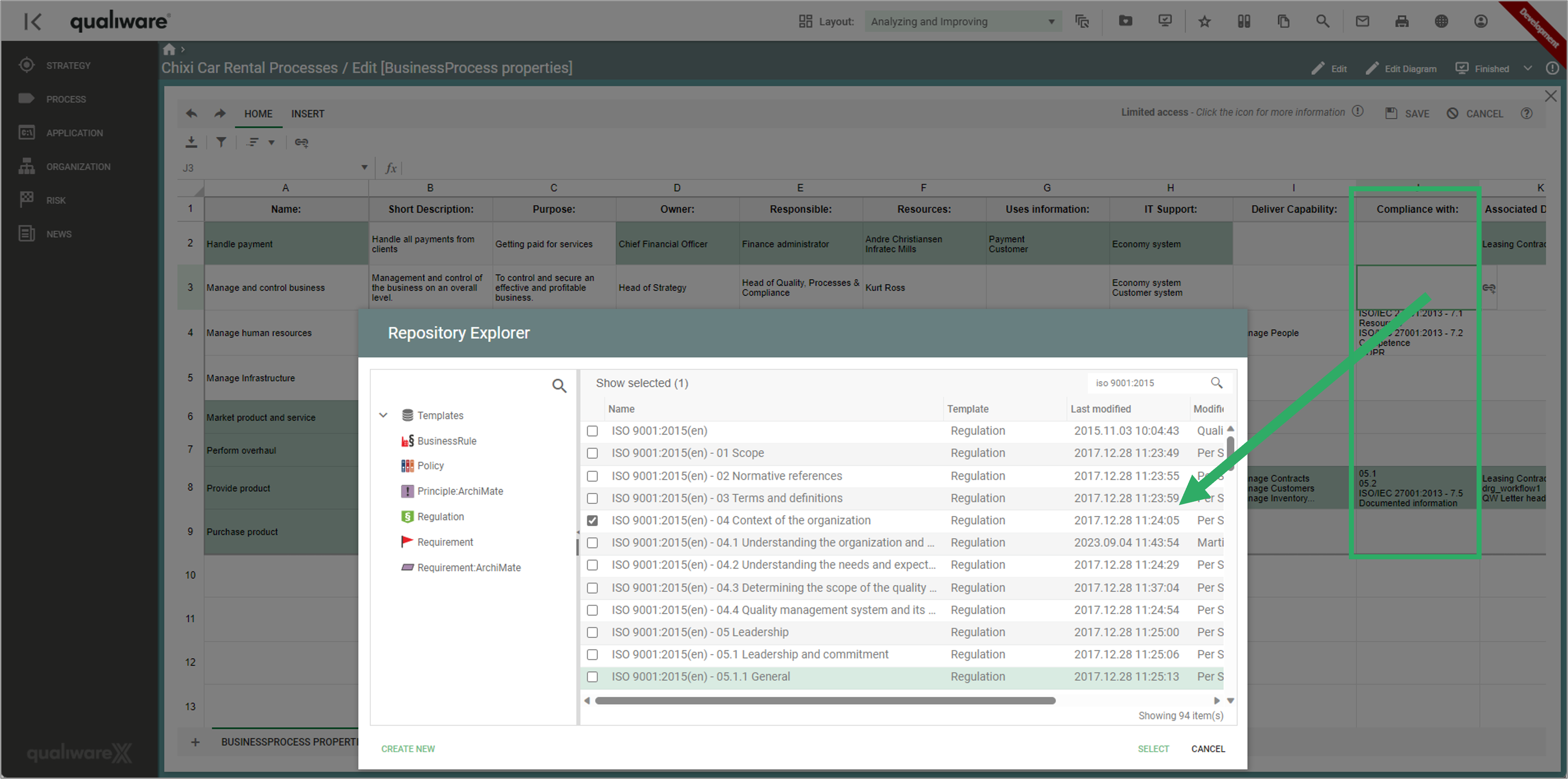
    • You link from the complying object to the regulation via the “Compliance With” association
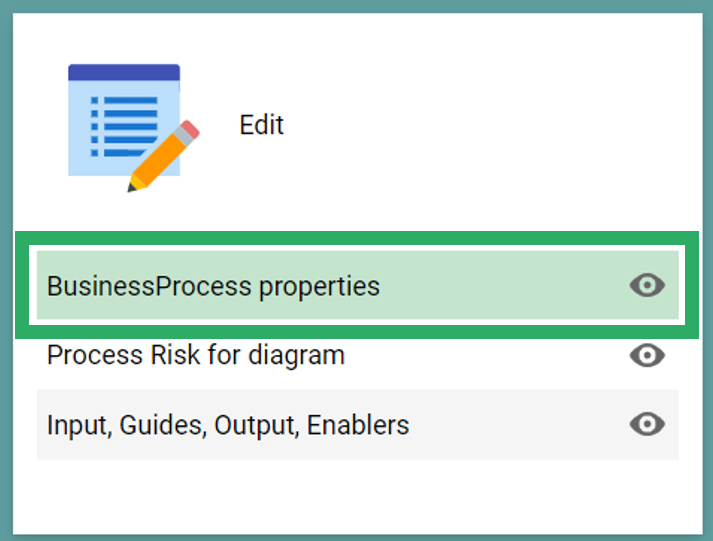
    • The easiest way to establish the link is via the standard “Property” spreadsheets on the process dashboards on the “Edit” tile.

Manage Non-Conformances

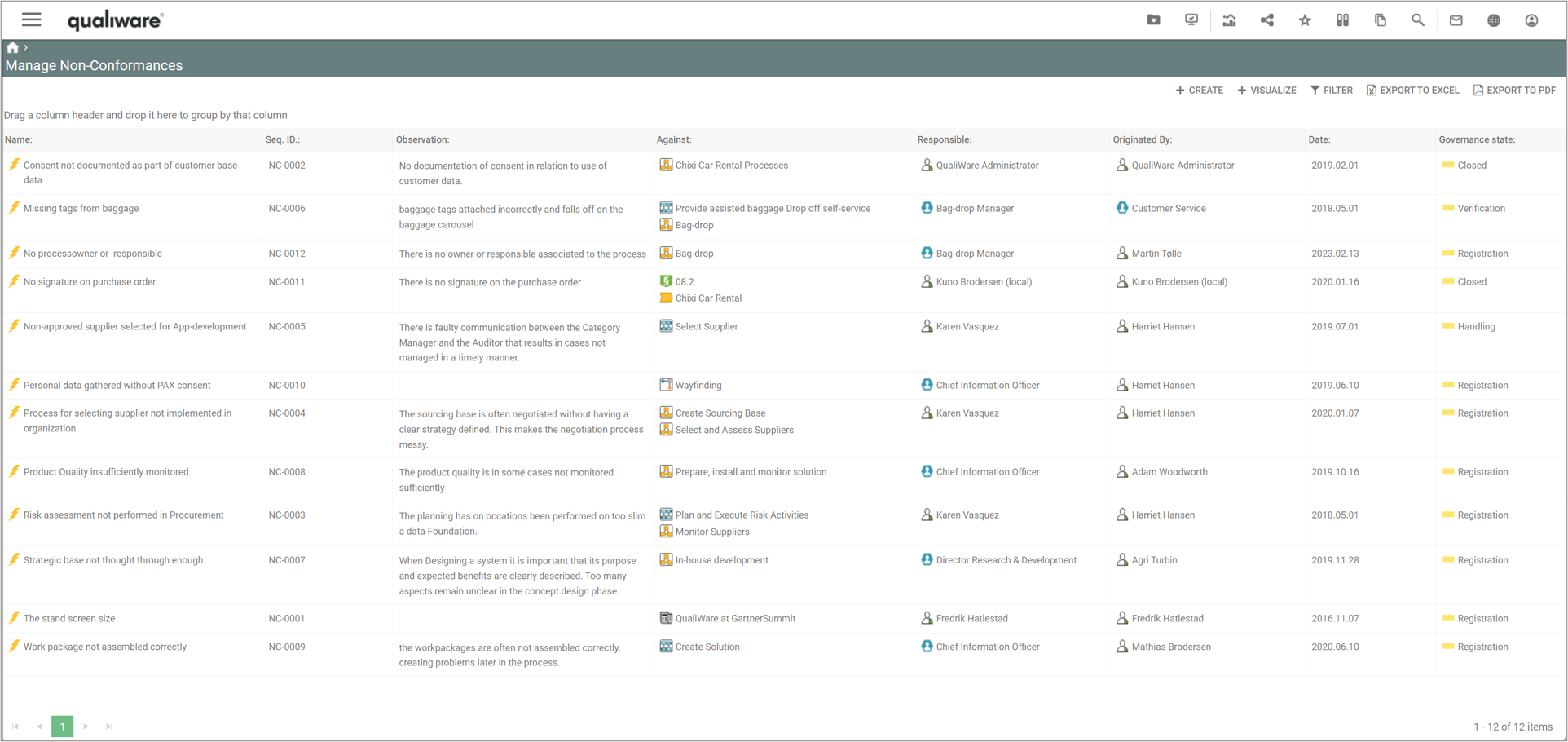
This list shows all the Non-conformances in the repository, including their key properties. From this point, new non-conformance can be created and existing ones can be analysed and edited.

The Manage Non-Conformances list is available from the tile on the Compliance Desktop.


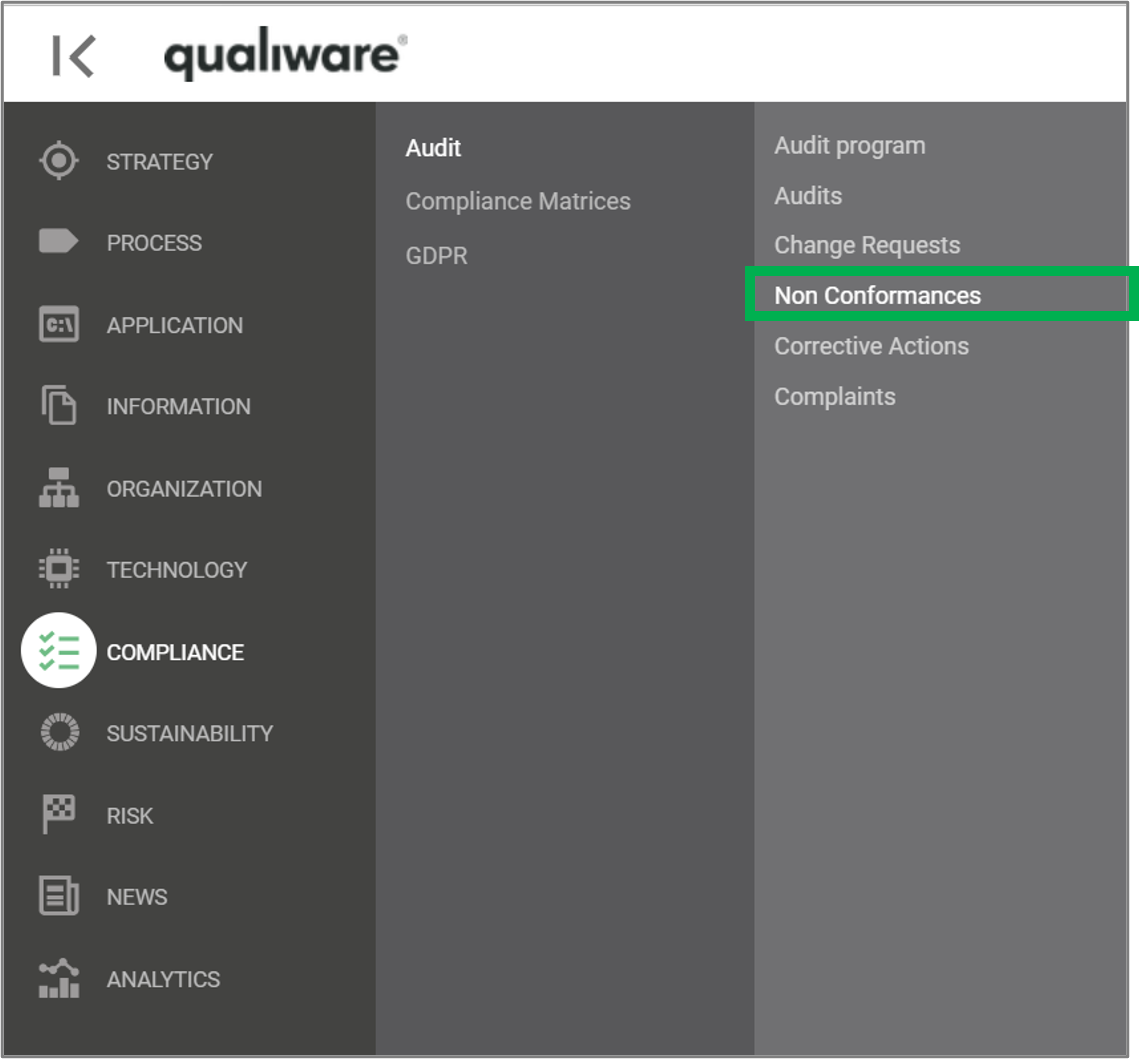
The list can also be accessed from the left-menu under Compliance.


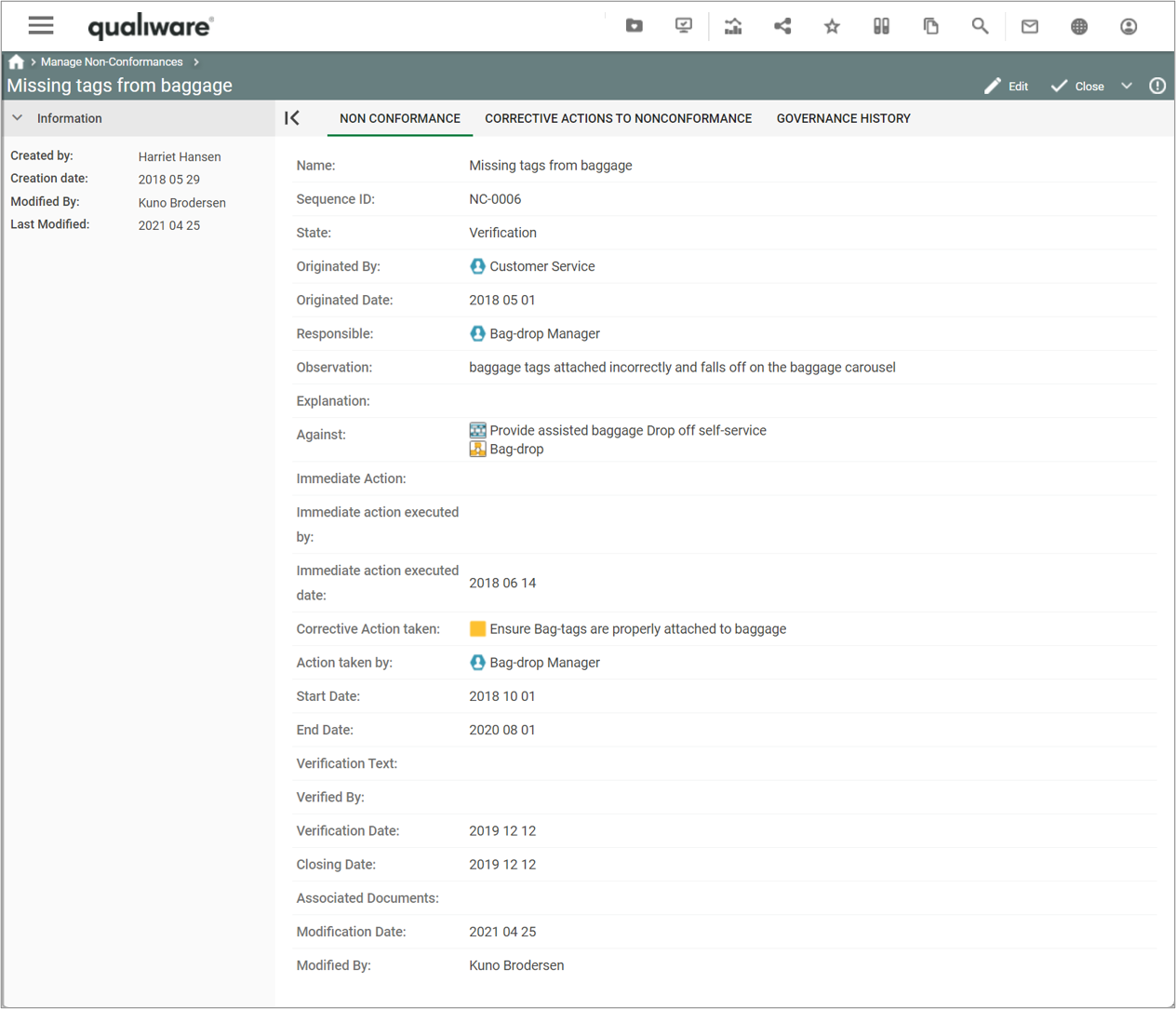
If you click a non-conformance you get a more details view, based upon the Non-Conformance-Template.

From this dialog the responsible can edit the non-conformance and progress it through the governance phases.

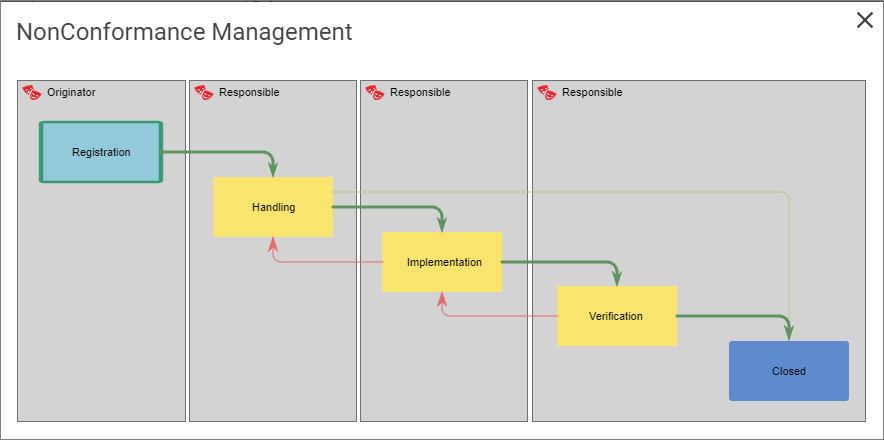
Below is the standard GovernanceWorkflow for Non-conformance management shown, this flow can be adjusted if needed, see the GovernanceWorkflow for more details.

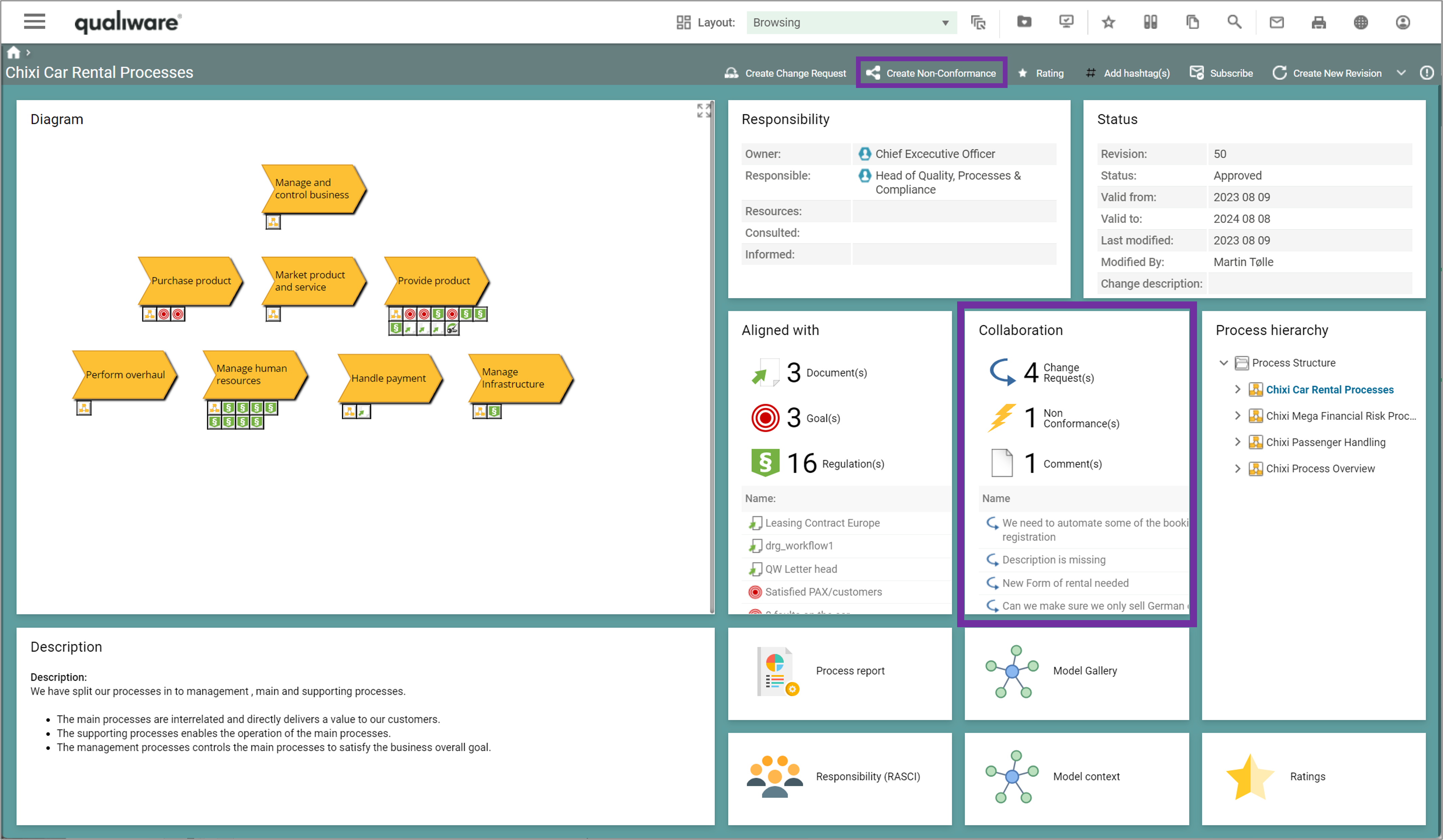
As part of the standard Change Management Governance Workflow, you can add a non-conformance to approved content, and see associated non-conformances to the content, e.g. a diagram as shown below.

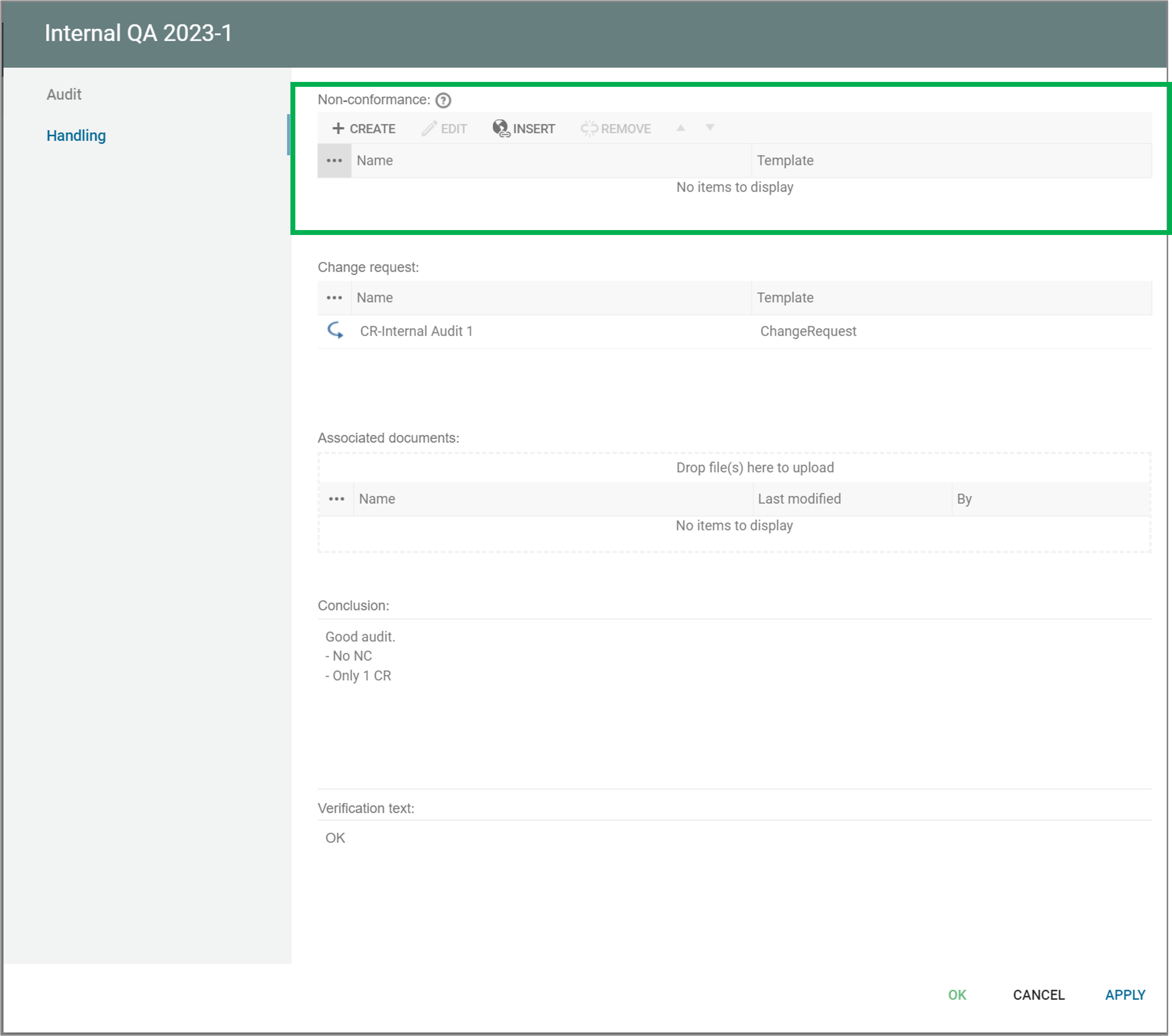
You can add/insert a non-conformance from an audit.
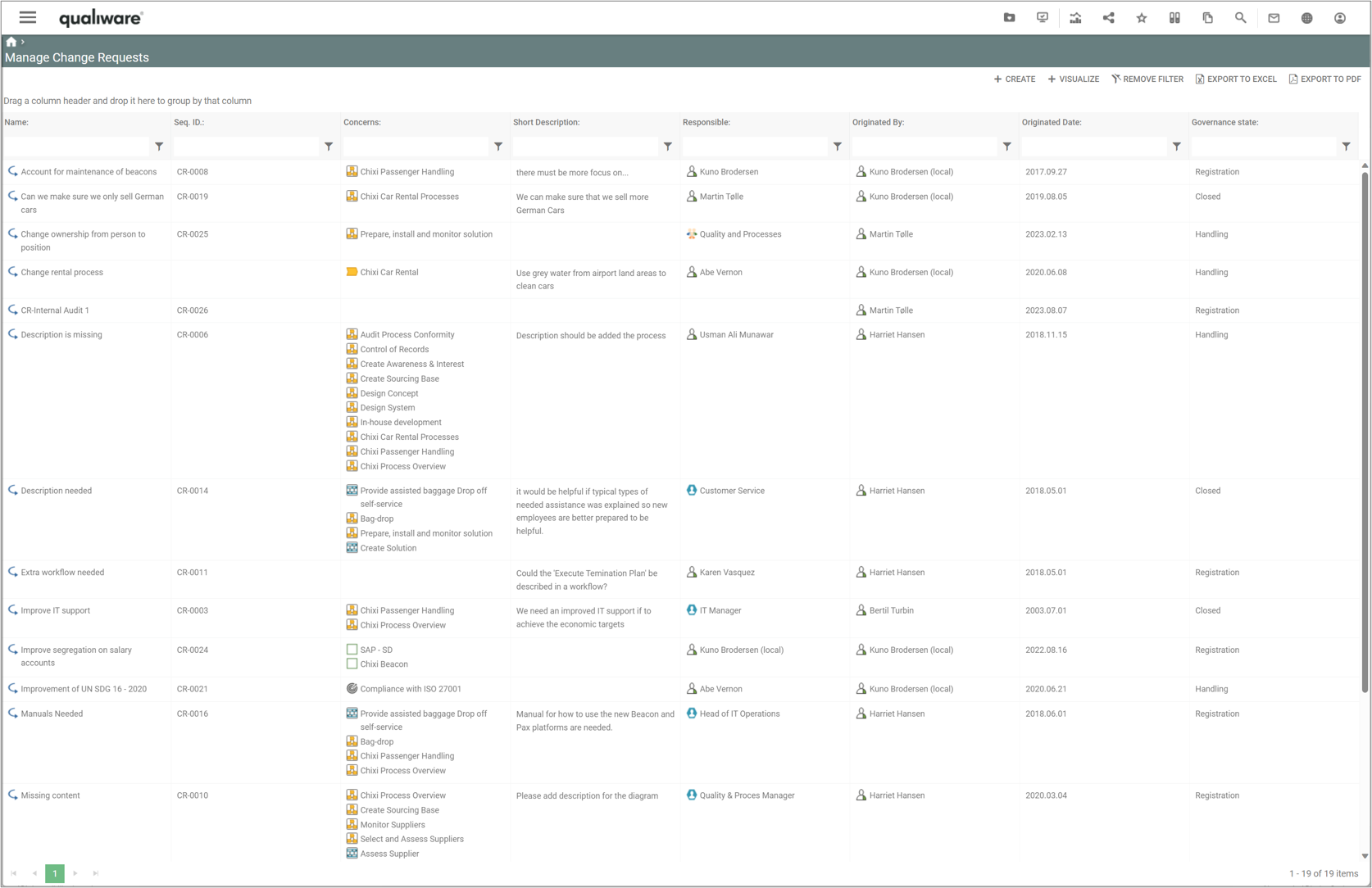
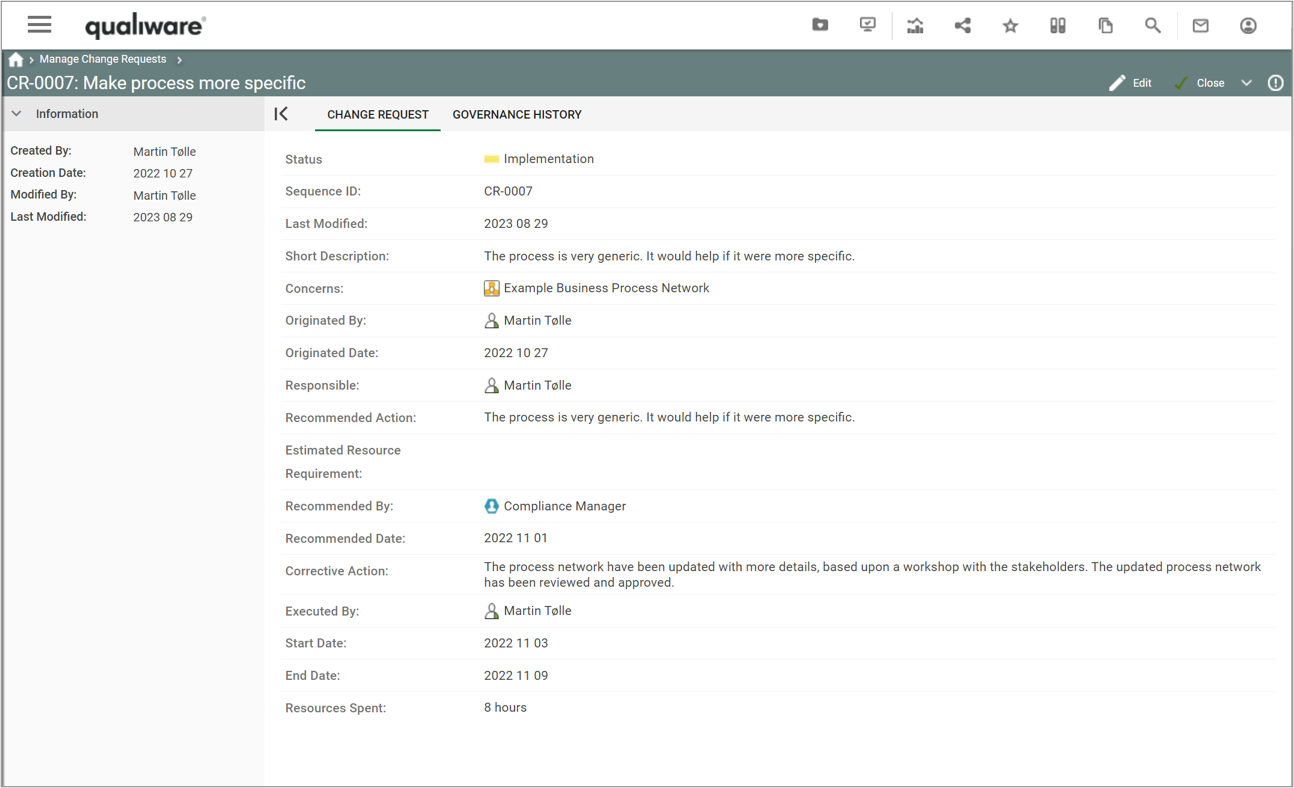
Manage Change Requests

This list shows all the change requests in the repository, including their key properties. From this point, new change requests can be created and existing ones can be analysed and edited.


The Manage Change Requests list is available from the tile on the Compliance Desktop.


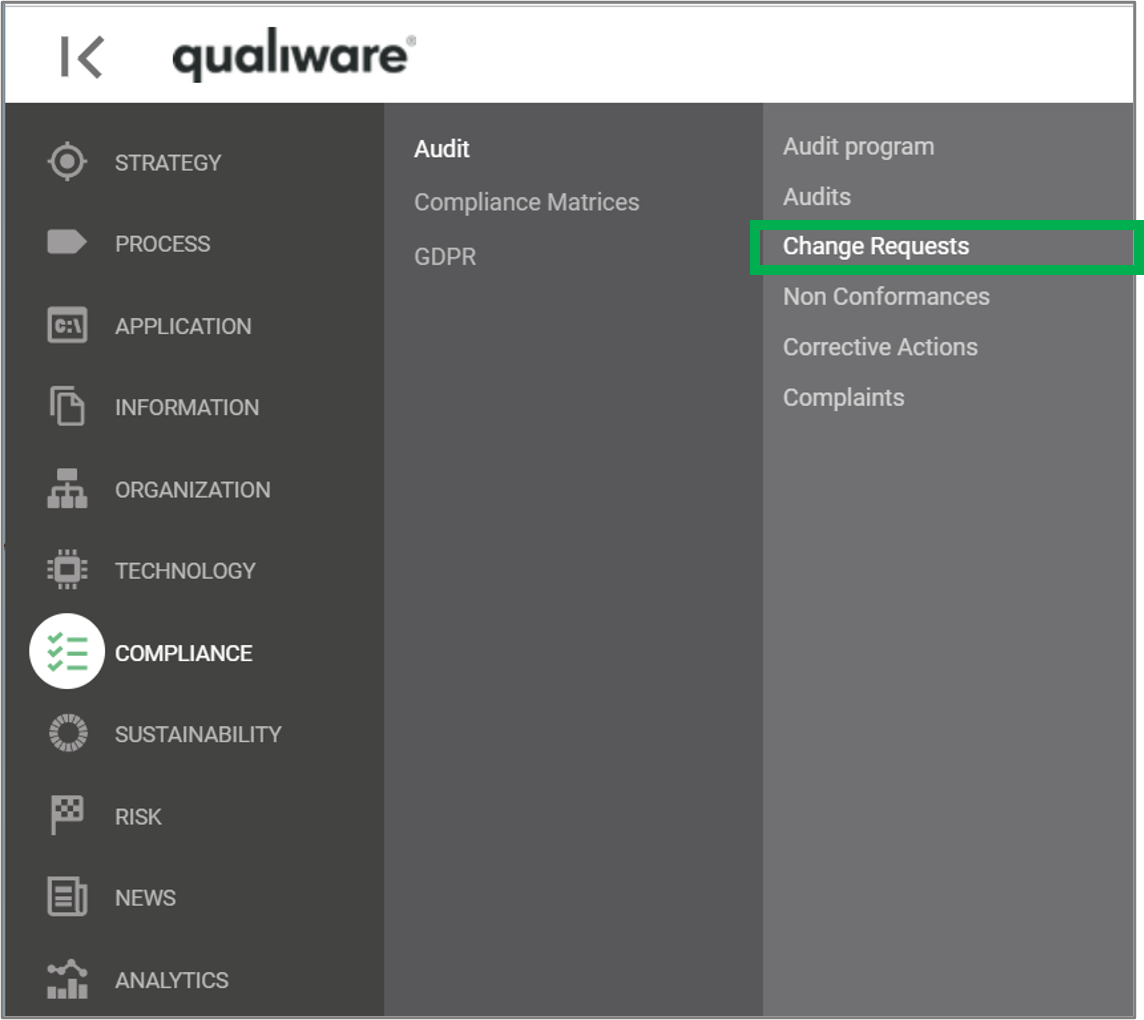
The list can also be accessed from the left-menu under Compliance.


If you click a change request you get more detailed view of the change request, based upon the ChangeRequest-Template.

From this dialog the responsible can edit the change request and progress it through the governance phases.

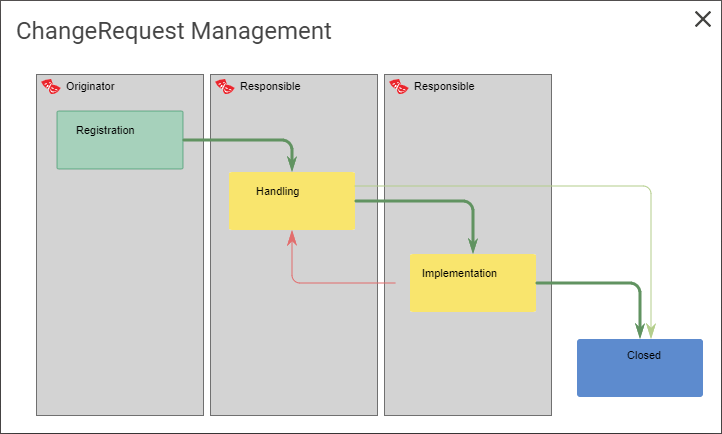
Below is the standard GovernanceWorkflow for change request management shown, this flow can be adjusted if needed, see the GovernanceWorkflow for more details.

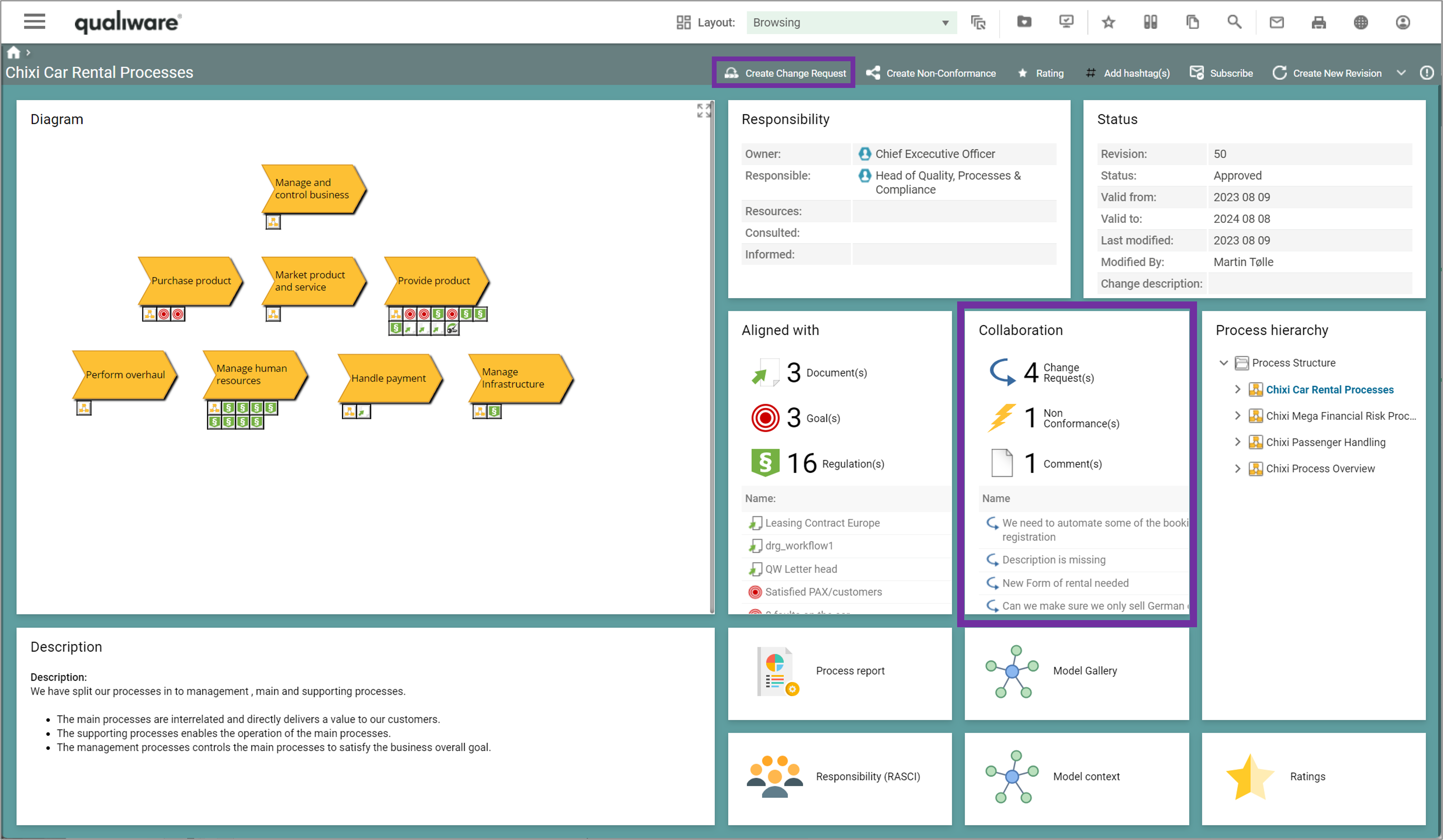
As part of the standard Change Management Governance Workflow, you can add a change request to approved content, and see associated change request to the content, e.g. a diagram as shown below.

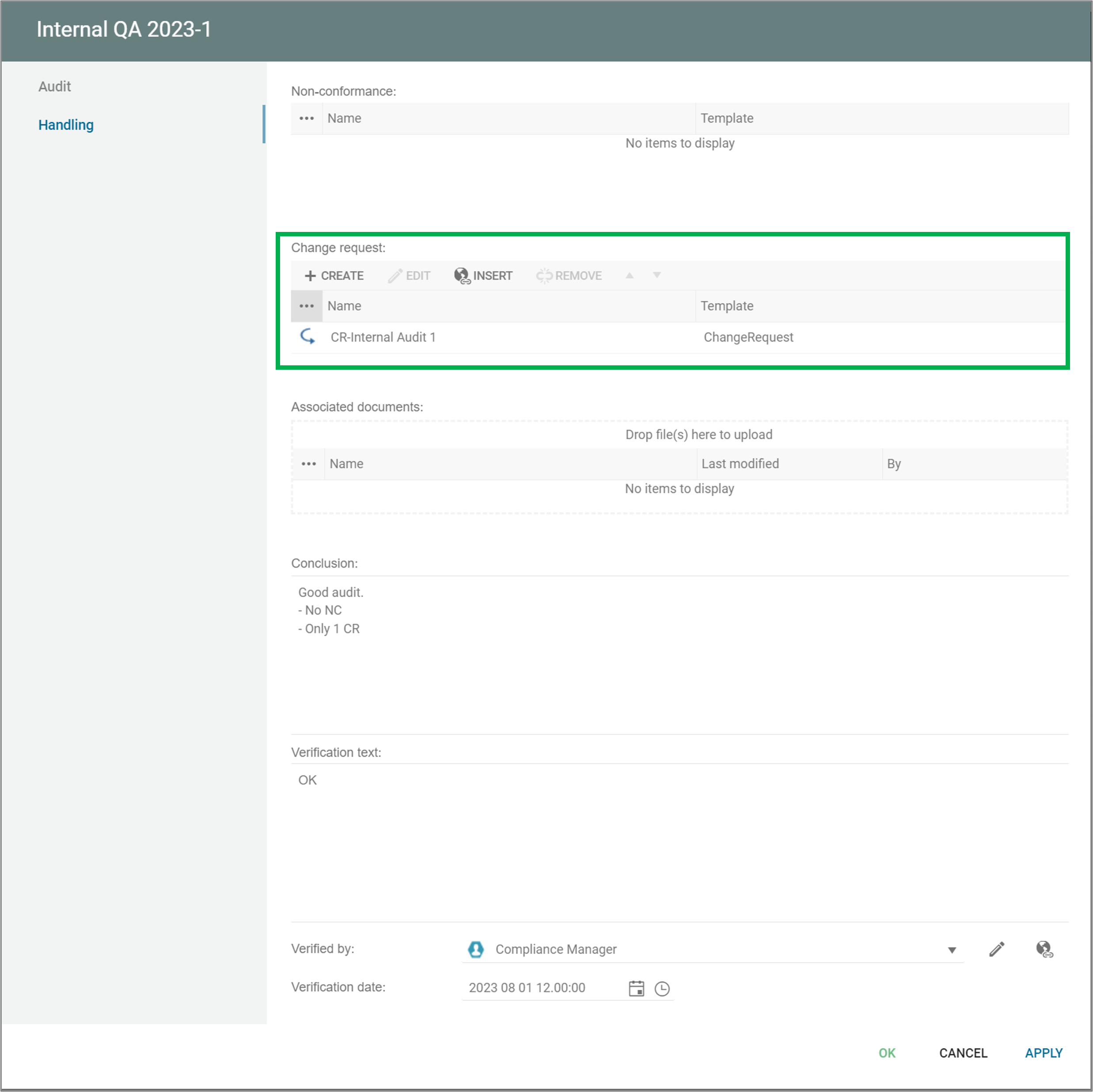
You can add/insert a change request from an audit.

Manage Audits

The query shows all audits in the repository, including their key properties. From this point, new audits can be created, and existing ones can be analyzed and edited.

The Manage Audits list is available from the tile on the Compliance Desktop.


The list can also be accessed from the left-menu under Compliance.


If you click an audit you get more details of each audit, based upon the QualityAudit-Template.

Below is the standard view, showing key properties of a specific audit, including which audit program it is part of, its status, participants (auditor(s) and auditee(s)), target processes and regulations, and associated findings (Non-Conformance(s) and Change Request(s)).

When you edit the audit you can add more details to the audit:

From this dialog you can add details to the audit including creating audit findings (Non-Conformance, Change-Requests) and progress the audit through the governance phases.

Above is the standard GovernanceWorkflow for audit management shown, this flow can be adjusted if needed, see the GovernanceWorkflow for more details.

An audit can be a part of an Audit-Program, see Manage Audit Programs for more details.