APM introduction

Why do organisations need Application Portfolio Management (APM)?

It has become rare for employees to experience a working environment that lacks some form of Information Technology. Applications and their supporting technologies have become critical in delivering business services. Understanding and managing when and where different applications are used, and their role in providing business capabilities is crucial for effective cost and resource management and reducing complexity.

Because IT is so dynamic and plays such a crucial role within all enterprises, it is challenging to manage without a proper tool that accounts for all the applications and their costs, resources, and interdependencies. This challenge is especially evident when keeping track of implemented, upcoming and ongoing changes to mission-critical applications while in continuous operation.

In increasingly complex environments where the IT function could exist in several departments or branches of the business, organisations are also facing so-called “Shadow IT”, where there is no clear overview and governance of the IT portfolio, leading to a situation that becomes unmanageable and increasingly difficult to address the challenges and opportunities which the business is faced with.

Furthermore, the costs of supporting and maintaining all the applications may not be optimised, as some applications may be redundant or not aligned with business capabilities.

By attending to APM as a strategic approach to managing and optimising the portfolio of applications, organisations can make more informed decisions on which applications should be included or excluded from their portfolio.

Business benefits of APM – IT as a strategic partner of the business

In short, APM facilitates the strategic alignment of the IT environment with the organisation’s business goals and objectives. A general overall efficiency in IT investment also becomes evident – where IT becomes a strategic partner of the business to ensure competitive advantage. This partnership is critical for organisations who wish to step away from silos and accelerate Digital Transformation.

Some of the key business benefits of APM include:

  • Cost Reduction and Optimization
  • Application Rationalization
  • Decision-Making
  • Increased Agility and Innovation
  • Risk Mitigation and Compliance Management

Cost Reduction and Optimization

APM enables organisations to assess the costs associated with applications in their IT portfolio. By evaluating the costs of the application – organisations can realise value, optimise spending, and reduce costly expenses on IT systems.
Organisations may find some applications underutilised or redundant in functionality, and that licences, maintenance and support costs may be excessive.

Getting notified

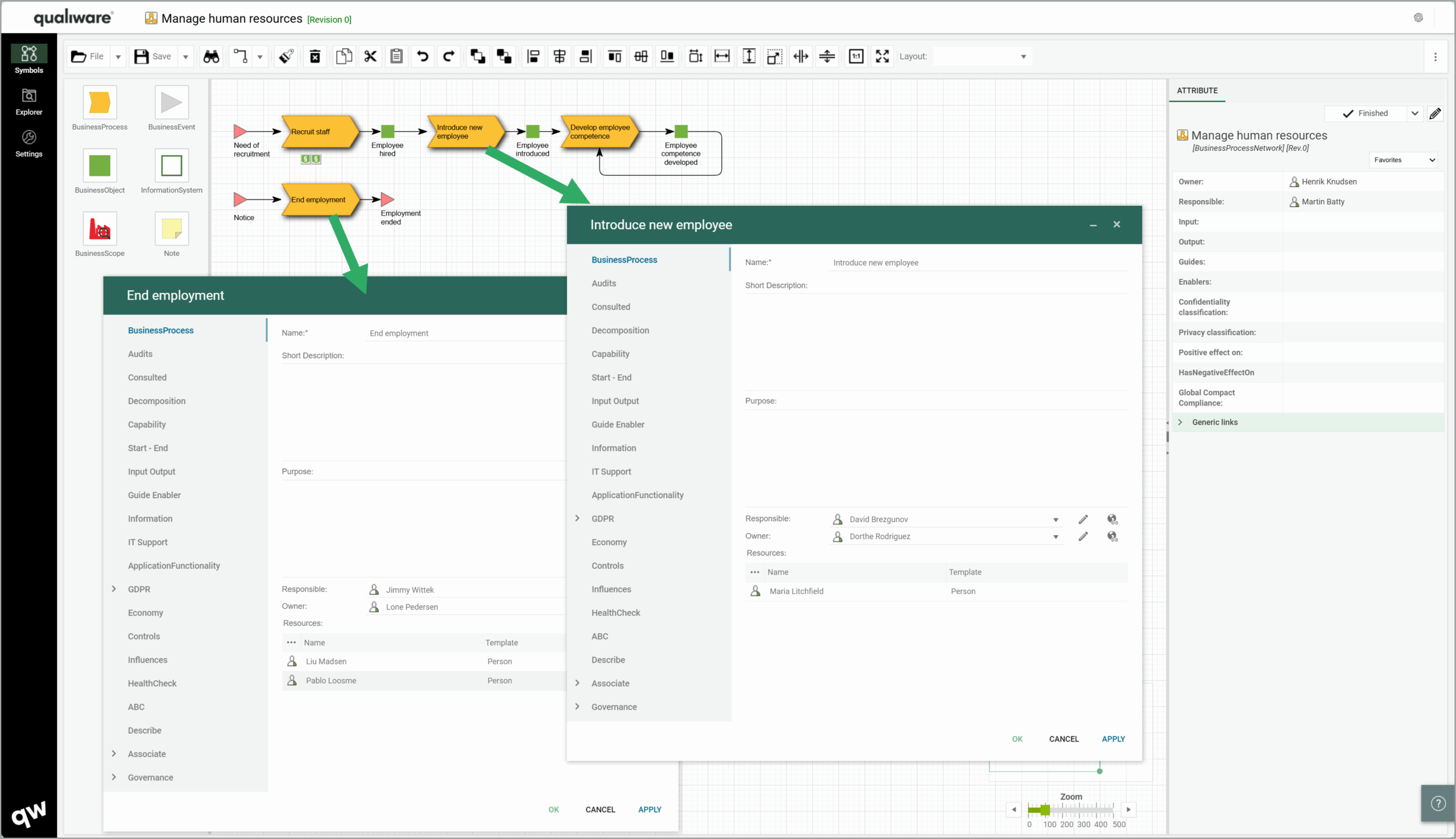
When a user becomes responsible for a task, they get notified in QualiWare. The system will guide them and show their required actions on the task.

It is easy to access a task in the personal to-do list from the dashboard in QualiWare.
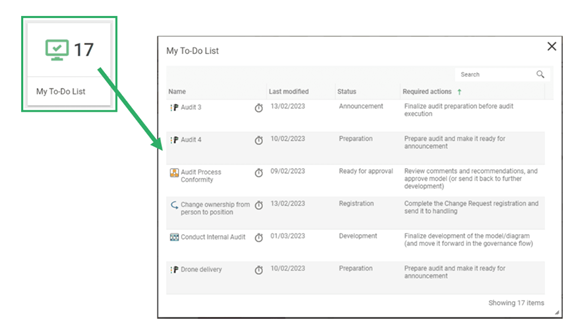
Screenshot of the Qualiware system and where to find notifications

Release Notes 10.10

New Desktop Feature

New Features

Enhancements in front-end

Enhancements in Web-Modeler

New AI Features

New APP

Additional enhancements

Release 10.10 - Highlights

Release 10.10 Webinar

New user interface: Dashboard-UI implemented for Desktop

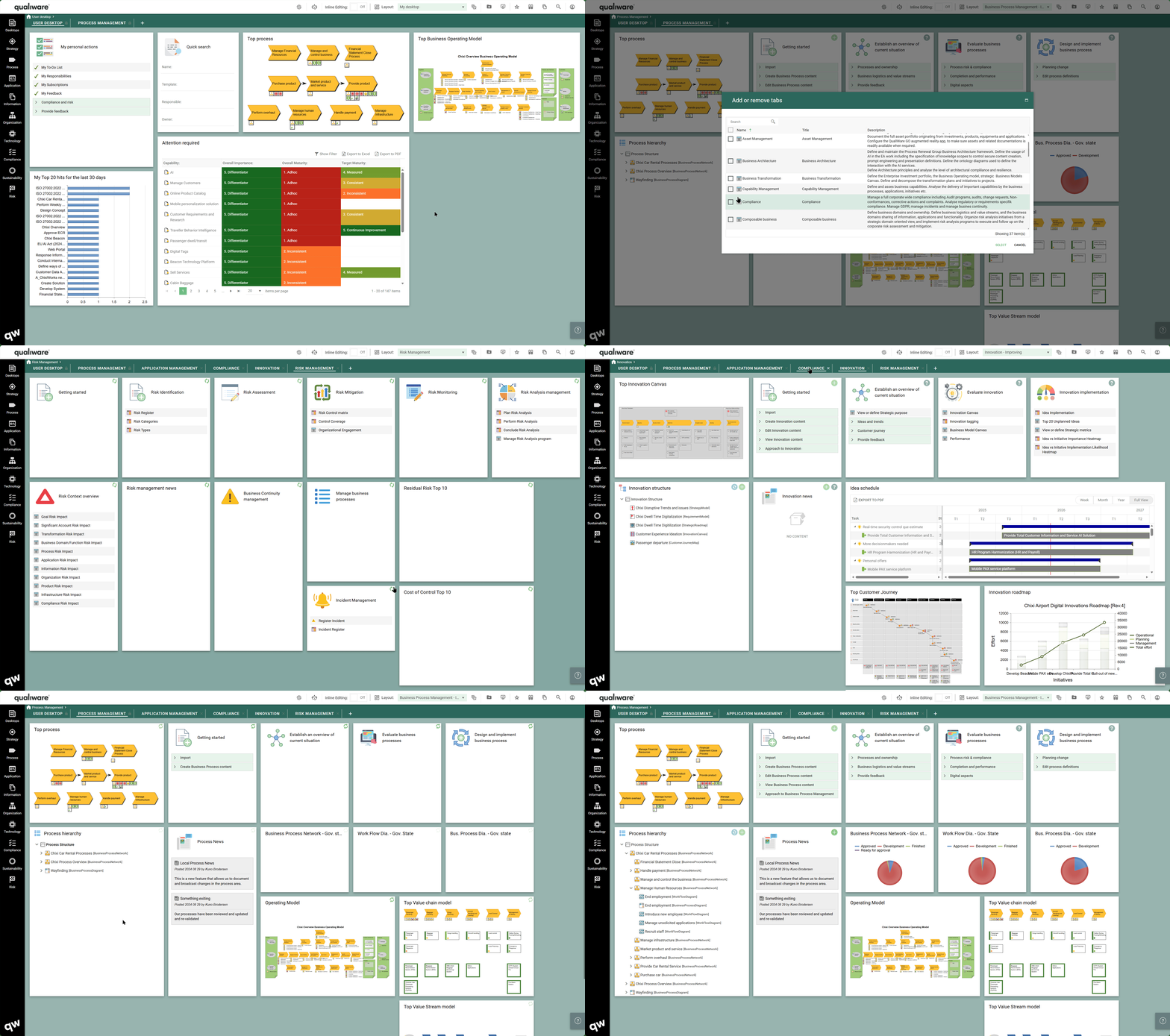
QualiWare 10.10 introduces a whole set of purpose-based Desktops, each focusing on a dedicated subset of an architectural aspect, architectural framework or one or more areas within governance, risk or compliance.

The new set of desktops captures all relevant parts for your task at hand in each of the dedicated desktops, being it capability, application or process management, or documenting compliance for an ISO-standard or the new CSRD, NIS2, DORA, GDPR or other regulations.

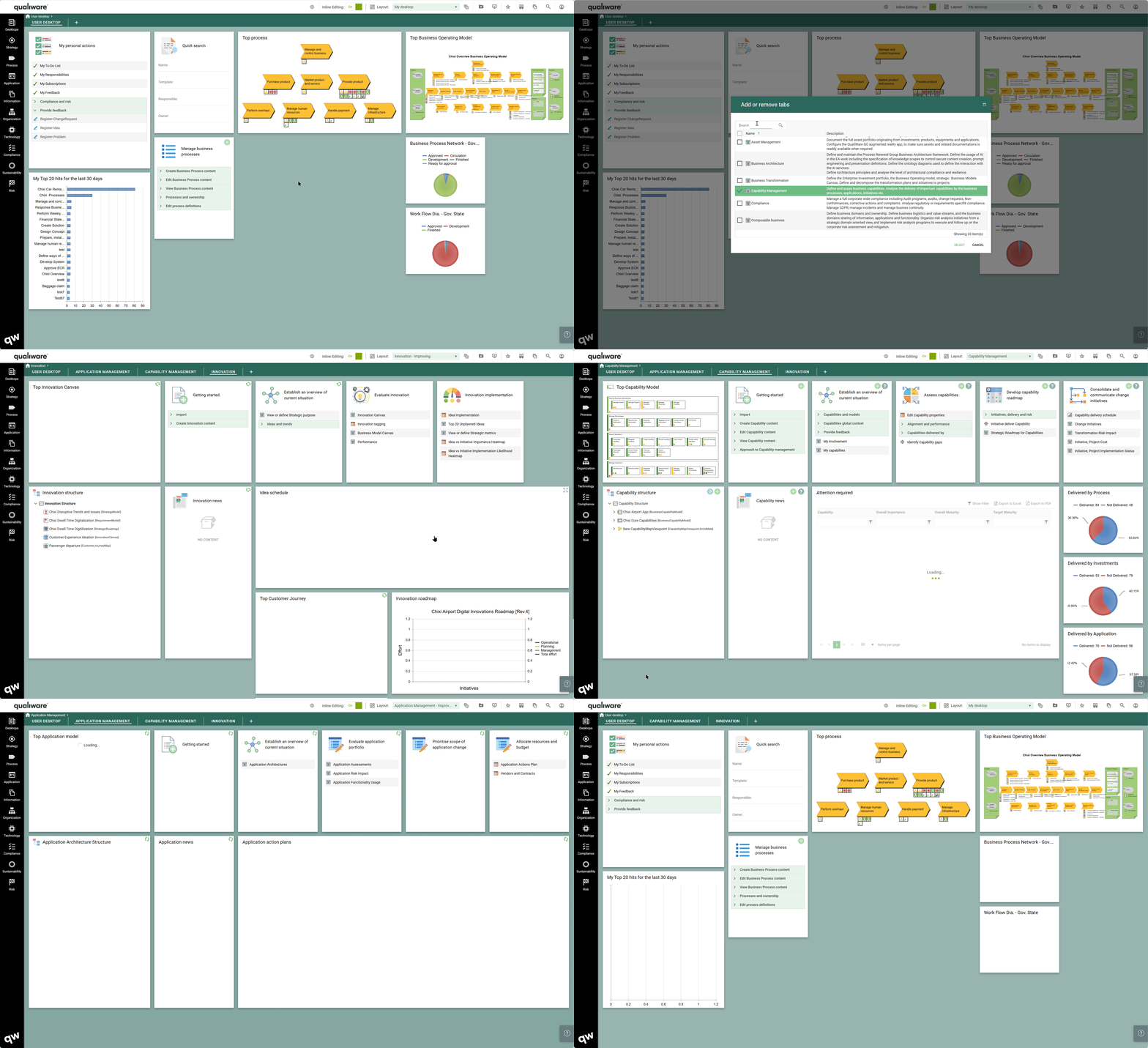
As a user you will typically only use one or a few of the desktops, and it is possible to select among available desktops and add or remove them as tabs to your workspace.

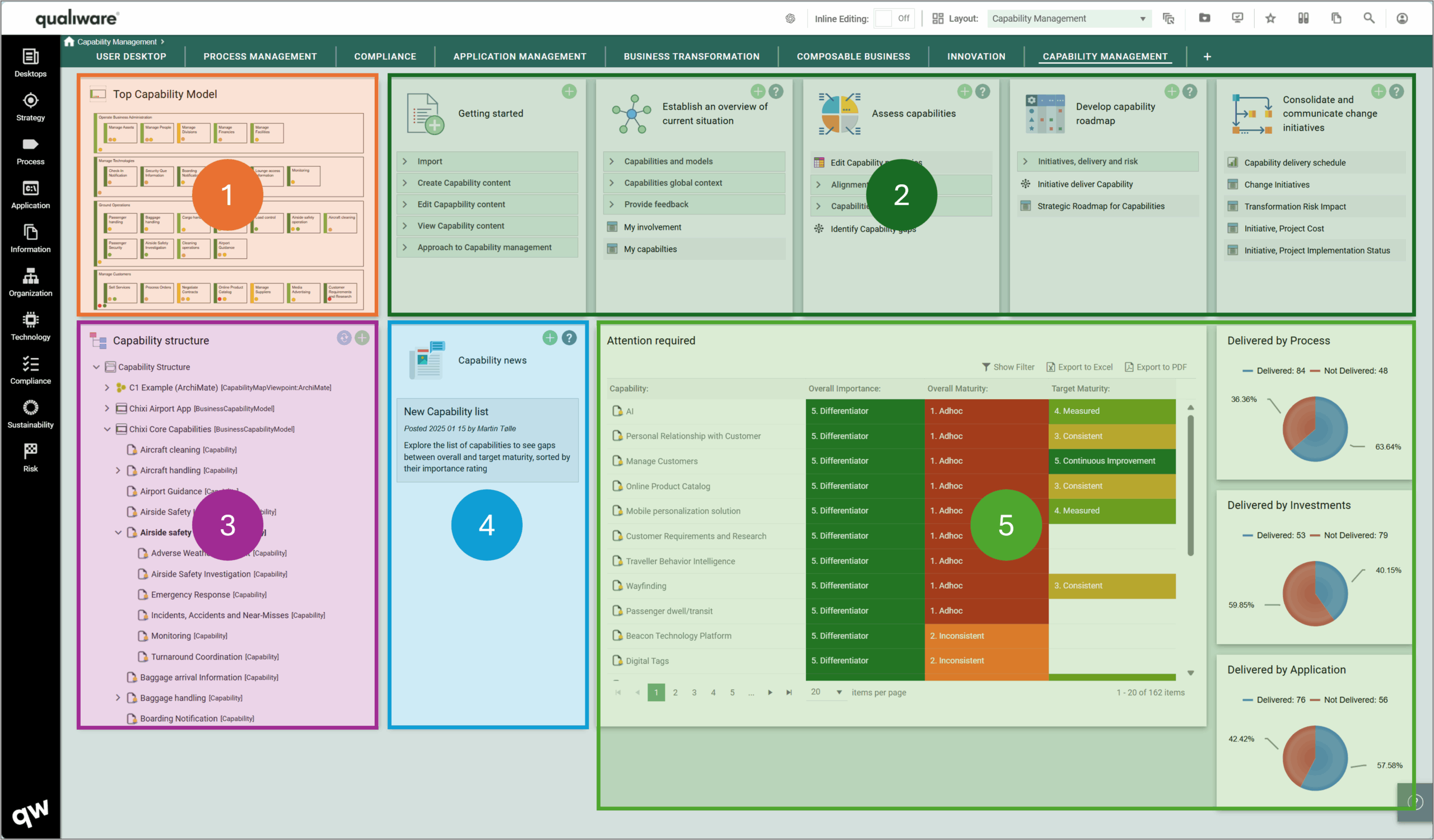
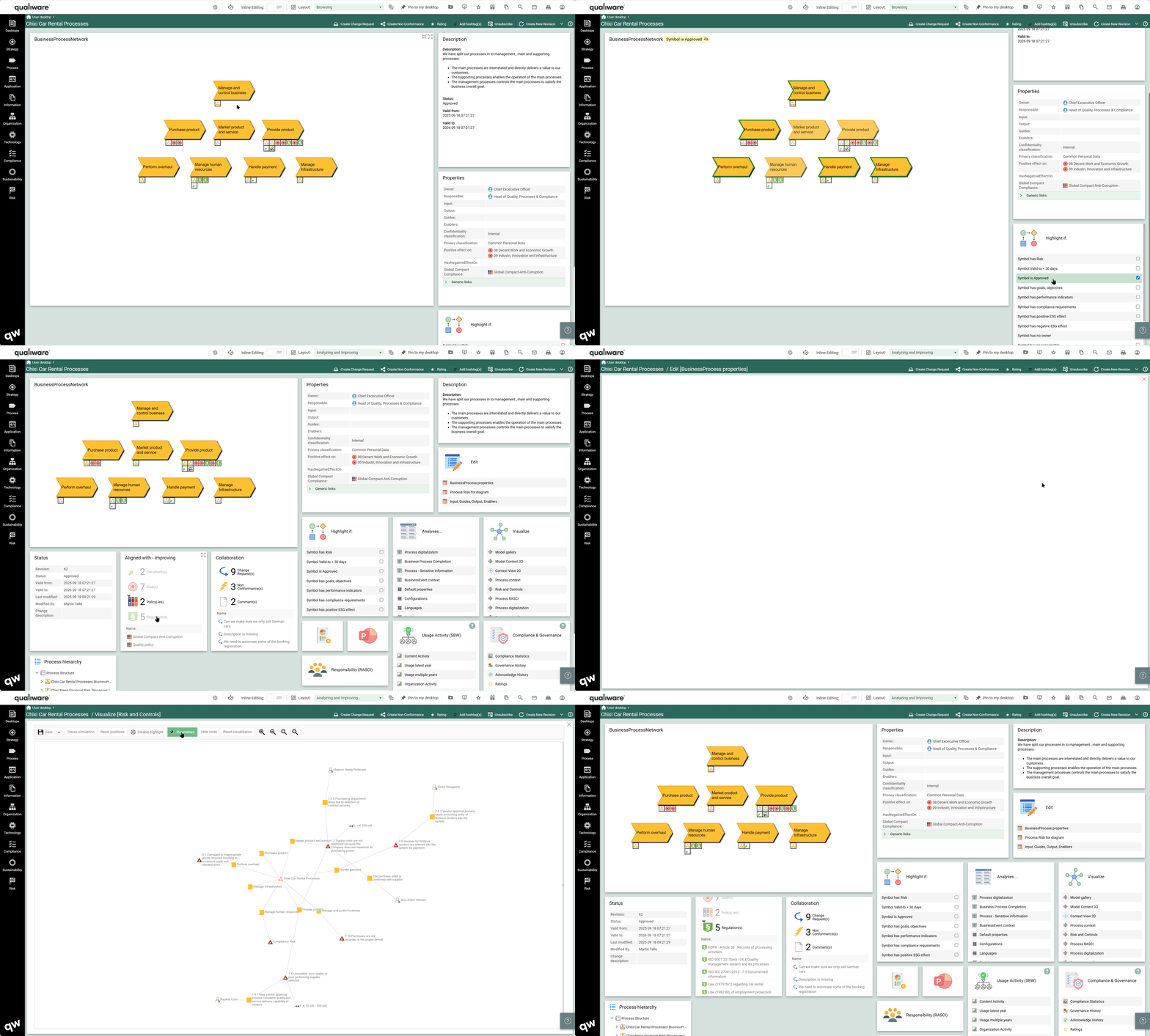
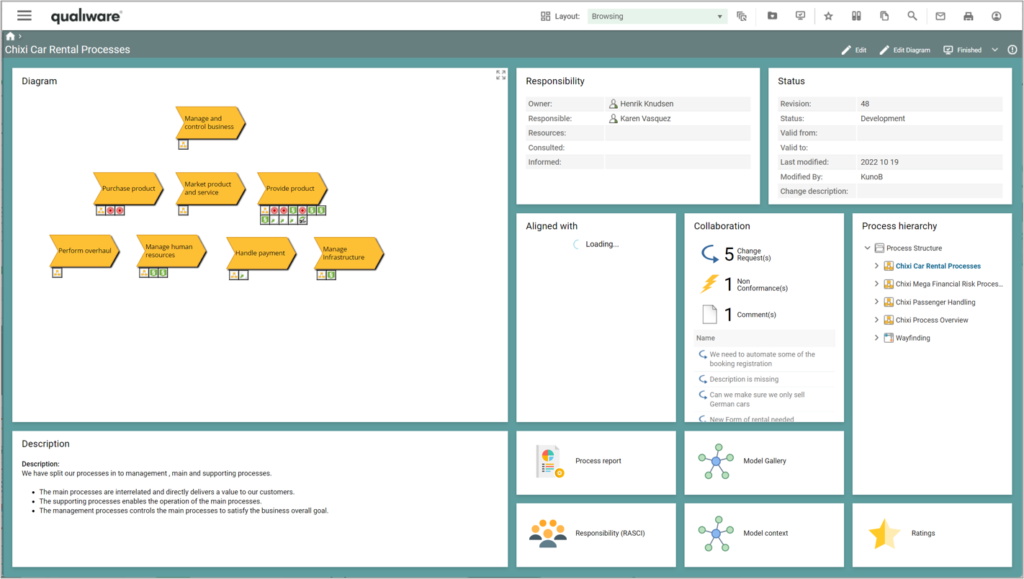
All desktops are structured around the same high-level layout, allowing the users to get fast and easy access to the content and features they are looking for.

  1. Top Diagram for the content in the desktop
  2. Purpose based tiles, which support the whole journey within a specific domain from:
      • getting started
      • exploring the current situation
      • analyze/improve the content
  3. Hierarchy view, collection of most relevant content within the desktop focus
  4. News section, a “local” desktop news feed, where users can collaborate and share relevant news
  5. Metrics and additional diagrams, showing KPIs, charts, and additional content

Read more about the new Desktops here.

User Specific and Personalized Desktops

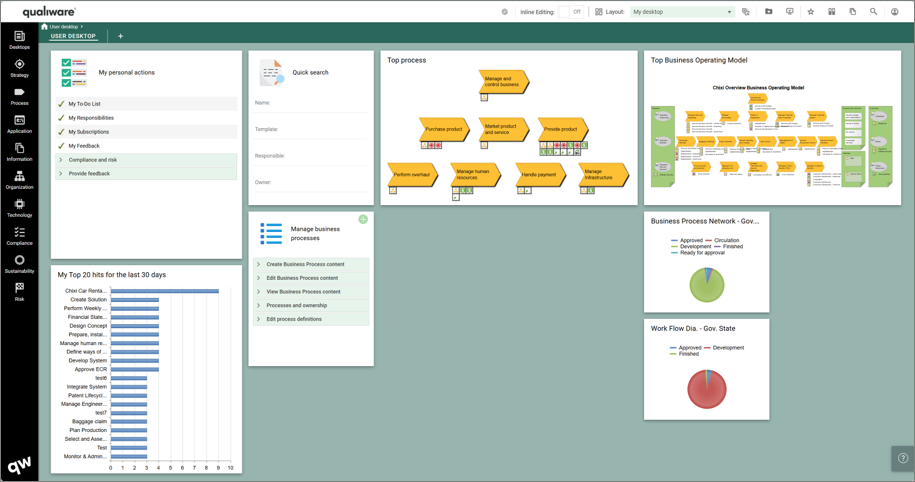
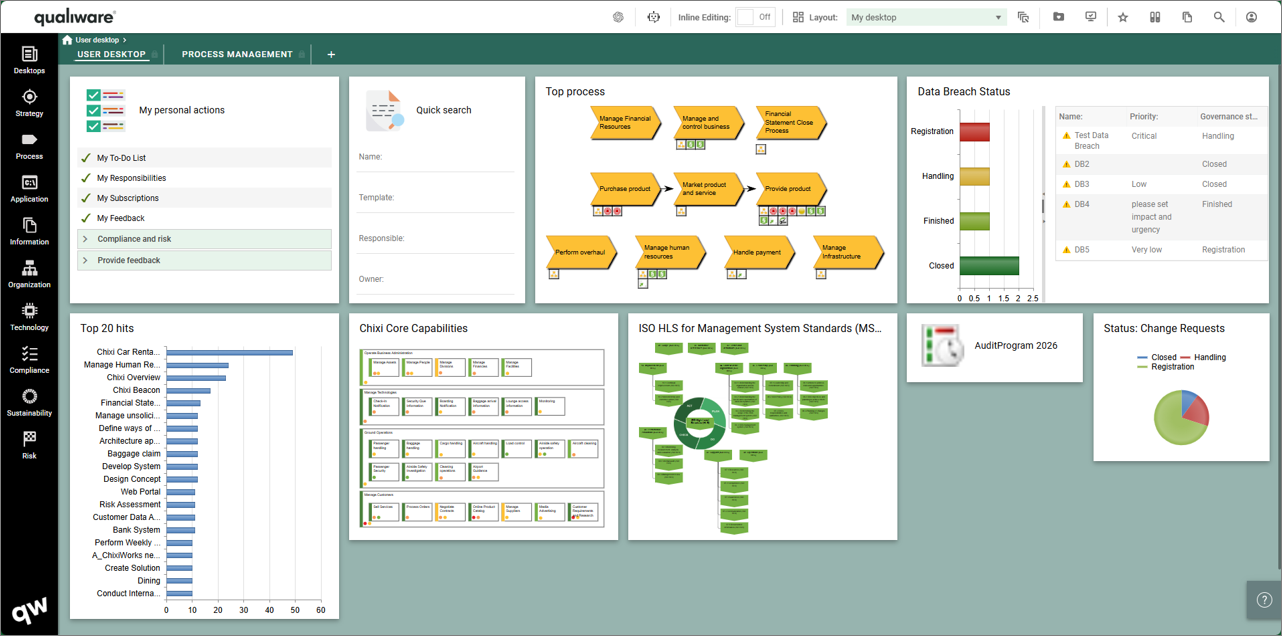
Every user has a Personal Desktop as a starting point.

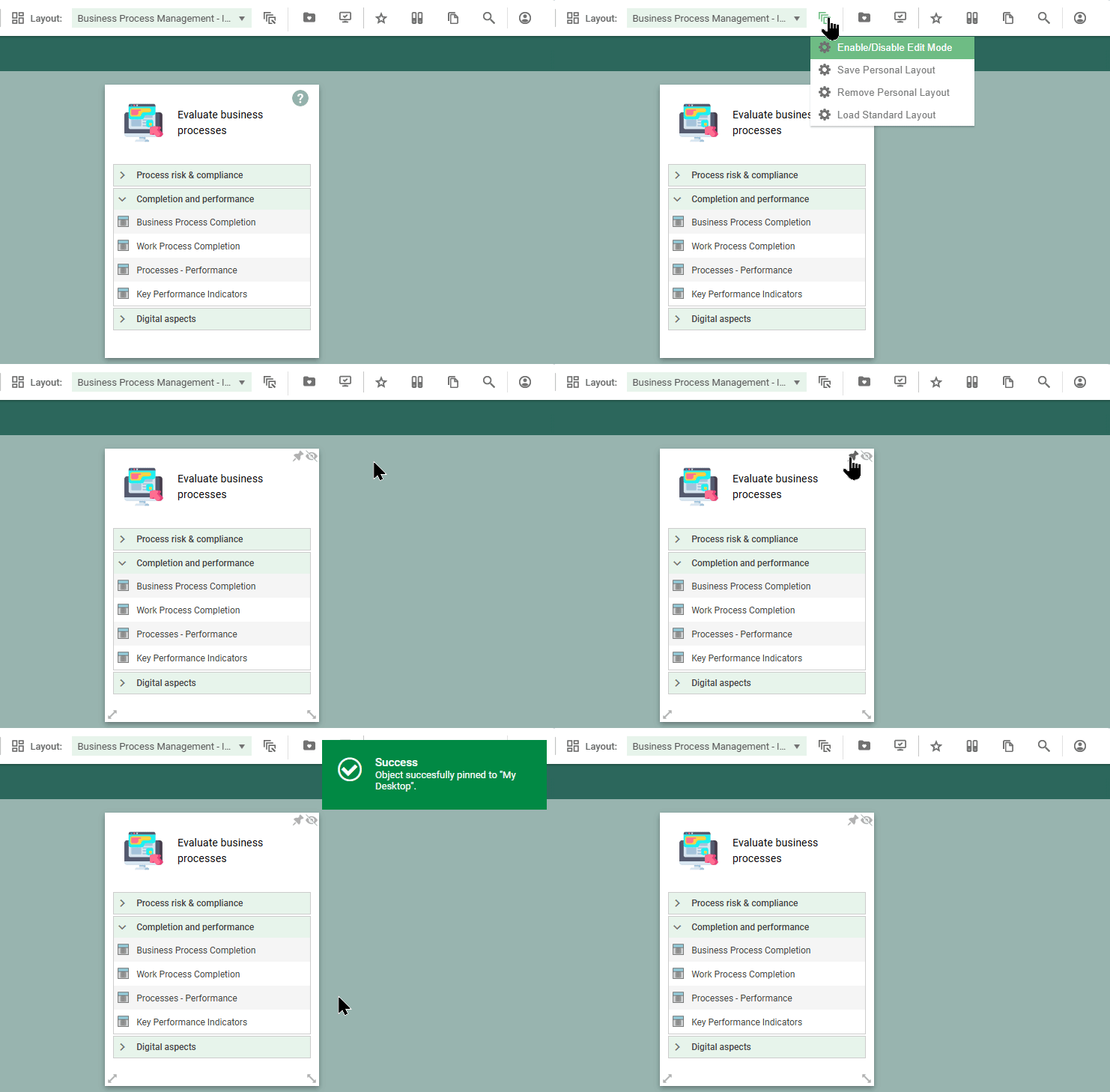
A user can pin any diagram or content from other desktops to the personal desktop, hence creating a personal desktop with the relevant content from the repository.

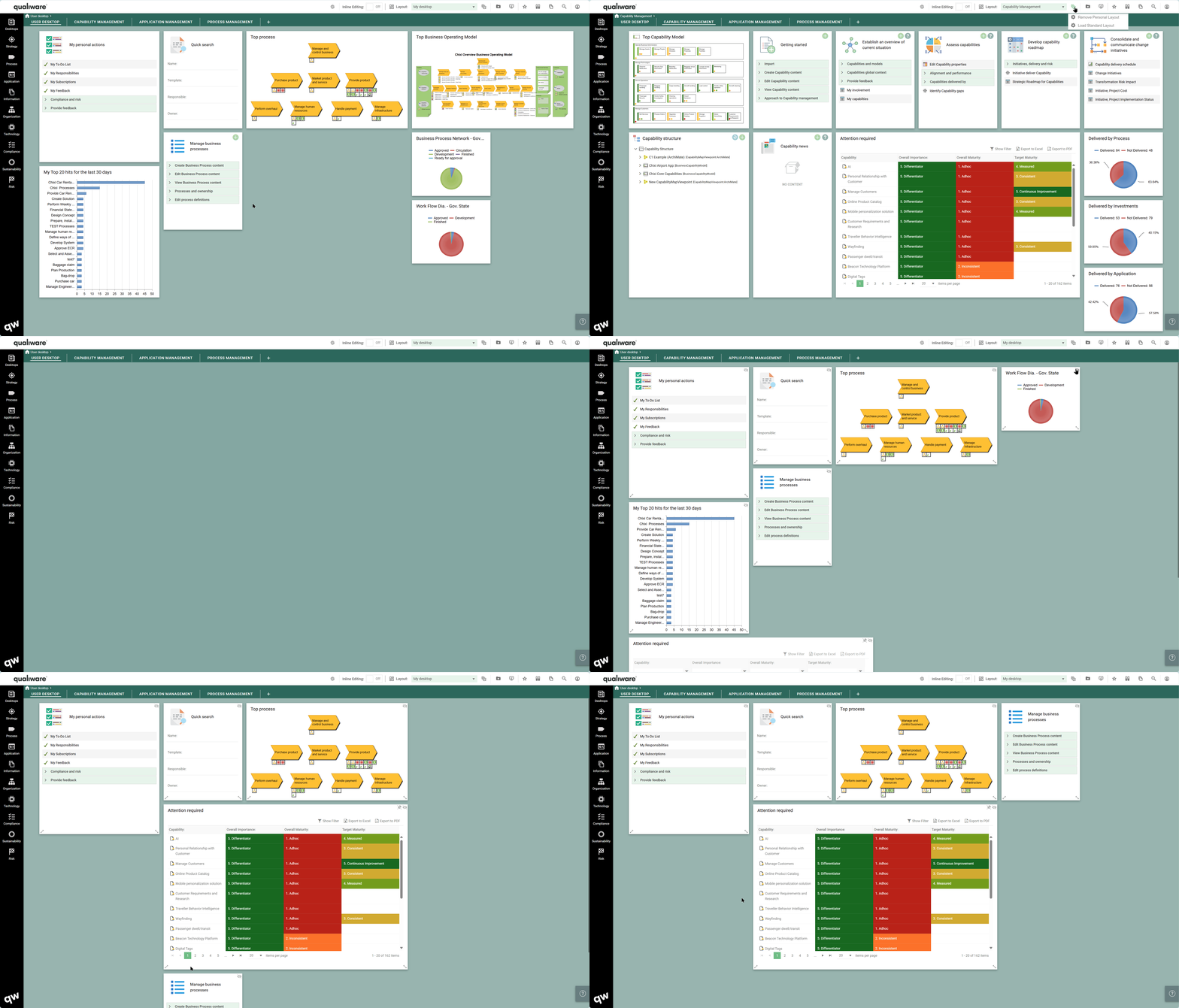
As with any other desktop, all tiles can be hidden, re-sized and re-organized by drag and drop.

A user can save/remove the “Personal layout”, and at any time the standard layout can be reloaded.

Once a “Personal layout” is created it will be shown as default for the Desktop, and the user can “Load Standard Layout” if needed.

You can see more about personalizing desktops here.

New desktops for CSRD, DORA, NIS2, Document Management, Capability Management, Business Transformation and more

As part of the new purpose driven Desktops 10.10 brings customized Desktops for a comprehensive set of pre-configured focus areas.

Each new desktop is purpose-built to support specific tasks—whether it’s capability, application, or process management, or documenting compliance with ISO standards or regulations such as CSRD, NIS2, DORA, and GDPR.

The tool contains a comprehensive set of standard desktops, each focusing on an architectural aspect, architectural framework or one or more areas within governance, risk or compliance.

  • Business Aspects:
    • Desktops focusing on the full journey within an architectural or business domain, e.g. capability, application, process or manufacturing
  • Architectural Frameworks:
    • Desktops focusing on an Architectural Framework, and how it is applied and used within the organization
  • Enterprise Design
    • A set of Desktops tailored to the EDGY Framework and its different facets
  • Governance, Risk and Compliance
    • Comprehensive risk and compliance Desktops as well as a set of Desktops each dedicated to a specific regulation (CSRD, DORA, NIS2)

Explore the list of standard desktops here.

NAF support, UAF support, Improvements to ArchiMate XML interface

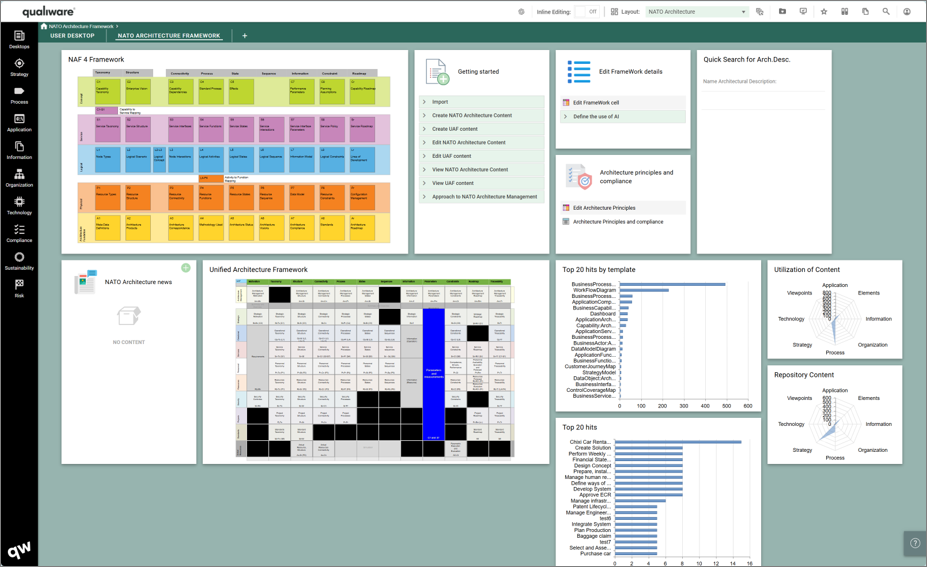
In version 10.10 QualiWare now supports both NATO Architecture Framework (NAF) and Unified Architecture Framework (UAF).

There is a new dedicated desktop supporting the two framework, see more about the desktop here.

Configurable structure of relevant subset of repository explorer

Ensure that the users get quickly access to the most relevant part of your repository.

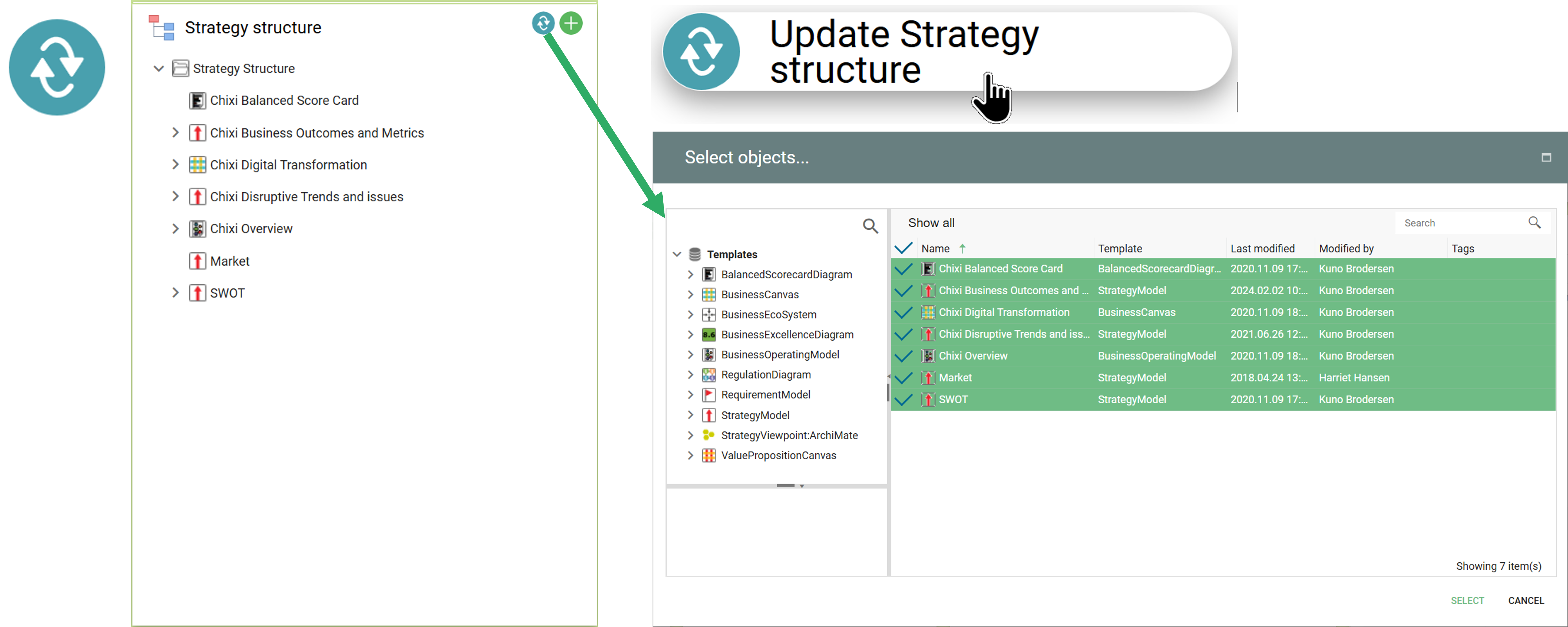
The new Desktops include new tiles that contain a Hierarchy / Structure view where it is possible to collect most relevant diagrams and content related to the Desktop.

The hierarchy view is browsable, the user can unfold the hierarchy to explore the structure and navigate directly to a specific diagram.

This feature has been part of QualiWare for some time, and is known from the Diagram-Dashboards for e.g. Processes and Applications (see more here).

What is new, however, is that you easily can add/modify the models that should be part of the structure view. The structure updates automatically, and hierarchy are updated as part of the governance flow when new diagrams are added via the “breakdown to” or “visualized by” relations.

Through these tiles the user can get a relevant subset of the repository explorer showing the diagram types related to the specific use case and Desktop.

These are fully configurable – Diagrams can be removed or added as needed.

Pin to My Desktop

It is possible to pick and choose relevant parts from the different desktops and “pin” them to your user specific desktop, which will work as your default desktop.

In addition to pinning tiles from the different desktop it is also possible to “Pin” specific diagrams, using the icon in the toolbar.

The “Pin to My Desktop” button is available in the toolbar, in the dashboard view for a diagram.

Once the content is pinned to your desktop, you can personalize your desktop by rearranging, re-sizing and hiding tiles.

Smart Importer for importing .csv-files

Introducing QualiWares Smart Importer

  • Enrich your repository fast: With the Smart Importer you can enrich your repository fast by importing external data from CVS-files
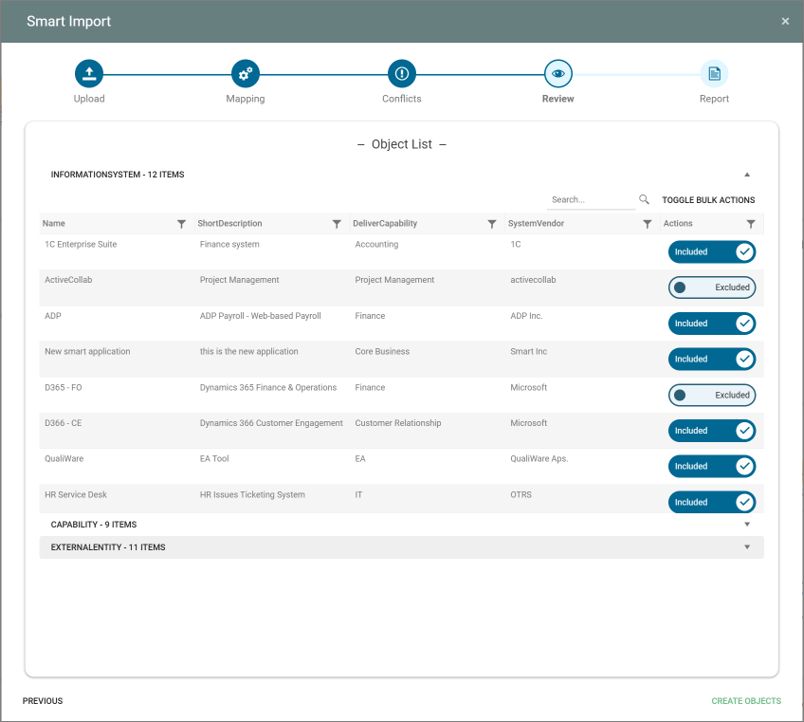
  • Intelligent Mapping the relevant properties in the Metamodel: The Smart Importer uses AI to help users with mapping external data, e.g., in a CSV file to the appropriate metamodel and relevant properties
  • Guides you through the steps: Guides you through the steps from resolving conflicts to existing data, and/or select with properties and elements should be created/updated.

The new Smart Importer will guide you through each step—from selecting the file, mapping the data to be imported, to handling conflicts and choosing which objects and data to include or exclude. You can also decide whether new objects should be created and/or existing ones updated.

Read more about the Smart Importer here

Survey

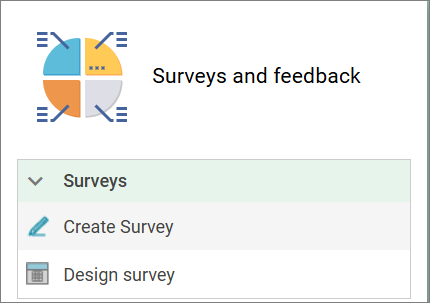
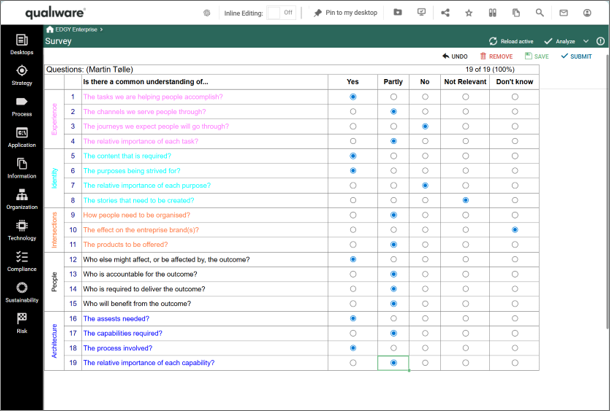
It is now possible to create simple surveys in QualiWare and send them to your repository users to collect data.

This could be a predefined EDGY EnterpriseScan or another type of questionnaire.

Read more about the new survey feature here.

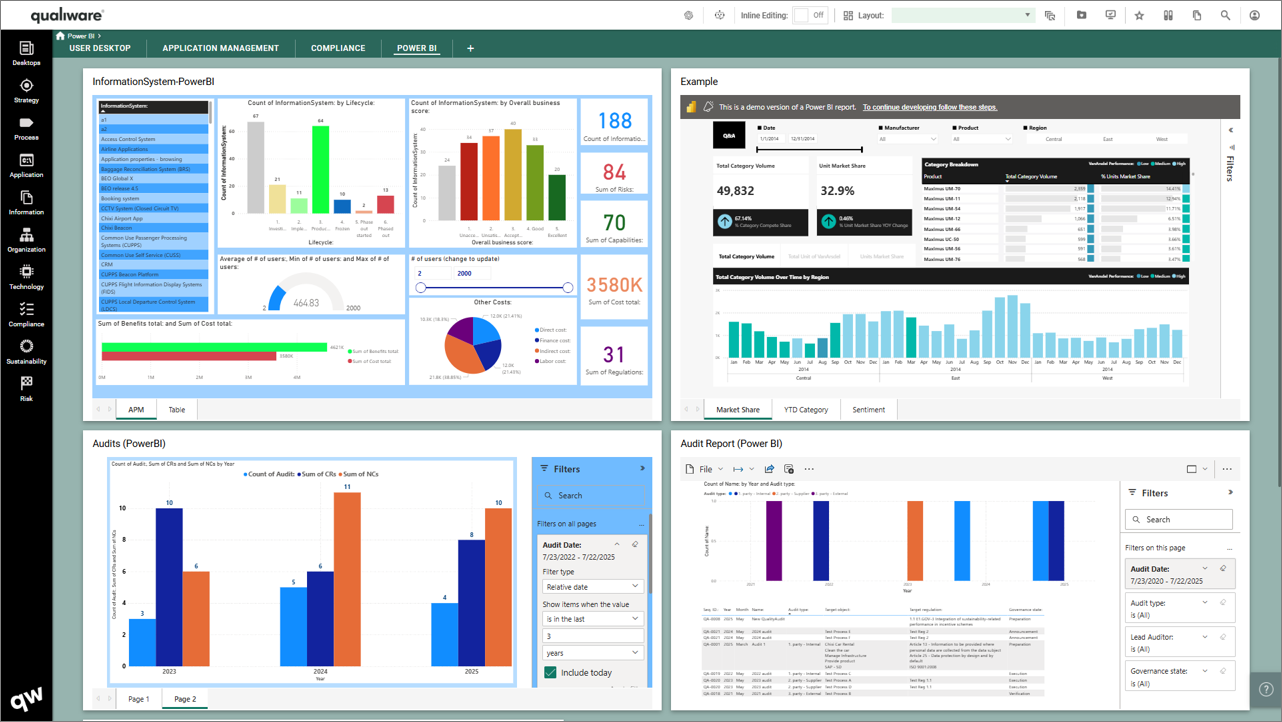
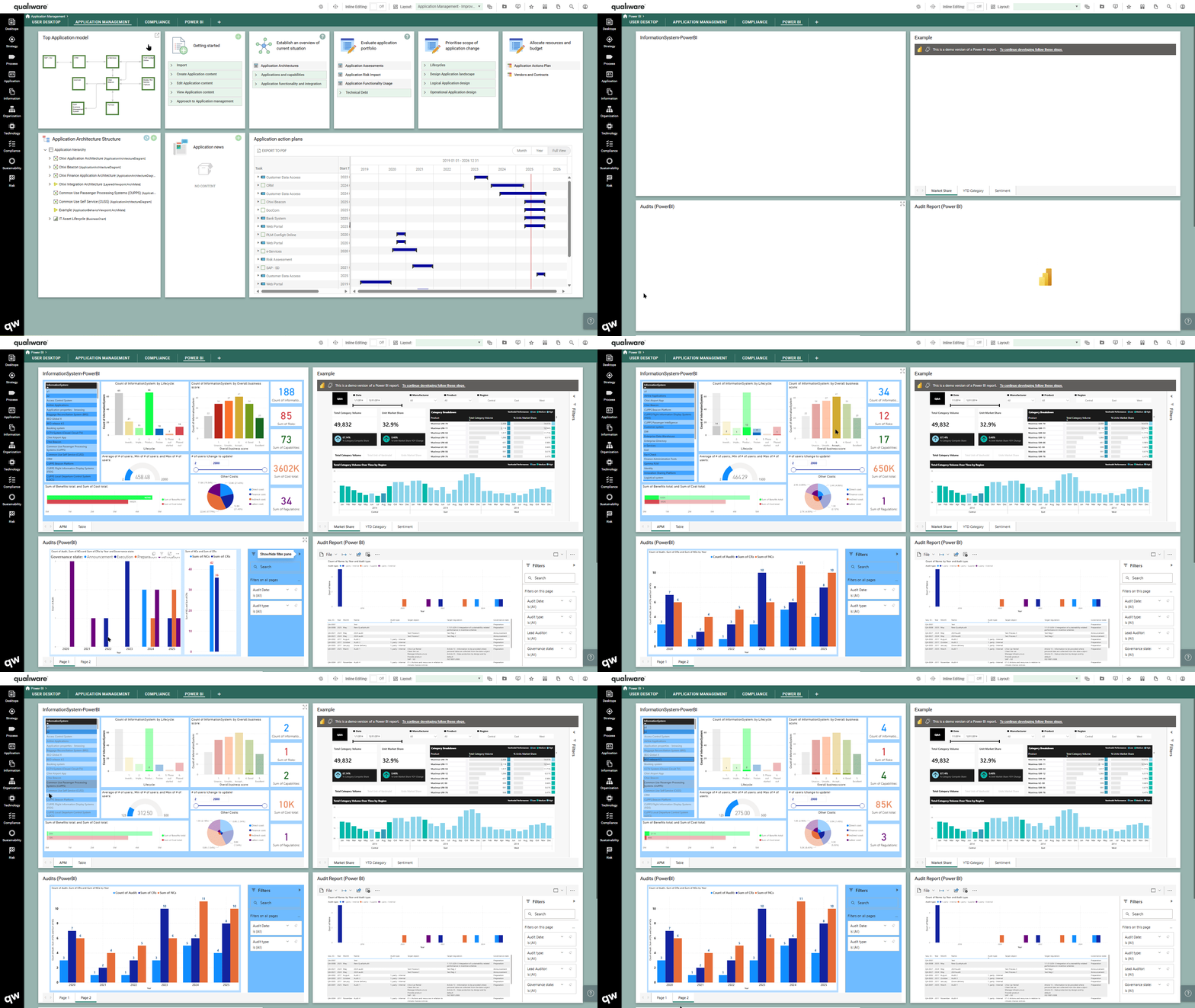
Support for Power BI

It is now possible to embed your Power BI reports to a desktop/dashboard tile and thereby include it in the collaboration platform.

Read more about using Power BI in QualiWare here.

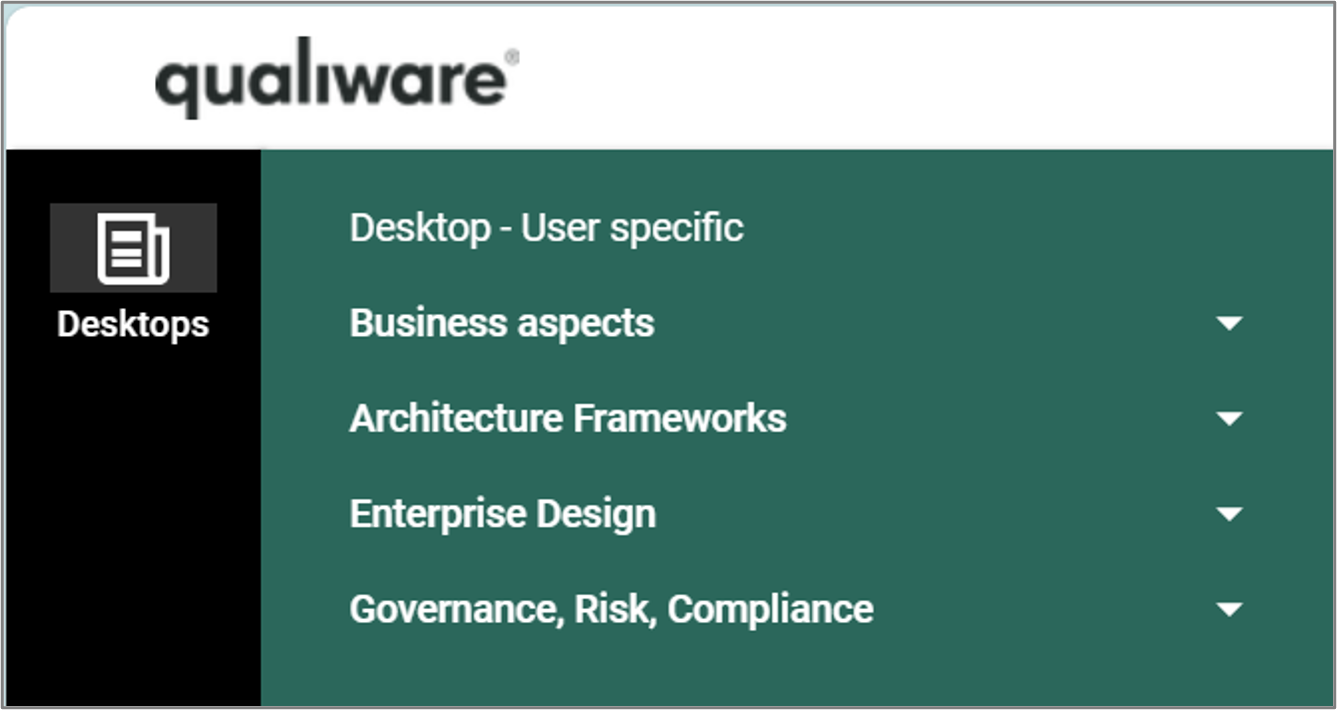
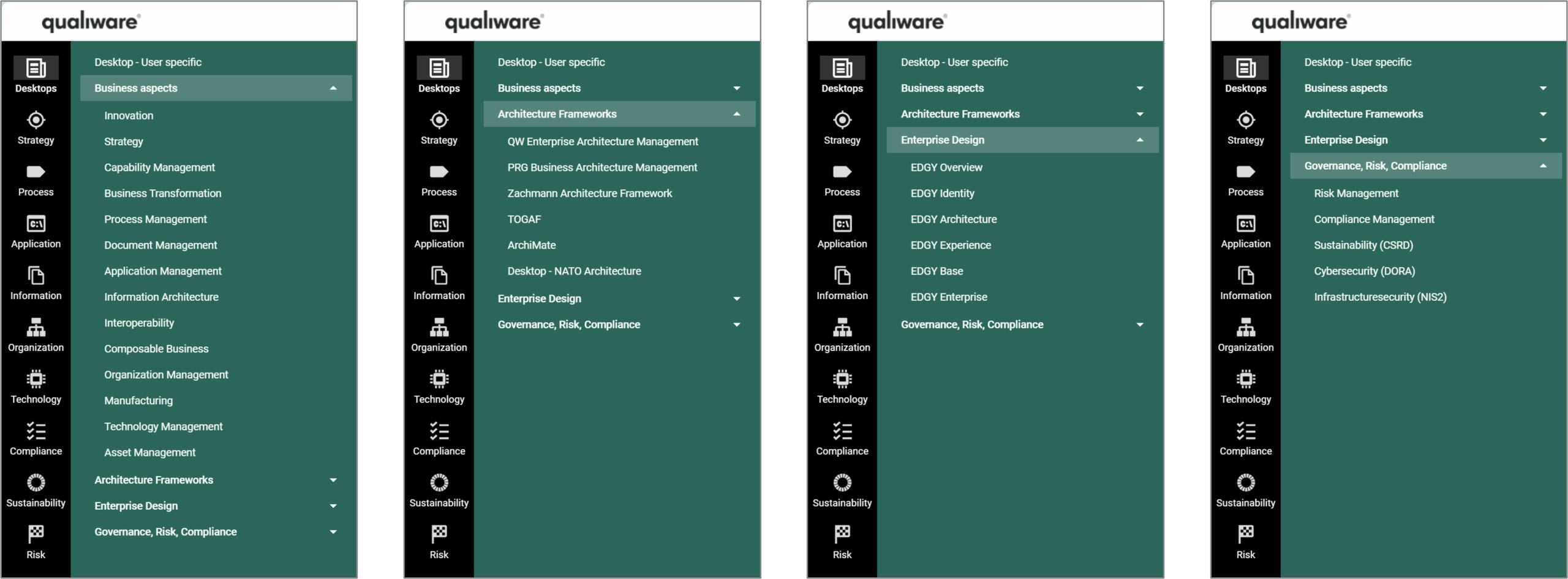
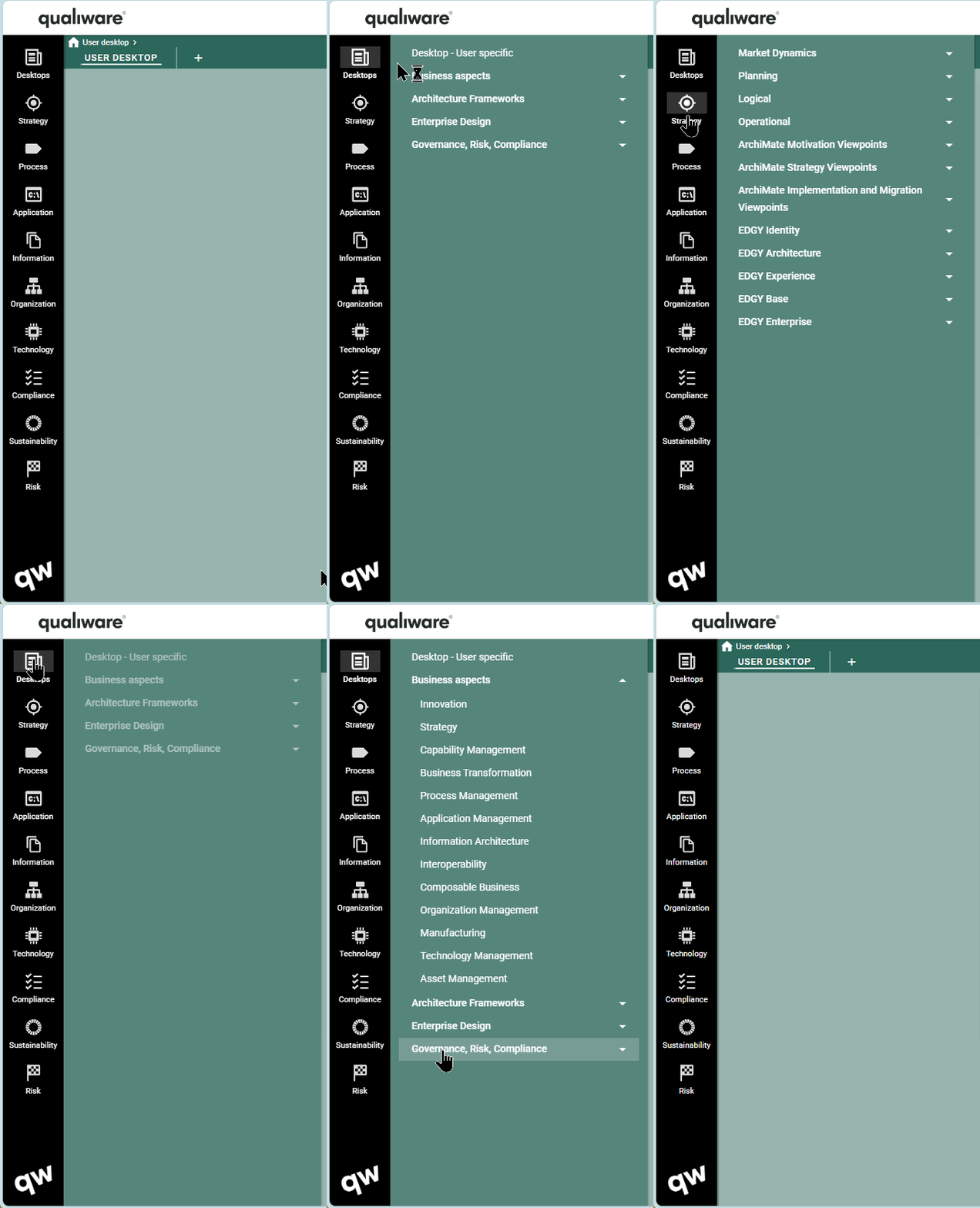
New menu UI

Version 10.10 introduces a new UI to the MegaMenu.

Icons and menu text at the first menu level have been updated and reorganized to minimize the amount of space it occupies on the screen.

As the user navigates through the menu to level two and three the menu changes into a dropdown menu.

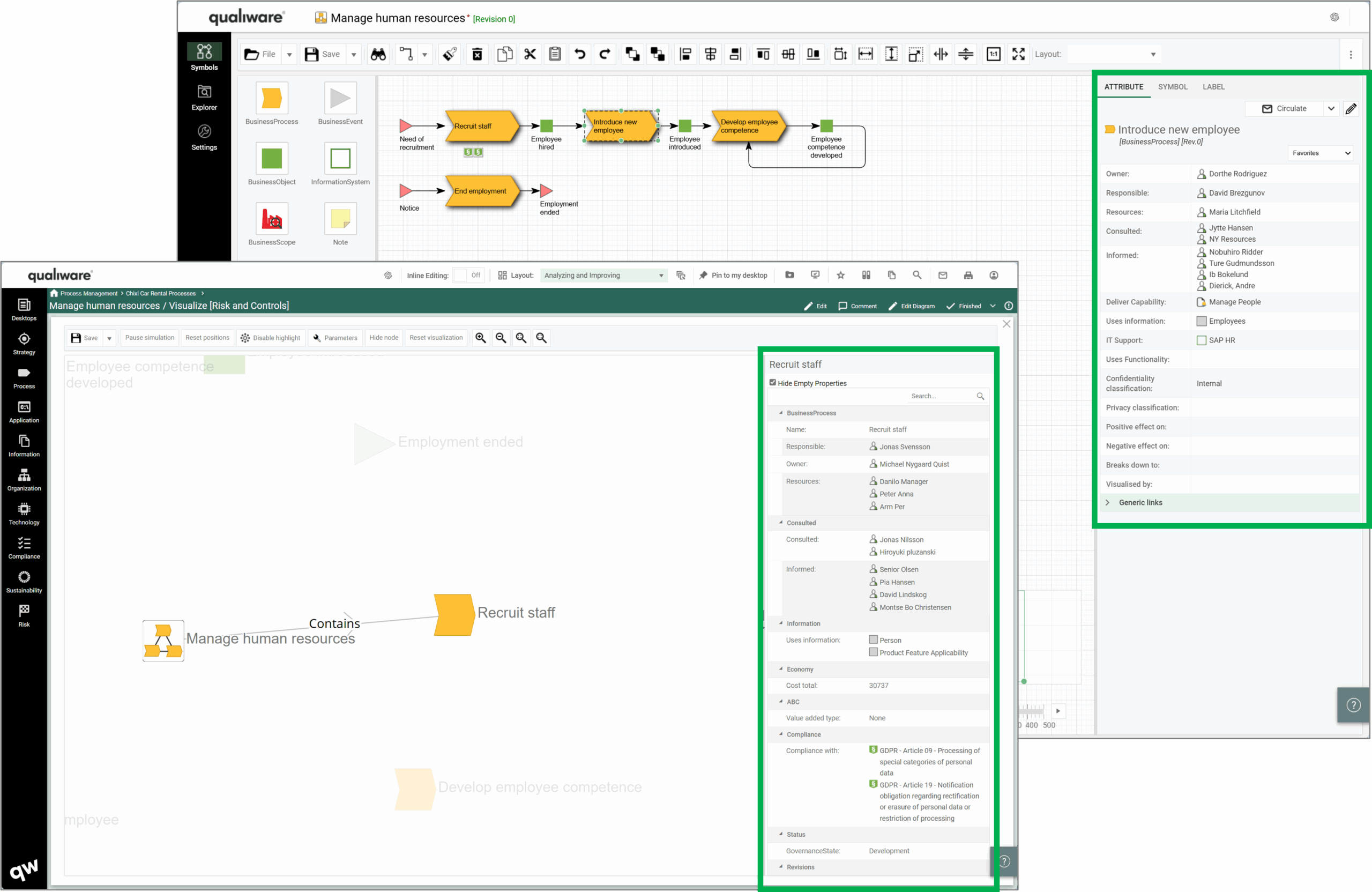
Attribute preview in Visualizer, Repository Explorer and in the Webmodeler

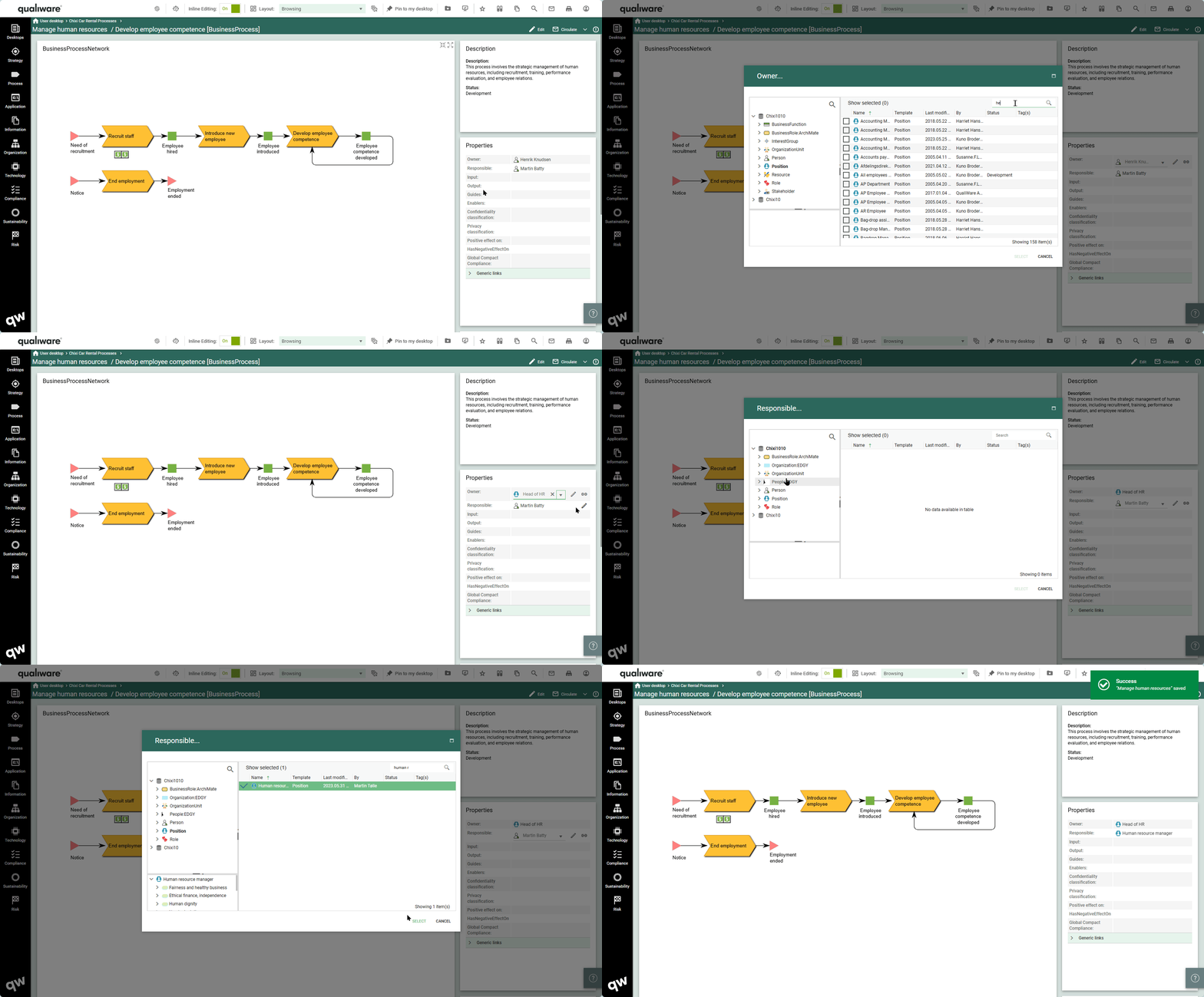
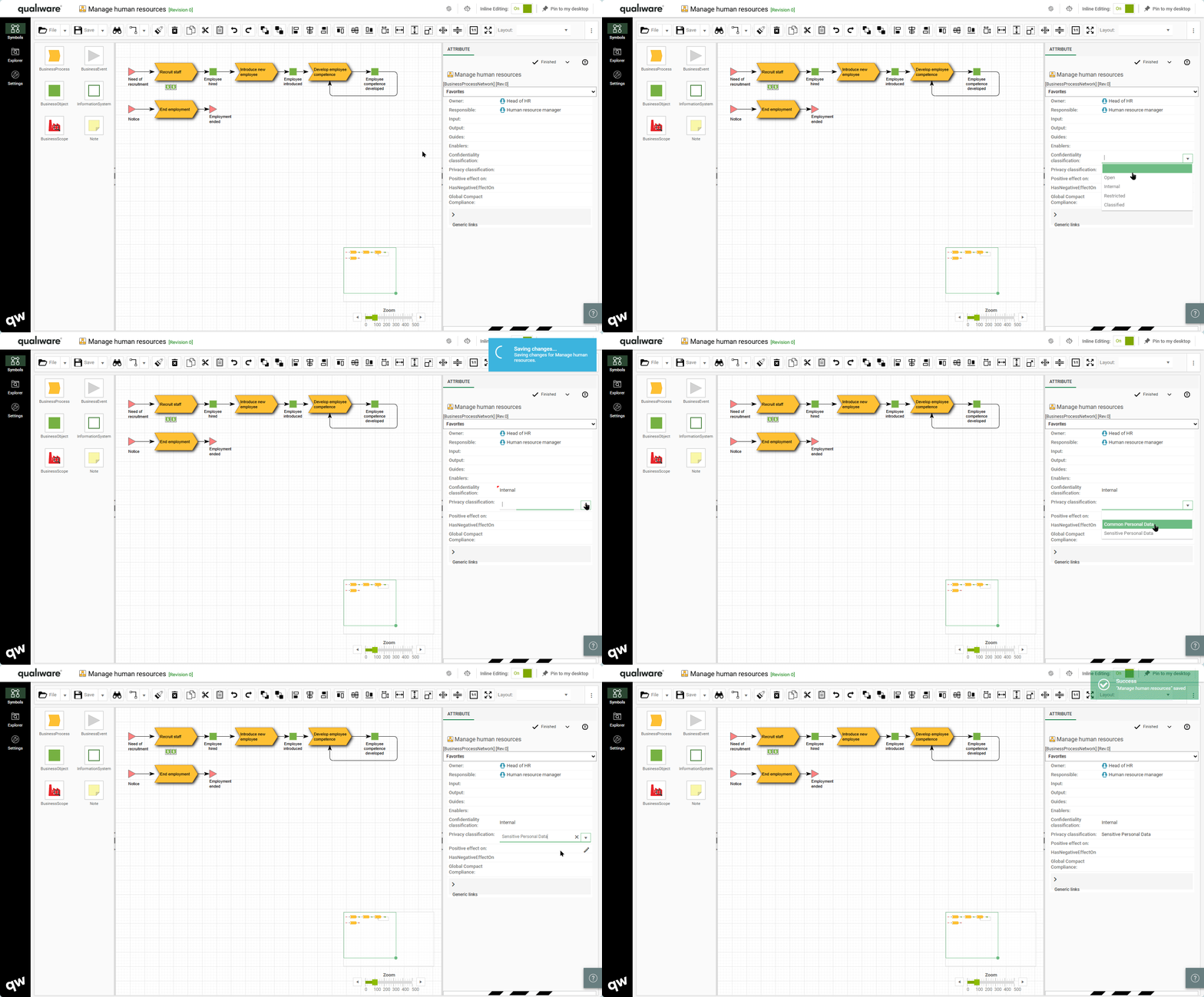
To improve the efficiency of QualiWare and improve the user experience it is now possible to preview and edit attributes directly in the property window when using the web-modeler or in a visualization.

Inline editing of object properties e.g. directly from preview

In 10.10 it is no longer necessarily to open an object to edit its properties.

You can toggle on the “Inline Editing” and then double-click on the specific property in the property tile to directly edit it.

It is possible to inline editing in all attributes preview lists, both in the web frontend, visualizer, repository explorer and in the web-modeler.

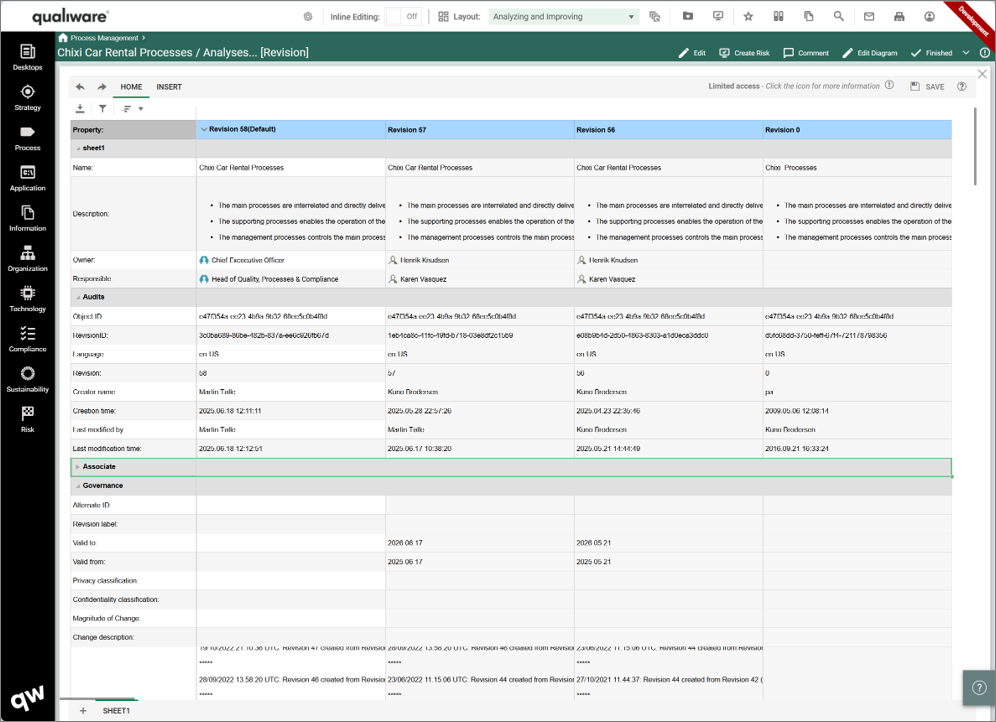
Spreadsheet support for propertysheets, translation, revisions and XYZ-link matrices

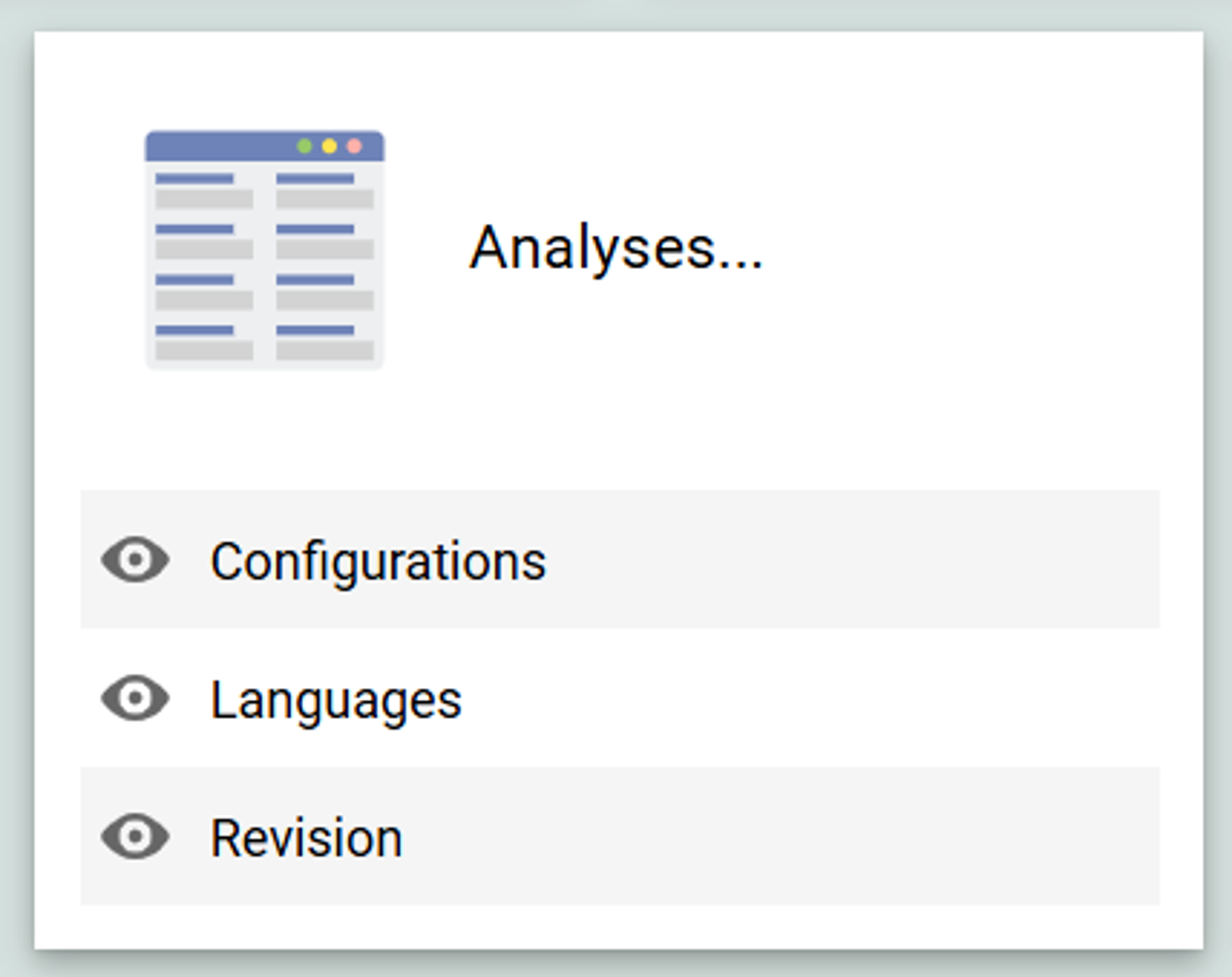
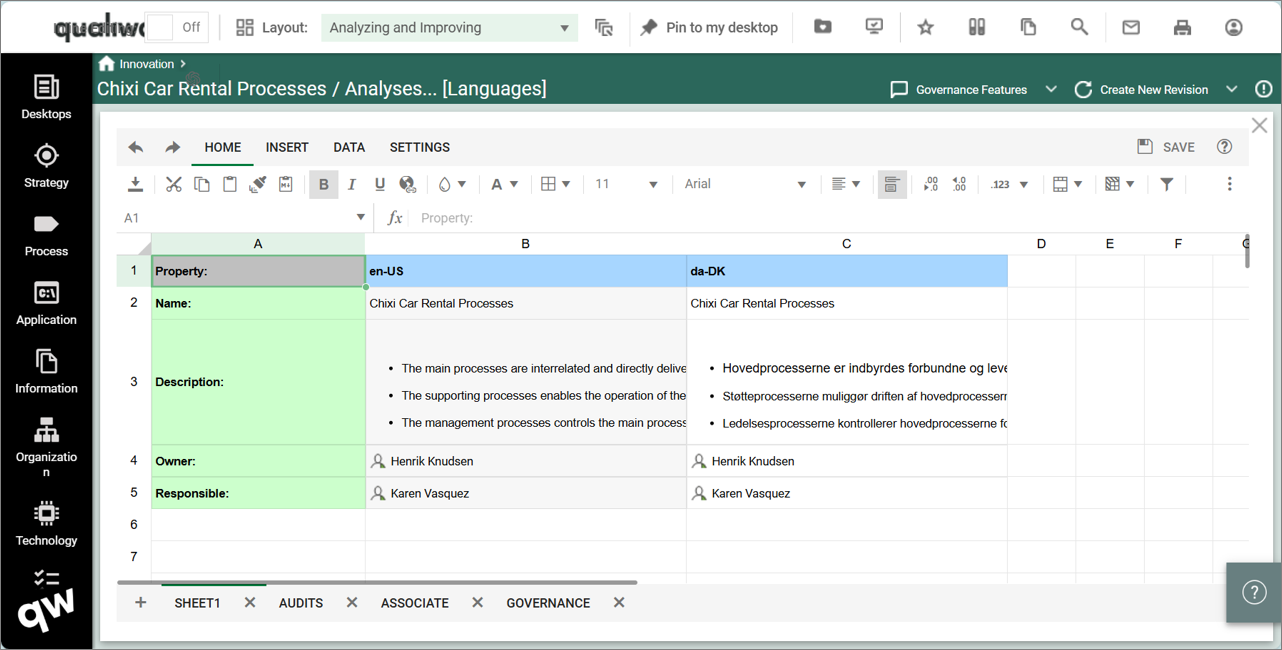
QualiWare 10.10 introduces a new properysheet template, that enables to get a spreadsheet view of:

  • default properties for an object
  • a set of properties for an object for multiple:
    • Configurations
    • Languages
    • Revisions

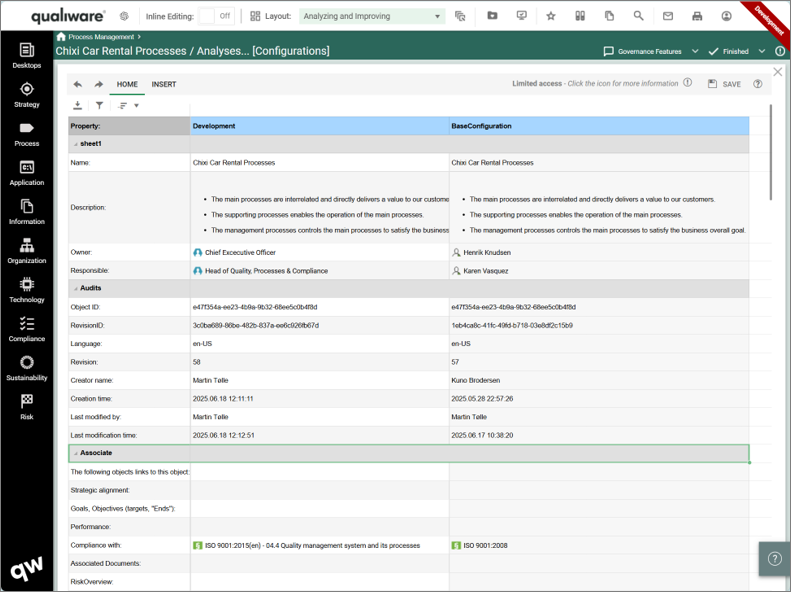
This enables the user to easily explore and modify properties of different variants of the same objects.

Configurations

The configurations show the properties of the object in the available configurations, e.g. Base and Development

Languages

The configurations show the properties of the object in the available language variants.

Revisions

The configurations show the properties of the object in the available revisions.

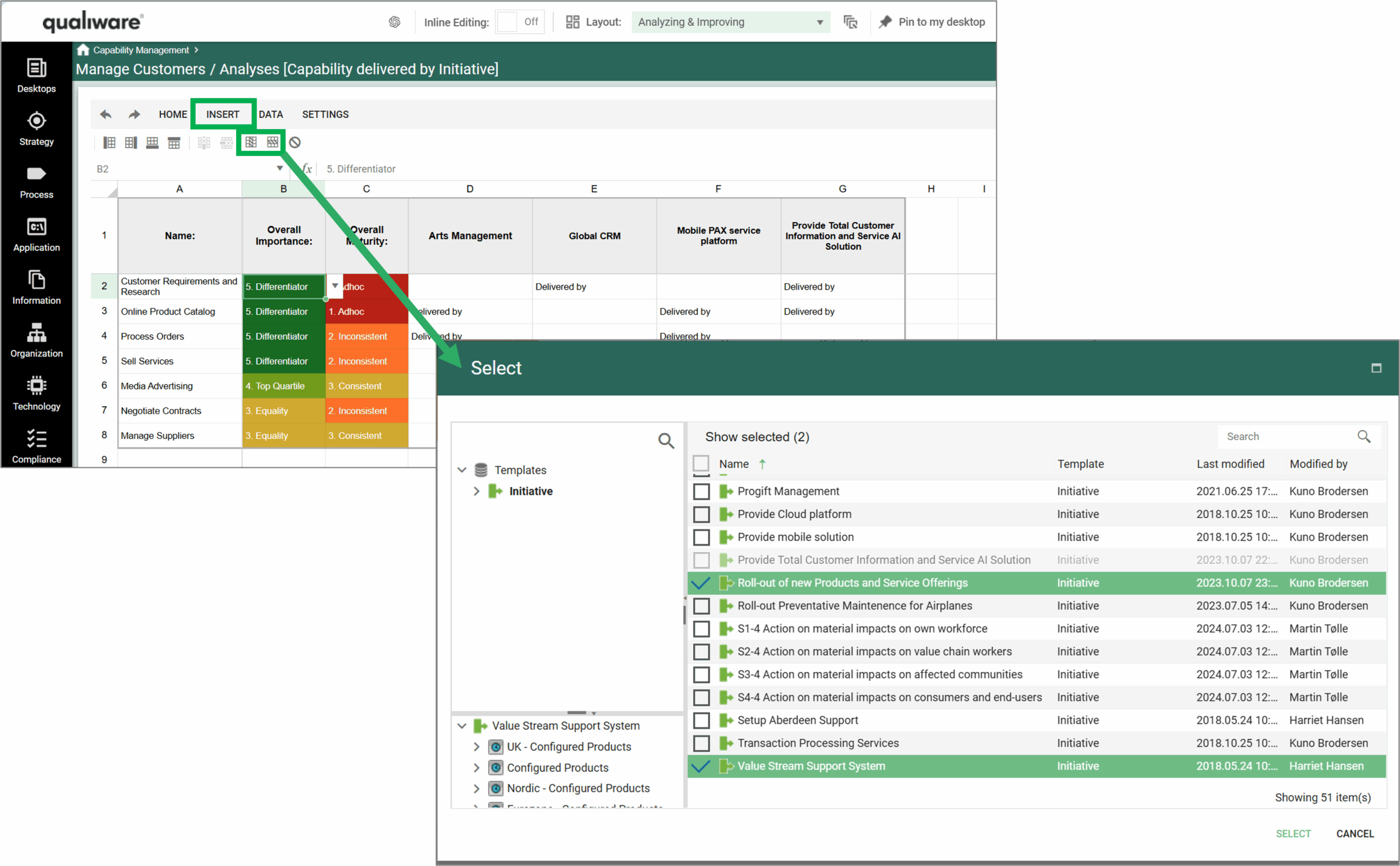
Smart “Add row” and “Add Column” in spreadsheet

Spreadsheets now have the functionality to add new rows and columns directly in the spreadsheets.

The functionality is very useful in the link Matrix spreadsheets (so-called XY-spreadsheets).

In these spreadsheets you have a list of e.g. capabilities in the first column, and the on the other “axis” you can have a list of related initiatives, processes, information or applications.

As default the link matrixes only show already related objects.

The new feature makes it easy to add new/existing objects to the spreadsheet to facilitate fast bulk editing of relationships.

New visualizations

Gain a deeper understanding of your organization through the new visualizations introduced in 10.10.

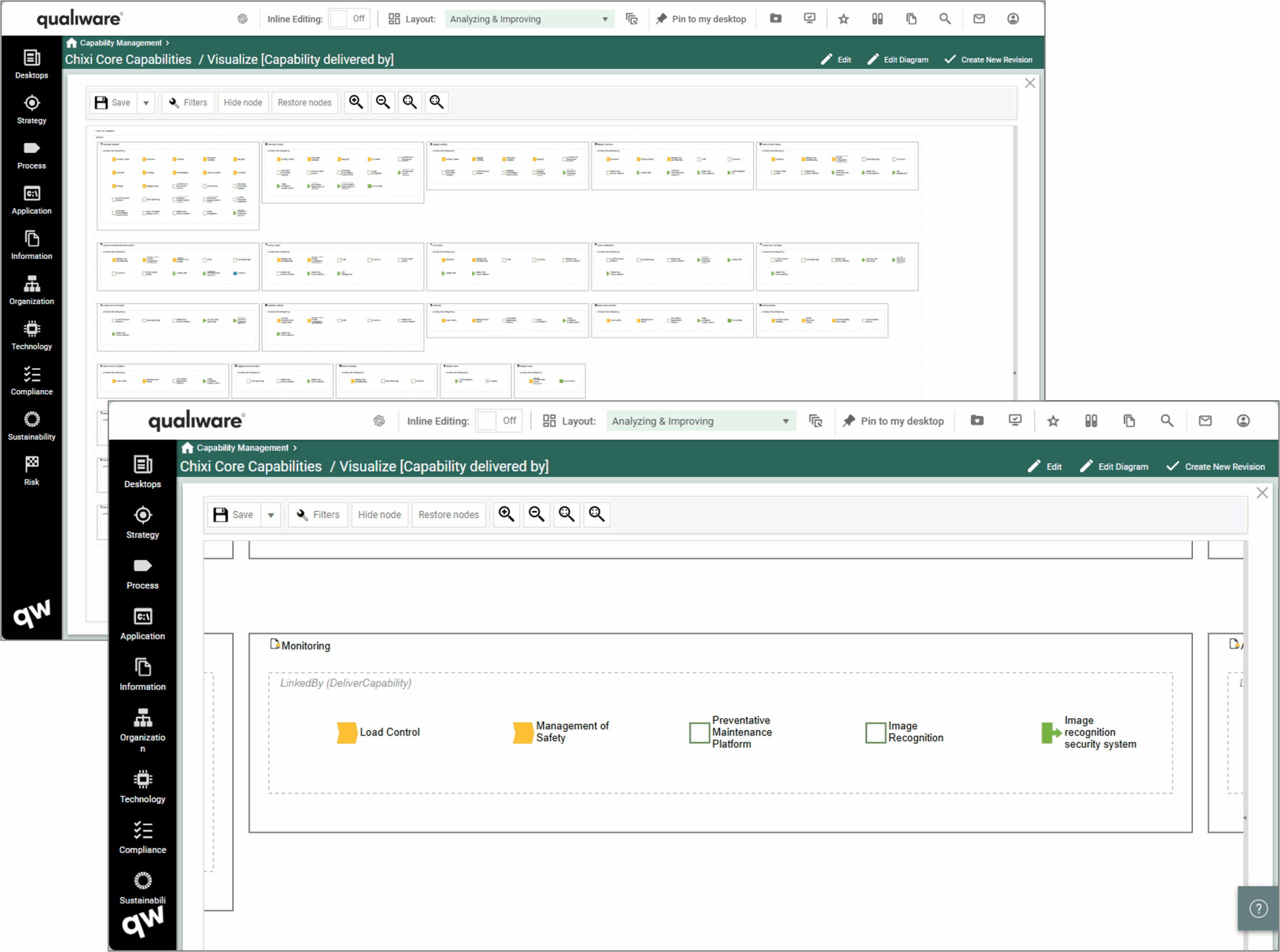
Framed

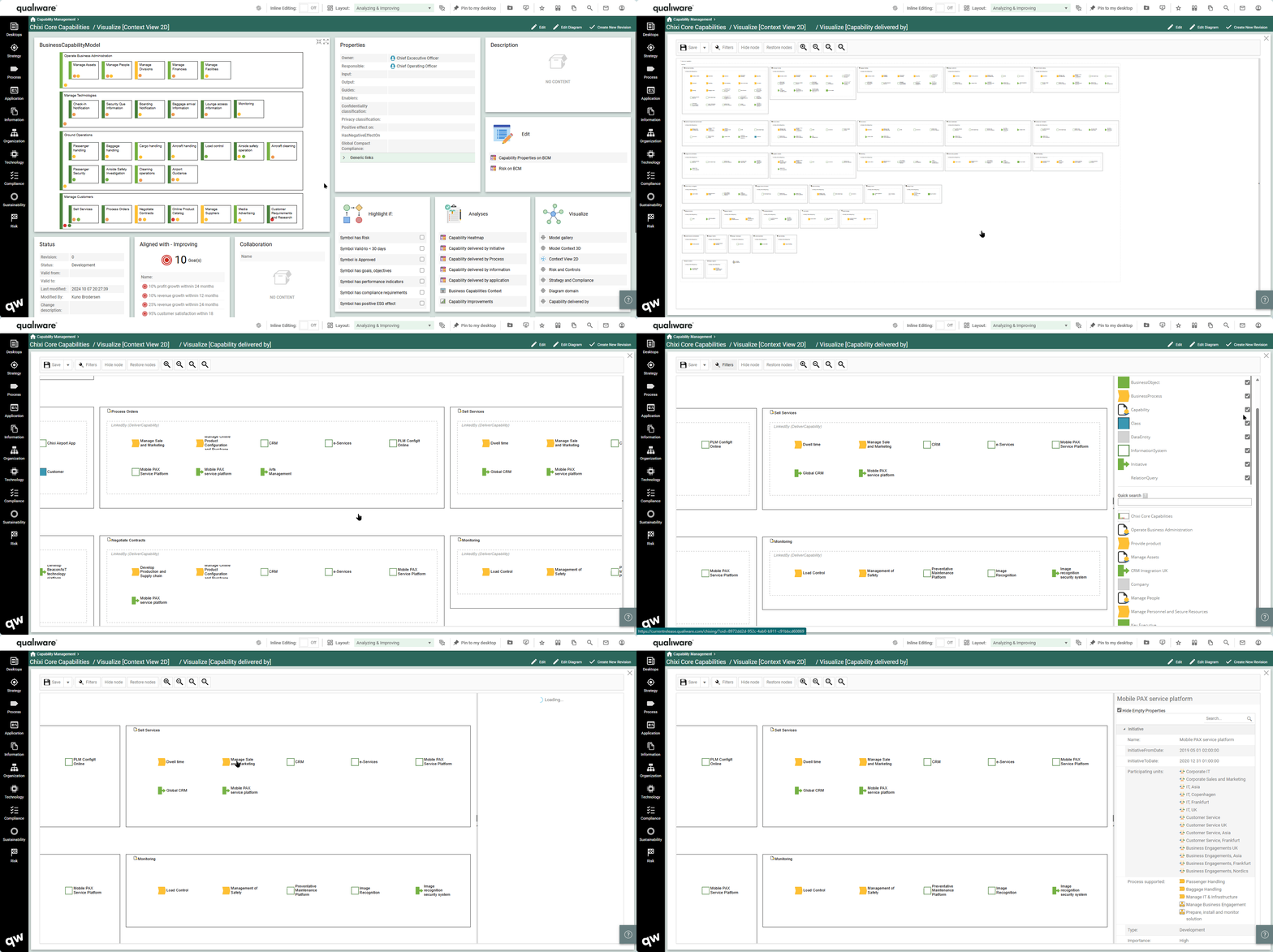
This visualization shows how different objects are related by framing them through their relation, e.g. “DeliverCapability” showing the different elements (process, application, project, etc.) that delivers the capability.

Hierarchy

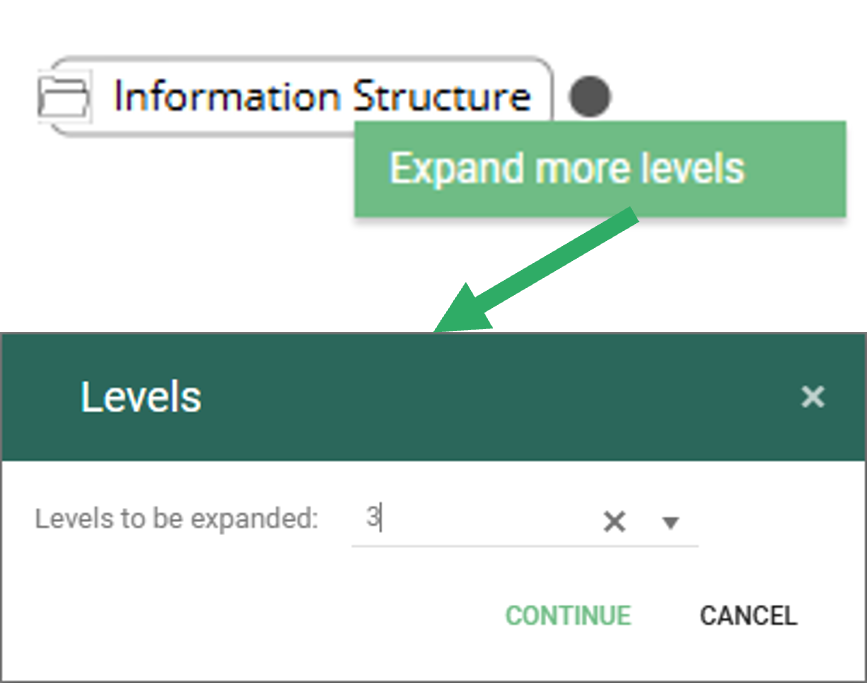
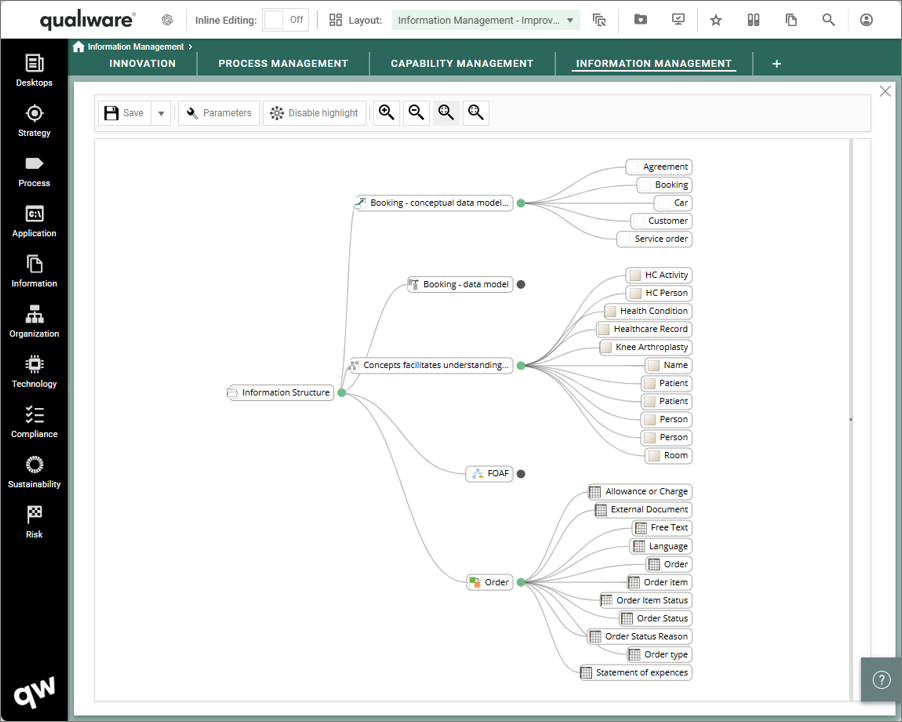
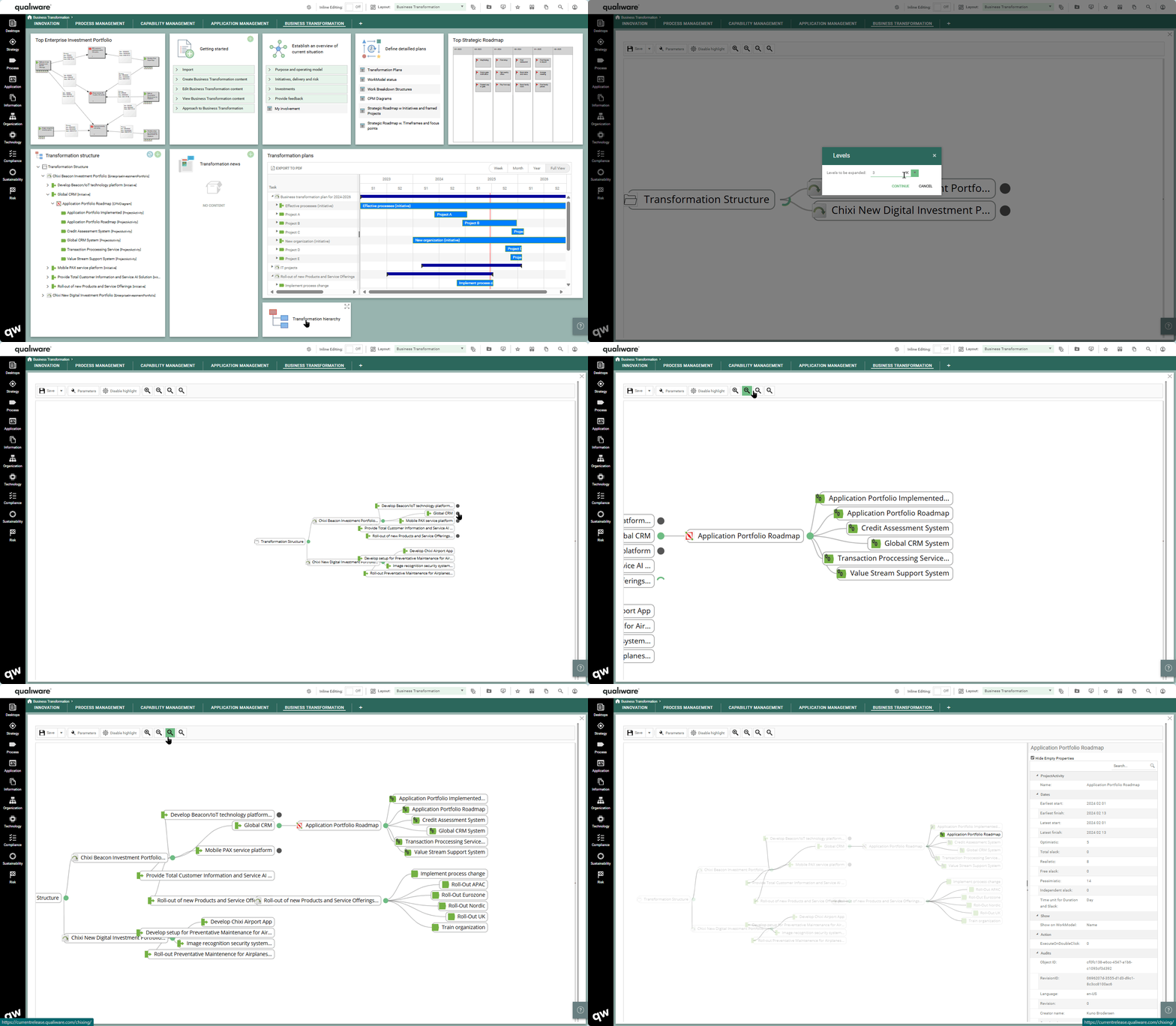
The hierarchy visualization allows the user to navigate through the hierarchy:

  • either by expanding multiple level at a time (by right clicking the object)
  • and/or by navigating through the hierarchy and clicking on the branches to expand/hide the next level

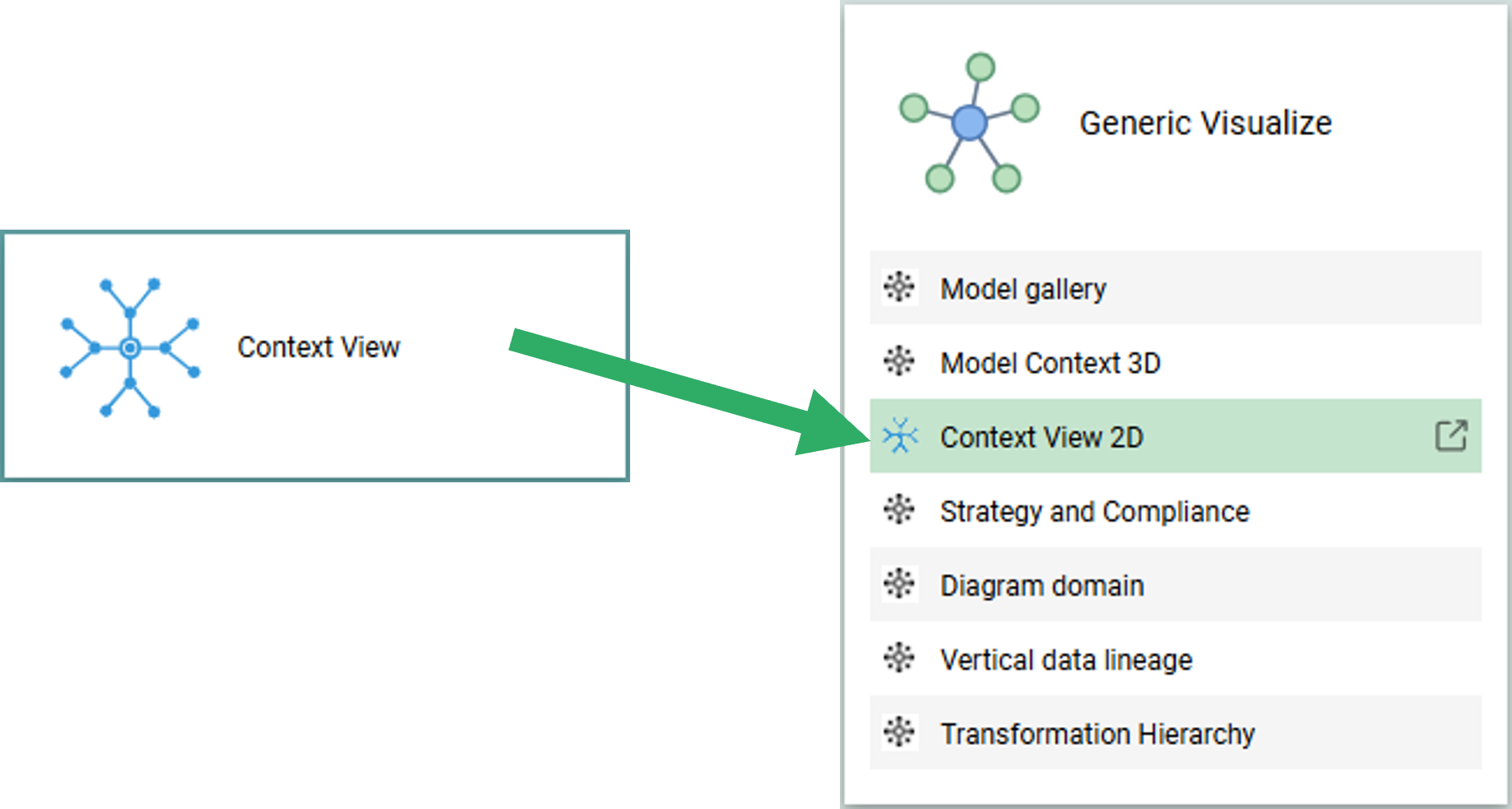
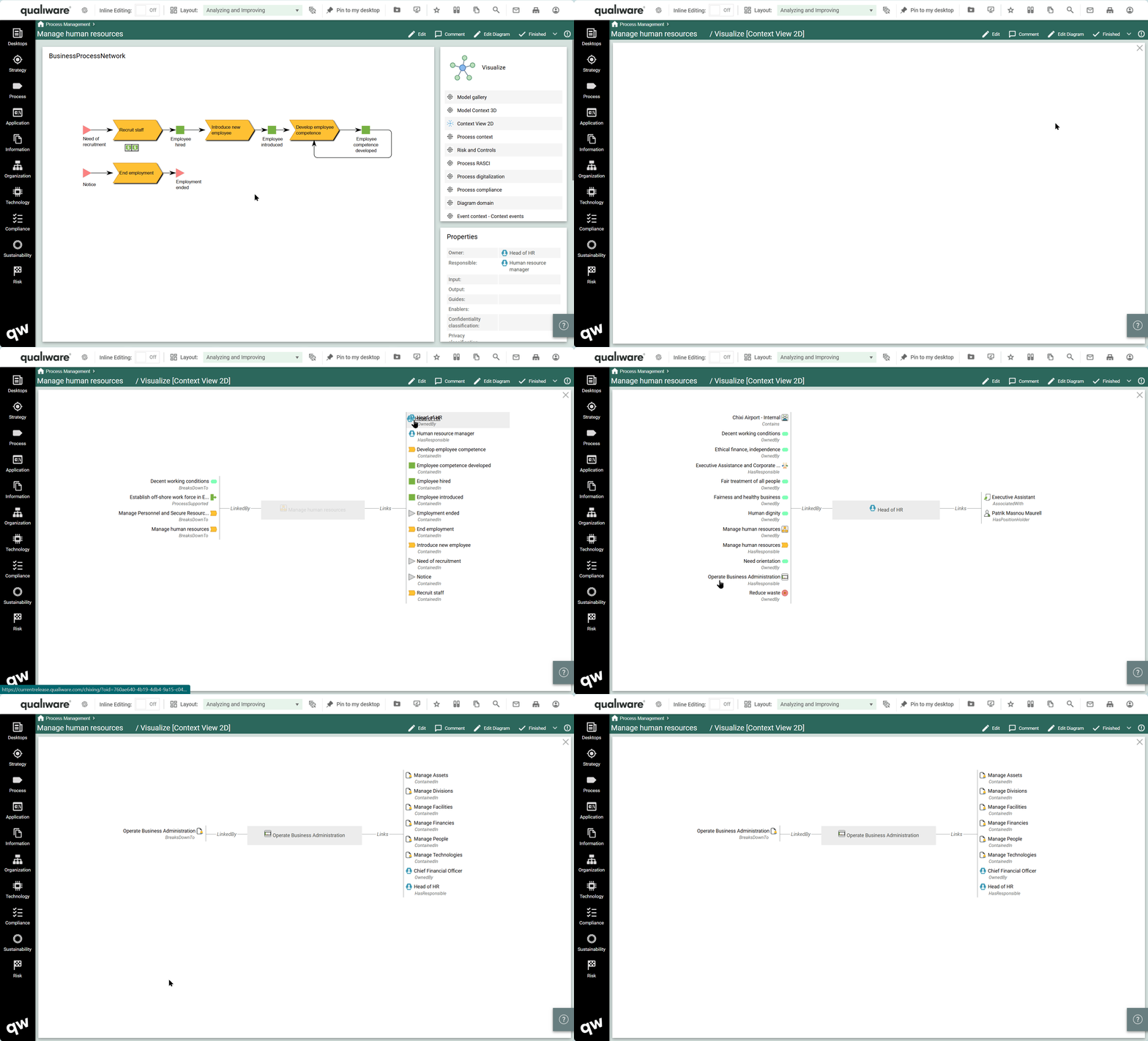
Context View 2D

The context view 2D visualization is not new, but now it has been added to the list of Visualization using a HTMLFeature, which enables it to be a part of the Table list in a HTMLDashboardItem.

It is still possible to have as a separate DashboardItem using the “ContextView” Method.

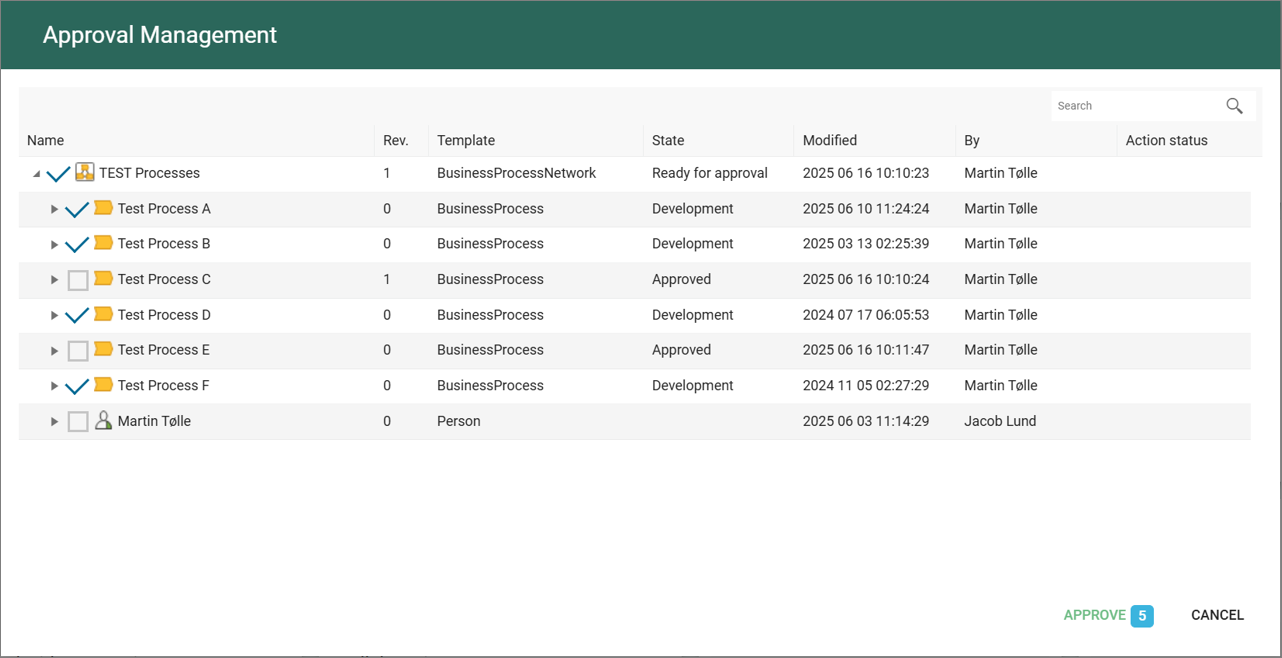
Tree-List support for standard GovernanceWorkflows e.g. Promote, Approve, Revision

Tree-List is now supported for standard GovernanceWorkflows.
This enables the user to select which objects should be included as part of the governance, when e.g. approving a Process Diagram, it is possible to select if any of the processes in the diagram should be approved as well (similarly when creating a new revision of the diagram).

The Tree-List can be configured to include/disable objects with specific properties.

Read more about the Governance Workflows here.

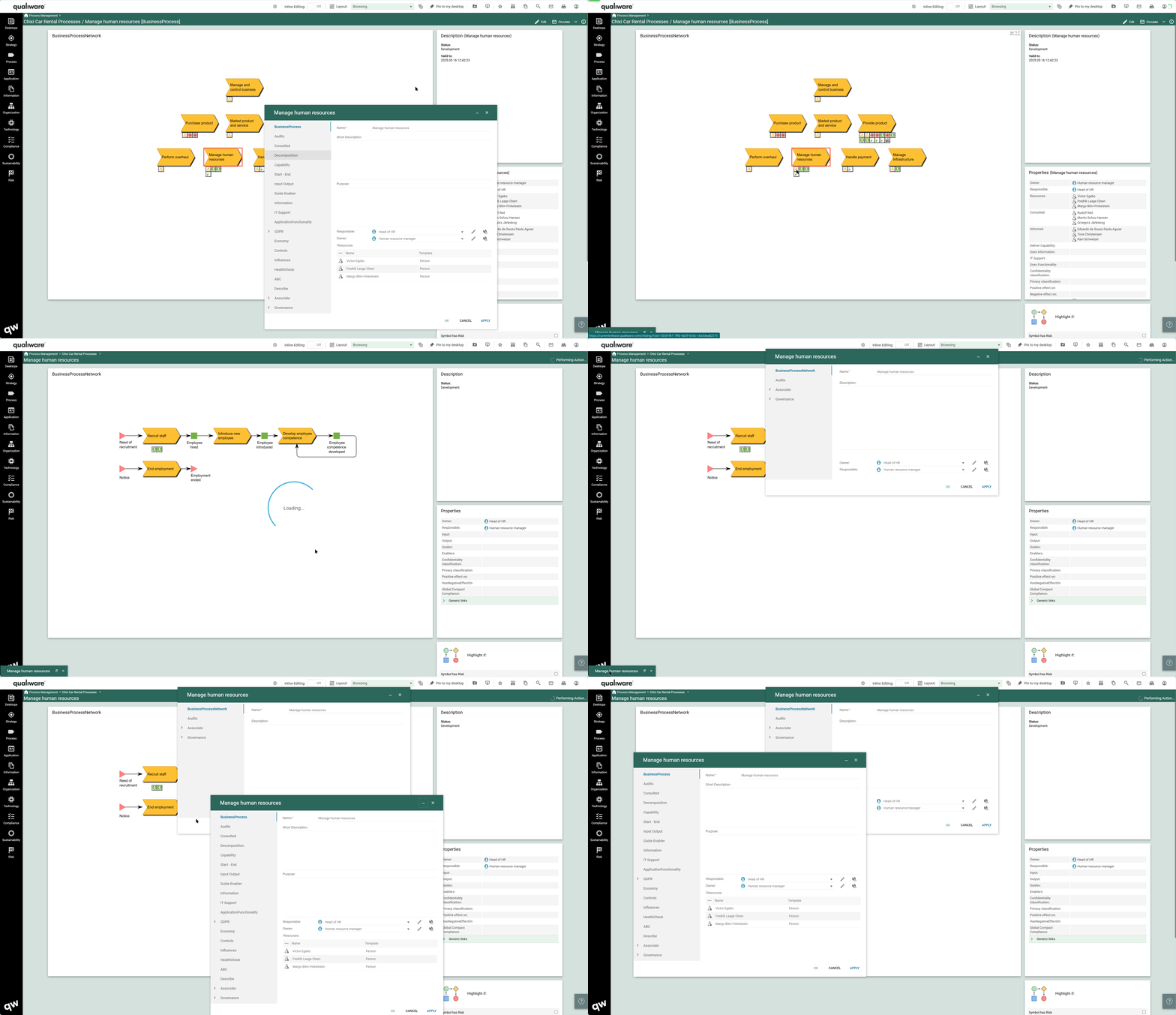
Web-dialogs become non-model, movable and minimizable. Multi object editing in web-dialogs

Work with several different web dialogs at the same time across the whole web-platform, both in the Web-modeler and on the web.

In version 10.10 it is possible to have several web-dialogs open at the same time. They are fully movable and can be minimized to help navigate while editing.

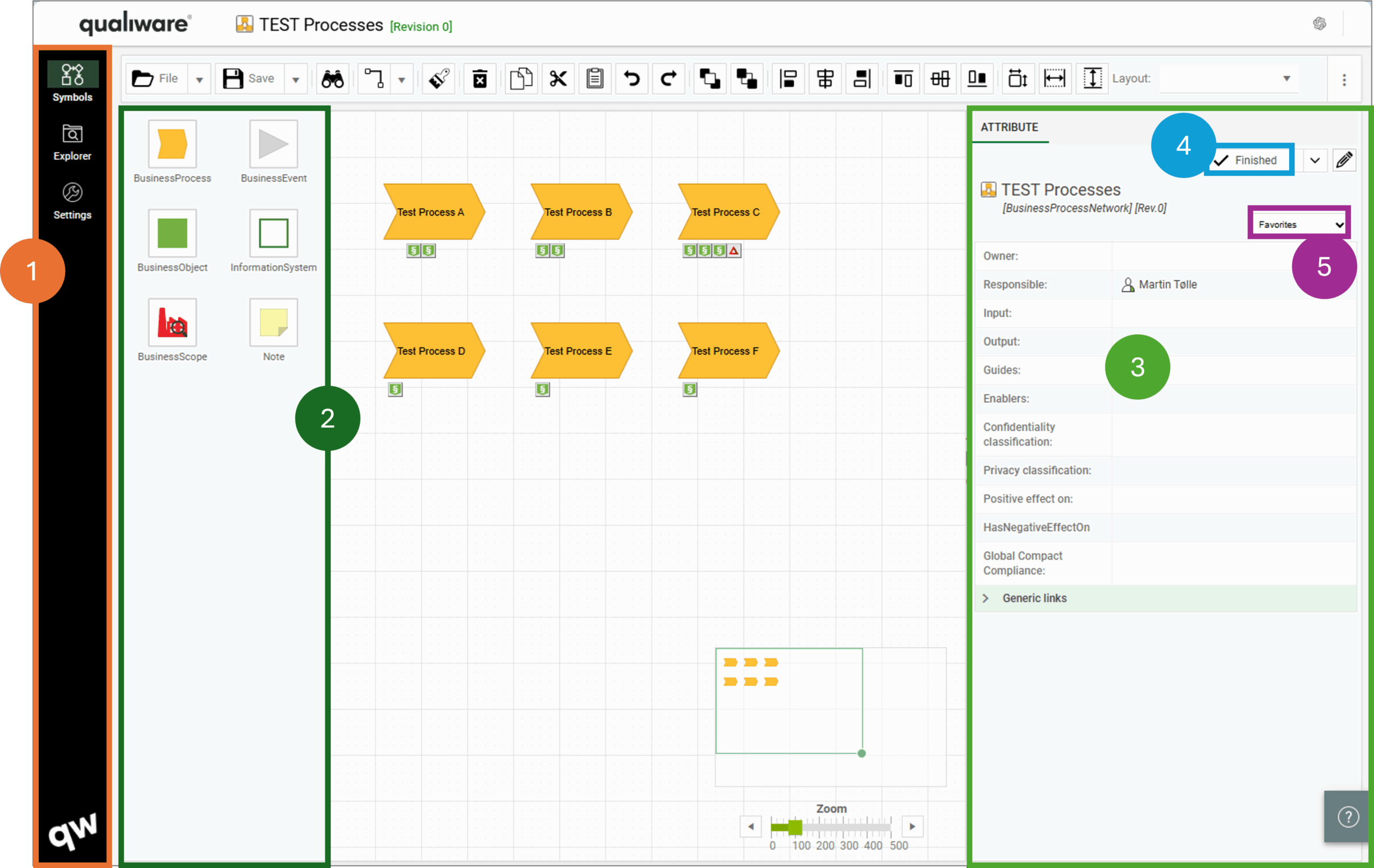
New UI in Web-modeler

In QualiWare 10.10 the User Interface has been updated in Web-Modeler, and additional features have been included.

  1. The left side menu has been updated
  2. The Symbol bar has been moved to the left side
  3. The property window has been expanded and it is now possible to do inline editing in the properties directly (see more here)
  4. Governance actions has been included in the web-modeler (see more here)
  5. It is possible to filter properties to see only favorite/value-only or all properties (see more here)

Read more about the Web-Modeler here.

QWM: New Diagram Types

In QualiWare 10.10 the following diagrams have been enabled for the web-modeler:

See the full list of Web-Modeler enabled diagrams here.

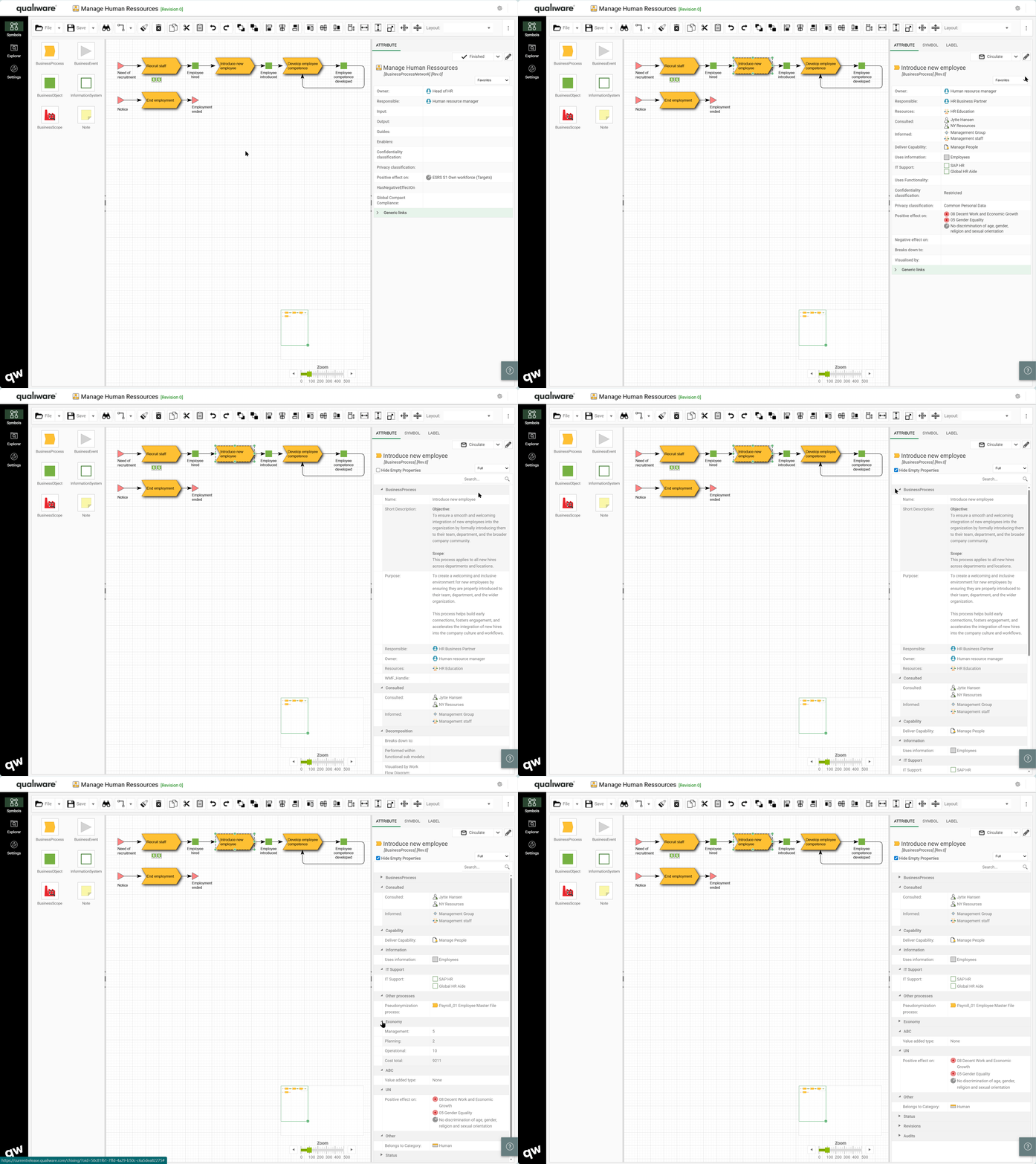
Favorite/full/Value-only support in properties

In the new property view in the Web-Modeler, it is possible to toggle between full view or favorite property view, and in full view it is possible to hide empty properties, only focusing on the properties that are described/instantiated.

The list of Favorite properties is determined by the properties defined by the Properties in the Properties tile in the associated diagram. This way, you get easy access to the favorite fields that are used in the organization. The Properties are configured in the HTMLContentTable associated with the template, as defined in the context dependent tile.

Governance support in Web-modeler

It is now possible to perform governance actions directly in the web-modeler.

This enables you to e.g. create new revisions of frozen objects and update them without exiting the web-modeler.

Read more about governance workflows here.

Read more about the Web-Modeler here.

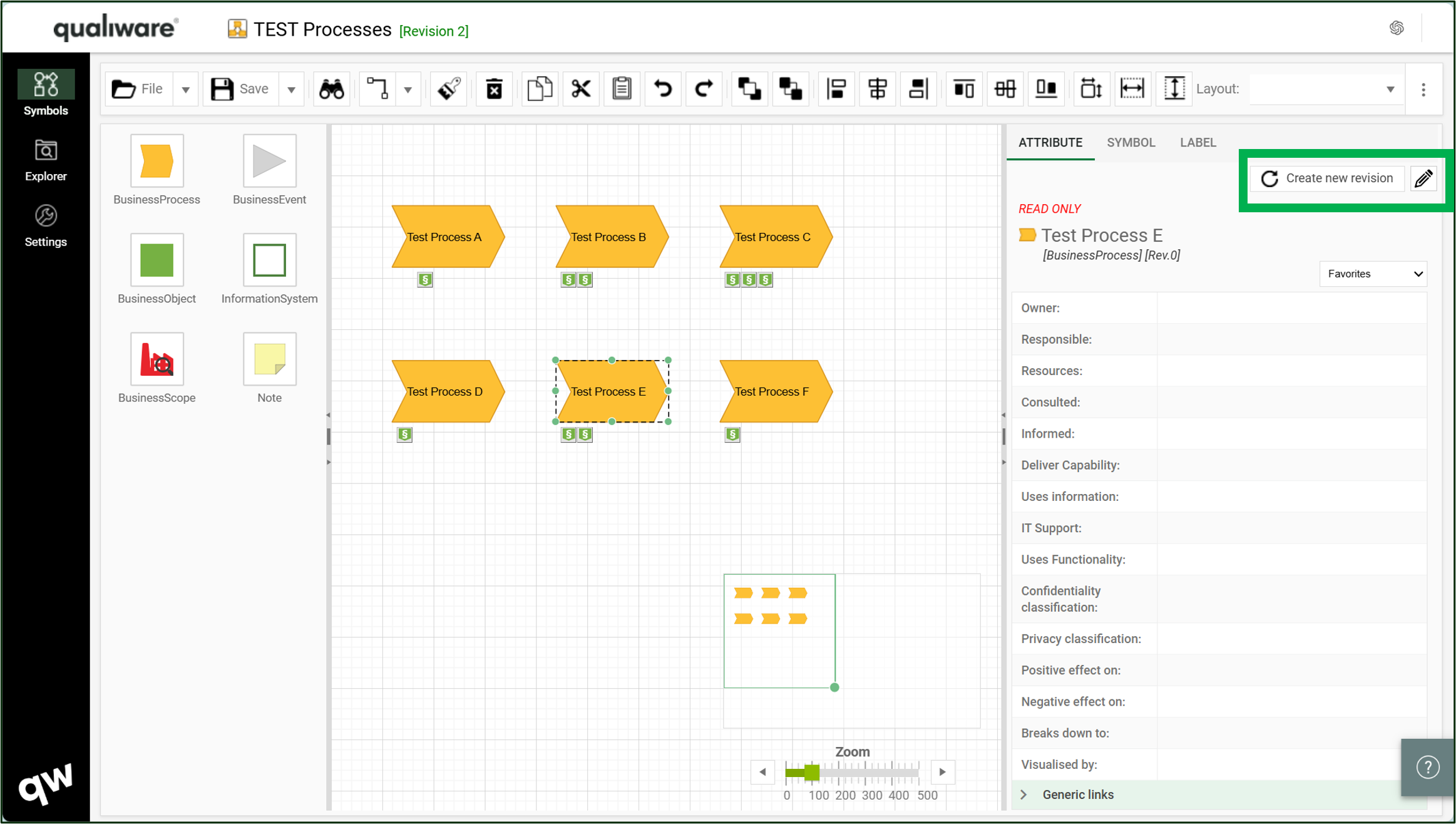
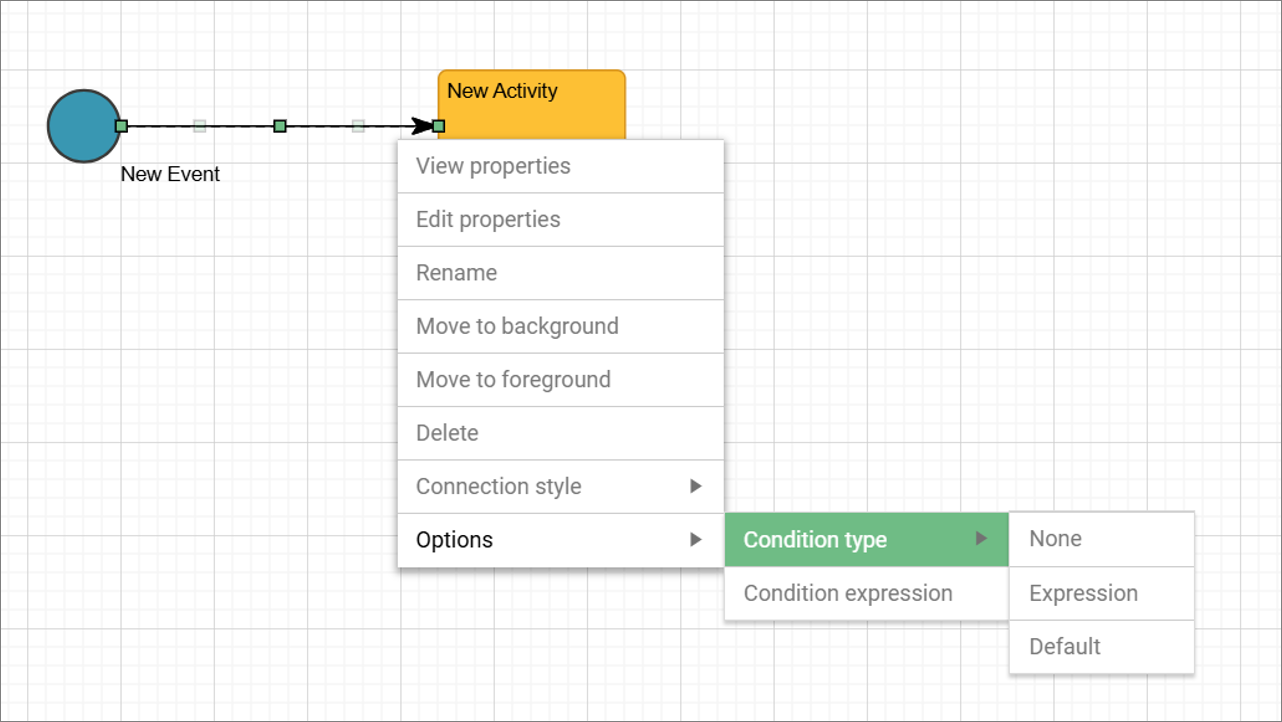
Right-click to set options on symbols and connections in Web-Modeler

In the web-modeler it is possible to right click a connection or a symbol in the Web-Modeler and select between options.

More options have been added so it is easier to set the options simple by right-clicking instead of editing the symbol or connection to set the properties in the web-dialog.

Read more about the Web-Modeler here.

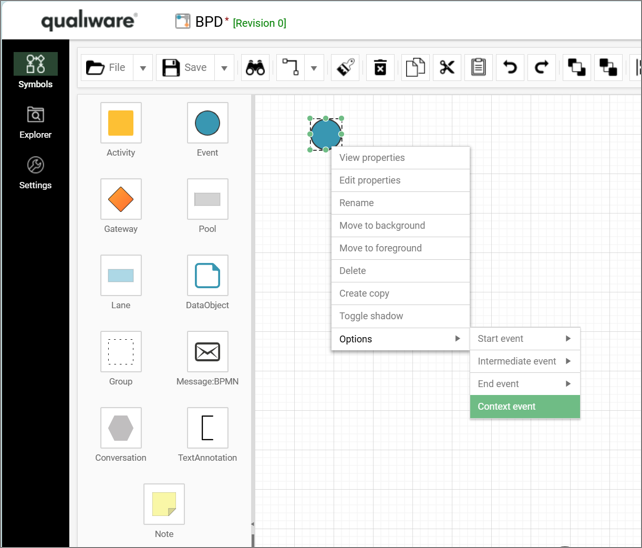
“Context”-event introduced in BPMN diagram

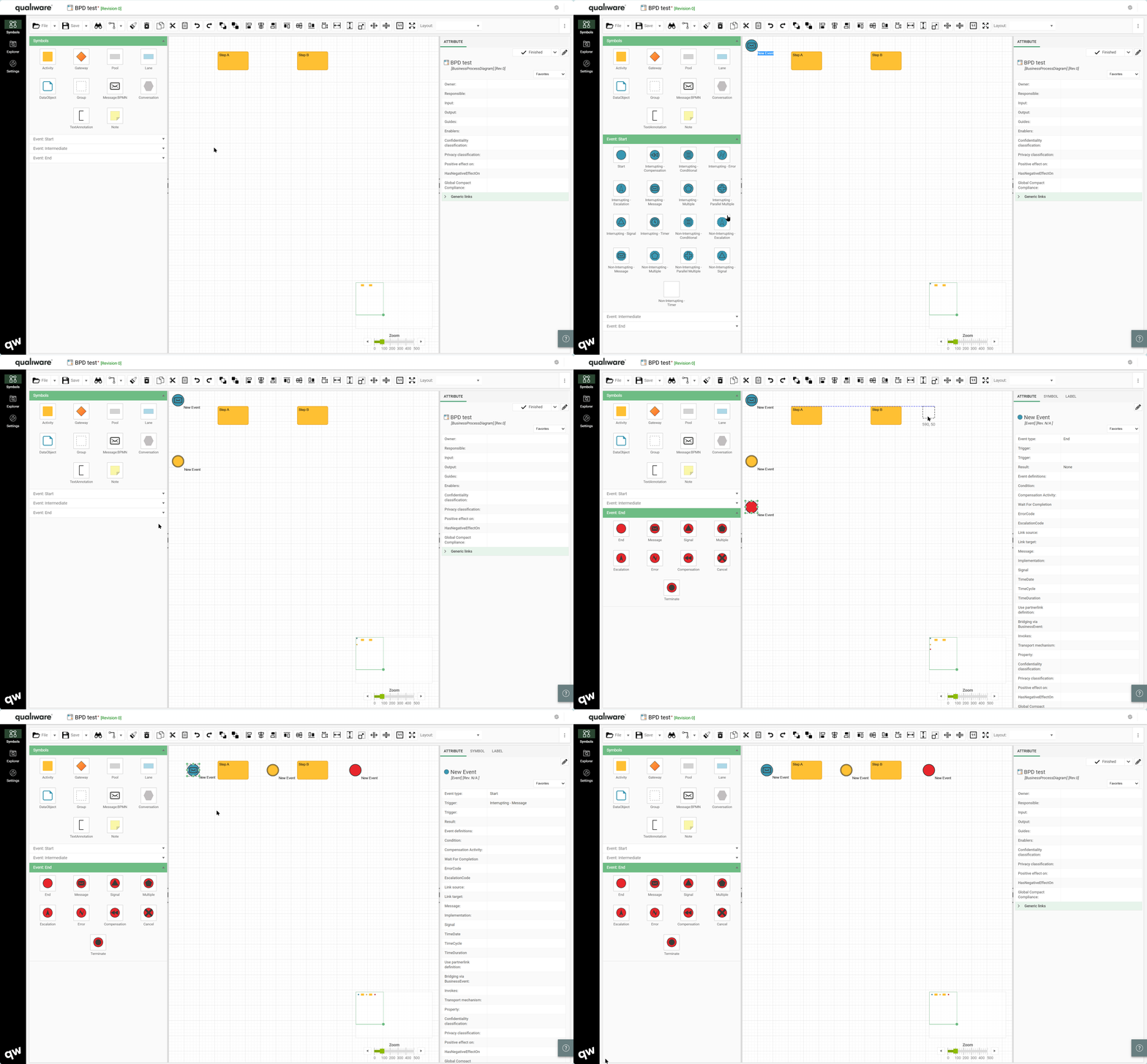
A new Context event type has been added to the standard events (Start, Intermediate and End), in the BPMN diagram (BusinessProcessDiagram).

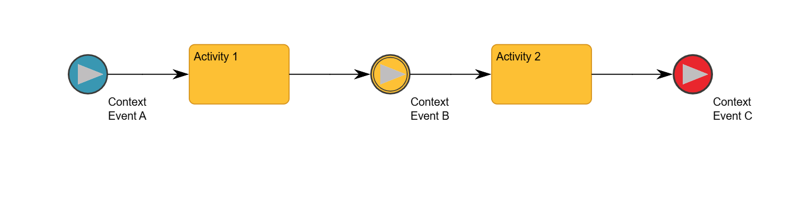
When used the new Context Event changes color to reflect the standard events (Start, Intermediate and End) based upon the connections linked to the event.

If connections are linked from the event if changes color to Blue as a Start event.

If connections are linked to and from the event if changes color to Yellow as an Intermediate event.

If connections are linked to the event if changes color to Red as an End event.

Support for accordions and sub-symbol-selection in web-modeler

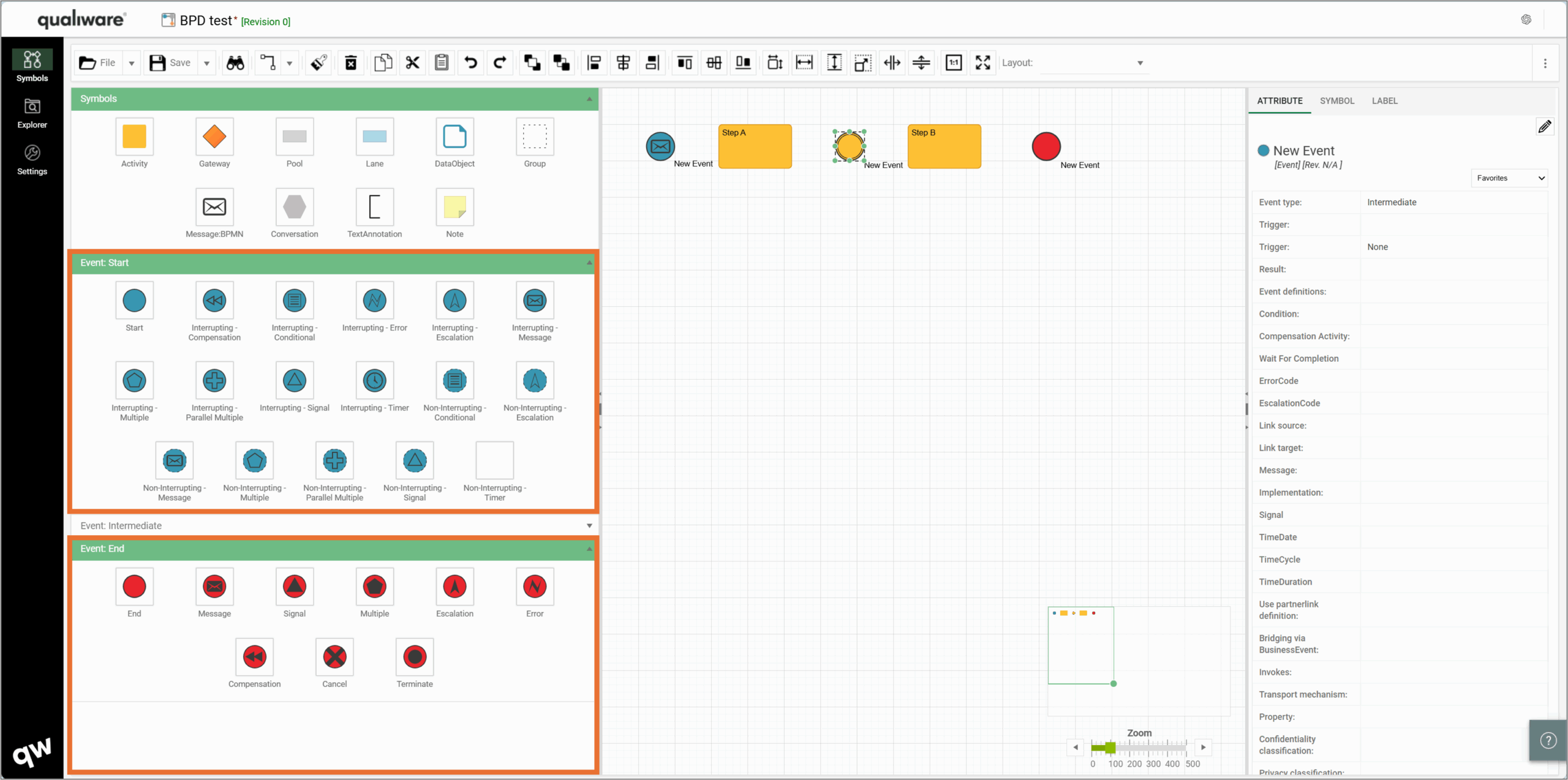
It is now possible to set up accordions in the web-modeler to make it possible to select specific sub-symbols from the symbols menu.

This way you can use the drag and drop / click on the symbol to add the sub-symbol to the canvas.

Improved performance for Save-Load in Web-Modeler

The performance has been improved when loading and saving diagrams in the web-modeler.

Support for AI Chatbot

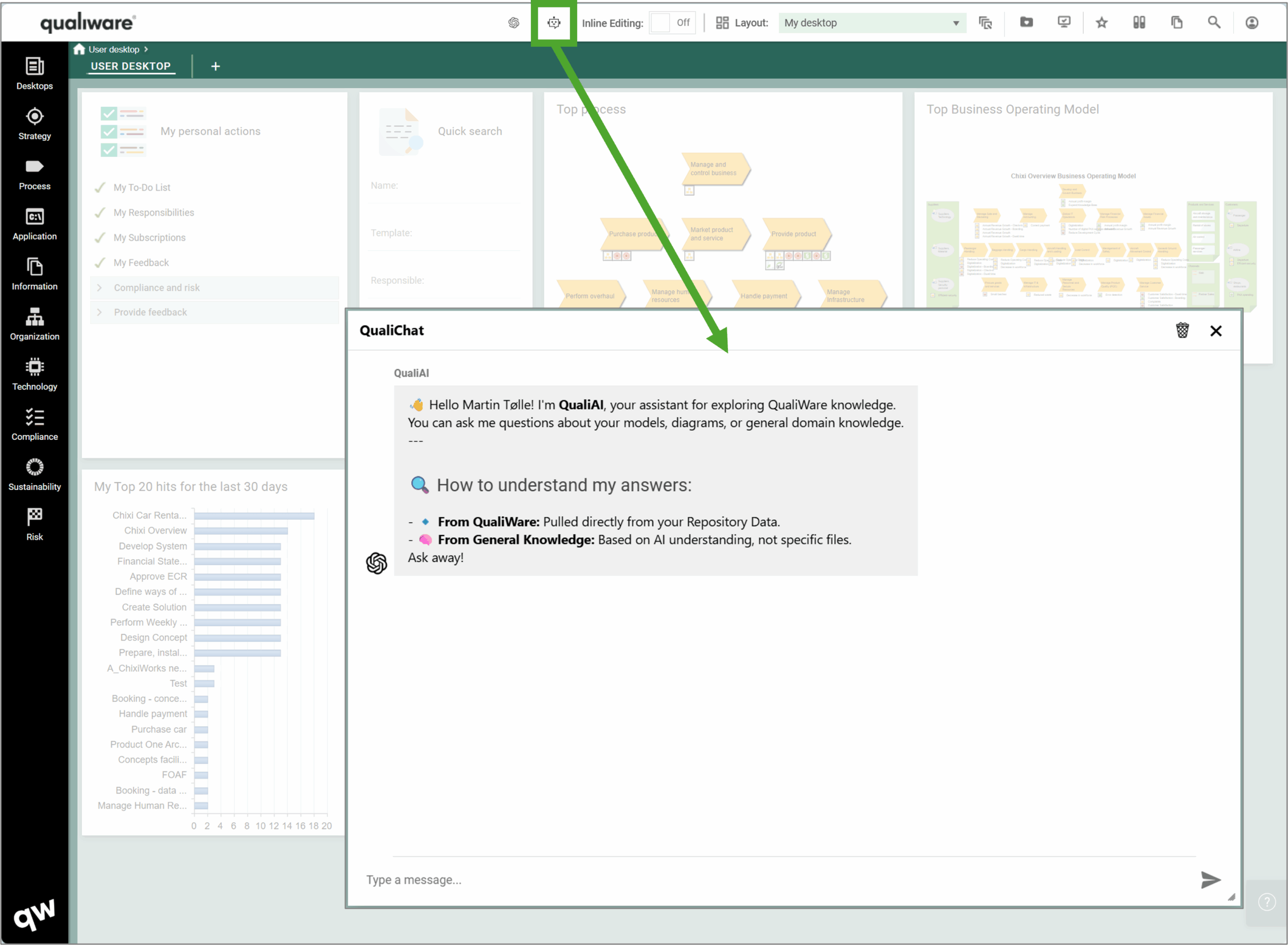
A new AI Chatbot has been embedded directly in QualiWare. This allows users to ask questions, analyze content, and explore repository data in a natural, conversational way.
Read more about the QualiChat here.

Support for Response ontologies and AI-based generation of objects with non-graphical relations. New predefined KnowledgeScopes

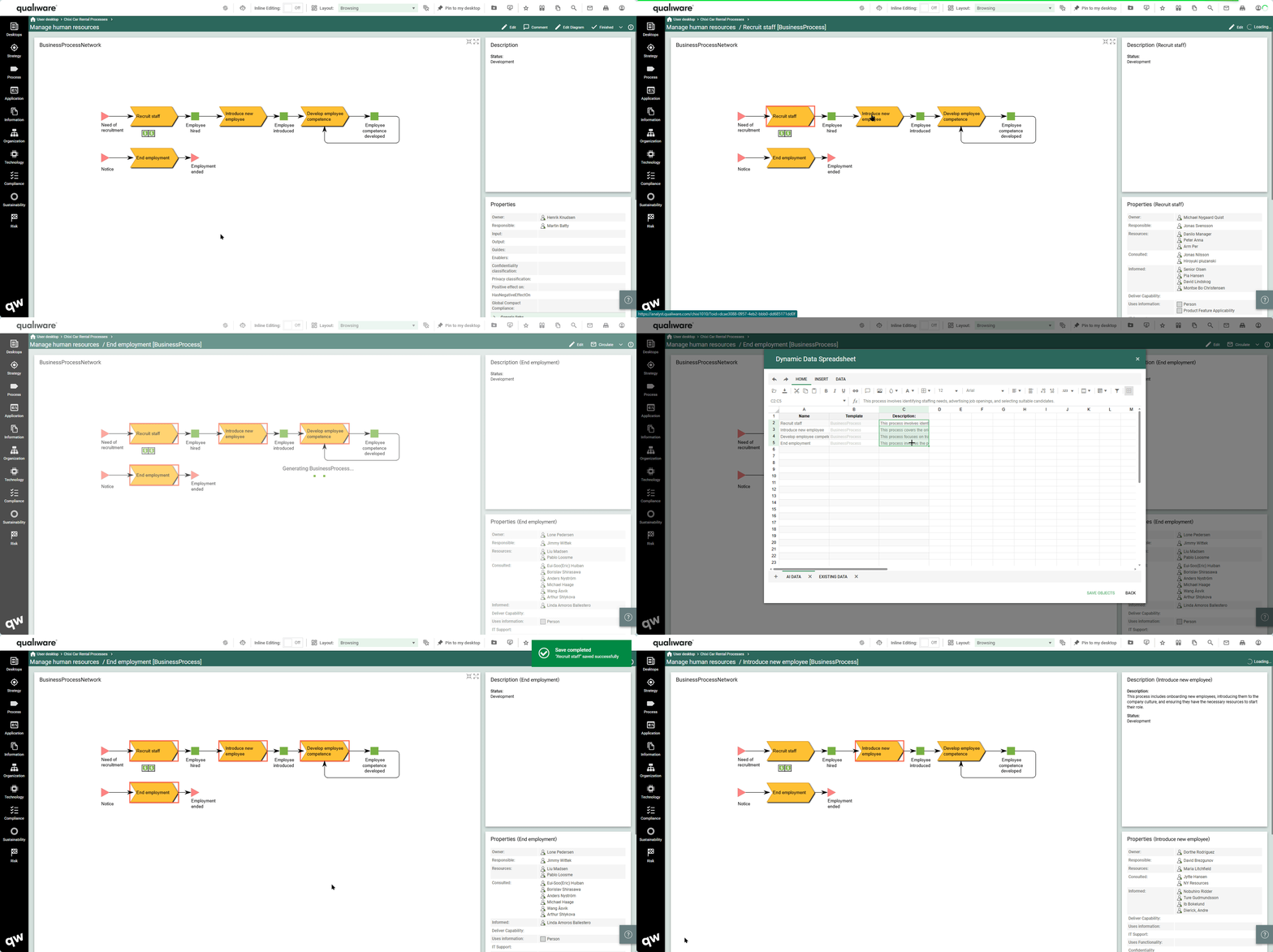
The QualiAI has been updated and is now not only available in the web-modeler helping you to create new diagram, now it is possible to use it from the web front-end to enrich content and add generate non-graphical relations and objects to selected content.

When the object(s) is selected you can add the QualiAI and prompt what you would like to get help with, and its suggestions will appear in a spreadsheet for your review and approval.

Note it is possible to multi-select by holder <ctrl> and clicking on the relevant objects.

Read more about the QualiAI here.

AI supported PowerPoint presentation generator

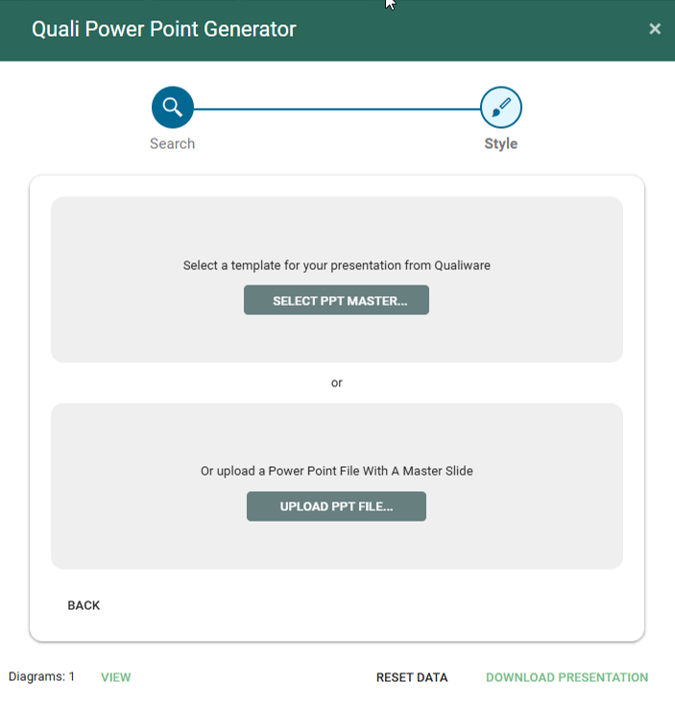
The new generate PowerPoint feature is a great asset in the QualiWare reporting toolset.

It allows the users to quickly create and compile different diagrams into a PowerPoint presentation.
The PowerPoint feature uses QualiWares AI to showcase relevant diagram information in the report.

Read more about the PowerPoint generator here.

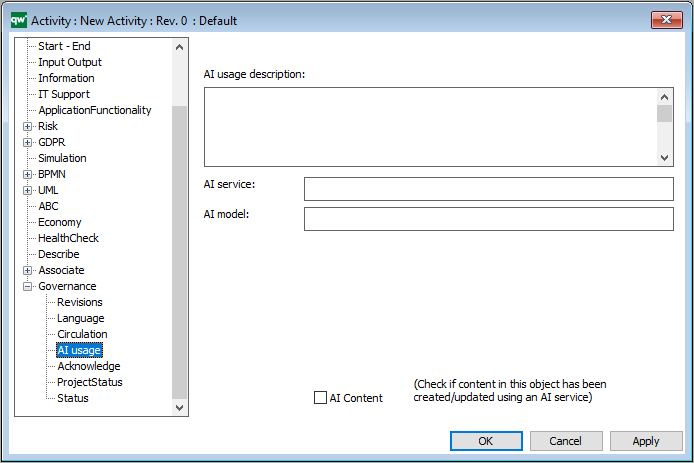
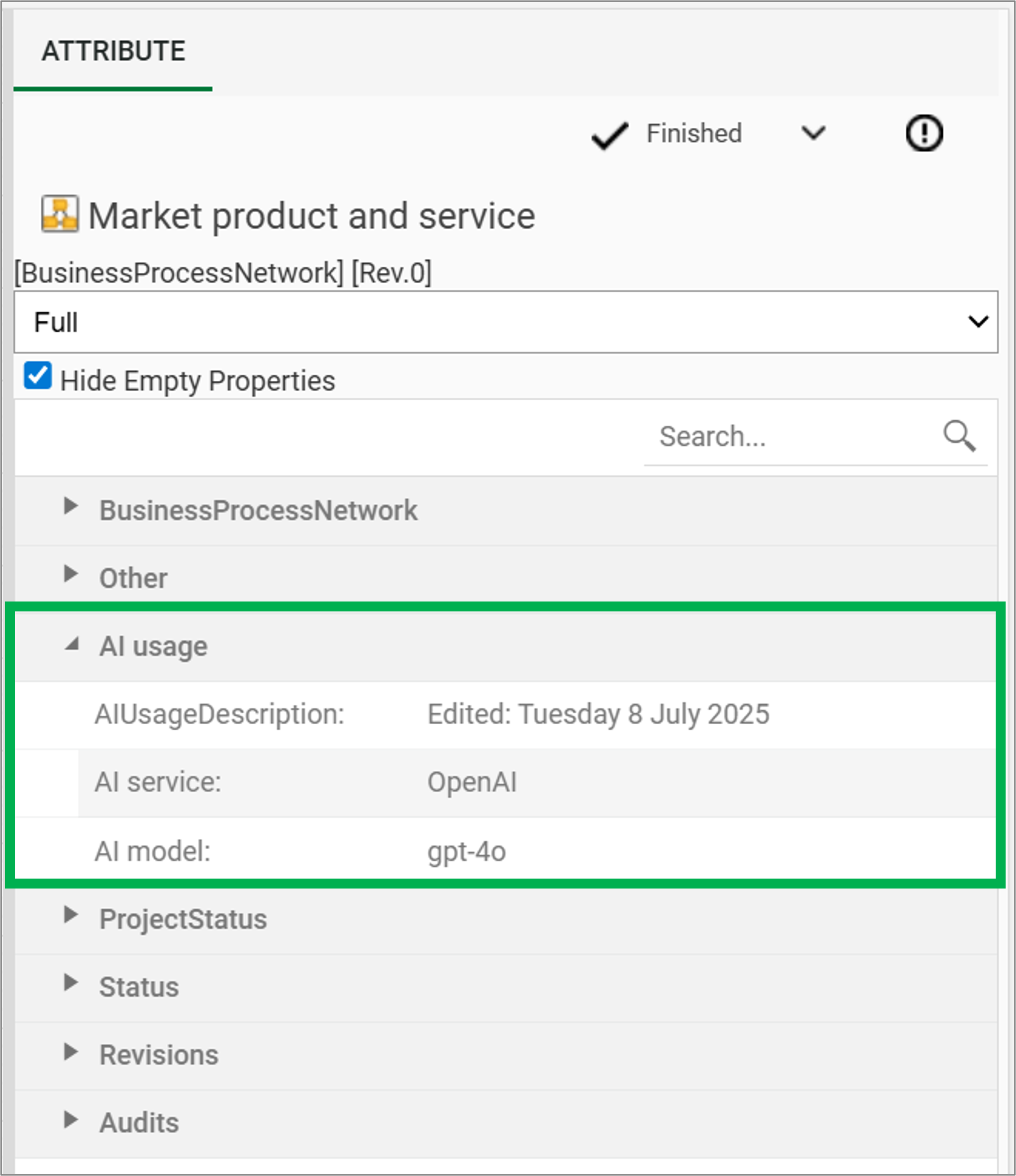
Support for AI usage analysis (EU directive)

Every object that has had AI generate any kind of information will have this tagged.

This allows for easier documentation when audited on what part of an organization that is AI generated.

The QualiAI will automatically update the properties when used to create or modify the object.

The properties can be found on the “Governance” tab on the object.

QualiWare GO – Augmented Reality app provides easy access to content

QualiWare Go is the new mobile app from QualiWare, designed to keep you connected to your organization’s management system, wherever you are. Scan QR codes, view procedures, check data, or log actions directly from your phone or tablet, right where the work happens.

Read more about the QualiWare Go App here.

New compare features, compare with .qrx-files and custom object-list, compare with other object revisions, export of objects

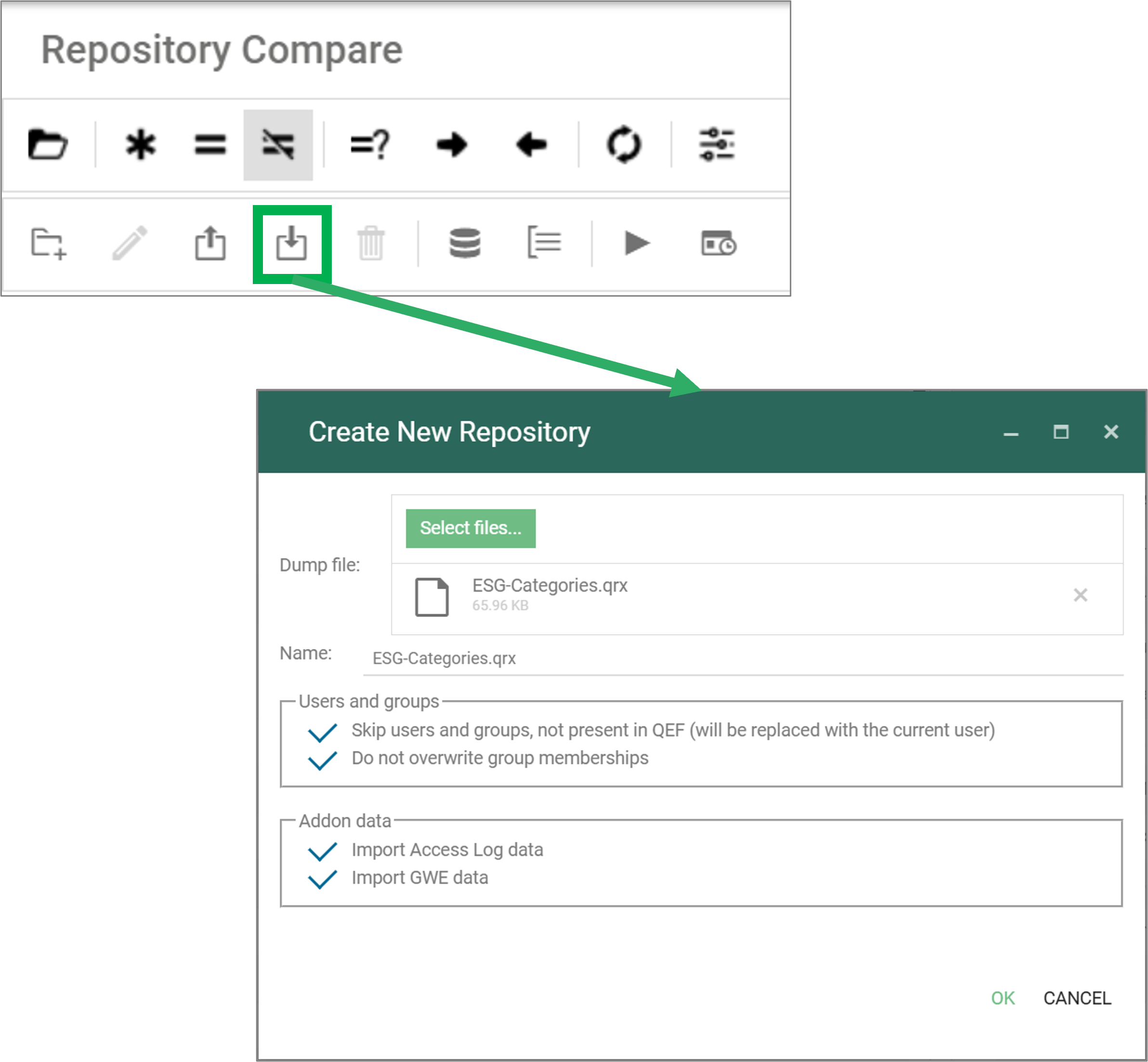
The compare feature has been expanded to include .qrx-files and custom object-list.

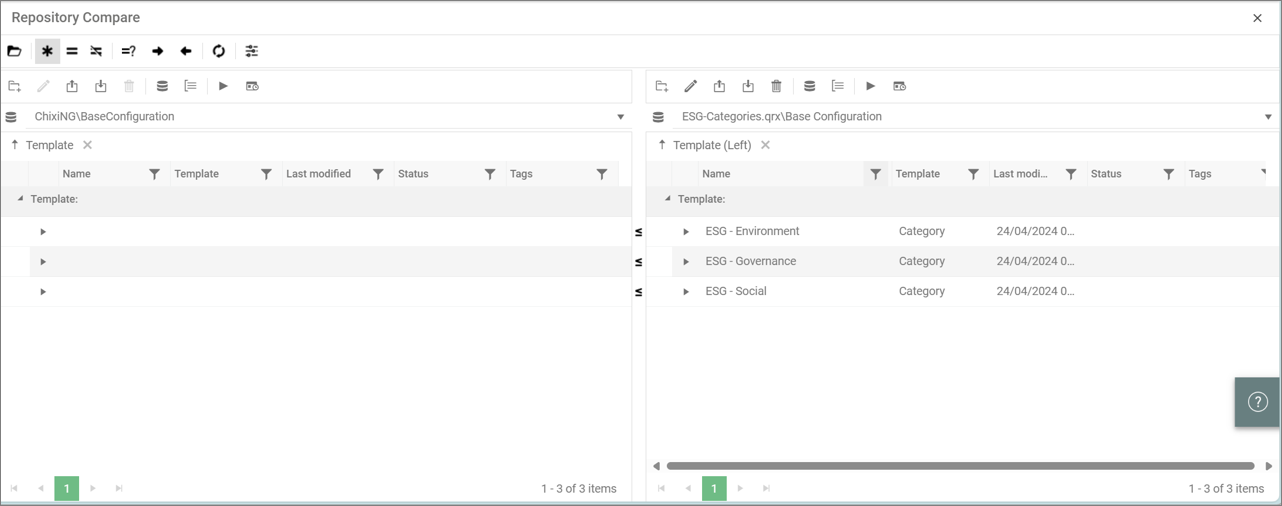
It is now possible to load QualiWare import-file (.qrx-file) into the repository compare, to explore and compare an import file with the current repository, as import/copy (a subset) from the import file.

Once the import file is loaded it is possible to explore/compare the content with the current repository, and use the standard functionality to copy content from the import file to the current repository

To use this feature, you need to set up a Data Storage Pool in the Repository Administrator module (RA).

Read more about the repository compare here.

Language support

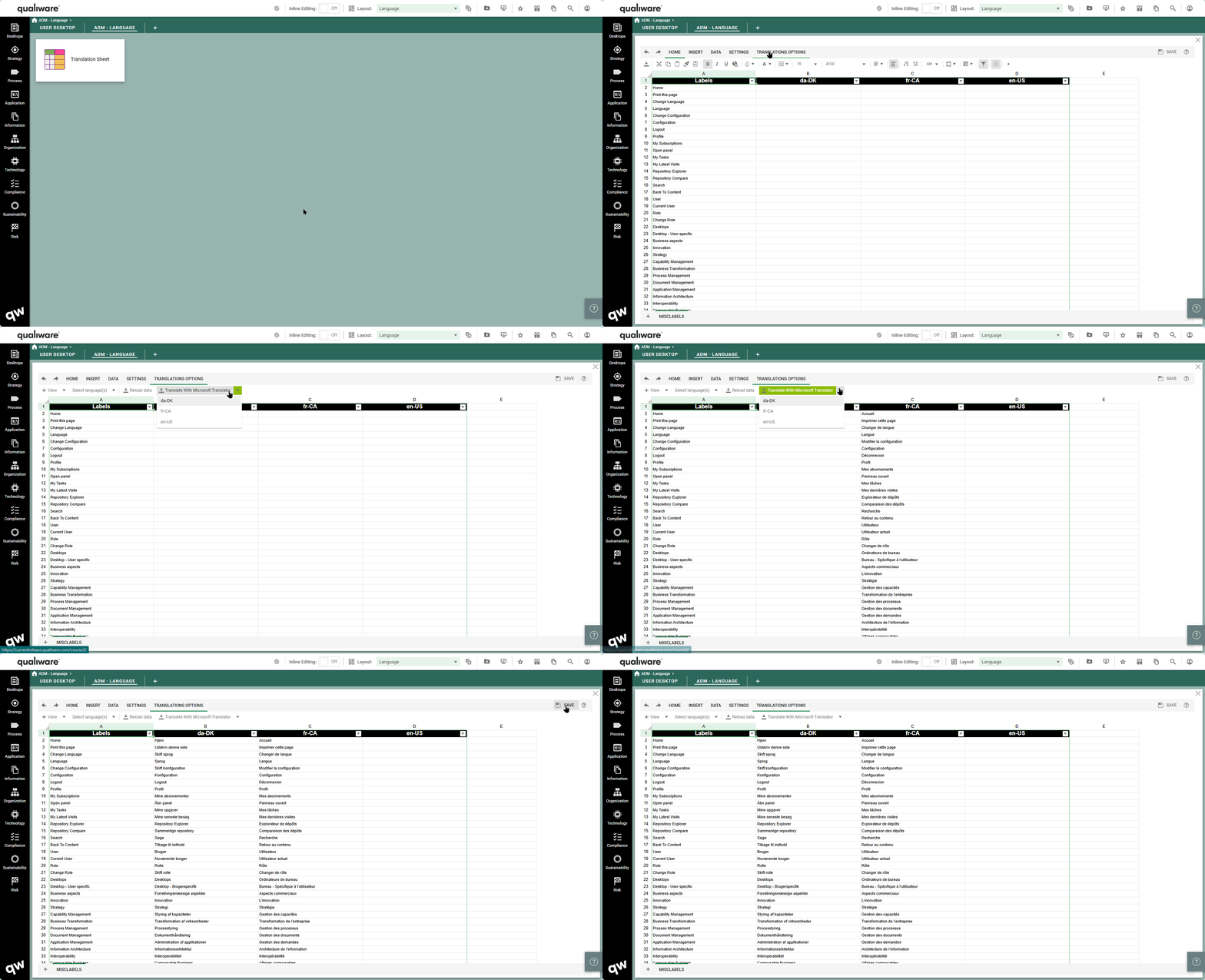
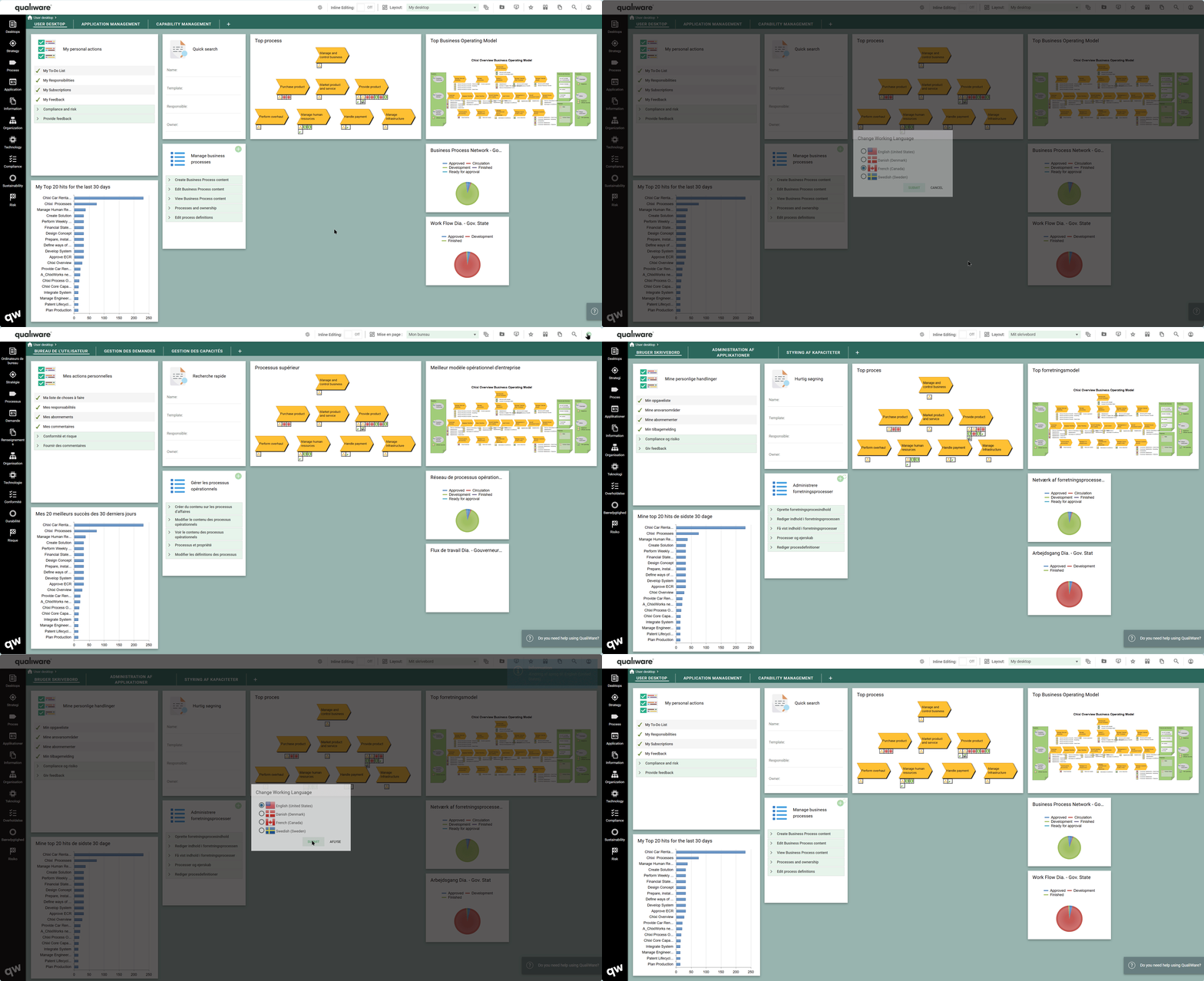
In QualiWare 10.10 we have improved the way to translate the web front end in the different working languages in the repository.

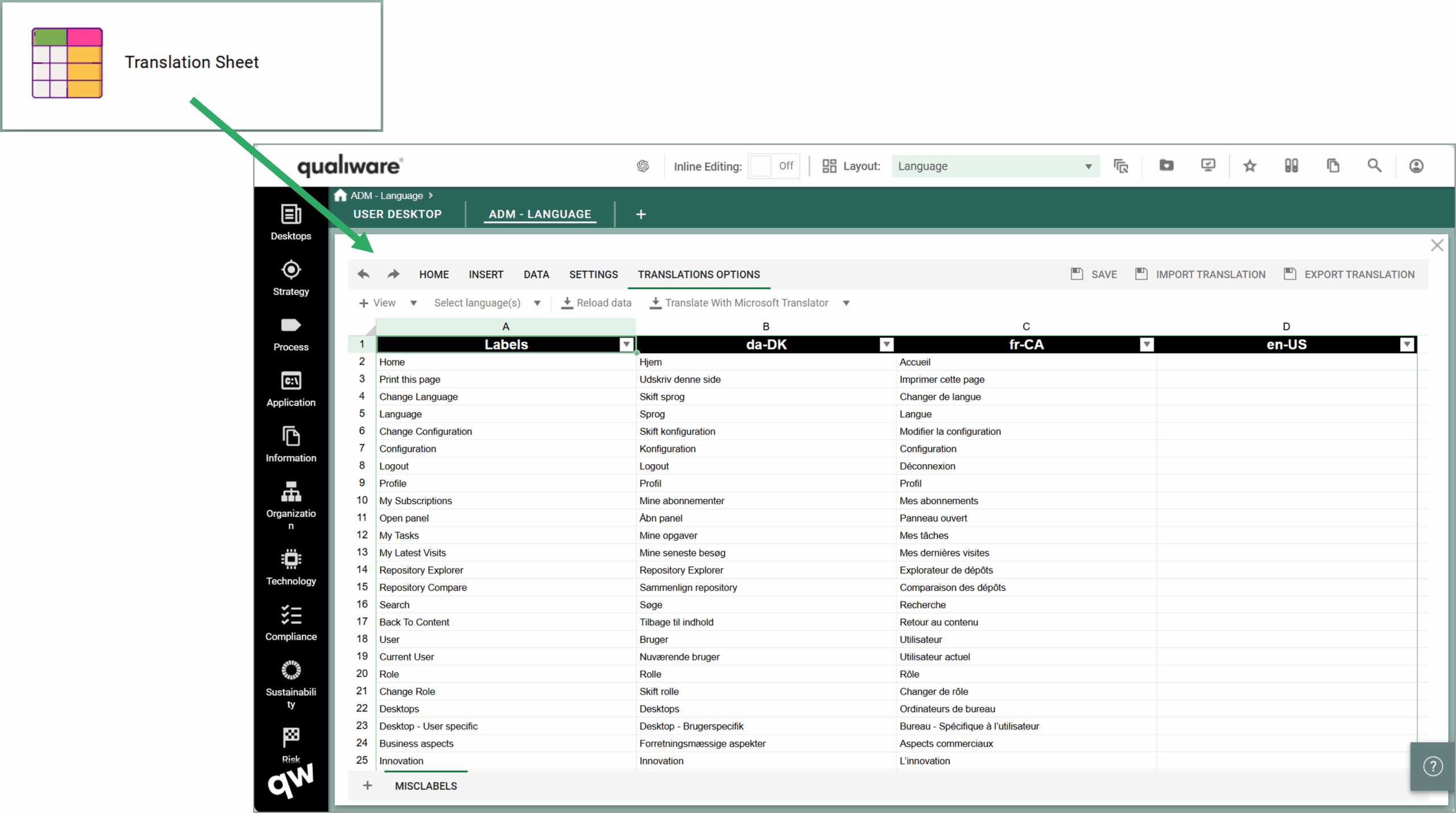
All labels and text can be translated and managed easily using the spreadsheet feature function.

The spreadsheet lists all the labels and their translations.

All the labels can be automatically translated using Microsoft Translator and can be easily updated afterwards.

Once the labels have been translated (or imported) the labels are translated on the web frontend.

Read more about Front End Translation here.

Read more about language support here.

Watch Dog for QCL-engine

The QCL-engine is a central backend feature that tracks all changes in the repository, and triggers related updates of diagrams, data and governance actions.

The QCL-engine in managed in the administrator module, and now a watch dog is set up to monitor to status, and if needed it automatically restarts the engine to ensure that the web-portal always is kept updated.

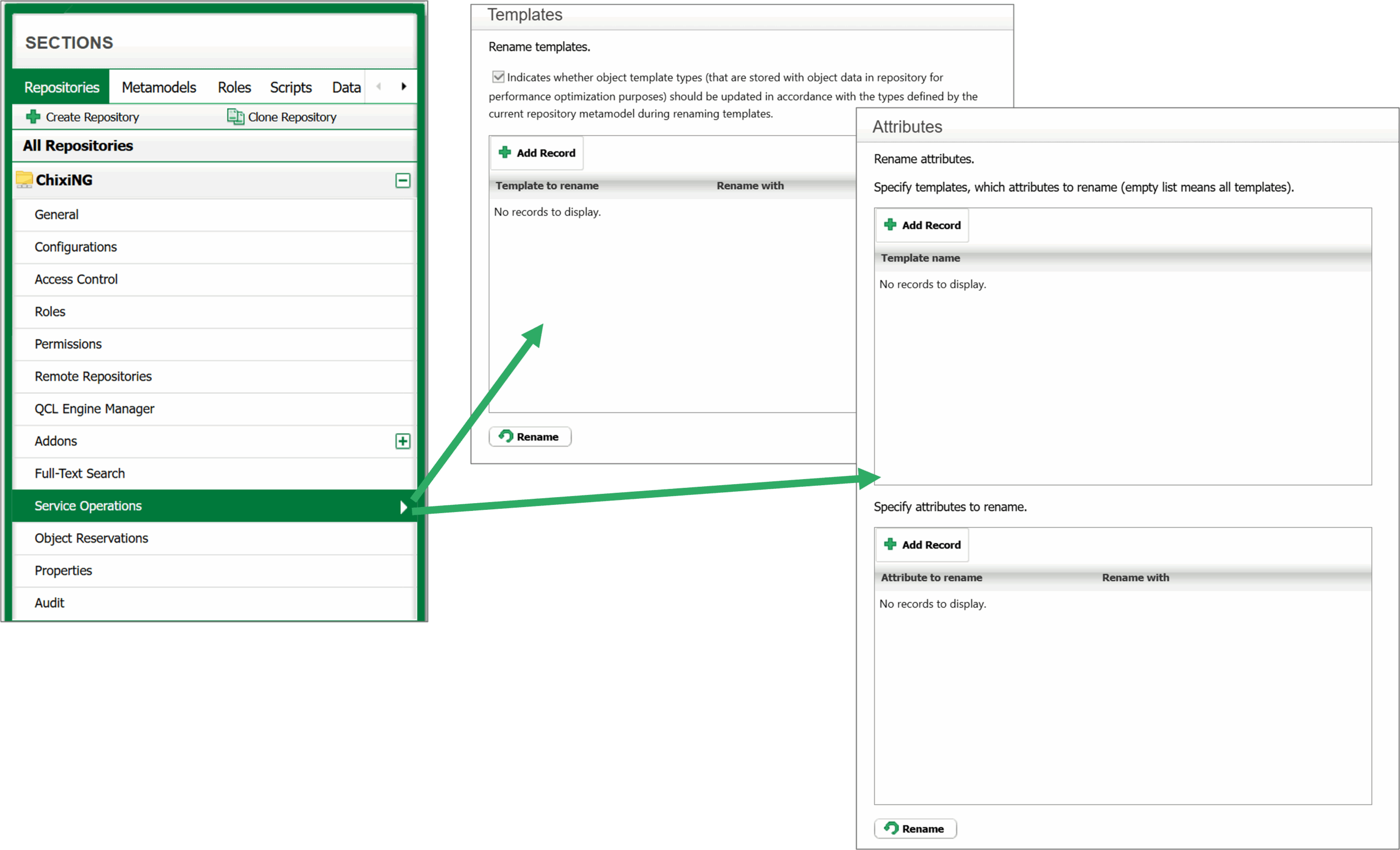
QIS: Template and Attribute mapping

The possibility of renaming template and attributes have been added to the service operations in the repository administrator (RA) module.

This can be relevant if the metamodel has changed and you need to update content from repositories using a different metamodel than the current repository metamodel.

It is possible to rename template name, and attributes on a template type.

Spreadsheet

Easy update of properties (bulk editing)

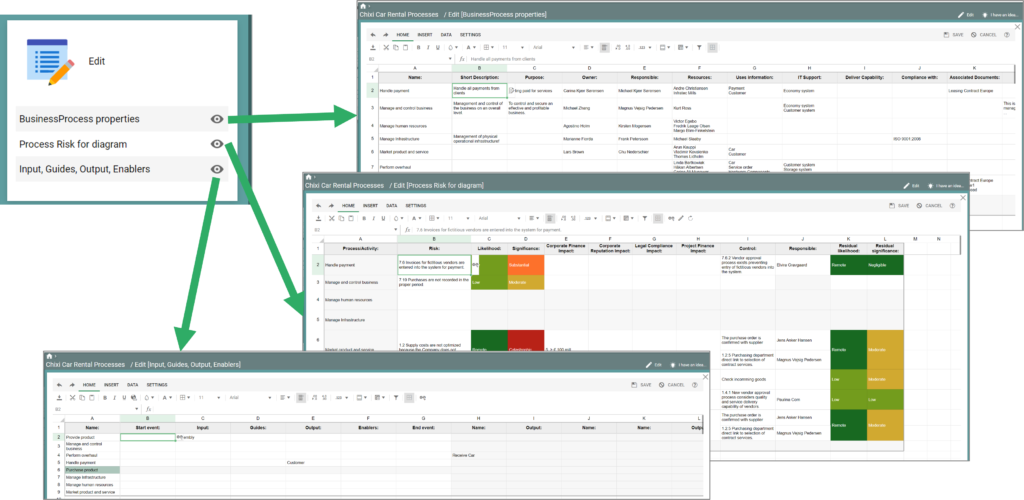
The spreadsheet functionality in QualiWare enables you easy to explore and edit the properties and the relationships for objects in the repository.

QualiWare X merges the functionalities of a spreadsheet with the functionalities of property matrices known by super users from QLM. This means that you can not only edit collections of objects and their attributes, but you can also enrich the spreadsheet with extra columns and rows, where you add notes, perform calculations and analyze the information.

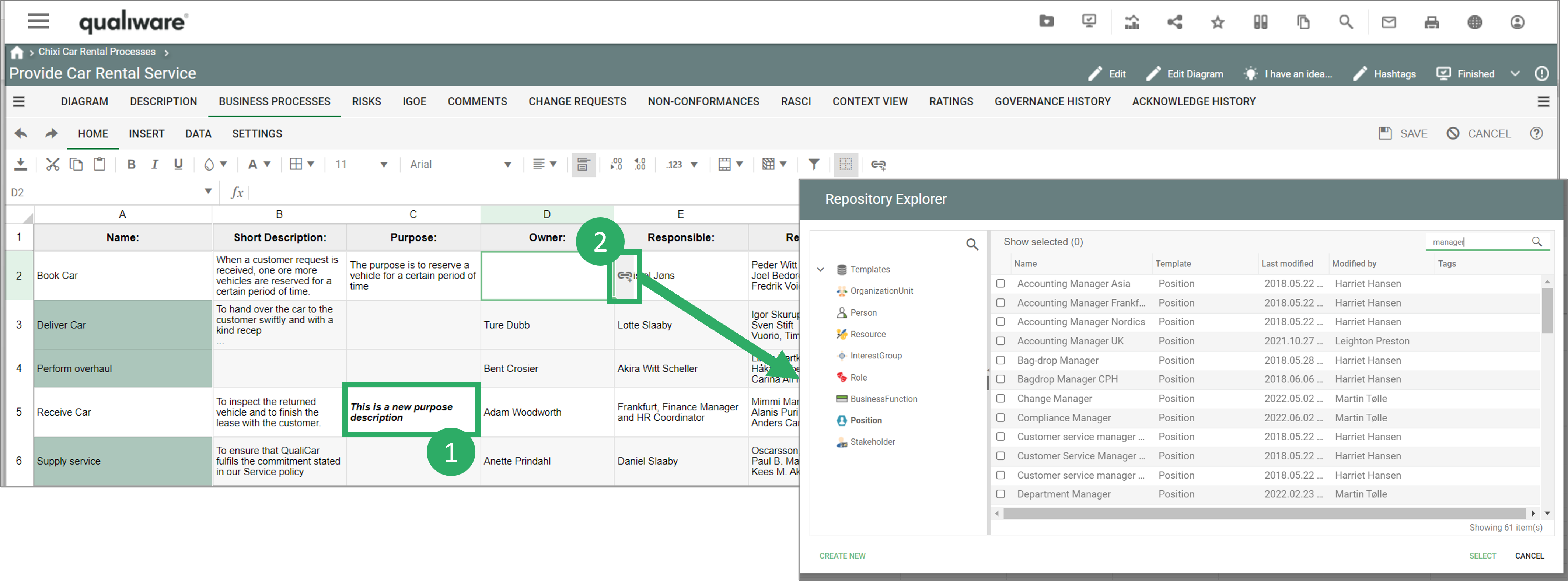
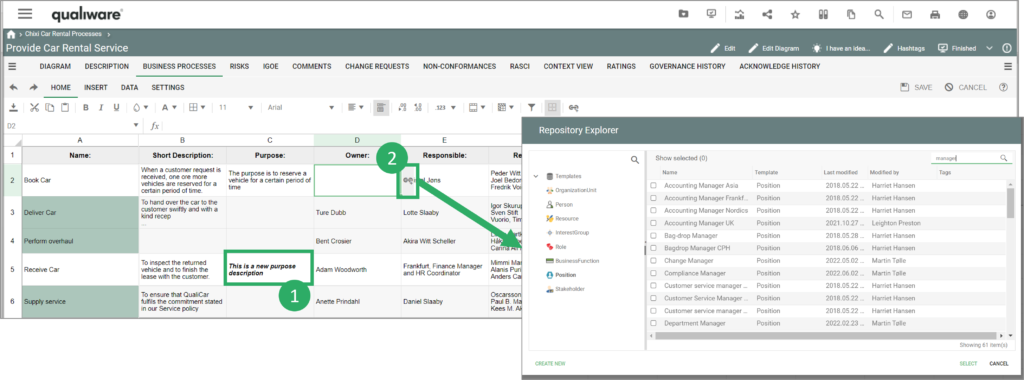
It is possible to edit the objects directly from the spreadsheet by either editing their property columns directly or by selecting the object row and clicking on the “Edit” button to open the web-form for that object template.

  1. Text-fields can be edited directly in the cell.
  2. Other fields link to other objects. These can be updated by clicking on the link symbol.

Explore and update the properties on your models via spreadsheet

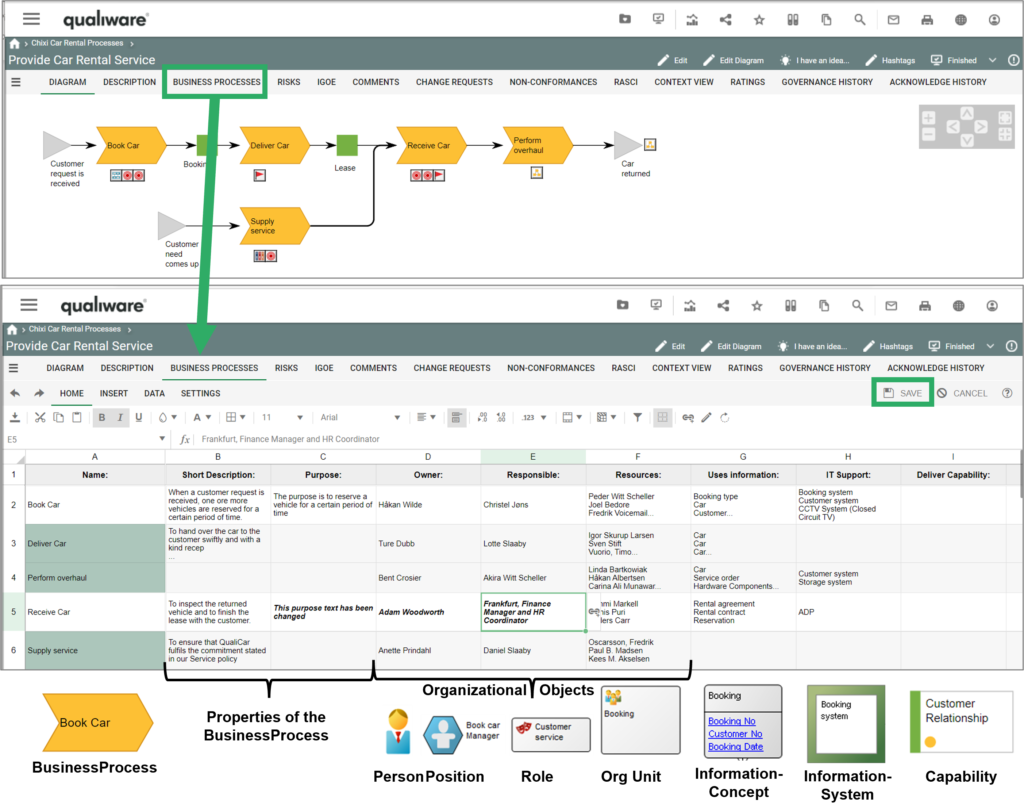
Properties of the object on a diagram, e.g. the Processes on a diagram can easily be described/ modified using the Spreadsheet view (“Business Processes”).

Any changes made will be highlighted in bold + italic and will only be applied to the objects once the “Save” button is clicked. As soon as the save button is clicked the QualiWare X Spreadsheet will attempt to edit the properties of all the objects with changes and will notify you if any objects are locked or can otherwise not be edited.

Objects that are locked (e.g. approved, or the user don’t have governance rights) have green background collar, and the cells in the row are grey.

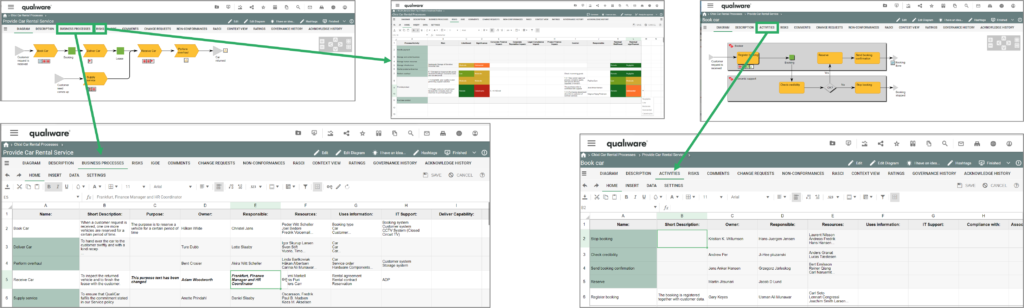
Spreadsheets can be found in the left menu, and in the standard tabs for different diagrams types.

Access to Spreadsheets from Dashboards

Easy access to spreadsheet from the Dashboard (introduced in QualiWare 10.8)

Video Highlights

Introduction to Spreadsheet:

This video shows how to enrich the objects (BusinessProcesses) for a particular diagram, using the standard spreadsheet view of a process network diagram.

Introduction to Spreadsheet:

Editing dropdown items, dates and numbers:

Editing text fields:

Filter and sort columns:

Adding rows, performing calculations and editing colorings:

Creating a cross reference spreadsheet

For Administrators

You create the spreadsheets in QLM using the intuitive QueryDesign approach which then generates a GenericQuery which is used in the new Spreadsheet template.

QualiWare X Spreadsheet is a new and much improved incarnation of the Property Matrix and can be used to easily get an overview over a large selection of objects in the repository and even for mass-editing data.

Unlike Property Matrices the QualiWare X Spreadsheet is available on the web front-end and can be used across the organization.

For the full list of functions that you can use in the QualiWare X Spreadsheet you can consult its technical guide: Spreadsheet Technical Guide

Smart Content Search

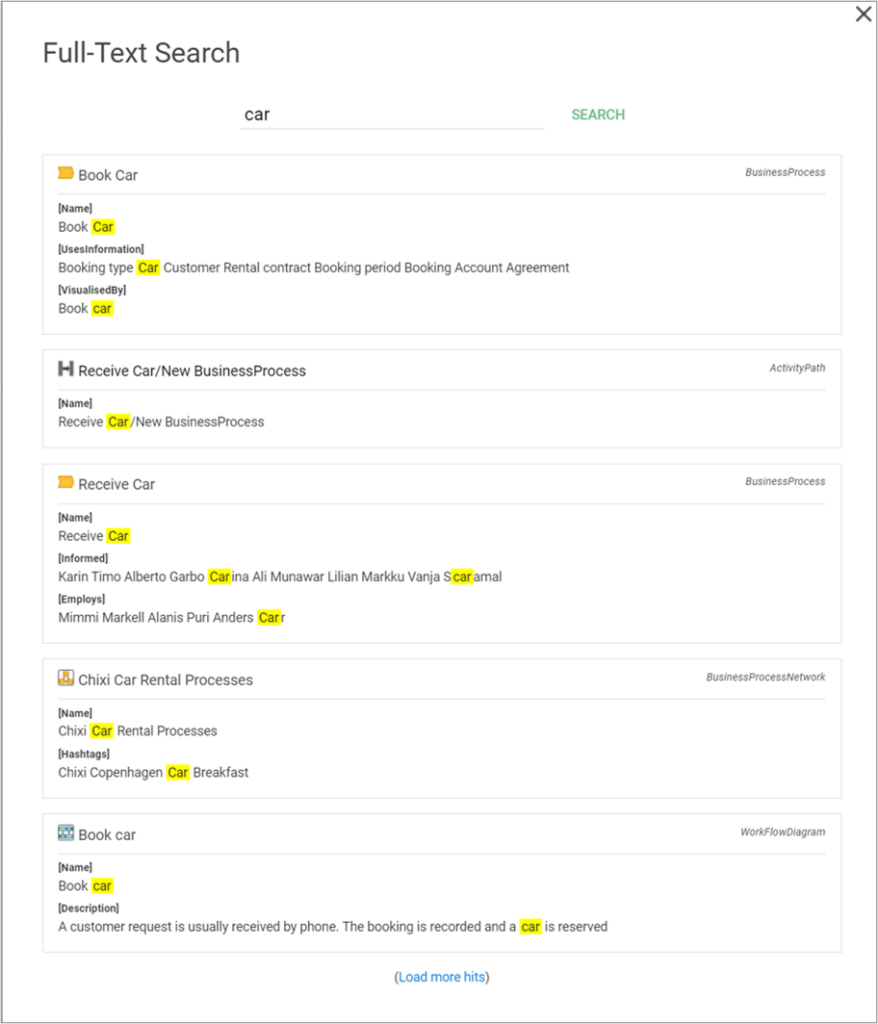
QualiWare X Search Engine (QSE) enables users to quickly search through the whole repository from both the web and QLM. Where the Quick Search tile only searches the names of targeted objects, the new smart content search includes searches of objects’ attributes (such as description fields and links to responsible and owners). Aside from this, the new smart content search can search though documents that have been uploaded to QualiWare.
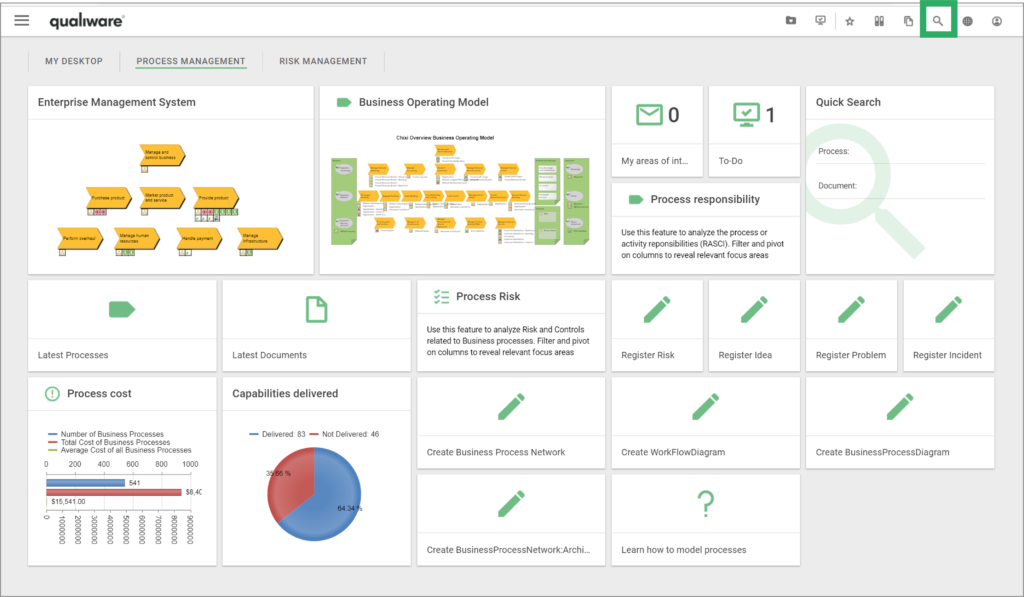
The search engine can be found in the upper right corner on the web by clicking on the small magnifying glass:

The search engine indexes and searches through all repository objects and their content – including the content of files that are uploaded to QualiWare via ExternalDocuments.

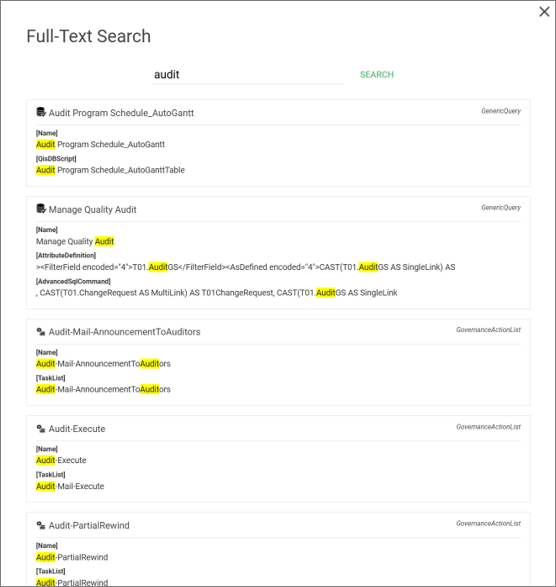
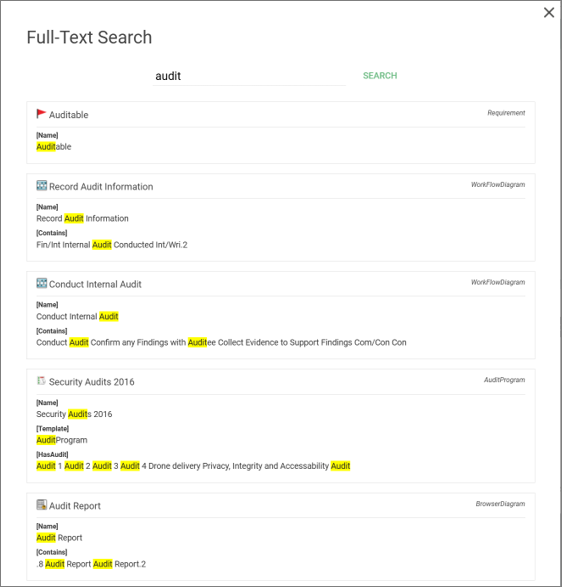
From the web, the search result is then presented with the search term highlighted for usability:

Quick Search

From the web, there are also various possibilities for quick searches in the desktop tiles.

Search

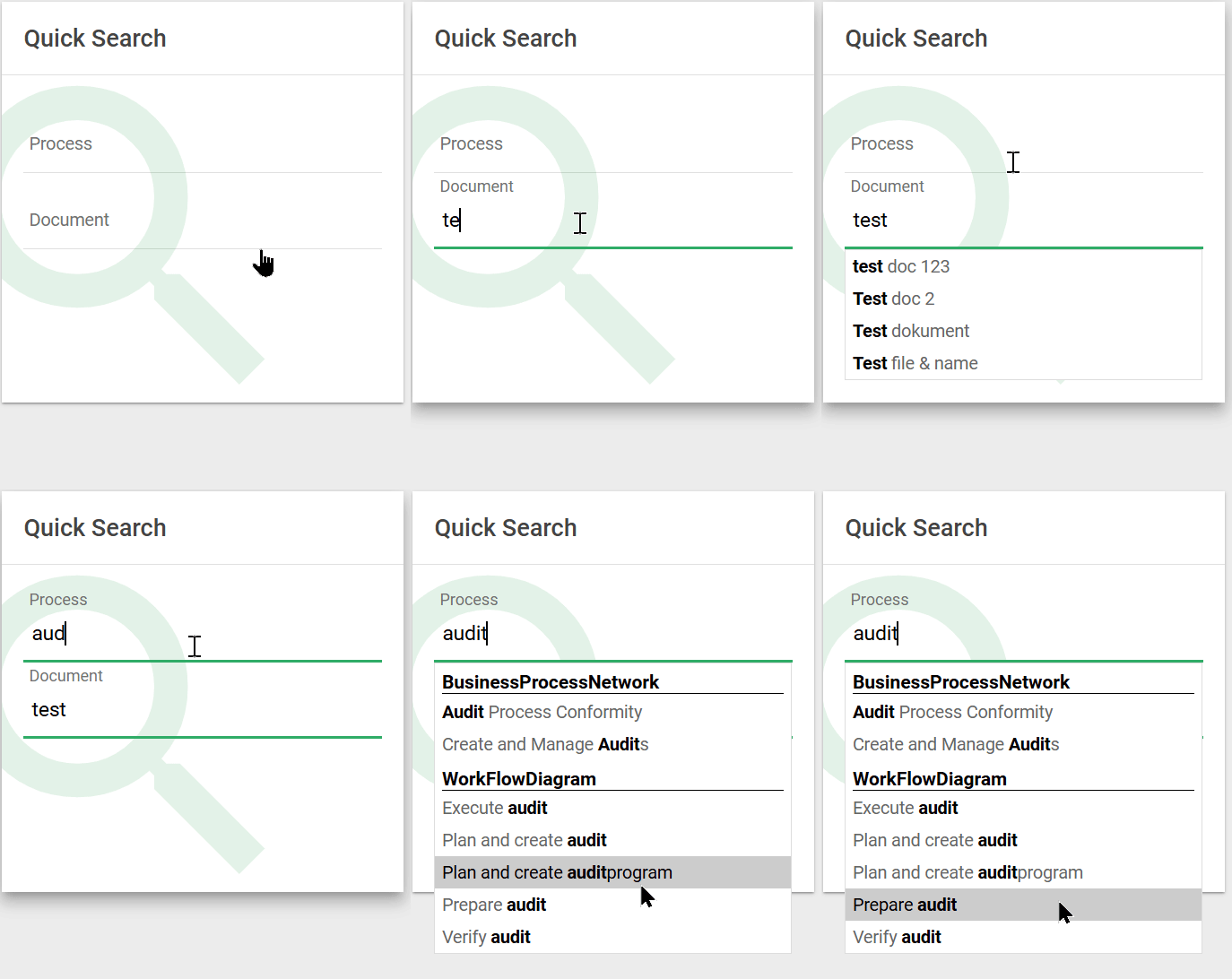
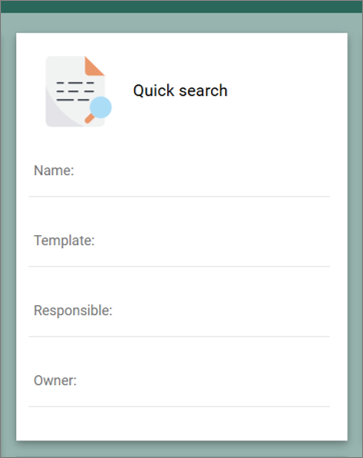
Displays a quick search form inside the tile. The user has to type at least 3 characters to search. While typing the user will be presented with a list of results that matches in the Name attribute. Results are grouped by template.

The search Attributes can be customized to add any attributes. The Search can be configured in the HTMLTile using the method “Search”.

Once the Search has been selected a method, Default parameters are added allowing user to search on

  • Process (BusinessProcessNetwork, WorkFlowDiagram, and BusinessProcessDiagram.)
  • Document (ExernalDocument)

You can customize the settings, making additional rows and/or adjusting the template in scope.

Search By Attribute

The SearchByAttribute allow user to quickly search on specific attributes of a set list of templates. 

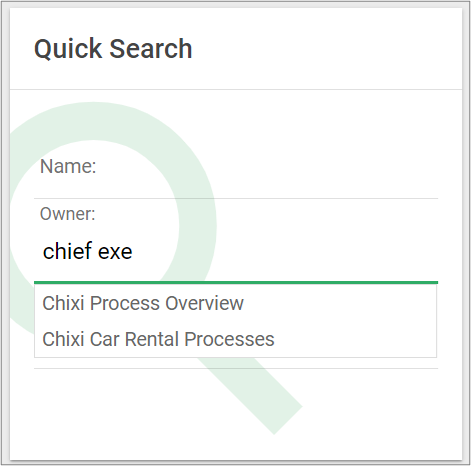
The search method find objects based upon a search in a specific attribute, e.g. list all BusinessProcessNetwork, WorkFlowDiagram, and BusinessProcessDiagram that are owned by the “search text”.

The search Attributes can be customized to add any attributes. The Search can be configured in the HTMLTile using the method “SearchByAttribute” (QualiWare 10.9).

Once the SearchByAttribute has been selected as method, Default parameters and content are added allowing user to search on the Name, Owner, Responsible of a BusinessProcessNetwork, WorkFlowDiagram, and BusinessProcessDiagram.

Search (DashboardItems in QualiWare 10.10 Desktops)

As a part of the introduction to the Desktops in QualiWare 10.10 the search method was included as one of the available methods in the HTMLDashboardItem, enabling the similar search functionality on a dashboard.

The search Attributes can be customized to add any attributes. The Search can be configured in the HTMLDashbordItem using the method “QuickSearch” (QualiWare 10.10).

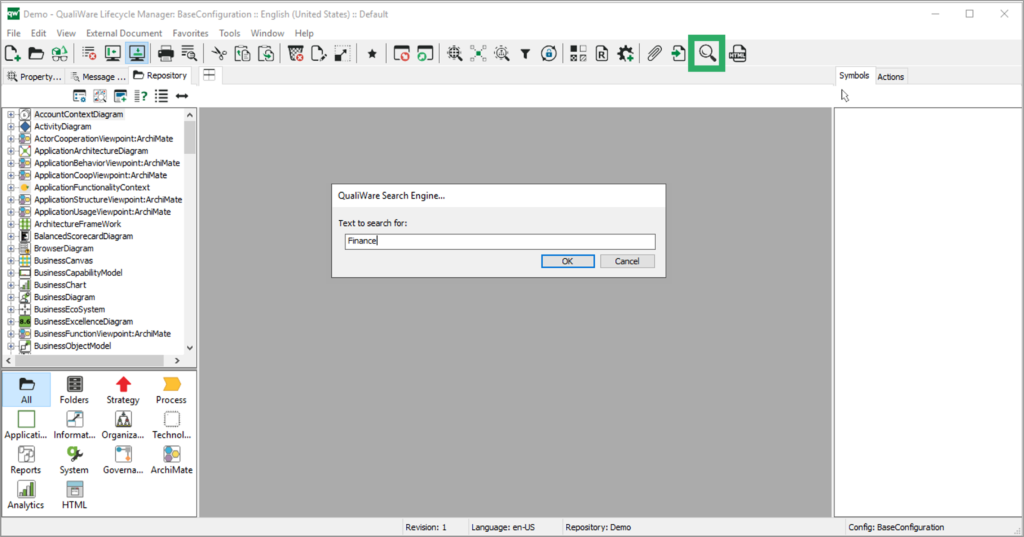
In QLM, the search engine can be found in the right side of the tools menu, also illustrated by a magnifying glass:

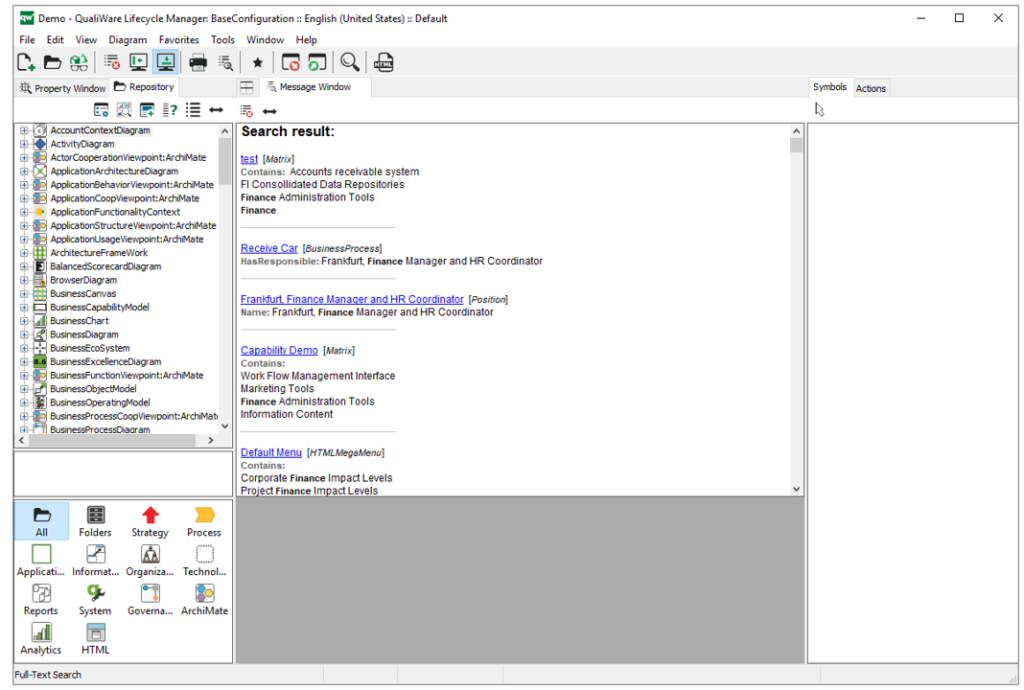
In QLM, the search result is presented in an expanded message window with the search term presented in bold writing:

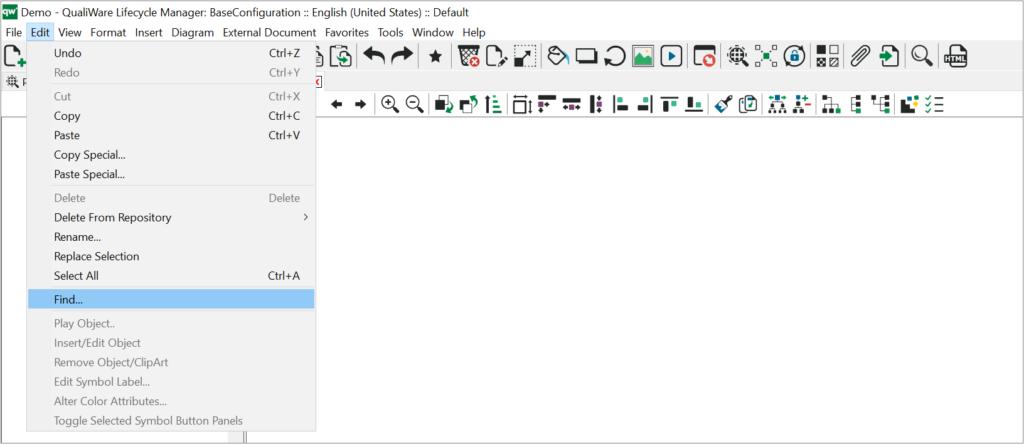
In QLM you can also access a search function via the top-menu, from the “Edit” menu:

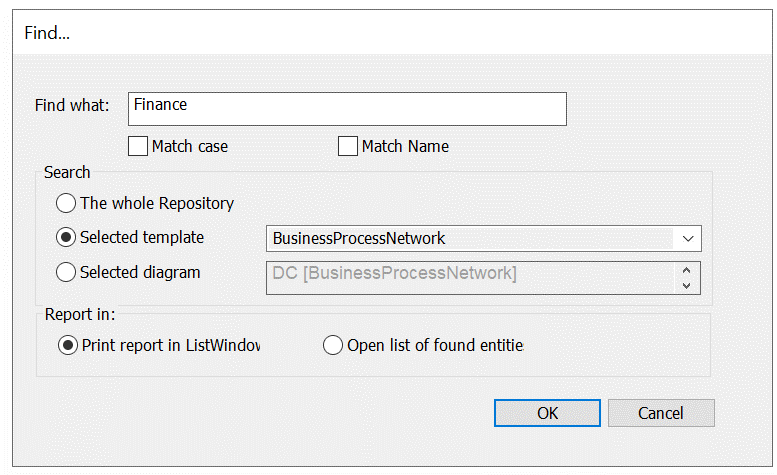
From this function you have the possibility to specify search criterias, e.g. searching the whole repository or a specific template type:

If your repository has any language variants, the search engine can search through the current working language of the user as well as the repository default language. If no search results are found in the working language the search is automatically expanded to include objects from the default repository language.

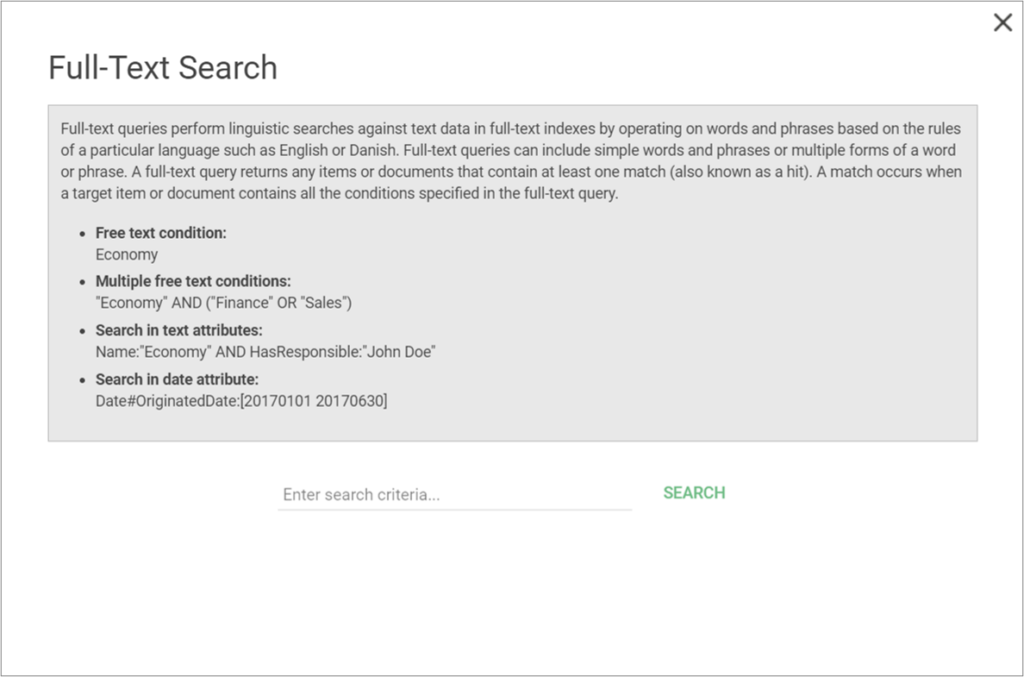
QualiWare X Search Engine is built using the Lucene.Net search component and supports advanced conditional queries such as (Description:Postage) AND (AuditGS: Approved) AND (Date#AuditMD: [2017 201806]) which returns all the approved objects modified between 2017 and June 2018 with the word “Postage” in the description field.

Additional examples of supported queries can be found here.
For Administrators

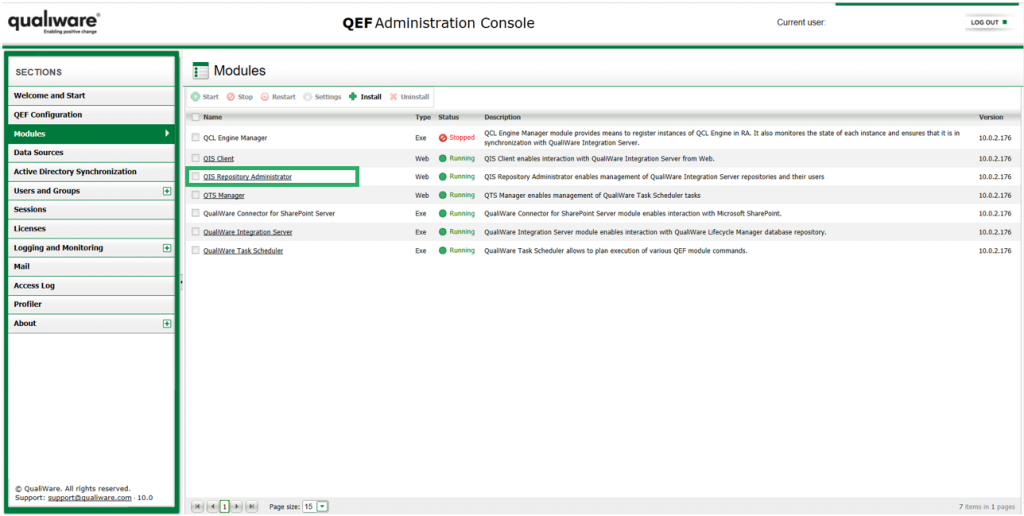
In order to work, the search engine must be enabled and the repository indexed. This is done from the Repository Administrator module, which can be accessed from QEF.

The Repository Administrator module can be found in QEF under Modules:

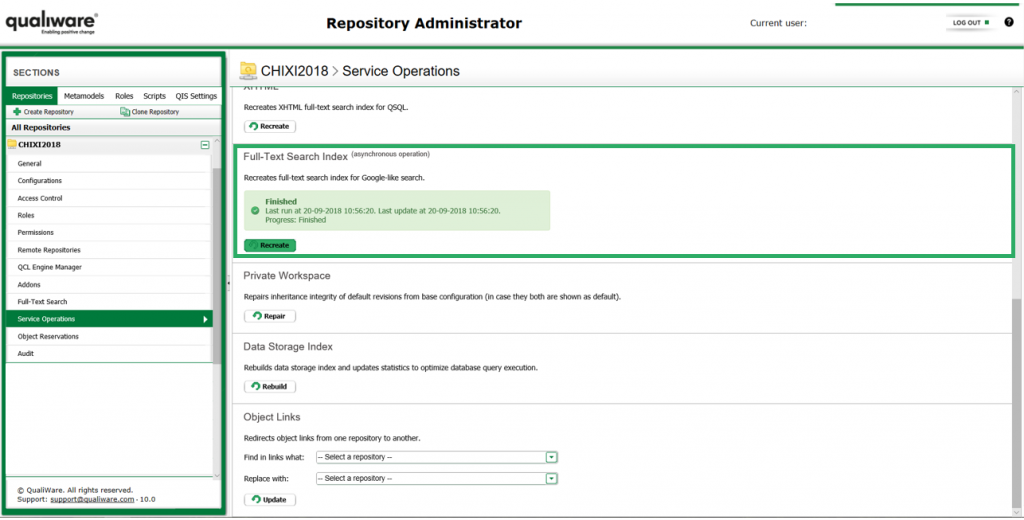
In Repository Administrator, you need to index the repository. This is done under “Service Operations” where you click on “Recreate” under “Full-Text Search Index”. Here you can also see when the repository was last indexed:

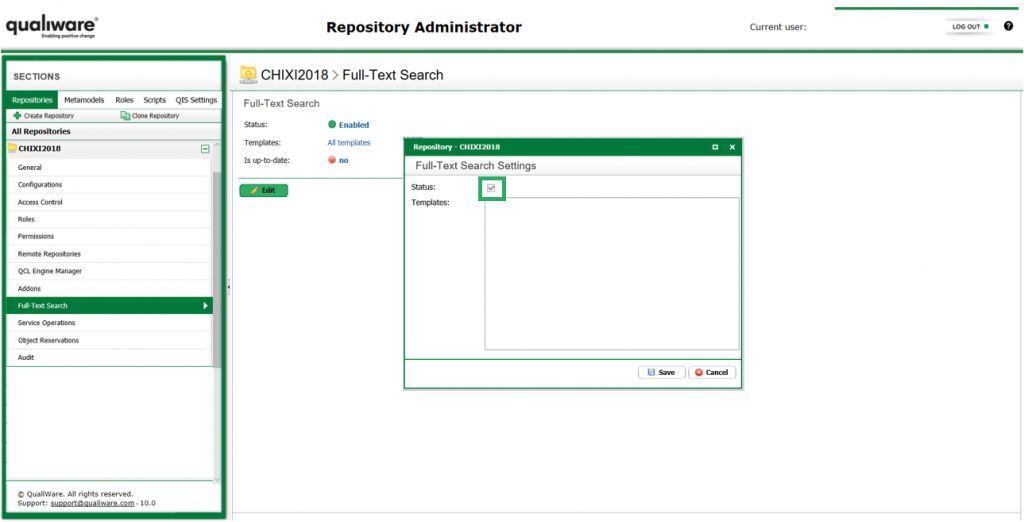
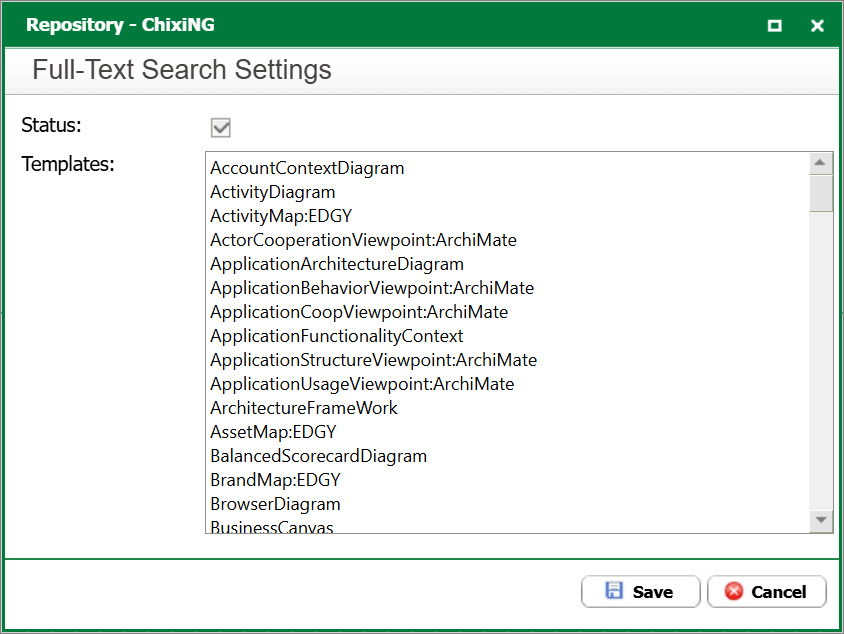
You also need to enable the Full-Text Search. This is done under “Full-Text Search” for the Repository. Here you need to check the Status box, which can be accessed by pressing “Edit” (se the picture below). If the Full-Text Search is marked as not up-to-date, it means that you need to index the repository. Note that the repository must be offline when you implement these changes.

Note: As default all templates are included in the search. It is recommeded to specify the templates that should be in scope for the search.

To set this up the users must be disconnected, and the configuration set off-line. The specific templates to search must be stated in plain text and the right spelling must be achieved.
After setting the templates then the status must be activated.
Recommendation: Include the needed templates and exclude the rest … this will help finding the right hits

Example of a Full-Text Search with all templates.

Example of a Full-Text Search with specific list of templates.

Intelligent Collaboration Platform

QualiWare Workspace

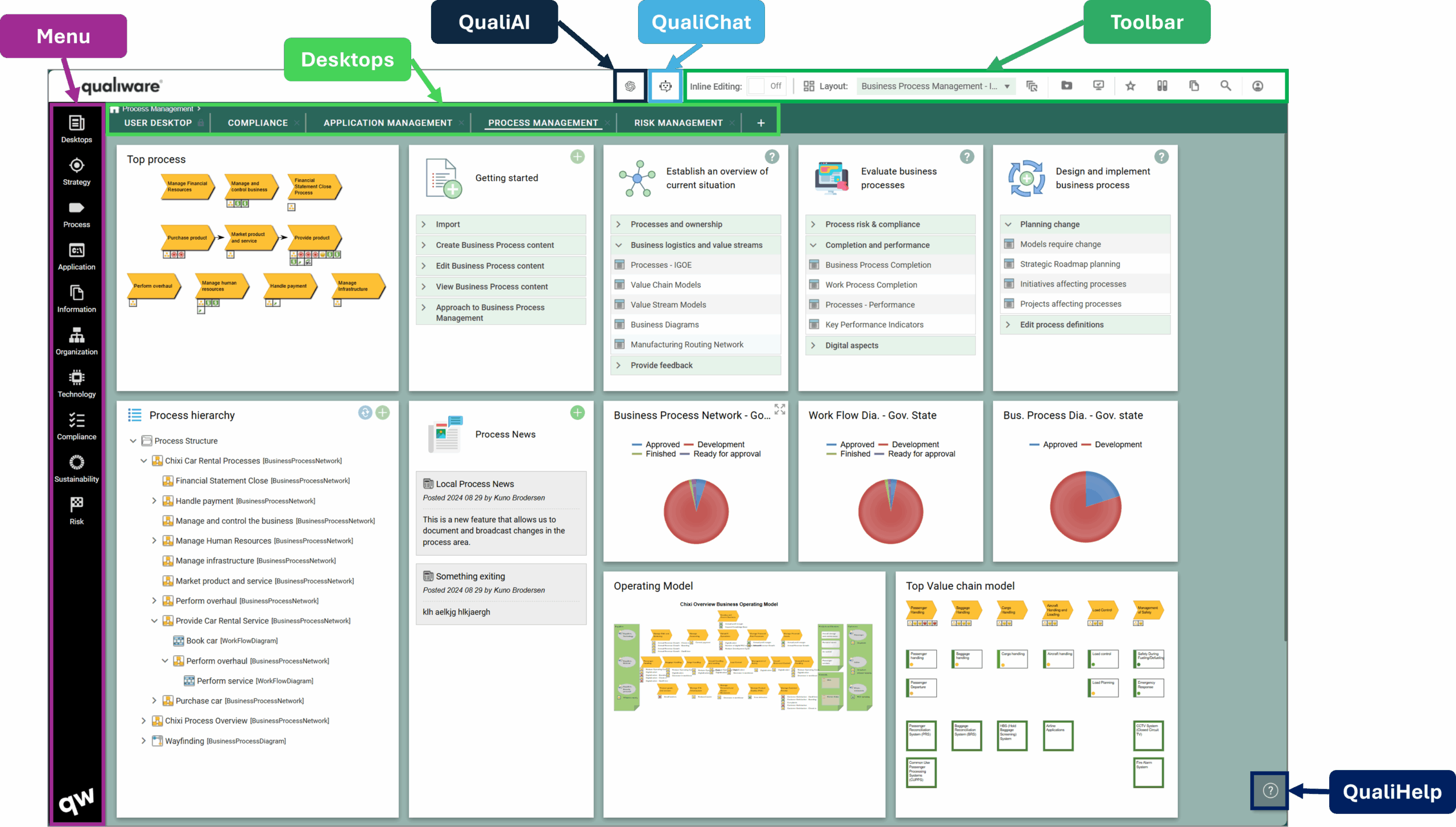
The QualiWare workspace is a collaboration platform, composed of one or more desktops, a left menu and toolbar.

The workspace is role-based, and configurable, so the relevant menus and desktops can be made available for a certain user role, and tiles are dynamically updated to user-specific content.

Collaboration Platform in QualiWare X (From Version 10.10)

Collaboration Platform in QualiWare X (before version 10.10)

Desktop(s)

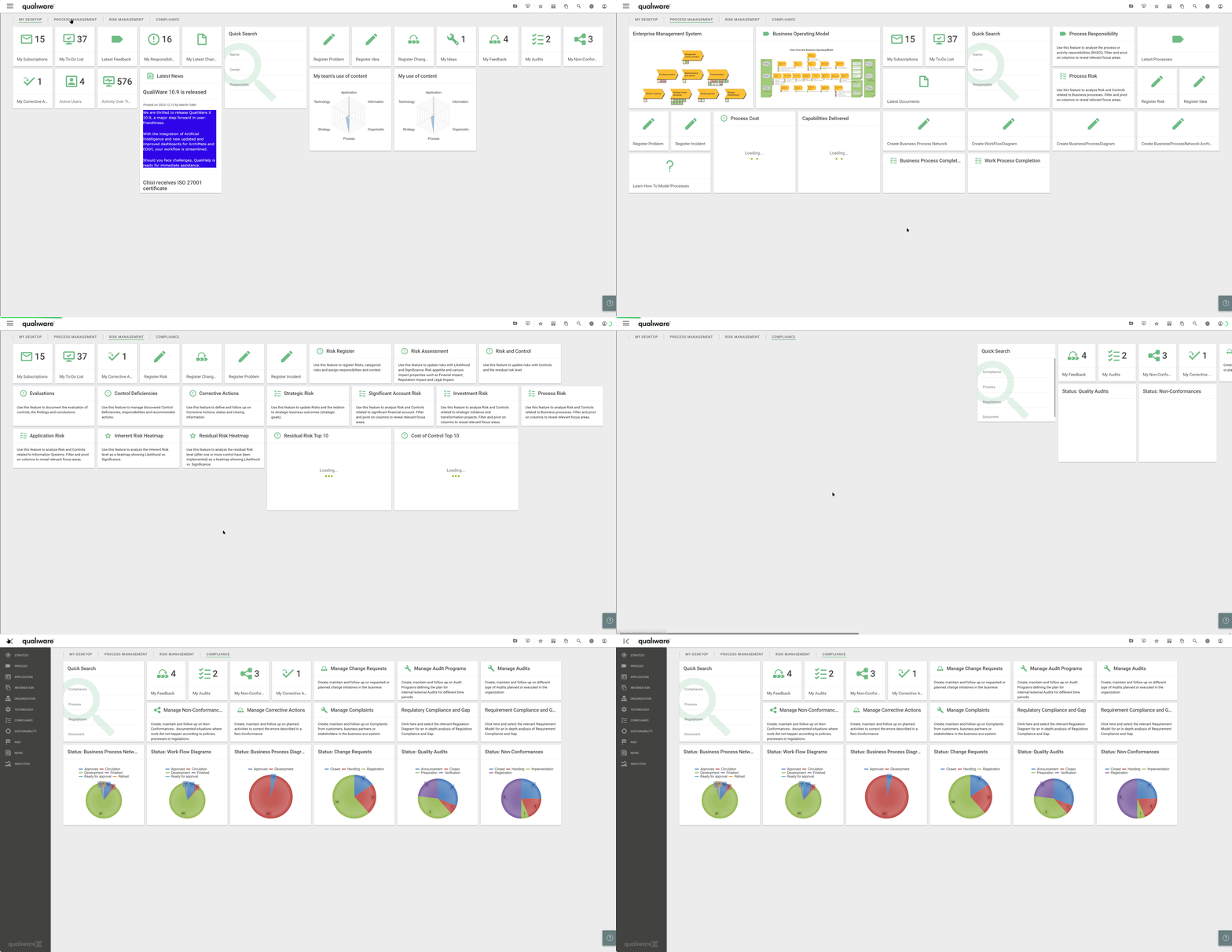
It is possible to create multiple Desktops. Each desktop can have a different focus e.g. “My Desktop”, “Process Management” or “Risk Management”. All desktops can be configured for different users and roles, i.e. both the number of desktops shown as well as the content on each desktop.

The tiles on a desktop provides access to further details and actions, including links to:

  • diagrams workspace
  • lists and queries
  • actions buttons to create new diagrams or objects
  • tiles with the users “To-Dos” or other user-specific content

Diagram Workspace – Multiple Layout

It is possible to create multiple layouts for a Diagram workspace:

  • The classic diagram workspace layout introduced in QualiWare X
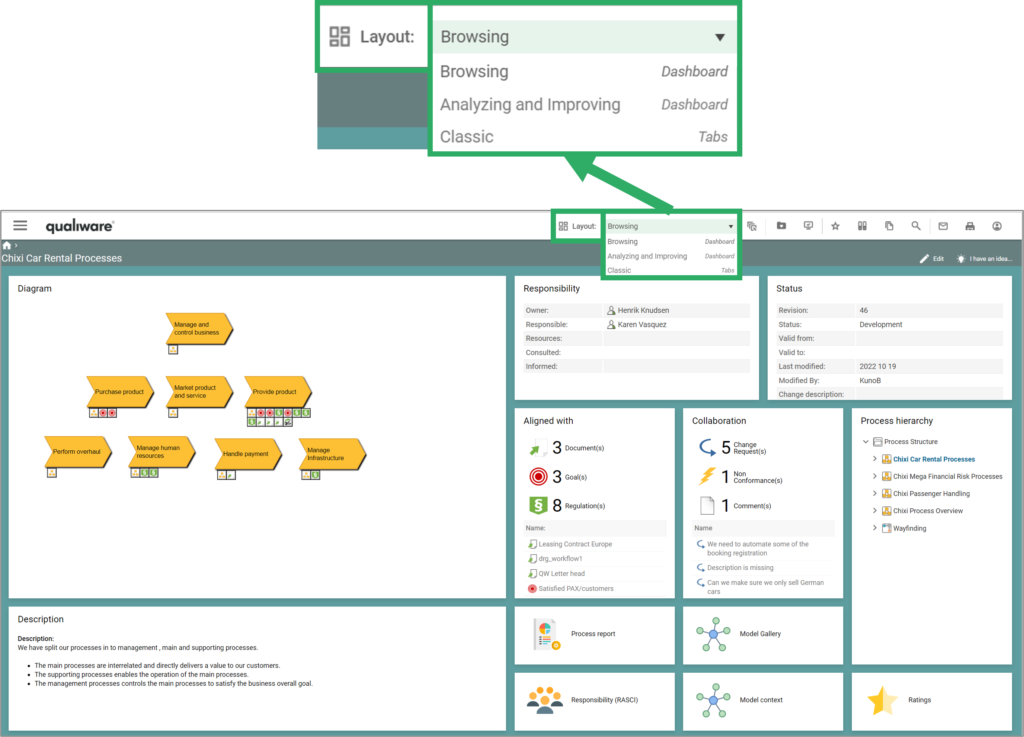
  • From QualiWare 10.8 it is possible to create multiple Dashboard views for a template. Each dashboard can have a different focus e.g. “Browsing” or “Analyze and improve”.

You can configure which layouts should be available for the different diagram/template types.

Diagram Workspace – Classic Layout

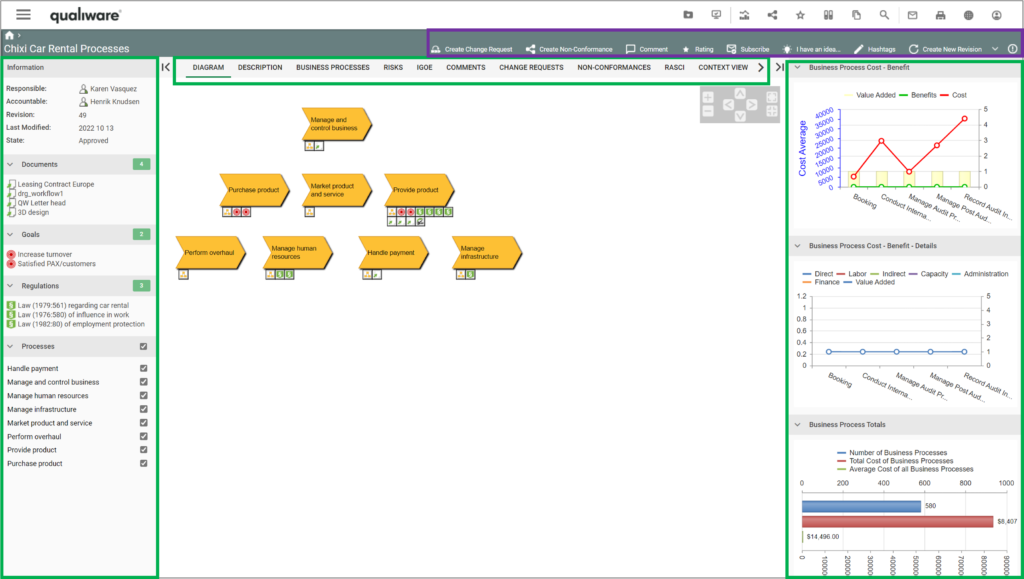
The “Classic” Diagram Workspace includes a:

  1. Left window (collapsible) with information about the diagram and content related to the diagram
  2. Center tabs with specific diagram information, analytics and editing capabilities
  3. Right window (collapsible) with Business information charts

In the top right you can find diagram specific actions (governance actions and features). These enables the user to give input to the content (Create Change Request, Create Non-Conformance), Comment, Rate, Subscribe, Register an idea, add Hashtag, and being a content owner the user can also edit the diagram/Create a new revision of an approved diagram (Read more about governance workflow here).

Diagram Workspace – New Dashboards Layouts

QualiWare 10.8 introduces a new Dashboard layout with multiple new features:

  • it is possible to set up multiple layouts for a diagram type
  • the dashboards can be customized by the user
  • the content is responsive, showing associated data either for the diagram as a whole or for the selected object
  • a set of new tiles have been added to provide easy access to associated features, well known as well as cool new features

Left Menu

From the Menu in the left a user can access to comprehensive set of standard queries.

The standard menu is structured around the enterprise architecture dimensions and other focus areas, and be unfolded to 3 levels.

As with everything else, the menu can be customised to contain the relevant content.

The menu can be hide/shown by clicking the icon in the top left corner.

See example of the content of the Risk Menu here.
Toolbar with action buttons

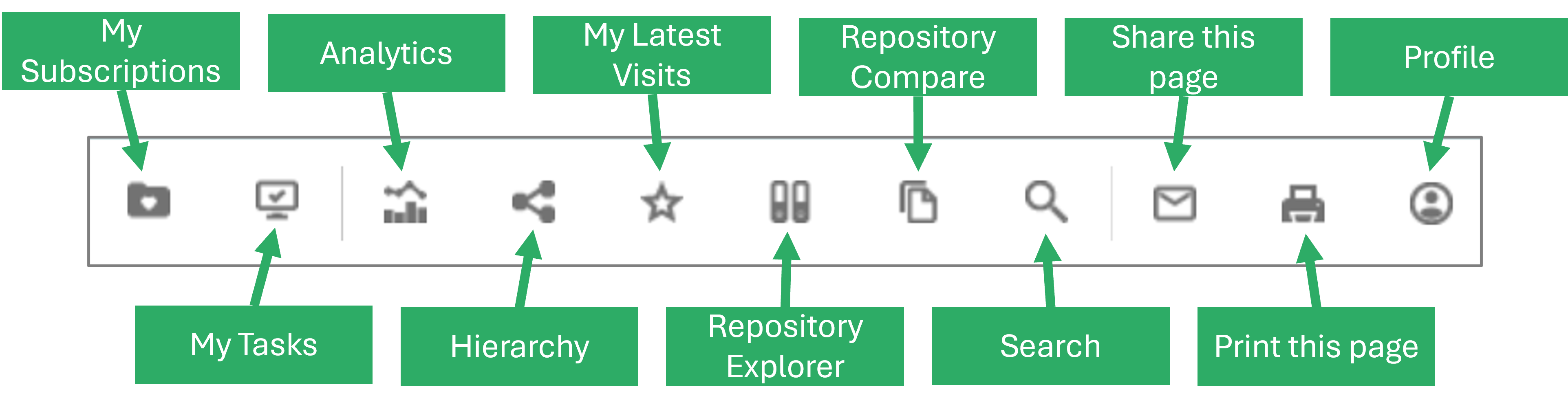
The toolbar on the upper right side gives you immediate access to your subscription, tasks and other features such as access to your latest visits, repository explorer, repository compare and repository search.

If you are viewing a specific object such as a diagram, the toolbar will contain links to the print and share functionality.

When viewing a diagram in the classic view you can get access to analytics (Social Behaviour Data on diagrams and models) and hierarchy view in the toolbar.

When dashboard is enabled for a diagram, the toolbar will be extended with dashboard icons and features (layout and customization). On the other hand, will the icons for analytics and hierarchy not be available in the toolbar, when you are in a dashboard view, these features (hierarchy view & social behaviour chart) are/can be included as tiles in the Dashboards.

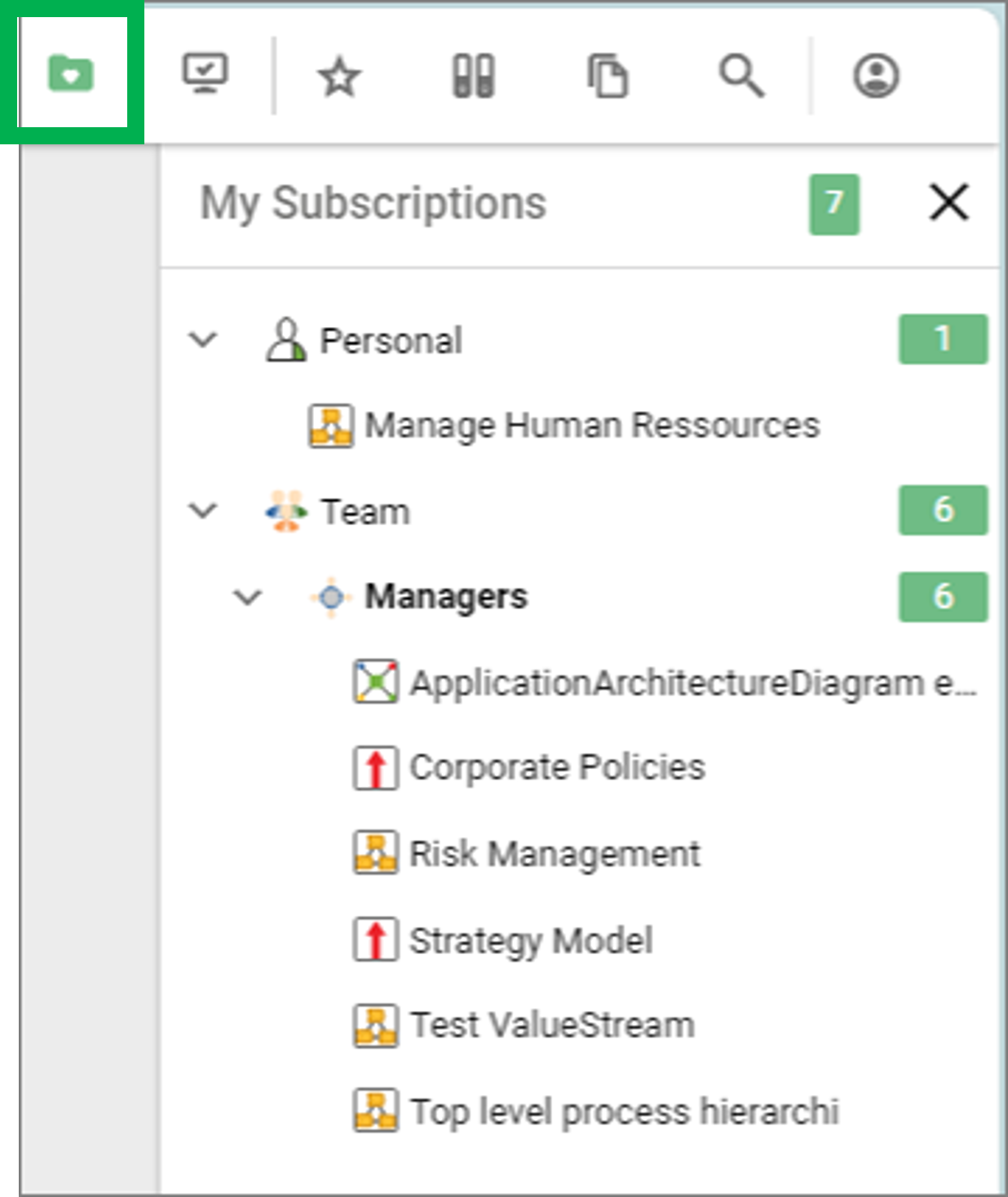
My Subsriptions

The subscriptions can be managed by the organization and/or on an individual level.

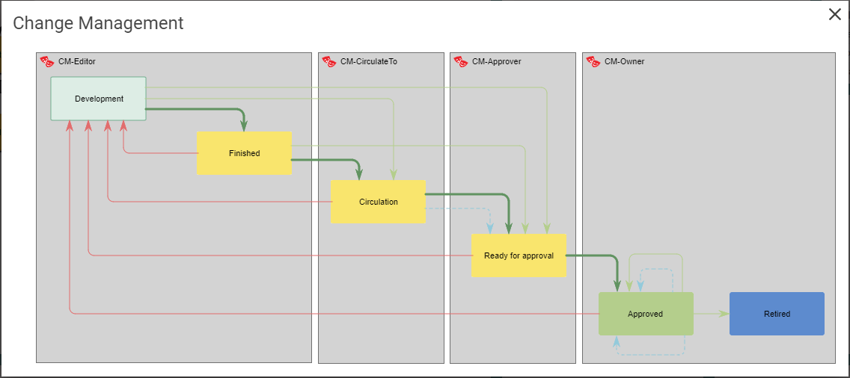
Users can subscribe to specific content. As standard the “Subscribe” actionbuttom is part of the change management governanceworkflow for approved content (this can be configured).

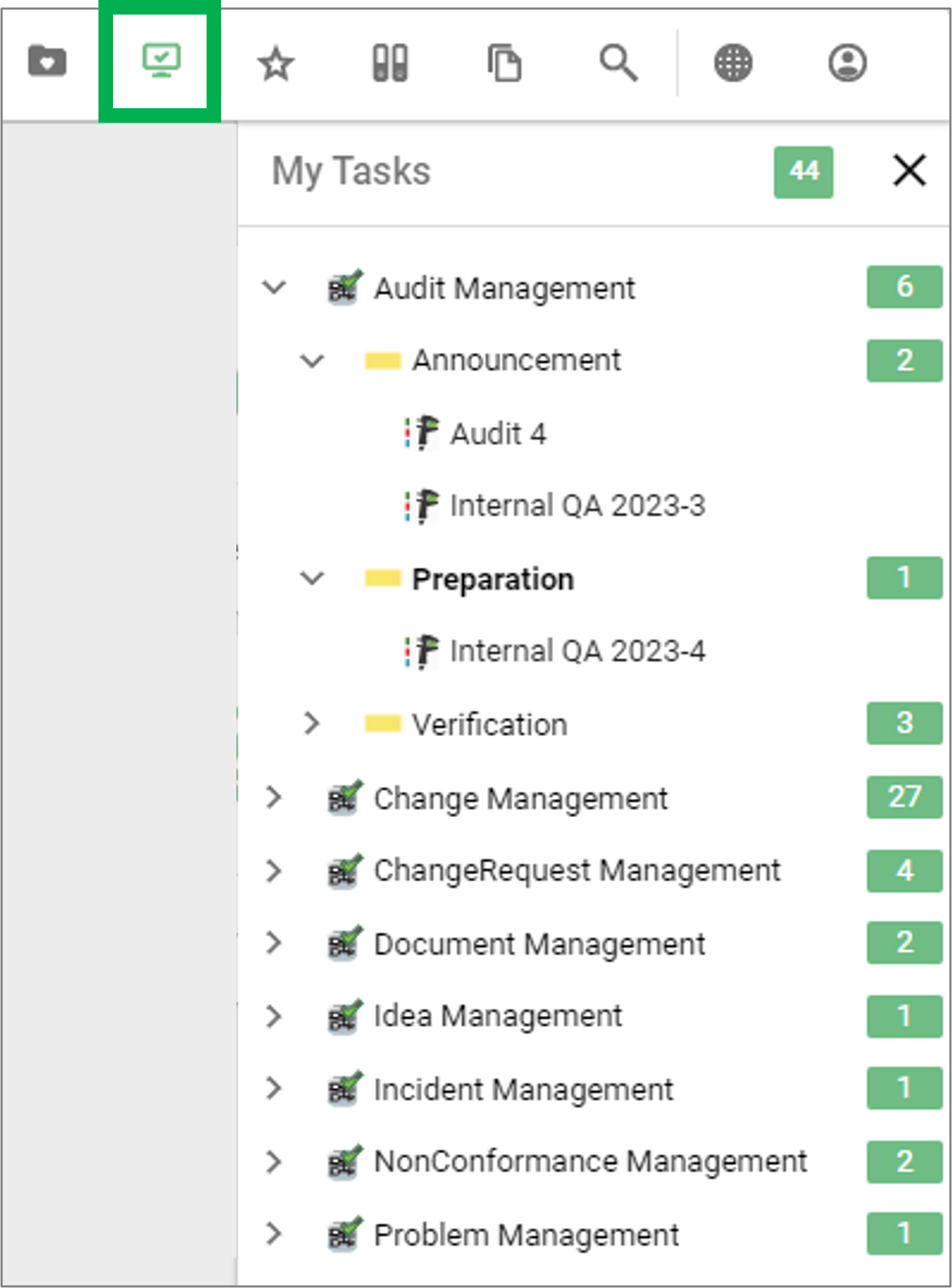
My Tasks

The tasks list is order by the underlying governanceworkflow, and the governancestates within the flow.

The task list contains the same objects as on the “To Do list” on a desktop. Where as this list is organized by governance flow and state, the To Do list contains a description of the required actions that is associated with the governance task.

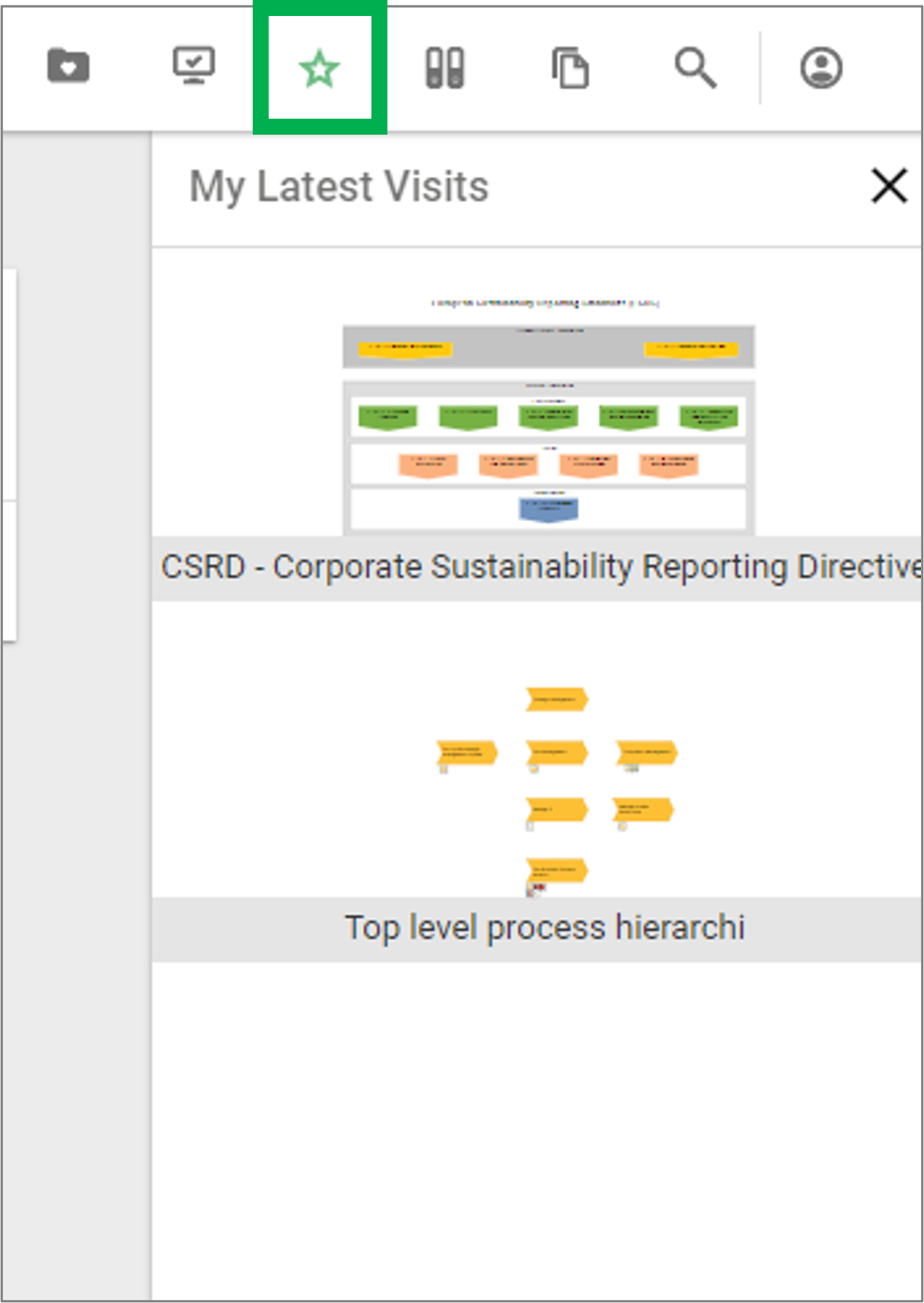
My Latest Visits shows a list of the most recent diagrams visited by the user.

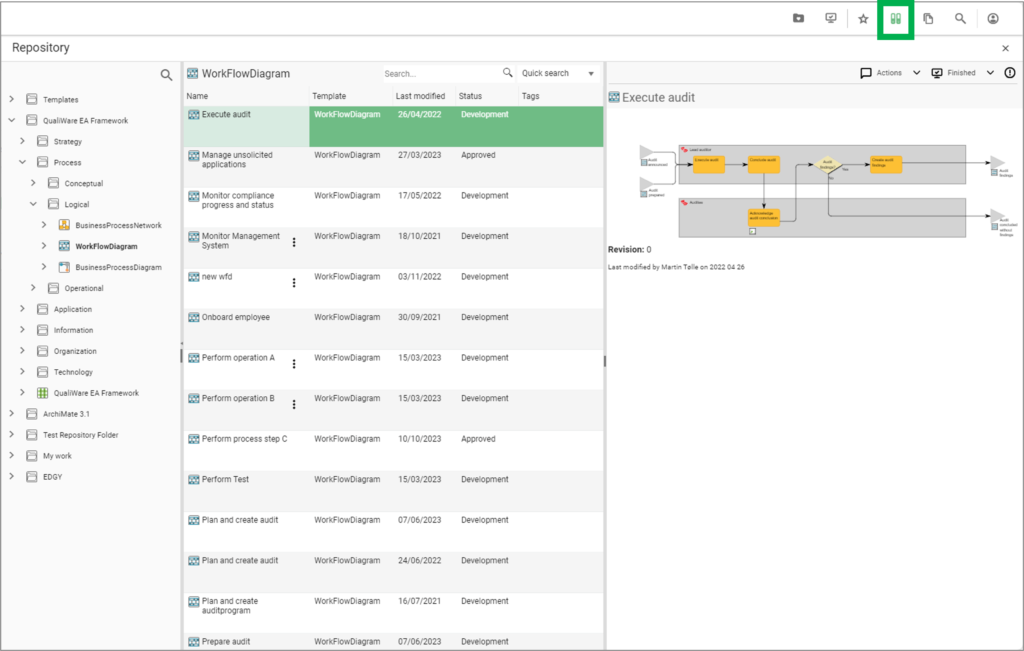
Repository Explorer

The feature enables you to explore and search content in the repository. In addition, the repository explorer provides easy access a whole set off options from the content menu including edit, collaboration, visualizations, and explore relations to the object.

Learn more about how Repository Explorer works and how you can use it.

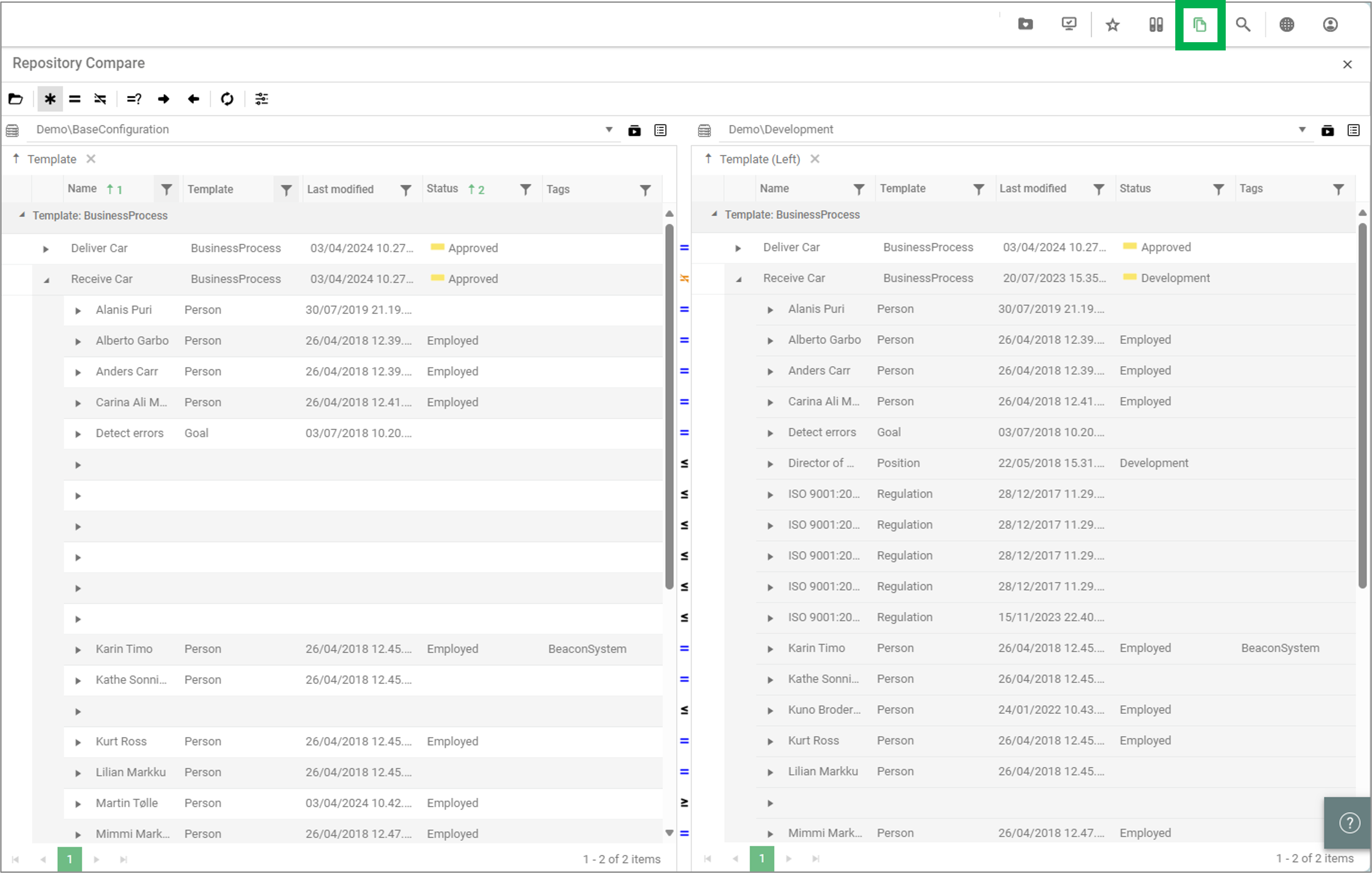
Repository Compare

The feature enables you to open a repository explorer for two different repositories at the same time, compare their content and copy content from one repository or configuration to another.

Learn more about how Repository Compare works and how you can use it.

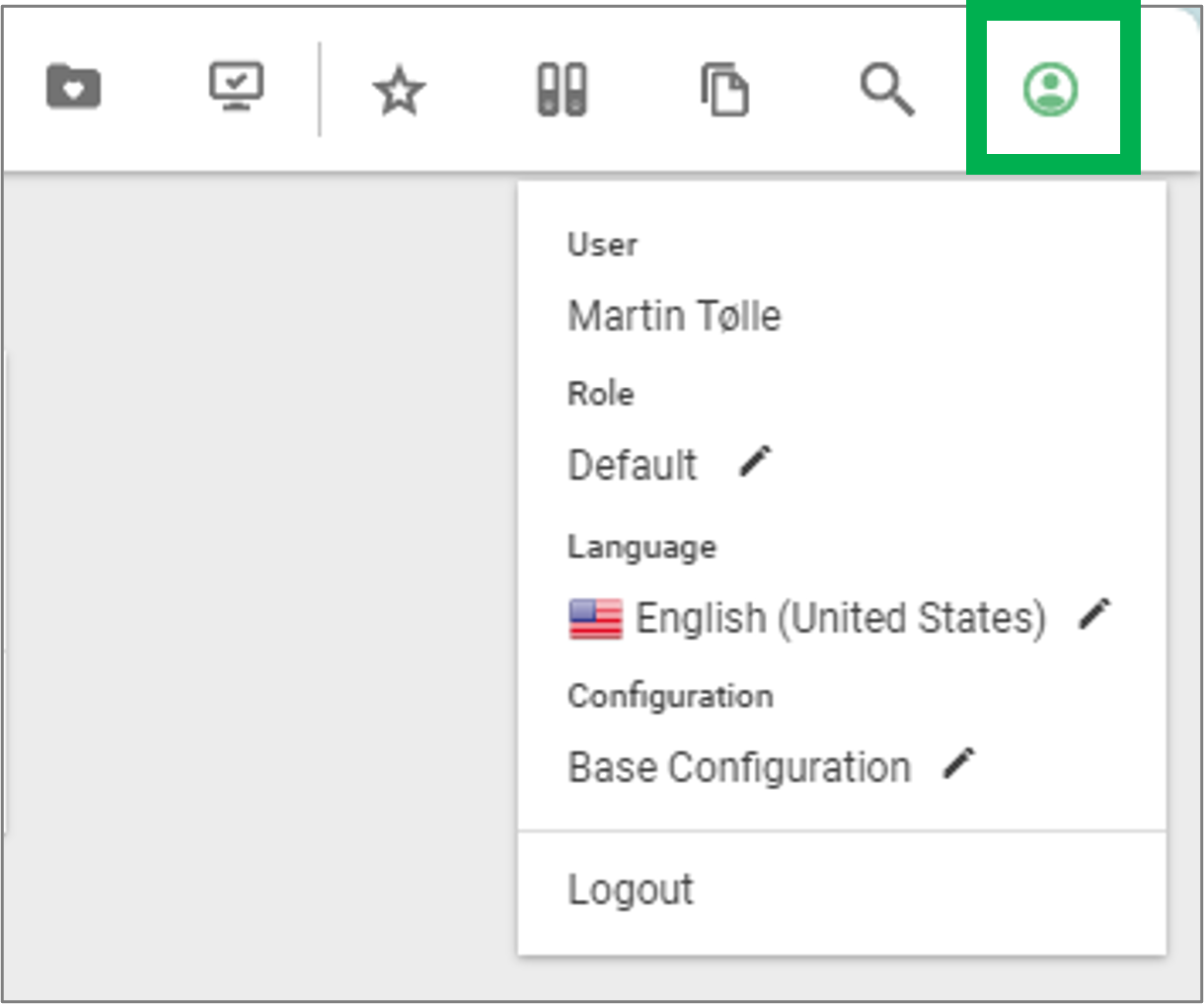
Profile

The button in the toolbar presents a drop-down menu where you can see your username and shift between roles, configurations and languages. If you remove the profile custom button from the HTMLPublisher, your profile name will appear in the left-hand side and the configuration and language buttons will be shown in the upper right-hand side. If you have the profile button and add any other custom button, they will be added to the profile drop-down menu.
Video Highlights

Governance Tasks

Folding Panels

Profile Button

Subscriptions

Tiles

The tiles can also be configured, you can specify size and colors for the tiles and the color of the text will be either black or white to match the color of the tile.

In addition to the standard tiles that are well-known from previous versions of QualiWare several new tiles have been added:

  • My To-Do List list all the Governance Tasks for the user
  • The tile named “Help” opens the QualiWare Center of Excellence website
  • Active Users shows the number of active users both on the web and in QLM
  • Activity shows the amount of reads and changes in the repository within the last 10 minutes
  • My Ideas combines the change requests and ideas in one tile

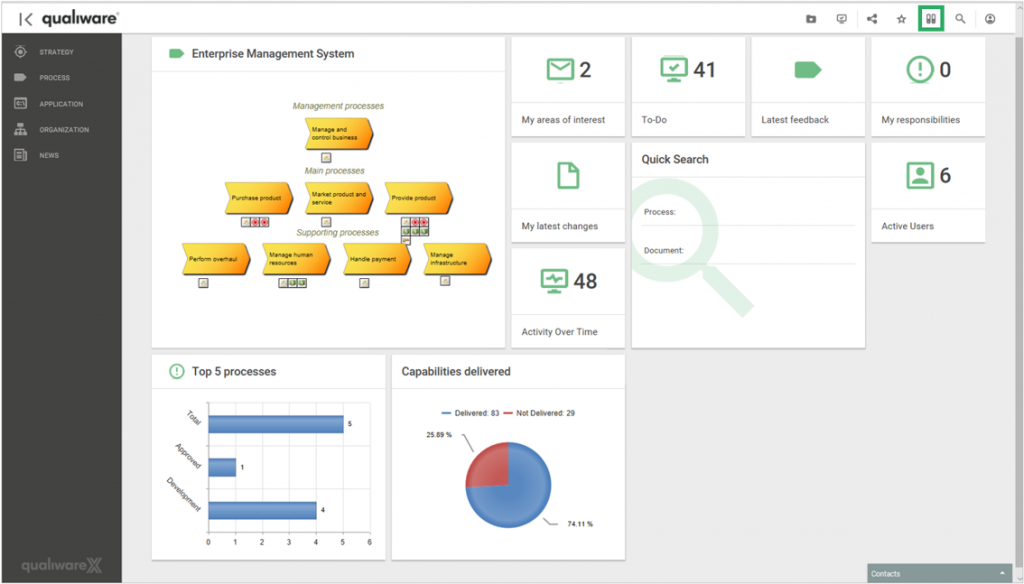
You can now also view dynamic charts on your personal front page via tiles. An example of dynamic charts in QualiWare X could be:

  • Top 5 processes: an dynamic overview of the governance states of the top five processes. The data for the chart is collected from the users use of the QualiWare platform and the chart will change in real time.
  • Capabilities delivered: an overview of the ratio between delivered and not delivered capabilities. The data can for example be collected from measurements from KPI’s.

To learn more about QualiWare X’ Dynamic Operational Information monitoring, click here

Configuring the Workspace

All workspace content can be configured, for the organization and the different user roles:

  • Available desktops and content (tiles) on the desktop(s) (using the HTMLDesktops and HTMLTiles)
  • Look and feel for the different template types. For instance, it is possible to add information to both the right and the left side of template definitions (the view you have when you, for example, look at a diagram), or use the HTMLDashboards for the Dashboards view of a diagram.
  • Content in the leftmenu (use the HTMLMegaMenu, to configure it)

The look and feel of the collaboration platform can be configured via the HTMLPublisher.

Read more about configuring the web here.

Template Definitions

In the Template Definitions, you can specify the appearance and layout of a template-type (e.g. a Process-diagram), including if it should apply the classic view and/or the new dashboard layout.

For the Classic diagram workspace, you can specify the content for both the right and the left side, as well as add tabs in the center . You can choose if the content at the sides should be shown when the page is opened, or if they should be collapsed as default.

If you have a small screen, the tabs (on the right and left side) will automatically collapse so you have more space to read the main content – they can of course be expanded again.

Repository Compare

The Repository Compare functionality has the potential to aid all types of users. Quality Managers can for example promote the right subsets of their work from a project repository to the base configuration – thus ensuring that all of the Quality Team’s work has been considered. Project Managers on the other hand can use this feature to re-use information from other projects in their project repository, thus decreasing the need for re-work.

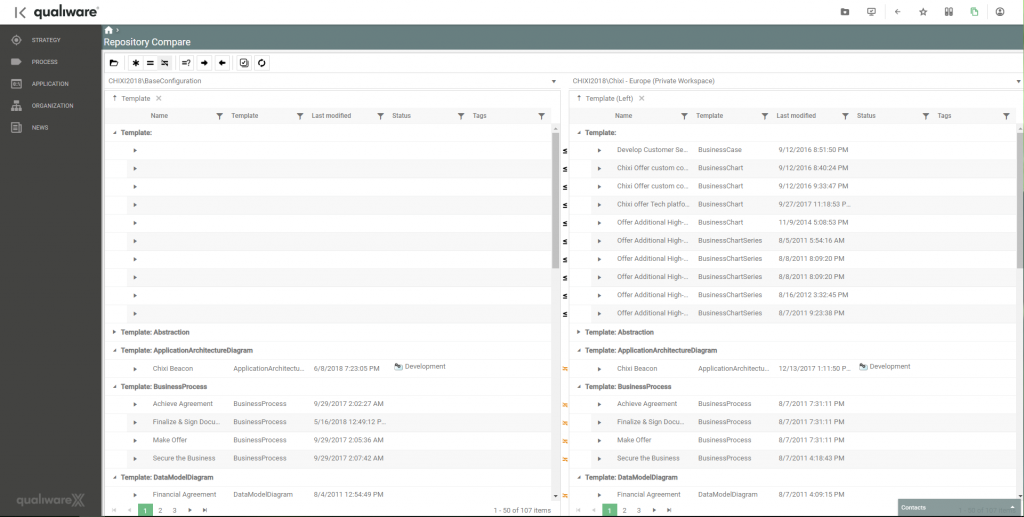
The Repository Compare feature enables you to open a repository explorer for two different repositories at the same time, with a column in the middle to show whether the content is alike or not. Thus differences between different configurations and/or repositories can easily be analyzed – for example between a private workspace and its base or different project repositories on the same QualiWare Integration Server.

For convenience the compare functionality is available from the Repository Explorer on the web front-end.

Video Highlight

Repository Compare

Using the Repository Compare Feature

When on the web front-end click on the Repository Explorer button in the upper right corner. This makes the Repository Compare button available.

Once clicked the Repository Compare feature will open and enable you to select two different repositories and/or configurations from the drop-down menus.

As soon as both repositories have loaded the column in the center will display any differences between the two repositories.

3 different types of signs are used to display the difference between the two repositories:

  •  The repository on the right contains an object that is not present in the location on the left
  •  The repository on the left contains an object that is not present in the location on the right
  •  Both repositories contain the same object, but the properties of the object differ across the two locations
  •  Both repositories contain the same object and the properties of the object are consistent across the two locations

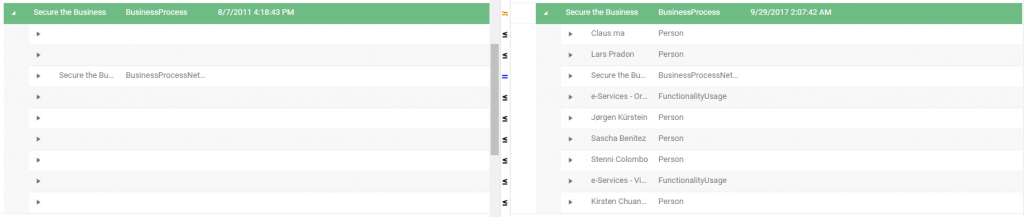
For a better overview it is possible to toggle the desired comparison options to be shown via the toolbar.

The first option shows all objects. The second option shows only objects that are alike across the two repositories. The third option shows only the objects that are different across the two repositories.

If there is a difference in the properties of an object across the two locations the property difference can be analyzed by clicking on the drop-down arrow to display the difference.

The contents can then be copied either from the left location to the right or vice versa.

Added in QualiWare 10.1

Use tasks to schedule replication between repositories
Use the new “shopping cart” functionality to create lists of repository objects. If no lists exist, click in the top of the Repository Compare and click Create.
To add repository objects to a list, select one or more objects, right click on the object. Under the “Add to list” available lists will be shown. Select the list where objects should be added.

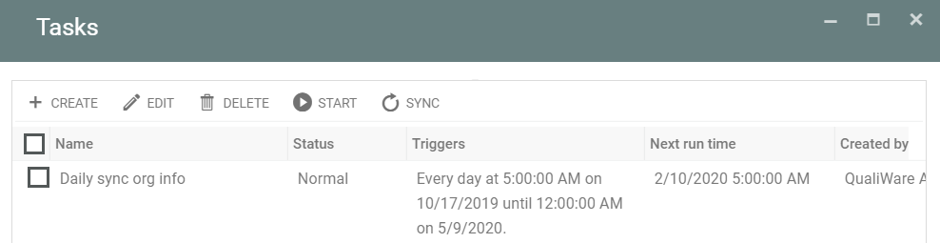
A new task scheduler enables a timer-based trigger to copy a list of objects from one repository to another. To access the task scheduler, press the “Tasks” button at the top of the object list
This will open the task schedule overview:

A Task contains:

  • Trigger: The trigger is the timer triggering the task. This can be defined as one time, minute, hour, day, week, month and year.
  • Action: The action contains the sources, destinations and lists. The Source and destination are lists of repositories with configuration/private workspace, role and language specified. The list is a selection of lists to be copied.

When adding a new source or destination it is possible to add a new QEF instance. This new feature provides the ability to copy lists between QualiWare installations.

Folders and Hashtags

Folders and hashtags, make it easier for users to find the content they are looking for. Folders and hashtags, enable you to find content in the same way as you do on social media. You can organize content according to many different views together with people you don’t know.

  • Hashtags are markers that can be attached to any object regardless if it is frozen. They can be added to an object from either QLM or the web.
  • Folders offer access to specific groupings of objects, making objects easily accessible to the relevant stakeholders. The groupings can be based on dynamic search criteria, for example showing objects the viewer has created, or pointing to a set of objects that satisfy the criteria specified for that folder.

By using hashtags and folders, you can structure and organize content in QualiWare targeting specific users or user groups.

Video Highlight

Hashtags

Hashtags

You can edit the hashtags for objects in both QLM and on the web. The hashtags can be added and removed from objects regardless if the objects are approved or in development.

From the web, you edit the hashtags for a diagram by clicking the “Hashtags” icon in the diagram’s toolbar:

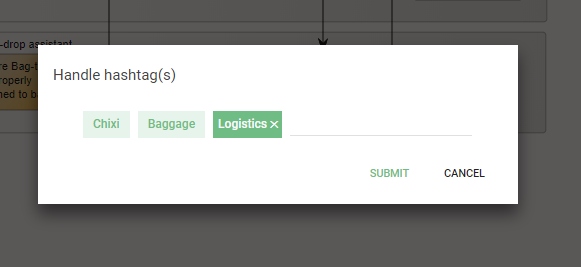
When clicking the hashtags icon, a dialog will appear where you can add new hashtags by typing them and choosing submit. You can also remove hashtags. When you hover your curser over the hashtags an X will appear. If you click on the X, that hashtag will be removed from the diagram. To save the changes, close the dialog by clicking “Submit”:

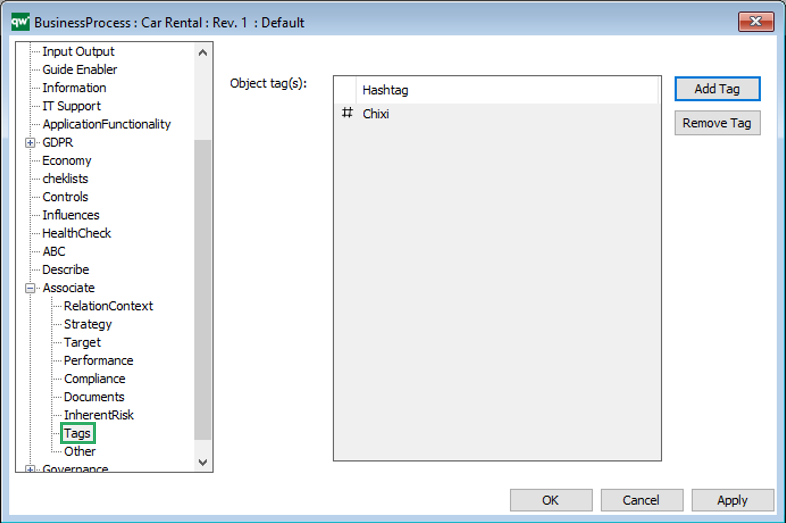
In QLM, hashtags are added and removed from the objects property dialog in the “Tags” tab

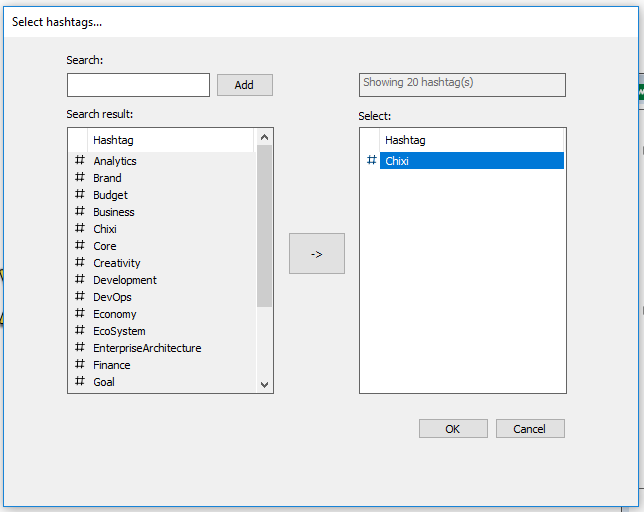
When pressing on ‘Add Tag’ you get to ad either an existing tag or create a new tag:

There will be an organization of your content into the groups where it belongs – just because you add the hashtags. Once you have added hashtags to objects in QualiWare, they can easily be linked to corresponding folders. This means that stakeholder specific views now can become easily available.

Folders

Folders offer access to specific groupings of objects, making objects easily accessible to the relevant stakeholders. The template name for folders in QualiWare is “RepositoryFolder”.

The folders all point to a logical set of objects in the repository, meaning a folder points to a set of objects that satisfy the criteria specified for that folder. As such, an object may be present in multiple folders, but only exist as a single object in the repository.

By creating standard setup structures in the folders, you can replicate the structure of the business that people work. This means, that if people are familiar with the organizational structure, they can easily find the relevant content under their department. If they are more familiar with the product structure, they can find the same content under the product names, partner names and so on.

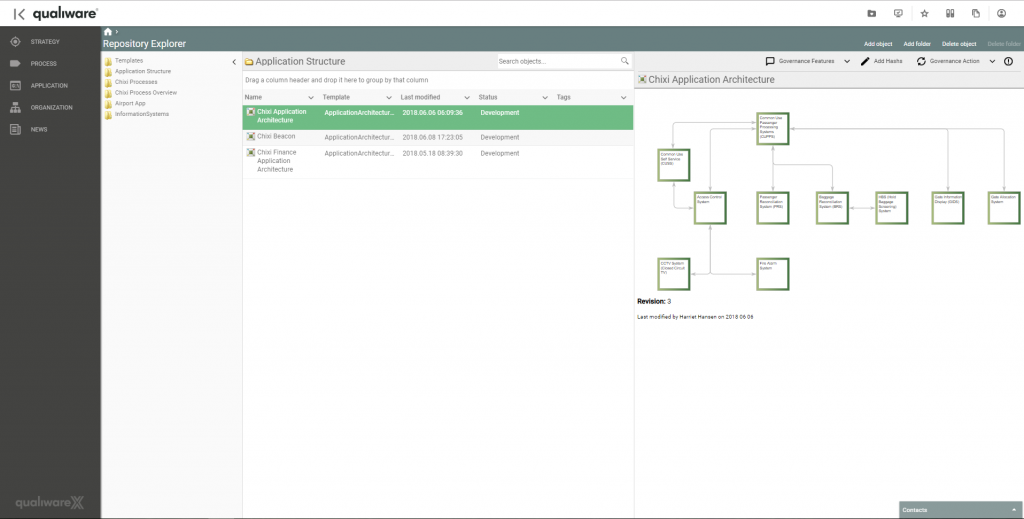
On the web, you can find the folders in the Repository Explorer menu, which can be navigated to via the new tool bar:

Here you can create new folders and edit existing ones by using the tool menu. This is also where you can browse selected template types for easy access.

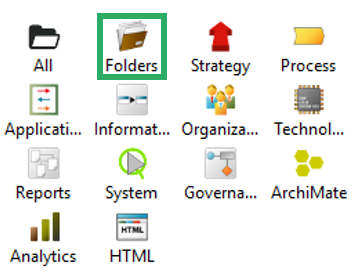
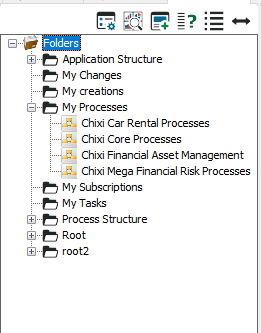
In QLM, the folders can be accessed and edited in the repository explorer by clicking on the folders icon in the repository views (see picture below). This will prompt a list of folders to pop up in the repository explorer.

When you expand a folder by clicking on the plus on its left, content and sub-folders are shown. There may be several folders within the folders.

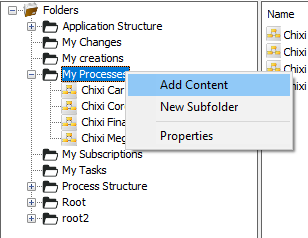
When right-clicking on a folder, you can choose to add content to it, add a new sub-folder or open the properties for the folder.

There are four tabs in the properties of the folders you can edit:

  • RepositoryFolder: here you can add a short description, include objects based on tags, exclude objects based on tags, and define the folder as a root folder – meaning the folder is present at the first level of the folder structure.
  • Objects: Here, you can include specific objects or repository folders.
  • Advanced: In this tab, you can include objects based on search conditions or relations.
  • Visibility: In this tab, you can specify which persons and roles the folder should be visible to

For more details see the description of the Repository Folder template

Navigating Revolutions – Book By Book

#DigitalRevolution and #4IR and many other hashtags related to “digital” are trending on social media. Because “digital” is a key concern in enterprises everywhere. We’re facing/undergoing a revolution (digital, industrial,..whatever, but “a revolution“). Digital this, digital that. And, Digital to the Core as Gartner pointed out in their book last year.

So, what to read this year? What’s on your holiday reading list? I will spend my summer reading about “revolution”. 

Did you know that Amazon has more than 150.000 books on “revolution”? So where to start? Hannah Arendt’s classic On Revolution? Or perhaps something more recent?

If you are interested in some “social reading” and want to join a study group, let’s arrange physical and/or virtual meetups! I’d be happy to host meetups – in my garden, at QualiWare in Farum, or in WebEx. So let me know if you’re interested!

My current reading list has the five books listed here below. They’re chosen because they’re recent and relevant.

Andrew Mcafee and Erik Brynjolfsson: Machine, Platform, Crowd: Harnessing the Digital Revolution

We live in strange times. Andrew McAfee and Erik Brynjolfsson know what it takes to master the digital-powered shift: we must rethink the integration of minds and machines, of products and platforms, and of the core and the crowd. The balance now favours the second element of the pair, with massive implications for how we run our companies and live our lives.

Klaus Schwab: The Fourth Industrial Revolution

We are on the brink of the Fourth Industrial Revolution. And this one will be unlike any other in human history. Characterized by new technologies fusing the physical, digital and biological worlds, the Fourth Industrial Revolution will impact all disciplines, economies and industries – and it will do so at an unprecedented rate. In The Fourth Industrial Revolution, Schwab (World Economic Forum) outlines the key technologies driving this revolution, discusses the major impacts on governments, businesses, civil society and individuals, and offers bold ideas for what can be done to shape a better future for all.

Don Tapscott and Alex Tapscott: Blockchain Revolution: How the Technology Behind Bitcoin Is Changing Money, Business and the World

Blockchain is the ingeniously simple technology that powers Bitcoin. But it is much more than that, too. It is a public ledger to which everyone has access, but which no single person controls. It allows for companies and individuals to collaborate with an unprecedented degree of trust and transparency. It is cryptographically secure, but fundamentally open. And soon it will be everywhere.

Patrick Hoverstadt and Lucy Loh: Patterns of Strategy

Patterns of Strategy shows how the strategic fit between organisations drives strategic direction. It is essential reading for those who wish to understand how to manoeuvre their organisation to change its strategic fit to their advantage. The 80 ‘patterns’ of strategy help you explore options for collaboration and competition within your strategic ecosystem. A practical and authoritative guide, you can use it to plan and navigate your strategic future.

Roger Tregear: Reimagining Management

Reimagining Management introduces the concepts of the 7Enablers of BPM and the Tregear Circles as part of a practical framework for the positive and controlled evolution of management practice; an approach to organizational management that focuses on the creation, accumulation, and delivery of value to customers and other stakeholders. Using this book as a guide, it’s time to reimagine management.